

Open in TWICE Admin
orders
Prerequisites
Have ready before you start:
- An order with nothing handed out. Take back anything the customer already has as a return first. See Handle a return.
- Whether the customer has paid, and how much of it to give back.
The walkthrough
1
Open the order
Open Orders and find the order. Check the location selector in the top-left corner first if your account has more than one location, because the table lists only the orders of the location it shows.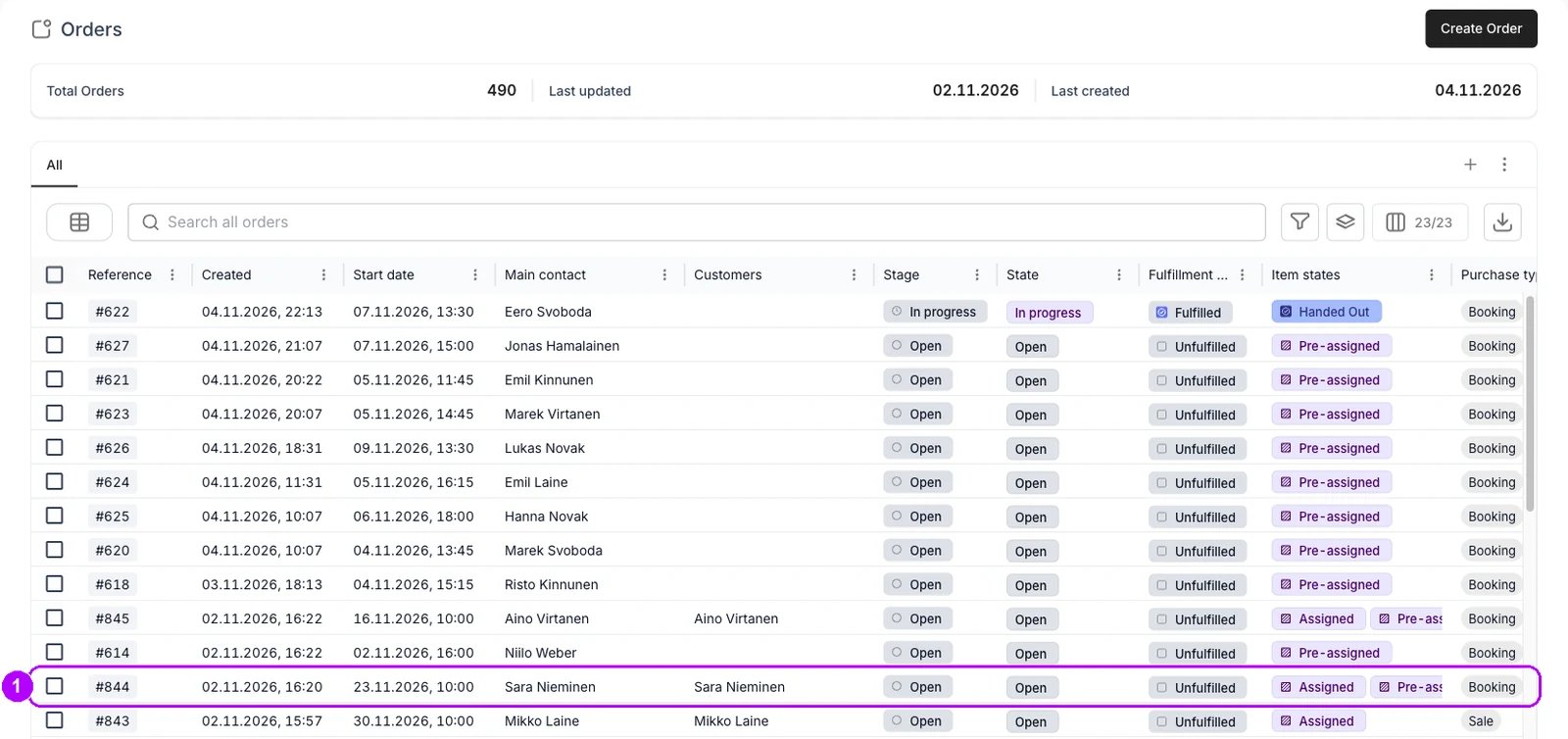
2
Select every line
Select every line on the order’s Summary tab: tick the checkbox in the Line item header at the top of the customer’s card. An order with several customers has a card for each, so tick the header in every card.Buttons appear in the top-right corner of the order.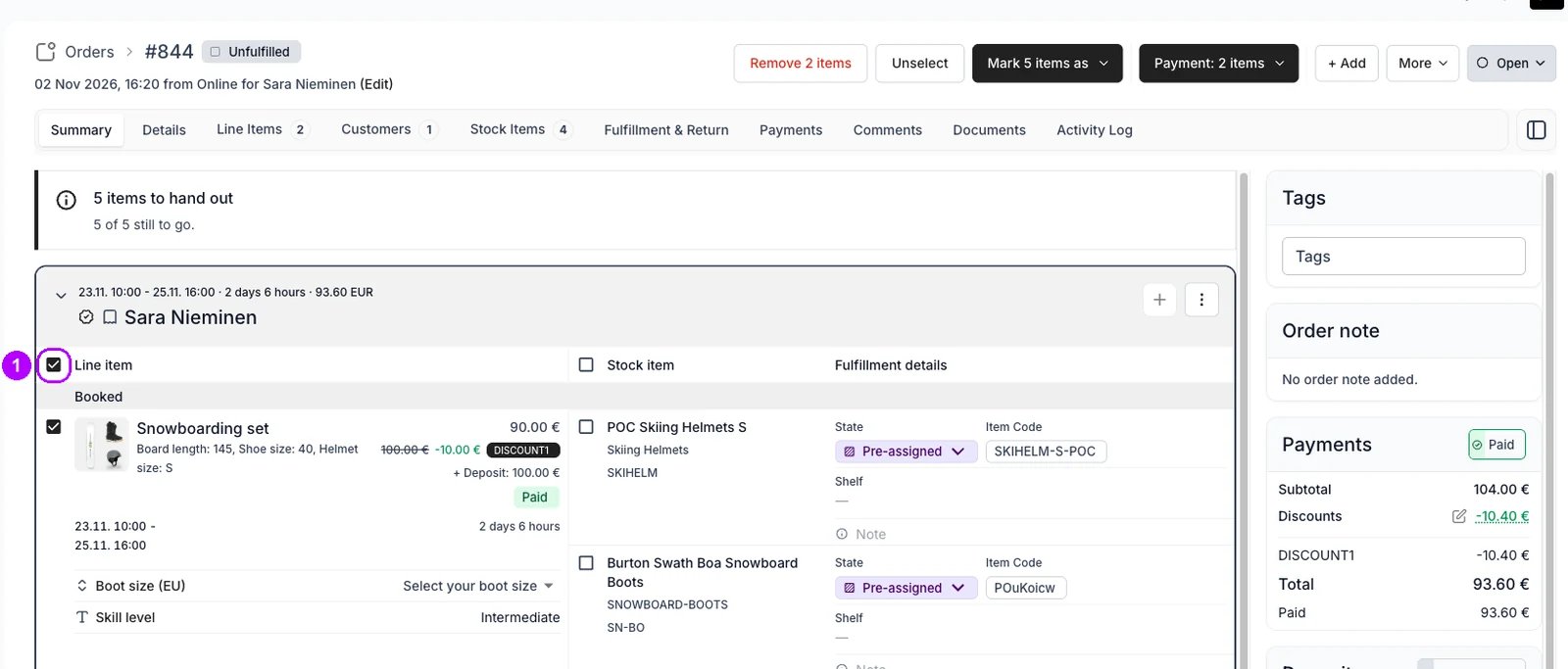
3
Open the Mark menu
Click Mark 2 items as in the top-right corner of the order. The number counts every unit and add-on on the lines you selected. A menu opens with your account’s item states, and More… at the end.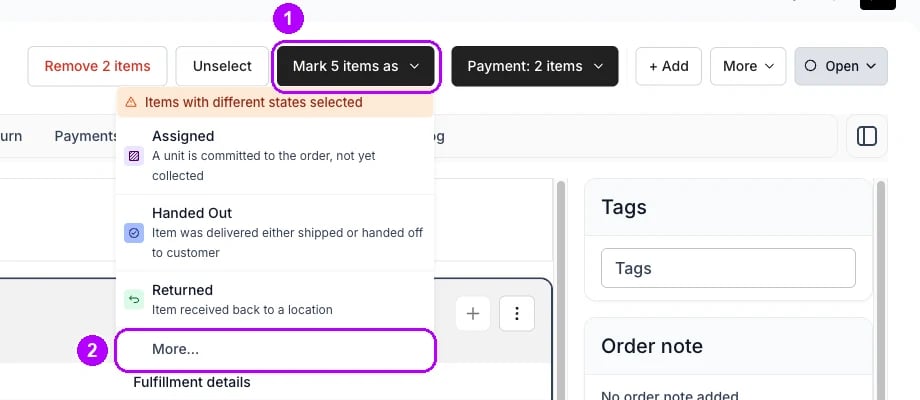
4
Show the other states
Choose More…. The menu stays open and lists the states your account keeps out of the main list, below the others. The excluded state is among them, at the end.Skip this step if your account already lists the excluded state in the main list.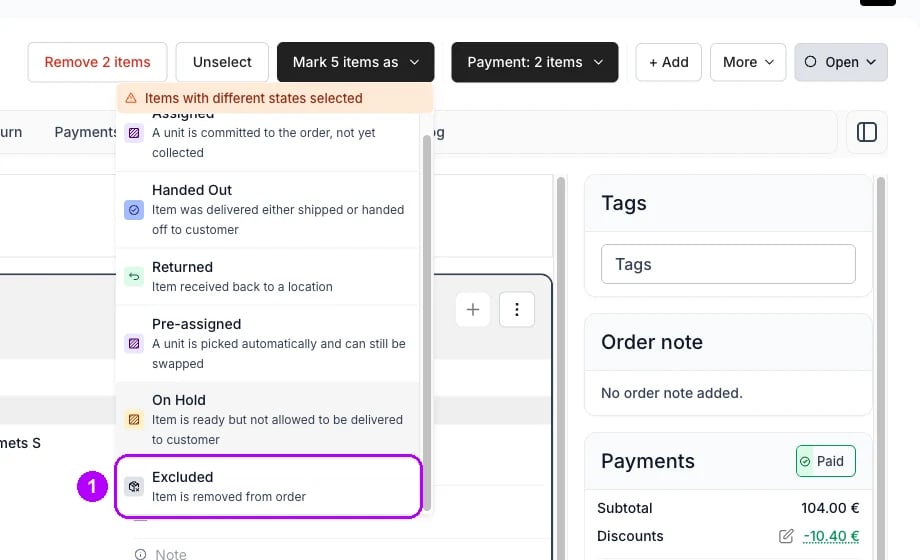
5
Choose the excluded state
Choose the state your account uses to take items off an order: Excluded on a new account. Every selected item moves to it.The items show Excluded, with their names struck through, and their stock items are free for other orders. Their prices stay on the order.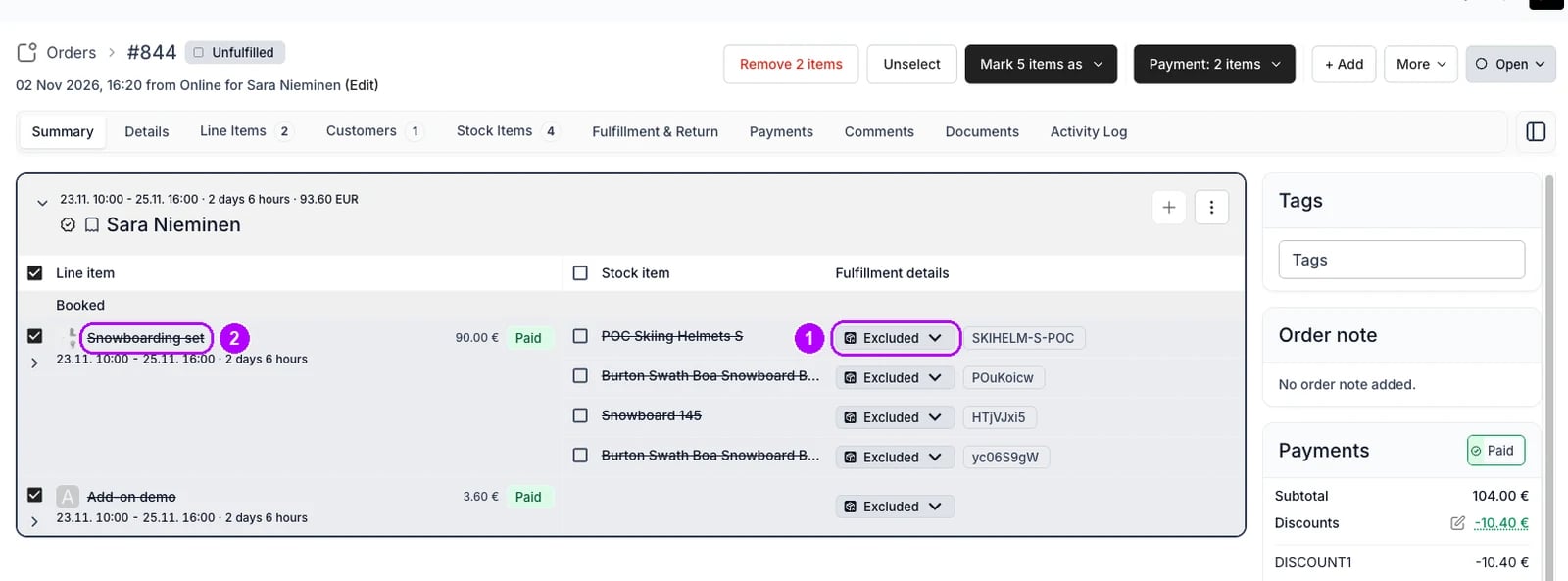
6
Refund the payment
Refund what the customer paid, now, while the order is still open. Open the Payments tab and follow Refund an order. Excluding the items does not refund them.Skip this step if the customer has not paid.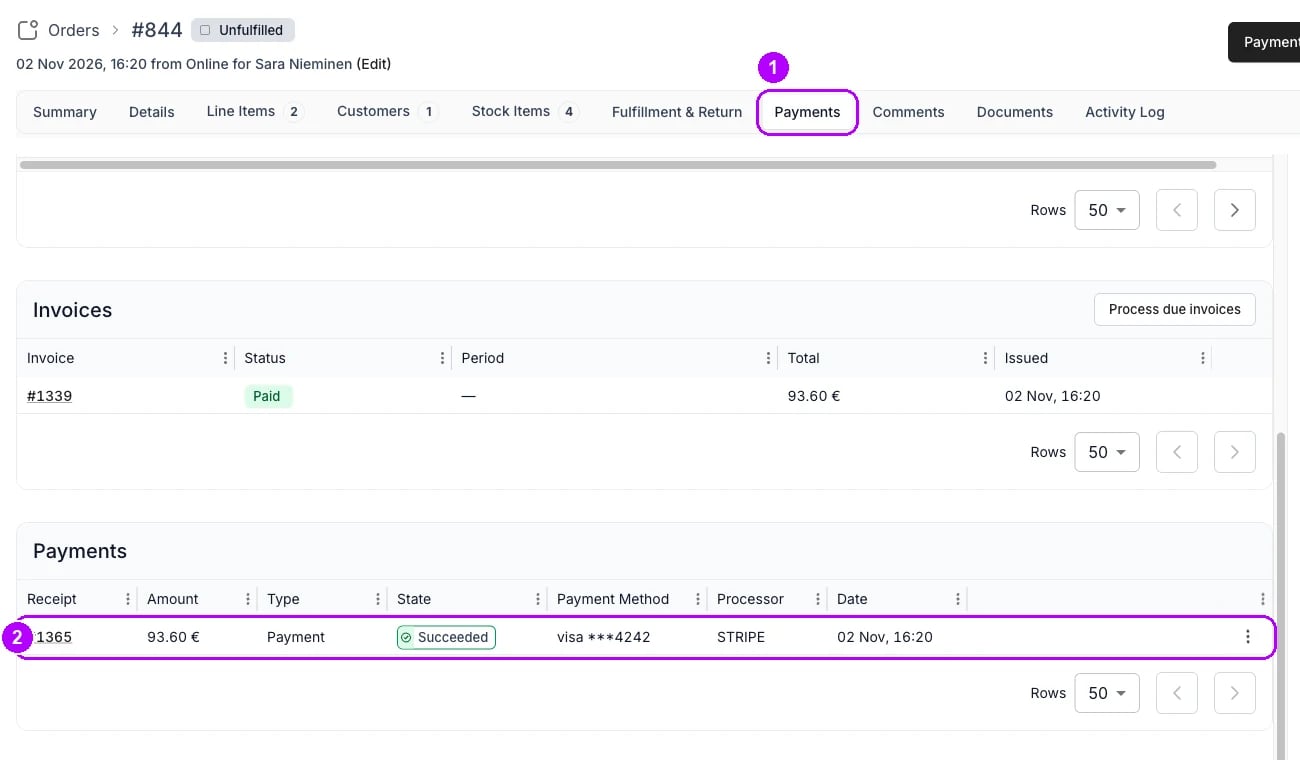
7
Choose Completed
Click the status chip at the far right of the top bar, Open on a new account, and choose Completed. Where your account moves orders with a button instead, open the arrow on the button for the full list.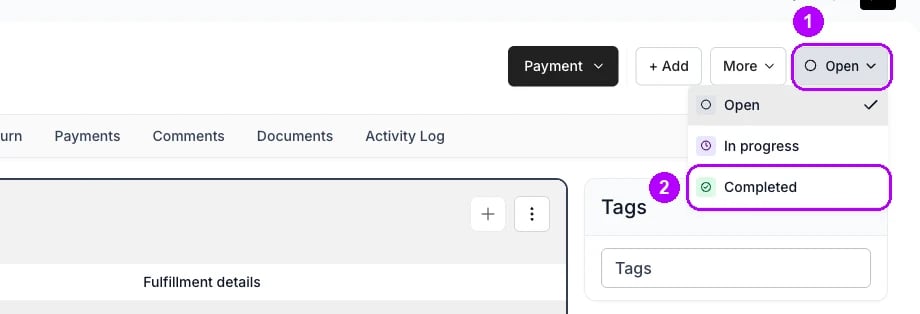
8
Move the order to Completed
Read the Move order to Completed dialog. It lists what closing does, such as checkout links that stop working and the order becoming read-only. Click Move to Completed to close the order.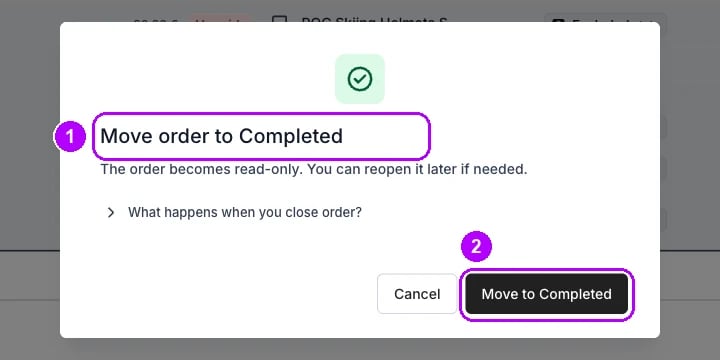
9
Check the closed order
Check the Summary tab. This order is closed shows at the top, the status chip reads Completed, and every item still reads Excluded, struck through.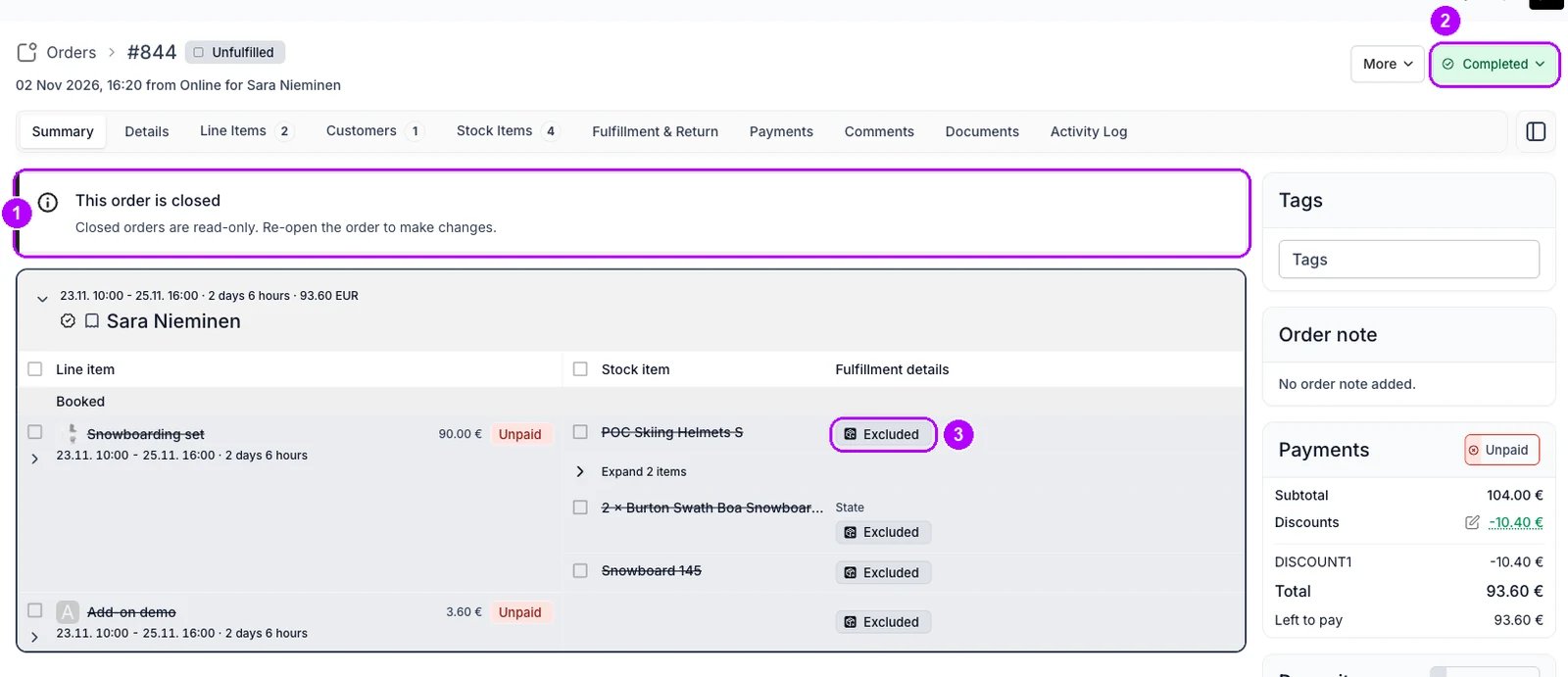
How do I know it worked?
- The order’s status chip reads Completed, and This order is closed shows at the top of it.
- Every item reads Excluded, struck through, and its stock items are free for other orders over the same dates.
- The Payments tab lists the refund, if the customer had paid.
Troubleshooting / common pitfalls
Closing asks you to confirm, or refuses, because the order is unpaid
Closing asks you to confirm, or refuses, because the order is unpaid
The excluded items keep their prices, so the order total does not drop when you cancel. Where your account runs the Order is unpaid check, it can question or refuse closing an order that is not paid in full. See Order lifecycle settings.
The order is still in the Orders table
The order is still in the Orders table
Closing keeps an order in the table. Archive it to take it out. See Cancel or archive an order for how closing and archiving differ.
Related articles
Order Lifecycle
What cancelling takes at each stage of an order.
Cancel or archive an order
How closing an order differs from archiving it.
Refund an order
Send back what the customer paid.
Remove an item
Take one line off an order instead of cancelling all of it.