

Open in TWICE Admin
orders
Prerequisites
Have ready before you start:
- Anything the customer has, back first. Archiving frees a handed-out unit from now on, while the customer still has it. See Mark items returned.
- The money settled. Refund what you give back, and capture any deposit you keep: archiving an open order closes it, which releases the deposit hold. See Refund an order and Capture a deposit.
- The order as it is, not completed first. Archiving closes an open order without moving its items. Completing it first moves sale items to Handed Out, which keeps them out of stock as sold.
- The reason, if you want it on record. Write it on the order’s Comments tab first, because archiving asks for none.
The walkthrough
1
Open the order
Open Orders and click the order’s row. With more than one location, check the location selector in the top-left corner first.To archive several orders at once, select their rows in the table instead and click Archive above it. The same confirmation opens.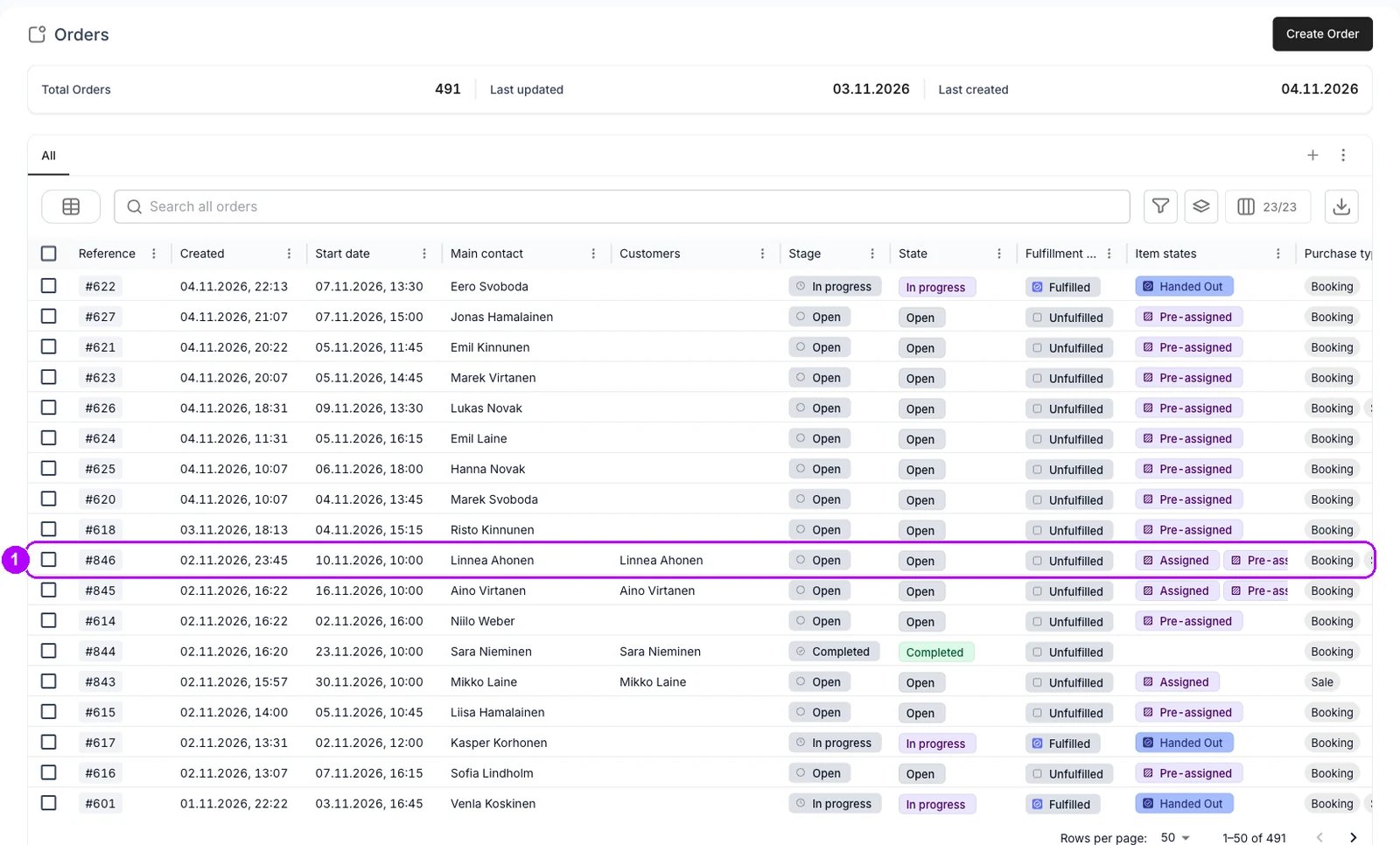
2
Open More
Click More in the top-right corner of the order. A dialog opens with the actions you can take on the order, Archive among them.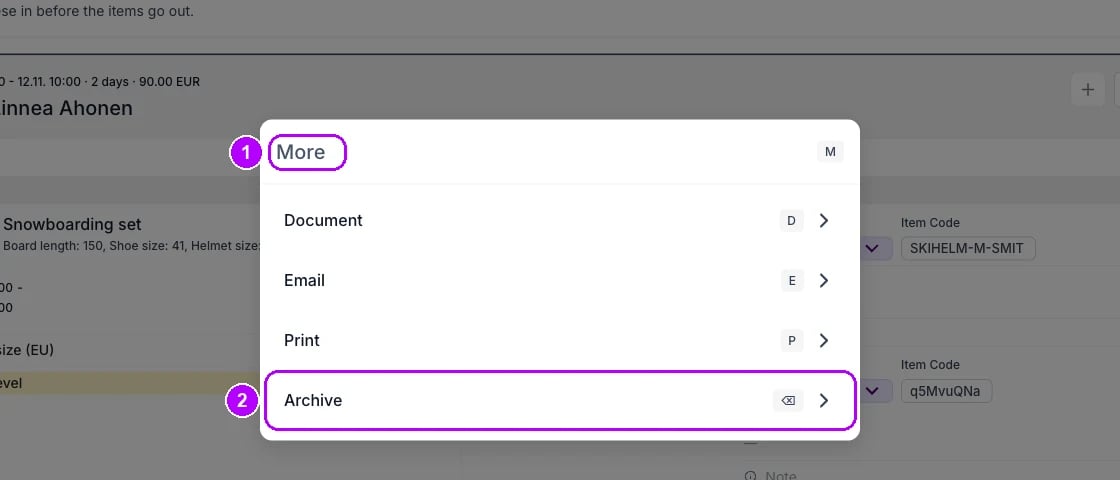
3
Choose Archive
Choose Archive. The Archive Order dialog opens. On an order that is not closed yet, it warns that the order is closed before it is archived: checkout links stop working, scheduled payment collections stop, subscriptions are cancelled and the order becomes read-only.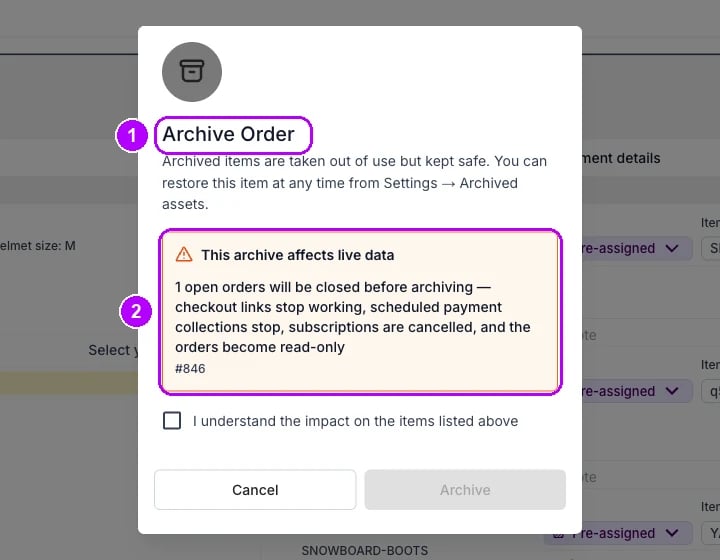
4
Acknowledge the warning
Click the checkbox “I understand the impact on the items listed above” under the warning. Until you do, Archive stays greyed out.Skip this step on a closed order. Its dialog carries no warning.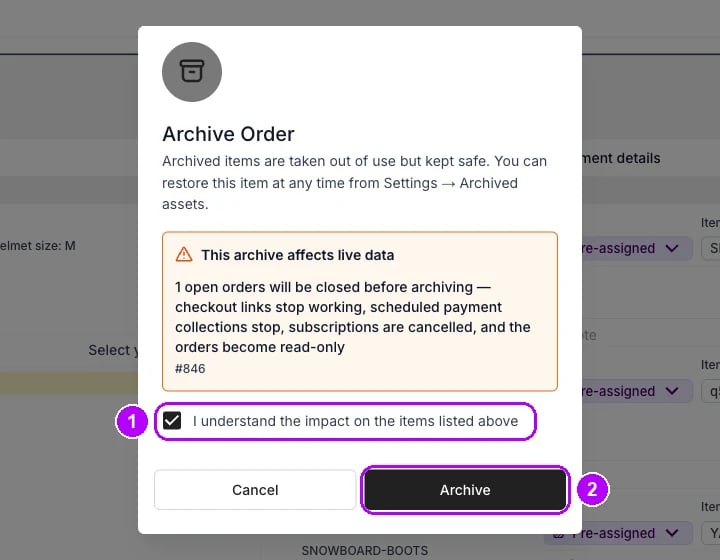
5
Archive the order
Click Archive at the bottom of the dialog. The dialog closes, and This asset is archived shows at the top of the order, with Unarchive beside it.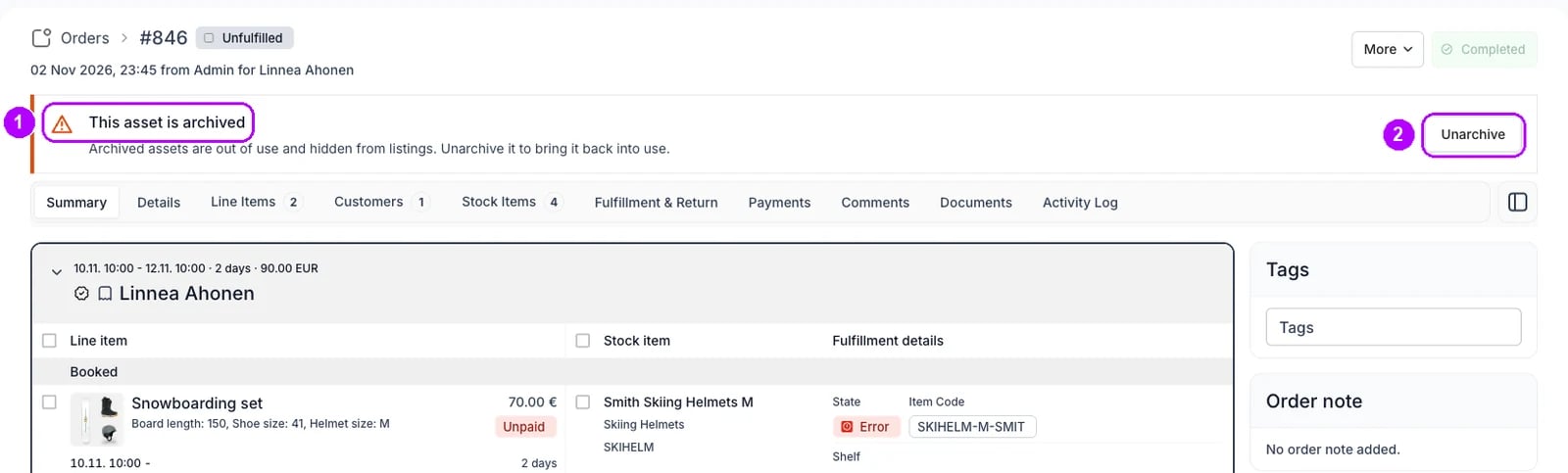
6
Check the checkout links
Open the Payments tab. A checkout link that was active now reads Revoked, and the customer can no longer pay through it.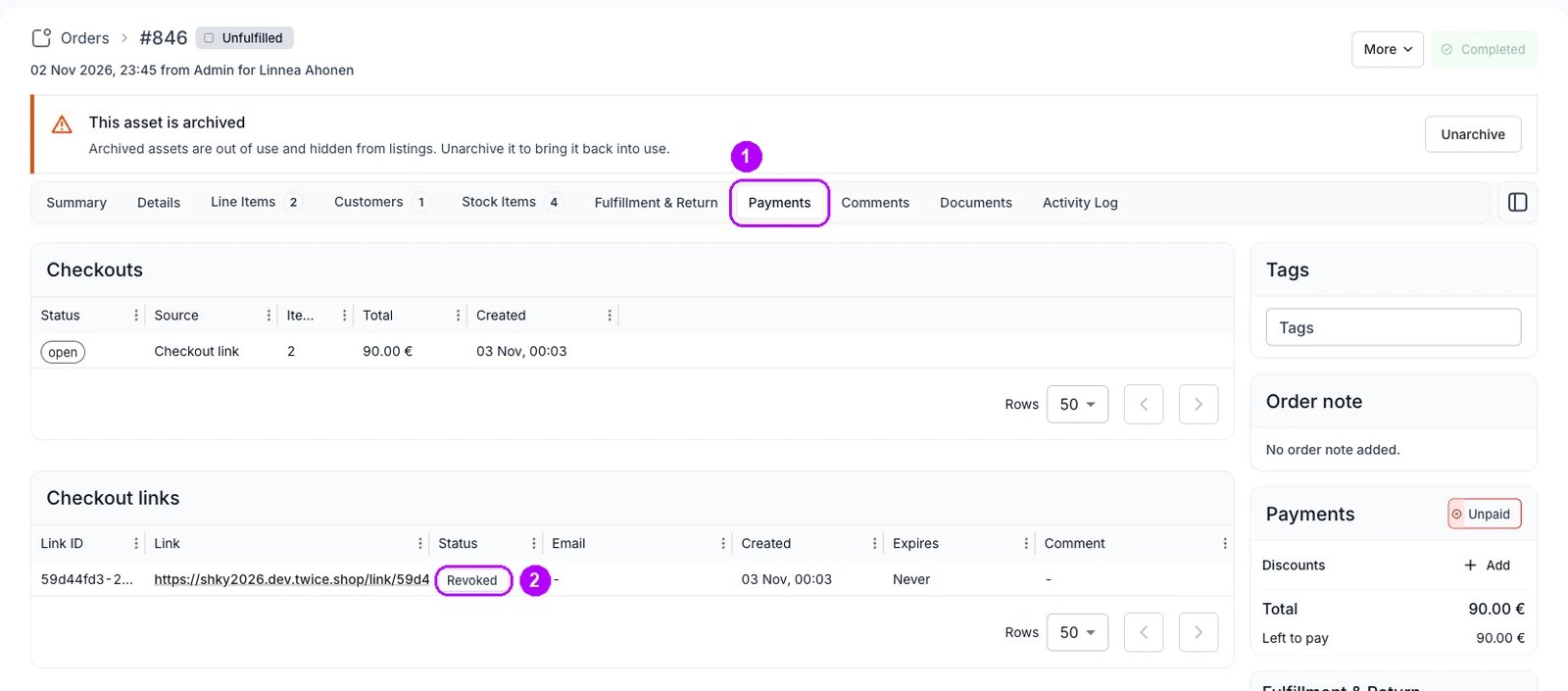
How do I know it worked?
- This asset is archived shows at the top of the order, and its status chip no longer opens.
- The order is gone from the Orders table, and listed under Settings → Archived assets instead.
- Every item keeps the state it had. Units the order was still preparing are free for other orders.
- Checkout links that were active read Revoked on the Payments tab.
Troubleshooting / common pitfalls
Archive is missing from More
Archive is missing from More
The order is already archived, or your role cannot close it. Where orders move with a button, a custom role held to the button can archive an open order only when closing is the button’s next move. See Order lifecycle settings.
The notice reads Failed to archive the order
The notice reads Failed to archive the order
Archiving an open order closes it, and a check your account runs before an order closes, such as Order is unpaid, is set to block. Fix what it names, or settle the order, and archive again. See Order lifecycle settings.
A sold unit is still out of stock after archiving
A sold unit is still out of stock after archiving
The sale item reads Handed Out, which counts as sold, and archiving keeps a sold unit out of stock. If it never left, unarchive and reopen the order, mark the item Excluded and archive again. See Archiving and Deletion.
Related articles
Archiving and Deletion
What archiving keeps, releases and revokes.
Cancelling an order
Every walkthrough for standing an order down.
Unarchive an order
Bring an archived order back.
Cancel an order
Keep the order on the record with every item excluded.
Refund an order
Send back what the customer paid.