

Open in TWICE Admin
orders
Prerequisites
Have ready before you start:
- A barcode scanner connected to the computer, and units with their codes on them. See Add a stock code.
- An open order with a line that is not handed out yet. A closed order takes order numbers only, so reopen it first. See Reopen an order.
The walkthrough
1
Open the order
Find the order in Orders and open it. If your account has more than one location, check the location selector in the top-left corner first, because the table lists only the orders of the location it shows.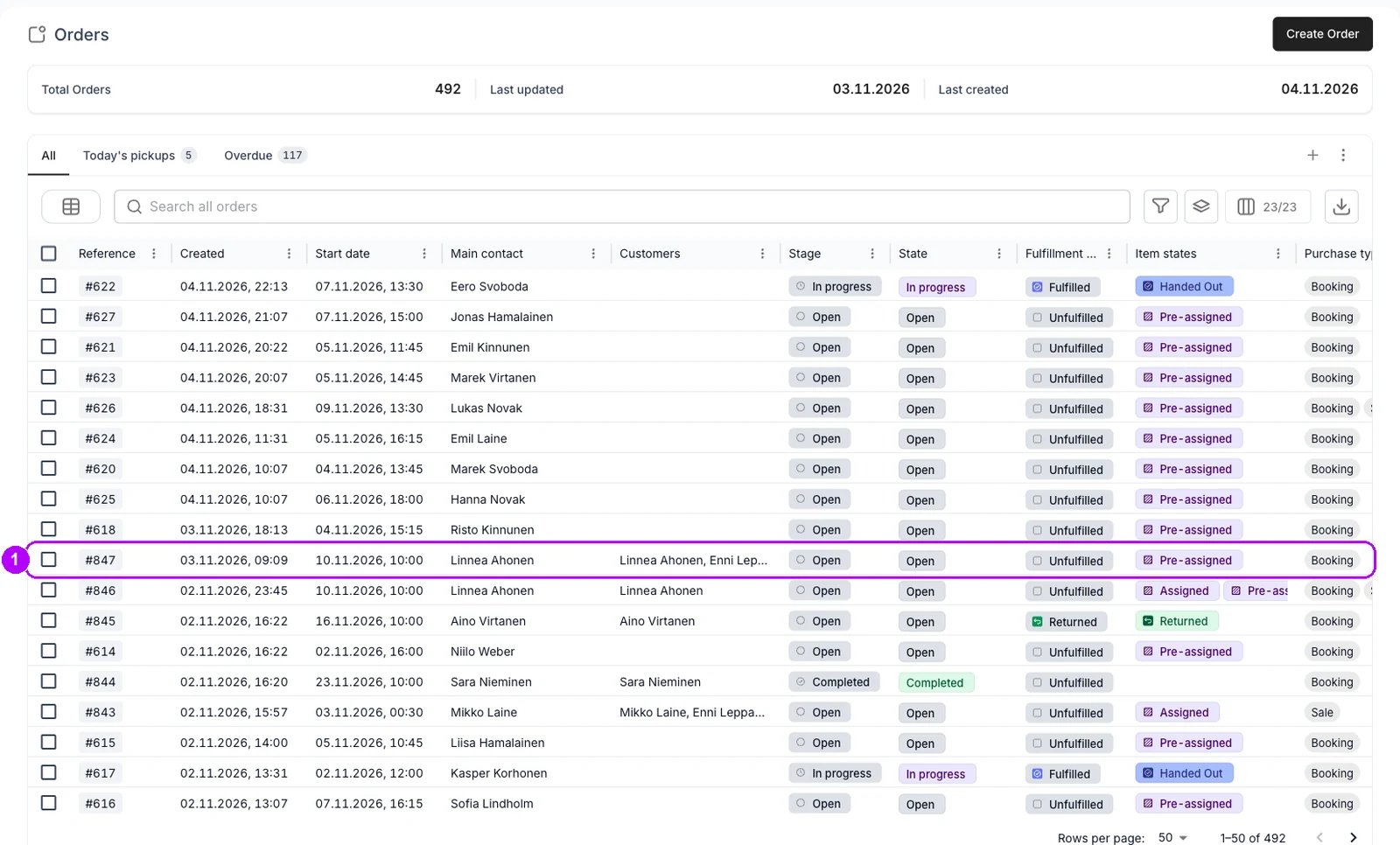
2
Pick the customer's card
On the Summary tab, click an empty part of the card of the customer you are serving. Its border changes colour, and a scan looks for a line on that card first. With one customer on the order, the card is already picked.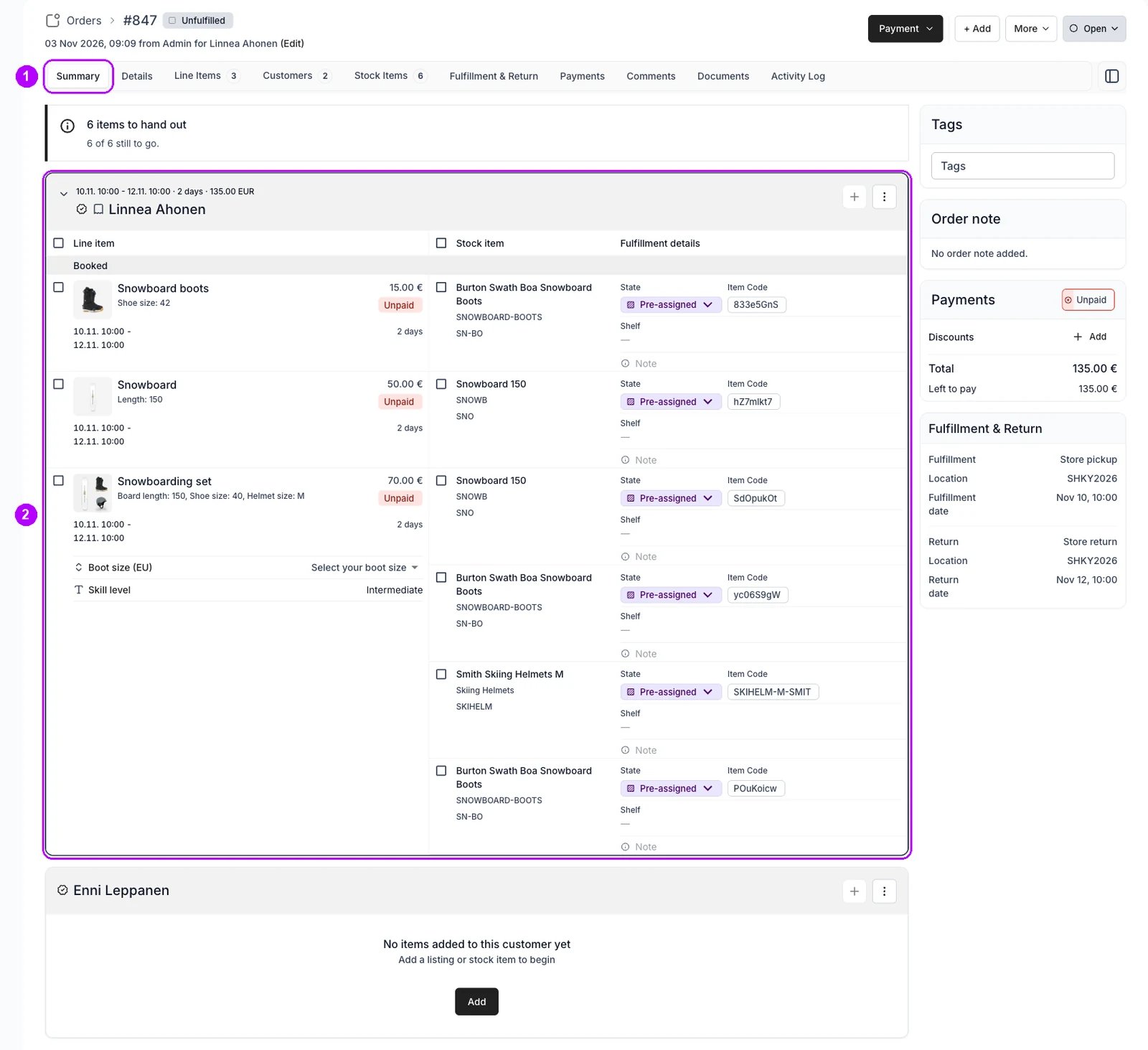
3
Scan the unit's code
Scan the code on the unit. There is no field to click first, but keep the cursor out of text fields such as Note. When the unit fits a line waiting for one, that line flashes, its Item Code shows the unit’s code, and Item assigned confirms it.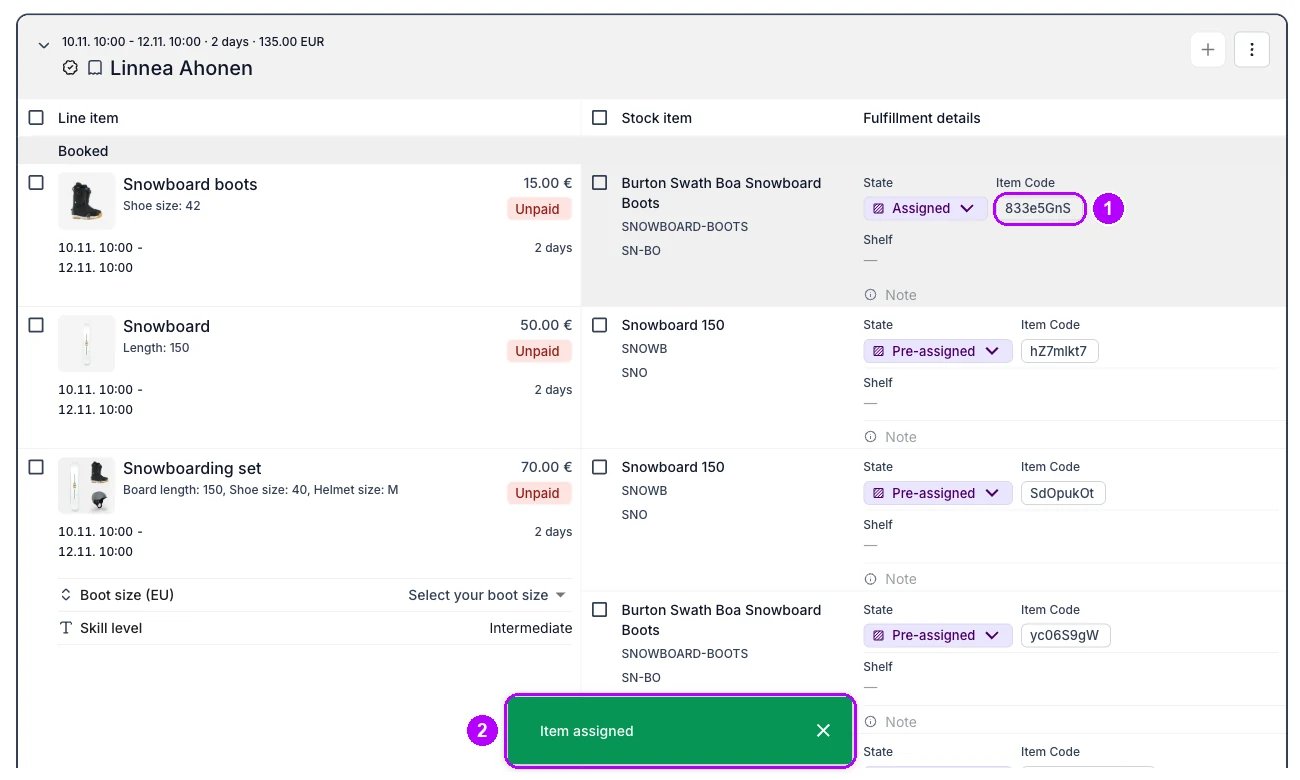
4
Choose the line, if the order asks
If the unit fits several lines equally well, a dialog headed Which item gets and the unit’s name opens. Each option names the customer and the item, with its dates and current unit. The first one is picked already. Pick the line the unit is for and click Assign.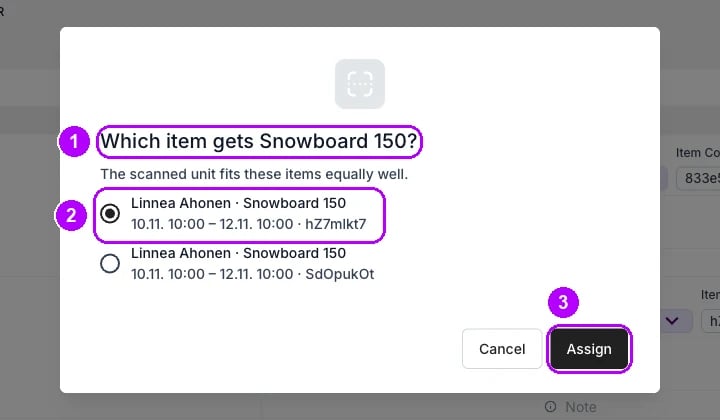
5
Confirm the replacement, if the order asks
If the line already shows another unit, “Put this unit on instead?” opens and names the code the line was set to go out with. Click Assign it anyway to put the scanned unit on the line. Click Leave it to keep the unit it had.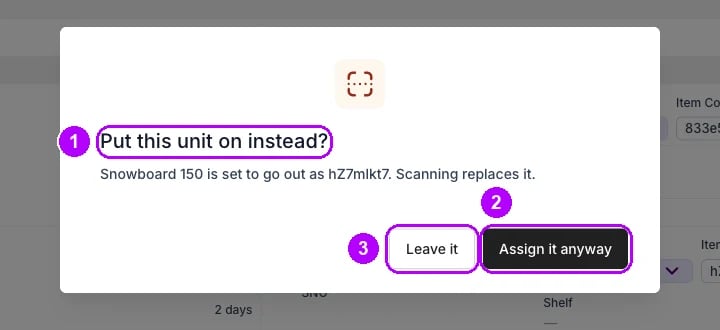
6
Decide on a unit held elsewhere, if the order asks
If an order or a reservation holds the unit over the line’s dates, a dialog opens with the unit’s code and is already reserved in its heading. Each row says who holds the unit and what happens to them if you take it. Click Assign it here to take it, or Leave it.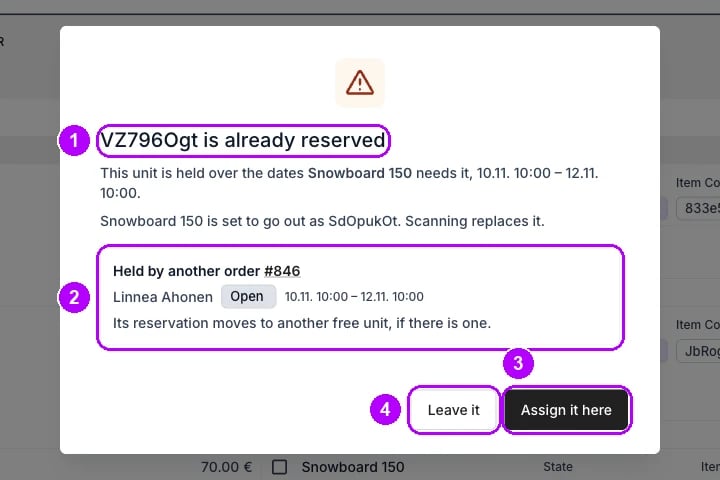
7
Check the line
On the Summary tab, check that the line shows the scanned unit’s code under Item Code. With the default states, the line’s state reads Assigned, the state for a unit staff put on by hand.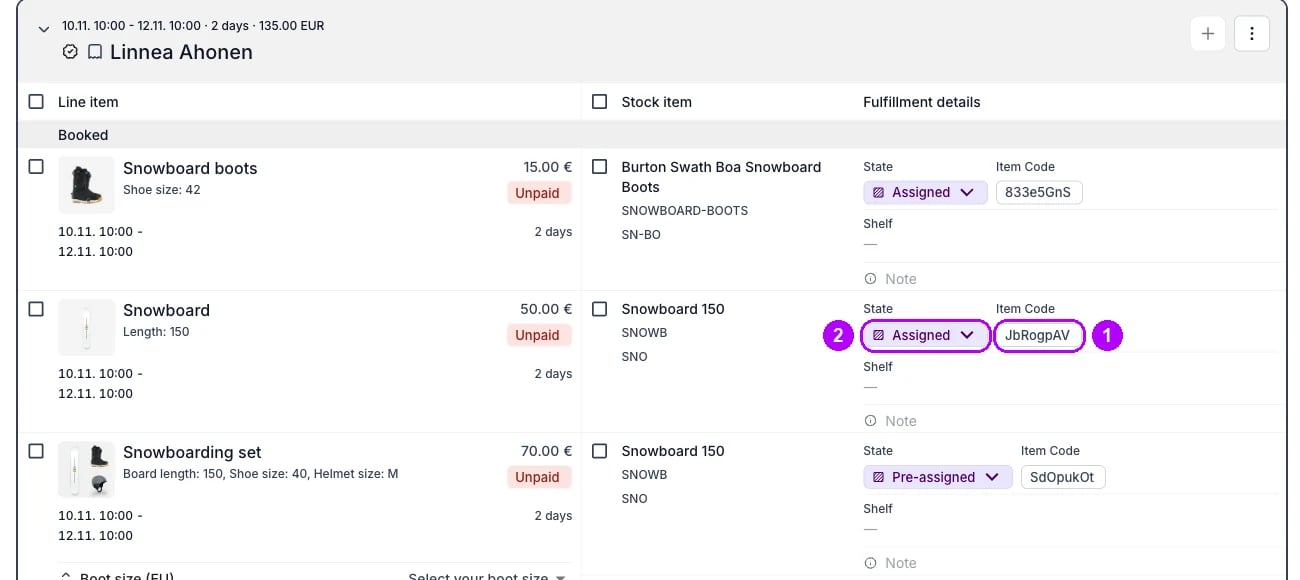
How do I know it worked?
- The line shows the unit’s code under Item Code on the order’s Summary tab, in the state your account gives a unit staff assign, Assigned by default.
- A second scan of the same unit ticks its line instead of assigning it again. Click Unselect at the top of the order to clear the tick.
- The unit is no longer free over the line’s dates for another order to take.
Troubleshooting / common pitfalls
Nothing happens when you scan, or a message appears instead
Nothing happens when you scan, or a message appears instead
A scan does nothing while the cursor is in a text field, so click an empty part of the page. Otherwise the message gives the reason: an open panel, a closed order, or a SKU code instead of the unit’s own. See Stock codes.
The scan opened Add Line Item instead
The scan opened Add Line Item instead
The unit fits no line waiting for a unit. It is not a Full match for any line, or every line already has a unit staff put on it or is handed out. Click Cancel, and assign the unit by hand from the line’s stock item panel. See Auto-Fulfillment.
A dialog says it did not find the unit for your customer
A dialog says it did not find the unit for your customer
The only line the unit fits is on another customer’s card than the one picked. Click Assign to and their name to put it there, or Cancel, then pick the right card and scan again. See Auto-Fulfillment.
Related articles
Auto-Fulfillment
How the first unit is picked, and which line a scanned unit goes to.
Stock on an order
Every task about the unit behind an order line.
Swap a stock item
Pick a different unit for a line from the list instead of scanning.
Scanning and editing stock
Give units codes you can scan, collect them by scanning outside an order, and act on the whole pile at once.