

Open in TWICE Admin
orders
Prerequisites
Have ready before you start:
- A tab holding the orders to plot, such as a saved view of today’s pickups. The calendar plots the orders the table has loaded. See Save a daily view.
The walkthrough
1
Open the orders to plot
Select Orders in the left sidebar and click the tab holding the orders you want on the calendar, such as All or your view of today’s pickups. With more than one location, check the location selector in the top-left corner first: the table lists only that location’s orders.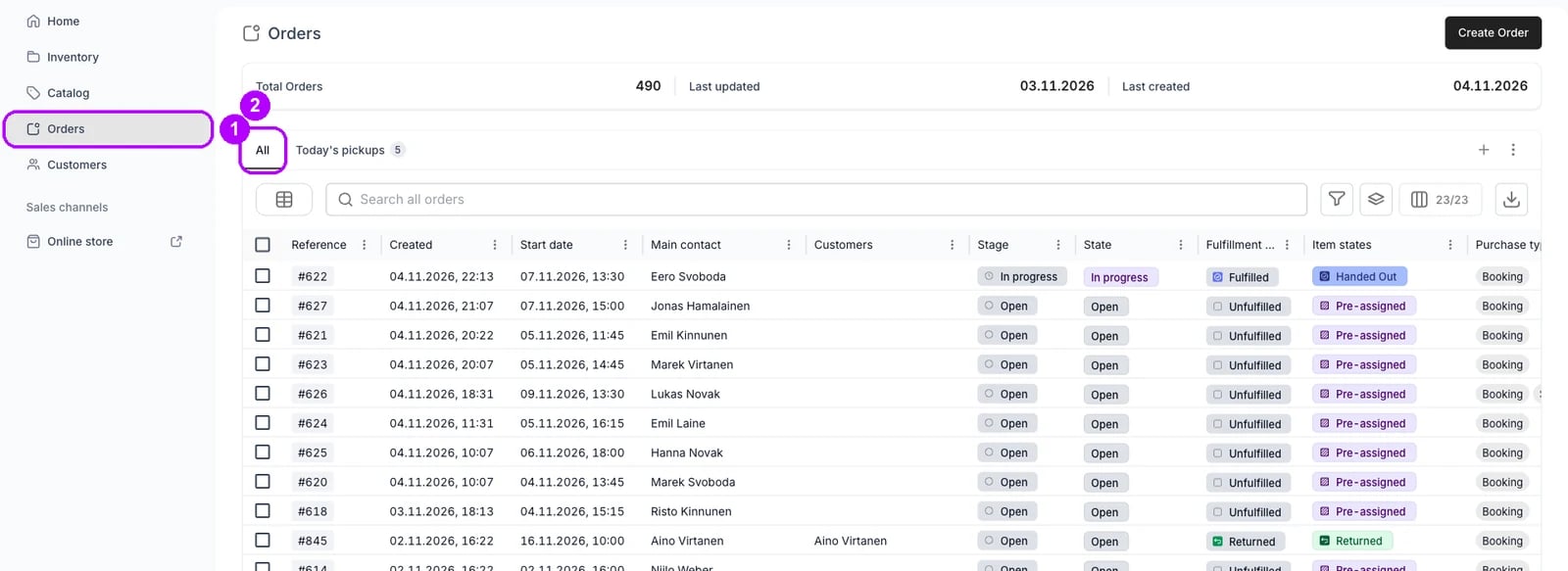
2
Open the layout menu
Click the button to the left of the search box, whose tooltip reads Layout. A small menu opens below it with two icons: the grid on top and the calendar under it.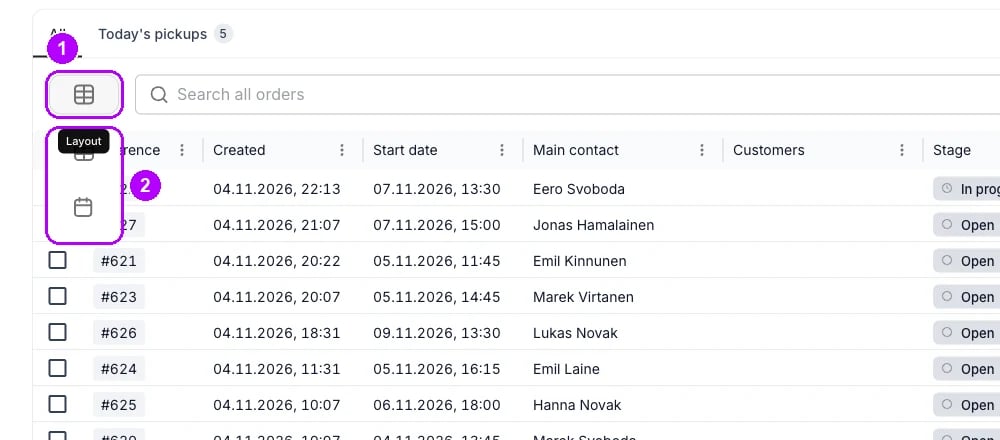
3
Choose the calendar
Click the calendar icon. A calendar of pickups and returns replaces the table, open on Grid Week at the current time, so scroll down to your opening hours. Pickups carry a purple up arrow and returns a blue down arrow, and each event’s title counts its orders and items.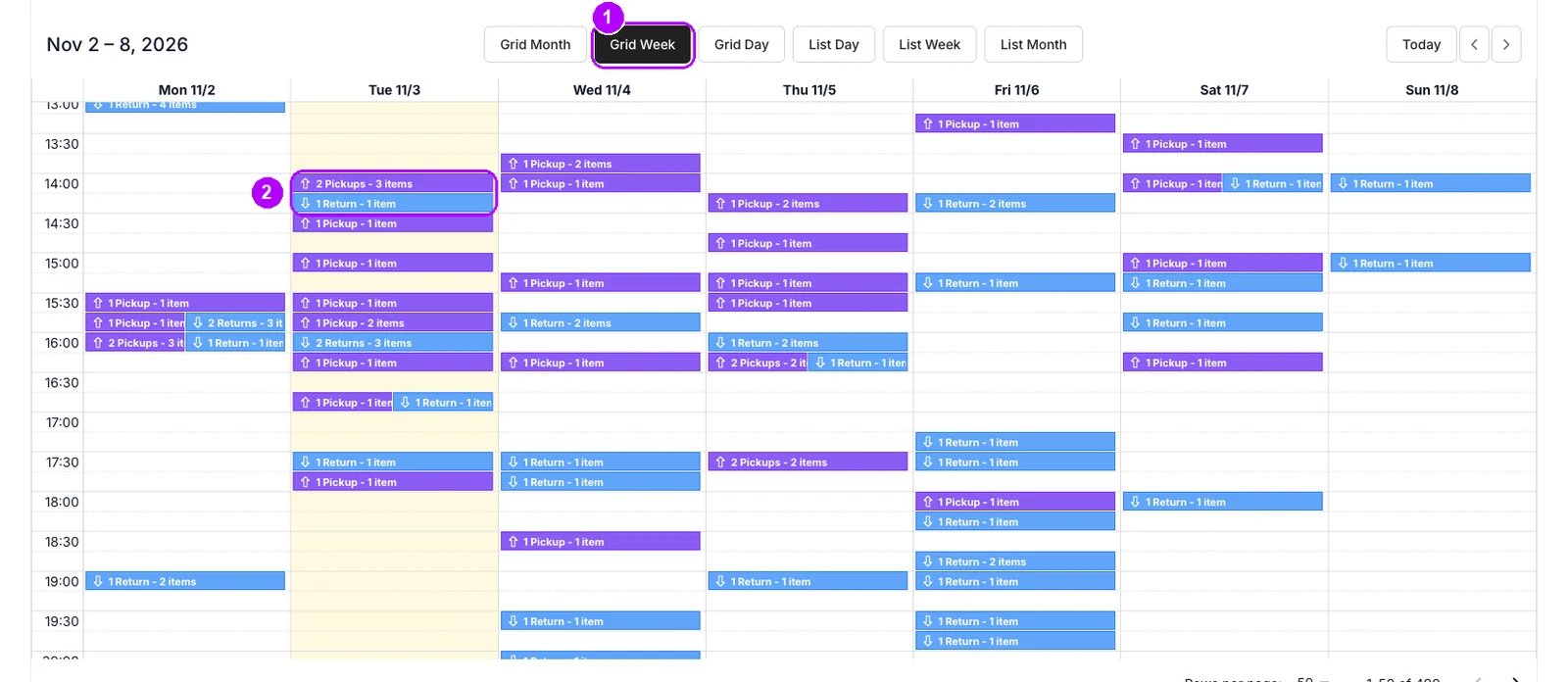
4
Pick the range
Click Grid Day or List Day in the row of buttons above the calendar to show one day. Grid Day lays the day out by the hour, and List Day lists its events in time order. Grid Month, List Week and List Month show longer ranges.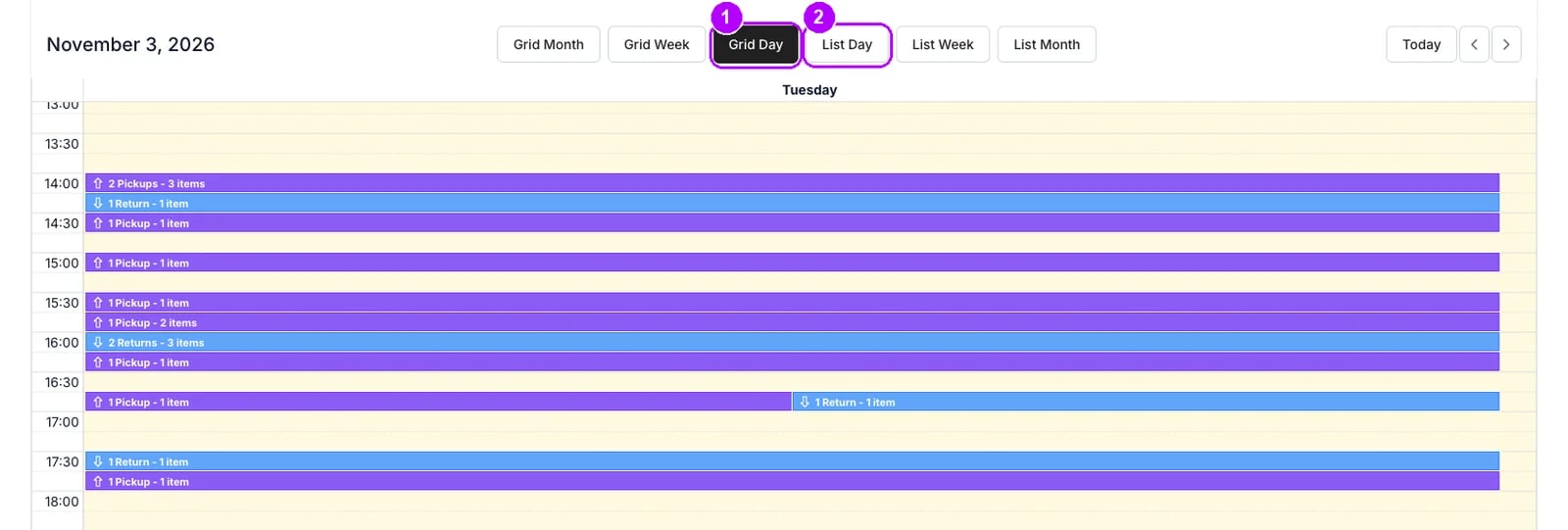
5
Move through the dates
Click the arrows at the top right of the calendar to move back or forward one range, and Today to return to the range holding today. The title on the left names the dates on screen.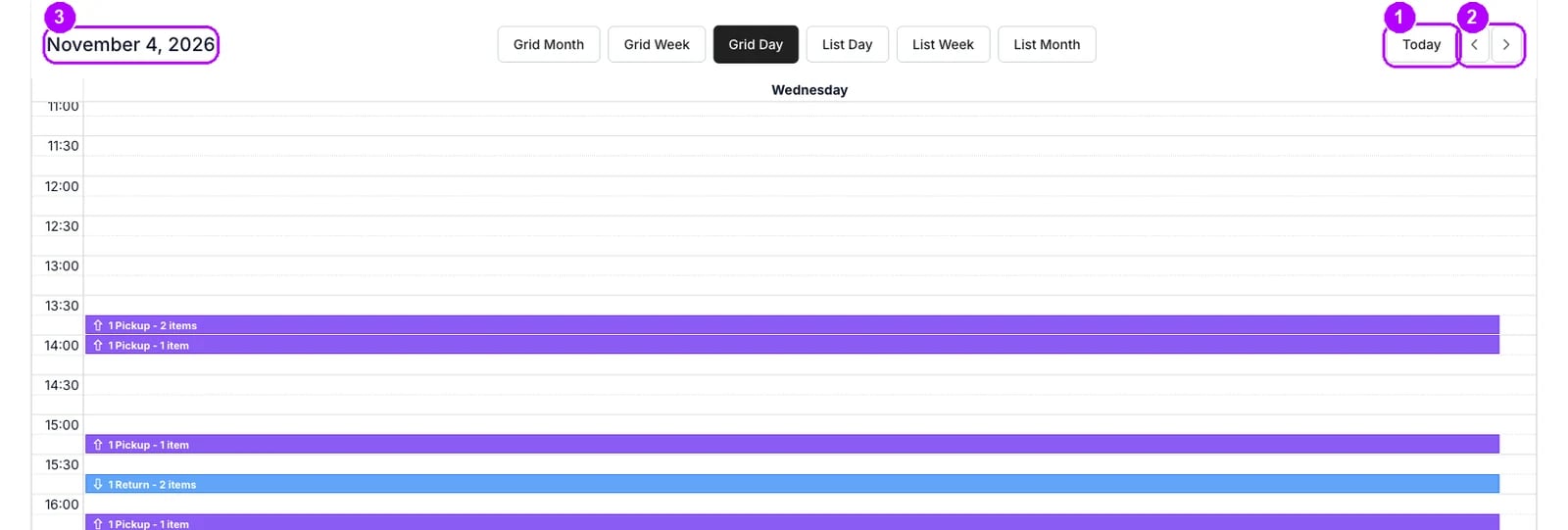
6
Open an event
Click an event. A popup lists one row per order and time: the order reference and customer name on top, then Pickup or Return, the date and time, and the number of items.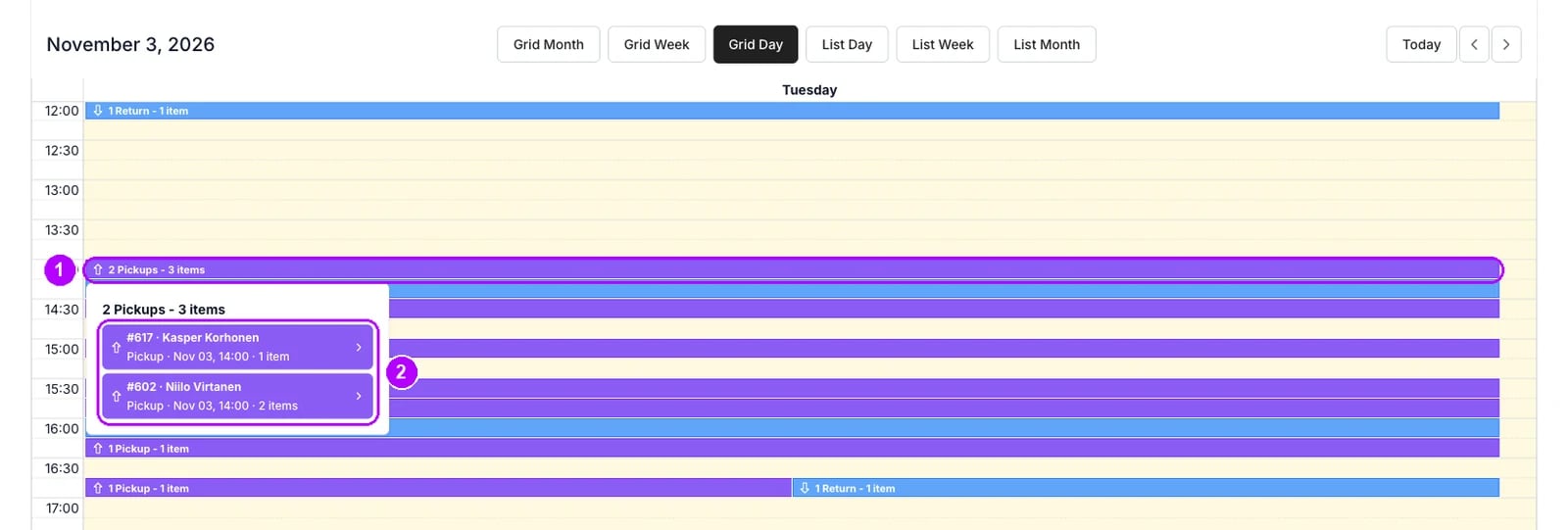
7
Open an order
Click a row in the popup to open that order. The order opens on its Summary tab.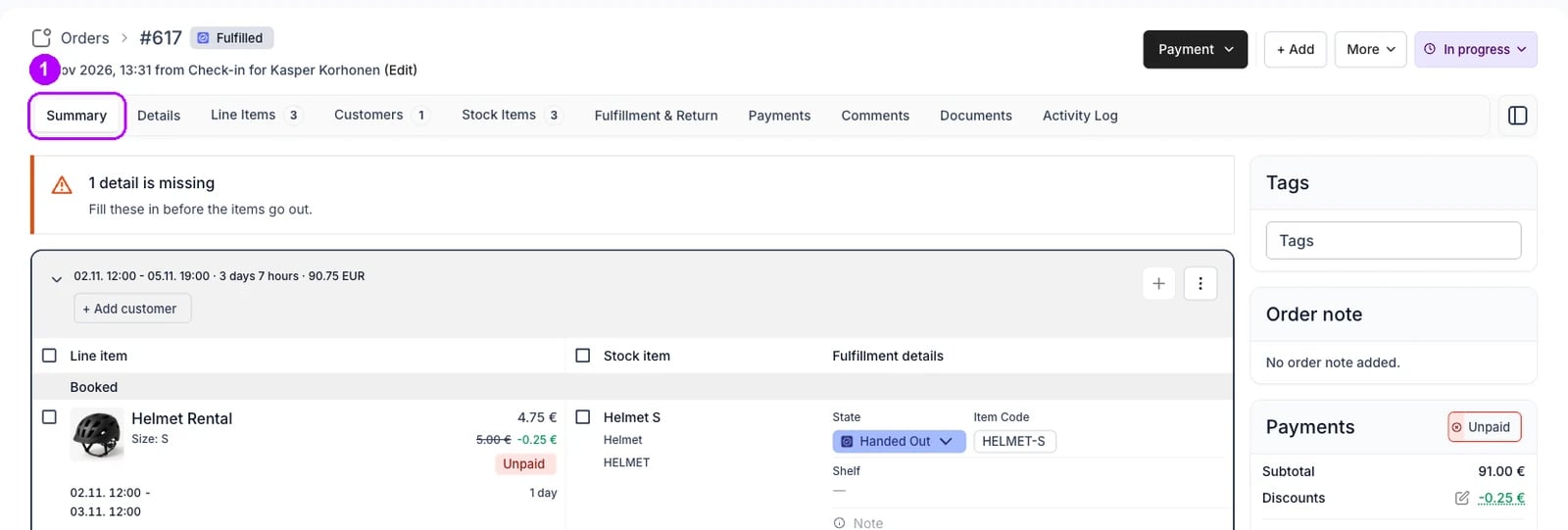
How do I know it worked?
- A calendar replaces the table, with the dates on the left and the range buttons above it.
- Pickups and returns show as events, purple up arrows for pickups and blue down arrows for returns.
- A popup row opens its order when you click it.
Troubleshooting / common pitfalls
Orders in the grid are missing from the calendar
Orders in the grid are missing from the calendar
The calendar plots only the orders the table has loaded, so the orders on later pages of a long list are not on it. Narrow the filters to the days you are looking at. See Orders overview.
Related articles
Orders overview
The calendar layout, its events and its popup, control by control.
Planning the day
Every walkthrough for working the day from the Orders table.
Save a daily view
Save today’s pickups or returns as a tab on the Orders table.
Find overdue orders
Save a view of the orders past their end date.
Fulfillment & Return tab
The same calendar, scoped to one order.