

Open in TWICE Admin
settings/connect/integrations
Prerequisites
Have ready before you start:
- Settings configured in step 1: your locations, currency and tax setting exist before any data does.
- A TWICE 1.0 API key for the account. Ask your TWICE contact if you do not have one.
- Four decisions, made with the merchant:
- Locations: one per 1.0 store, or several stores merged into one location.
- Prices: each 1.0 duration tier as a fixed row, or one rate-based row.
- Customers: migrate them, or leave them in 1.0. They are personal data.
- Tax: whether 1.0 prices include tax, read from a real 1.0 order.
The walkthrough
1
Create the 2.0 API key
Open Settings → Integrations & API and click Create key on API keys. Name it, then under Access pick Limited access and set Inventory, Catalog and Locations to Write, plus Customers and Online store if you migrate those. Copy the key from Store your API key: it is shown once.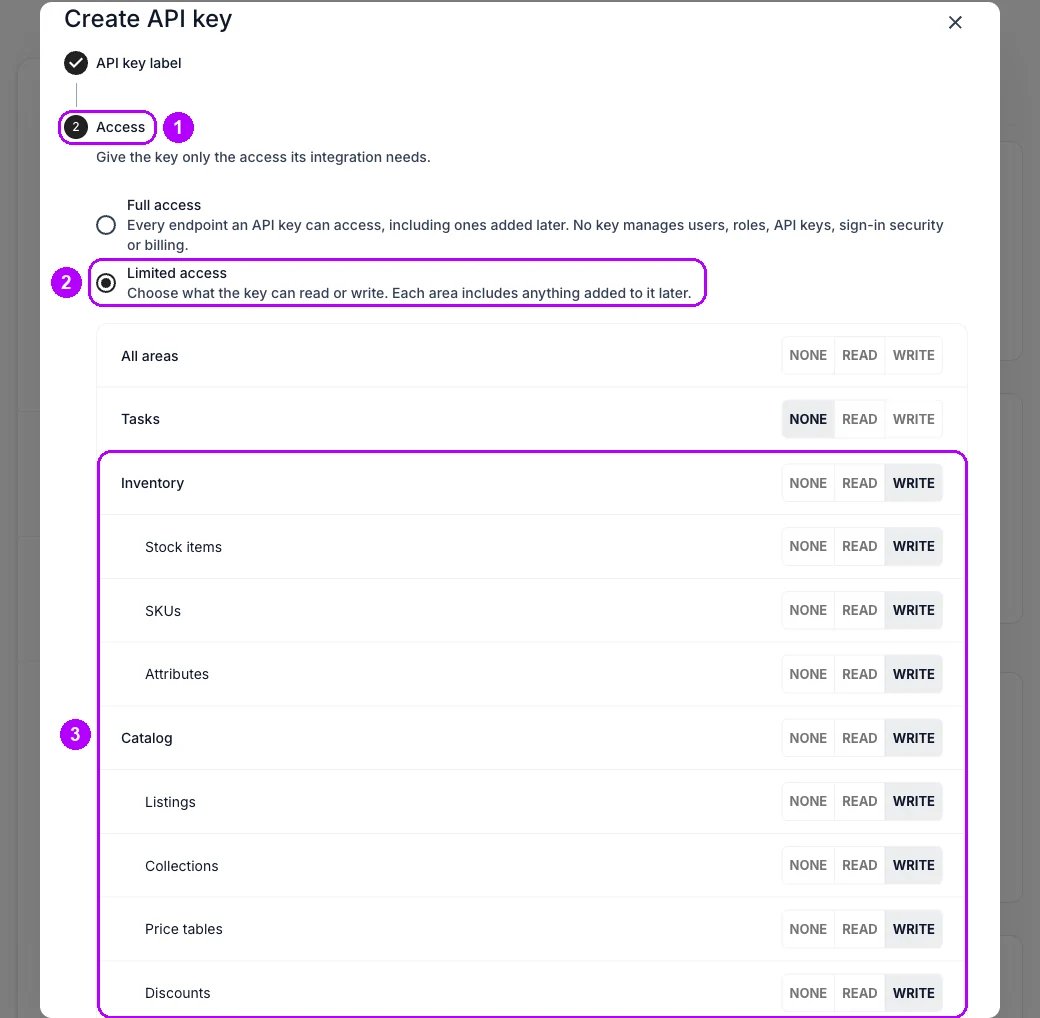
2
Check the 2.0 account is empty
Open Catalog → Listings and Inventory → Stock items in the 2.0 admin. Both tables should be empty. If they hold listings or stock items, the account has been migrated or built before: stop and find out by whom before you write anything. Save a copy of both accounts’ data now, as the point to return to.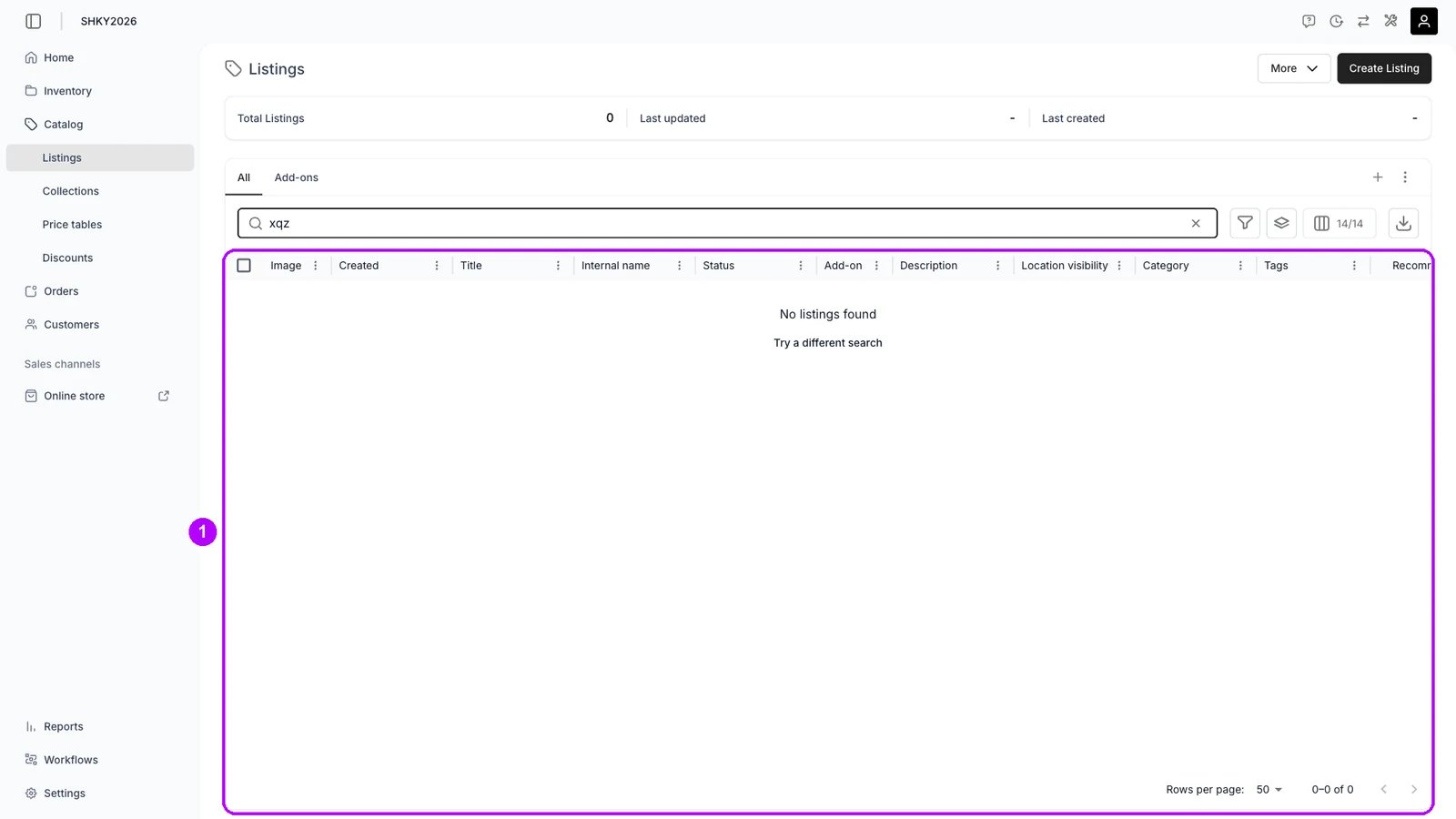
3
Map each 1.0 store to a 2.0 location
Open Settings → Locations and note each location under All locations, then read their IDs through the API. Point every 1.0 store at the location it becomes, merged stores included. Write stock, listings and prices against these IDs. Leave the locations’ own setup to step 1: a location with no pickup or return method, or no sales channel, makes nothing orderable.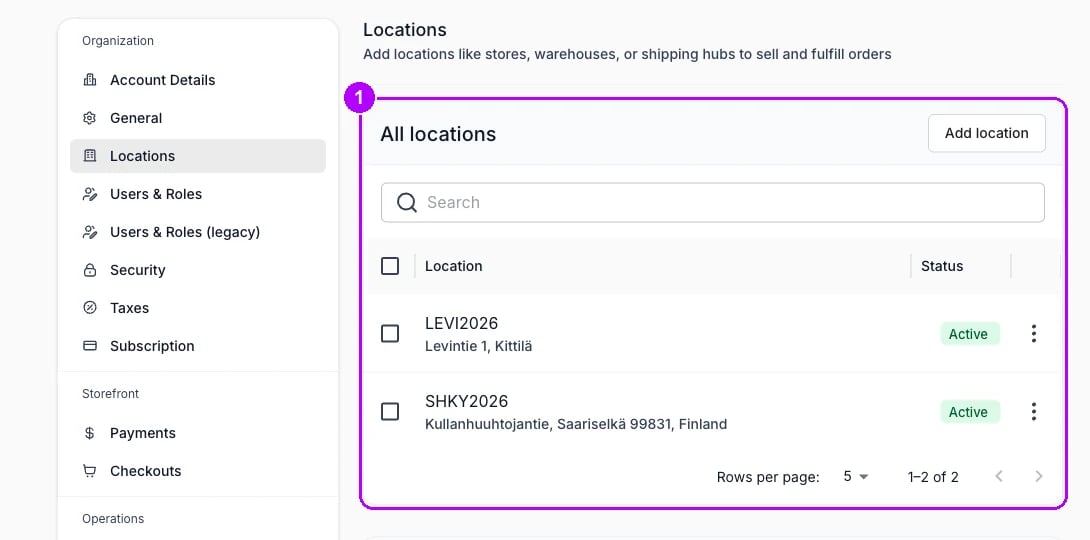
4
Create the SKUs and stock items
Create one SKU per 1.0 SKU, with the same code. Create a 1.0 single article as a stock item tracked individually, and a bulk article as one stock item tracked by quantity. Mark sold or lost articles inactive. Create the attributes first, and carry custom field values onto them.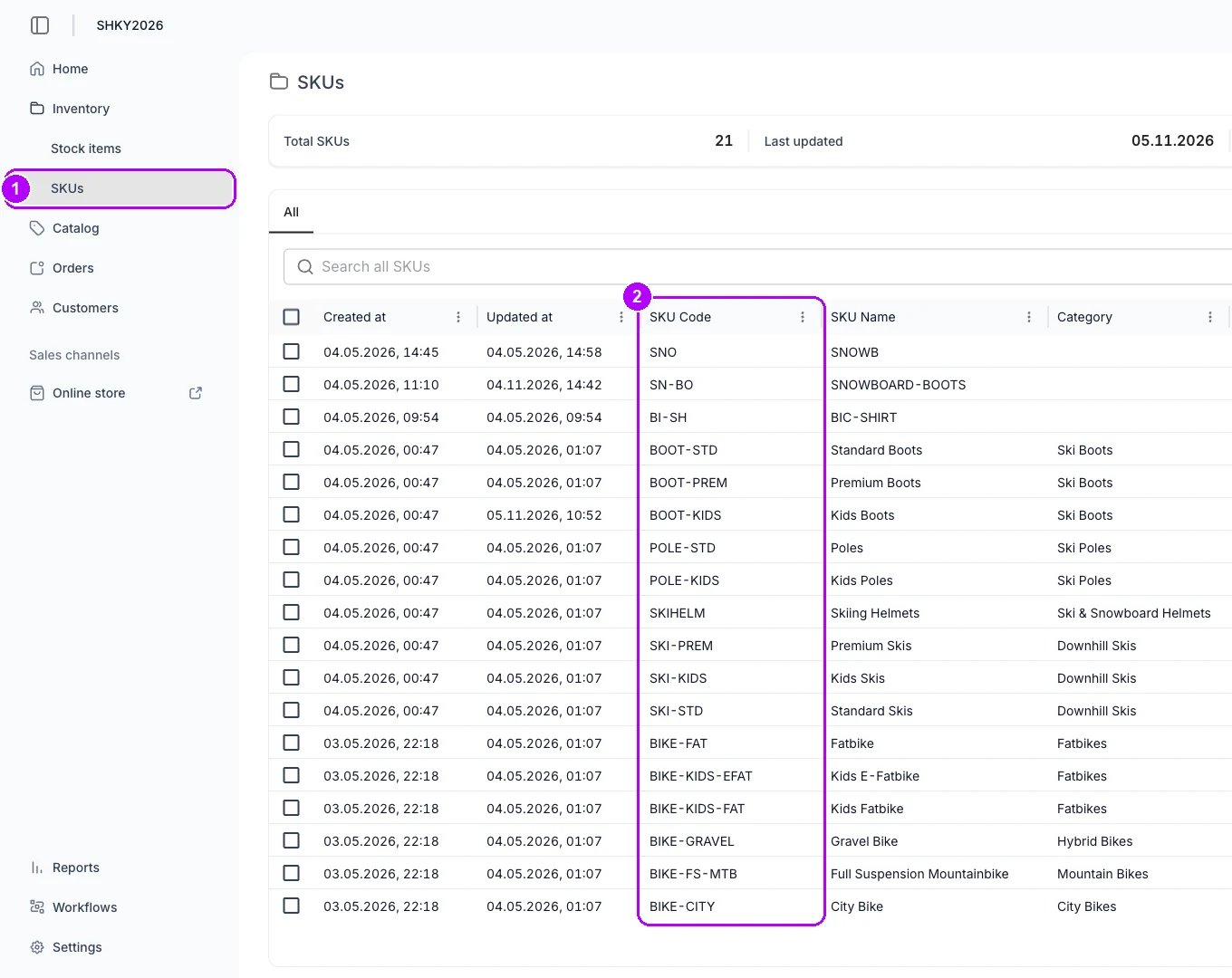
5
Create the listings
Create one listing per 1.0 product. Skip duplicates the merchant made as a 1.0 workaround. Copy each product’s sales channels, including products hidden from the online store. Convert Markdown descriptions to rich text, or the storefront shows the raw symbols.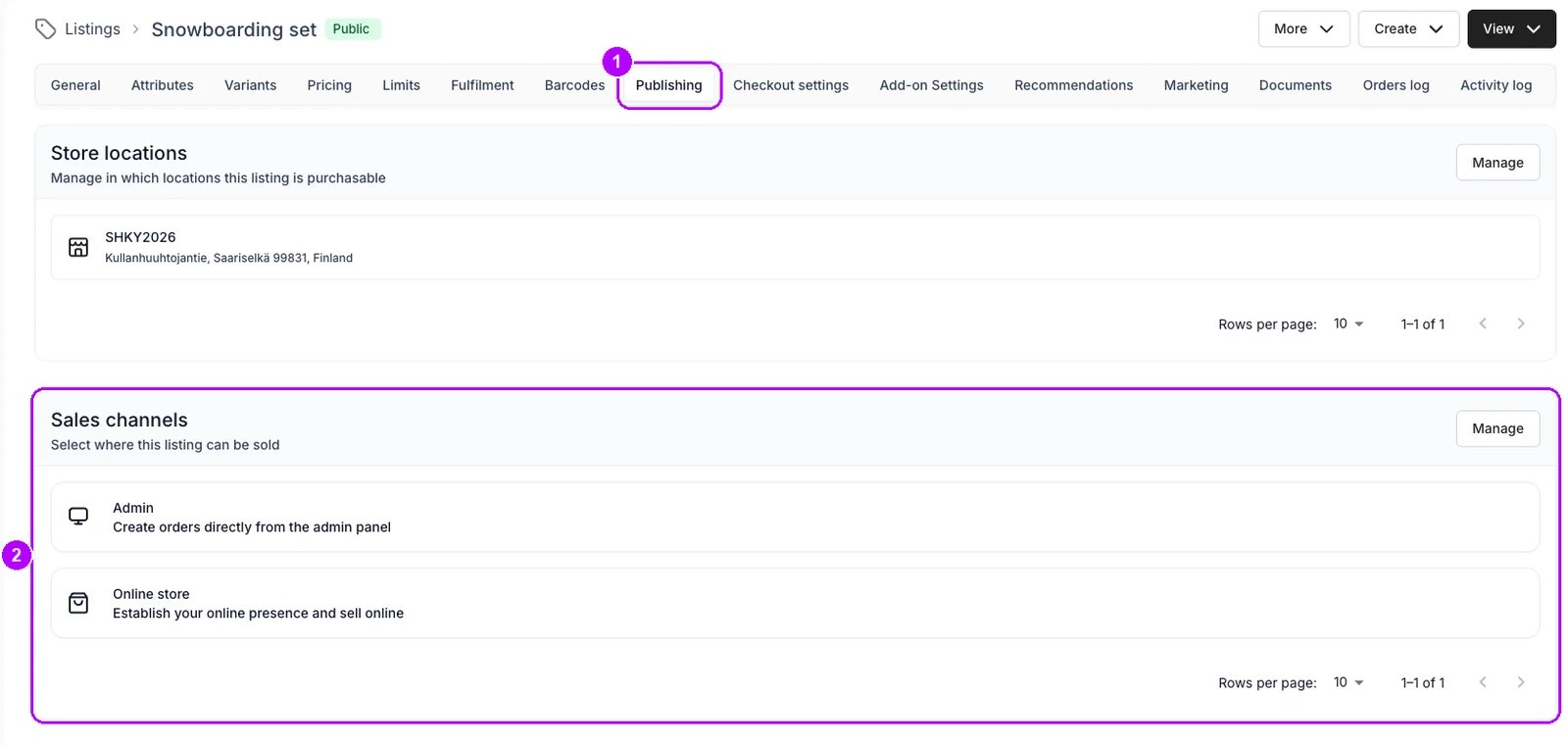
6
Write the inventory rules
Give each listing a rule that matches its SKU codes. Give a package one rule per component, each for one unit: conditions inside one rule match any of them, separate rules must all be met. For sizes and other variants, create the options, then one variant rule per option that narrows to that option’s stock.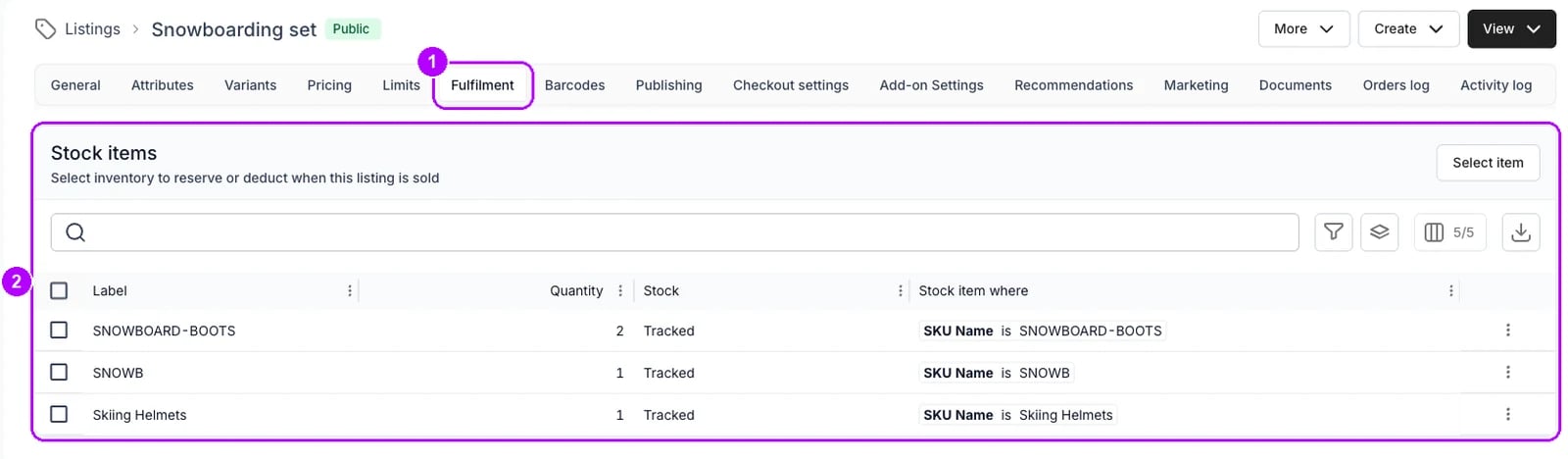
7
Create the price tables
Write each 1.0 tier as a fixed row, or one rate-based row, as decided. A 1.0 day counted within opening hours becomes a day row capped to closing time. Check the price scale first: some 1.0 accounts store prices in cents. A row valid on every weekday leaves weekdays unset, never an empty list.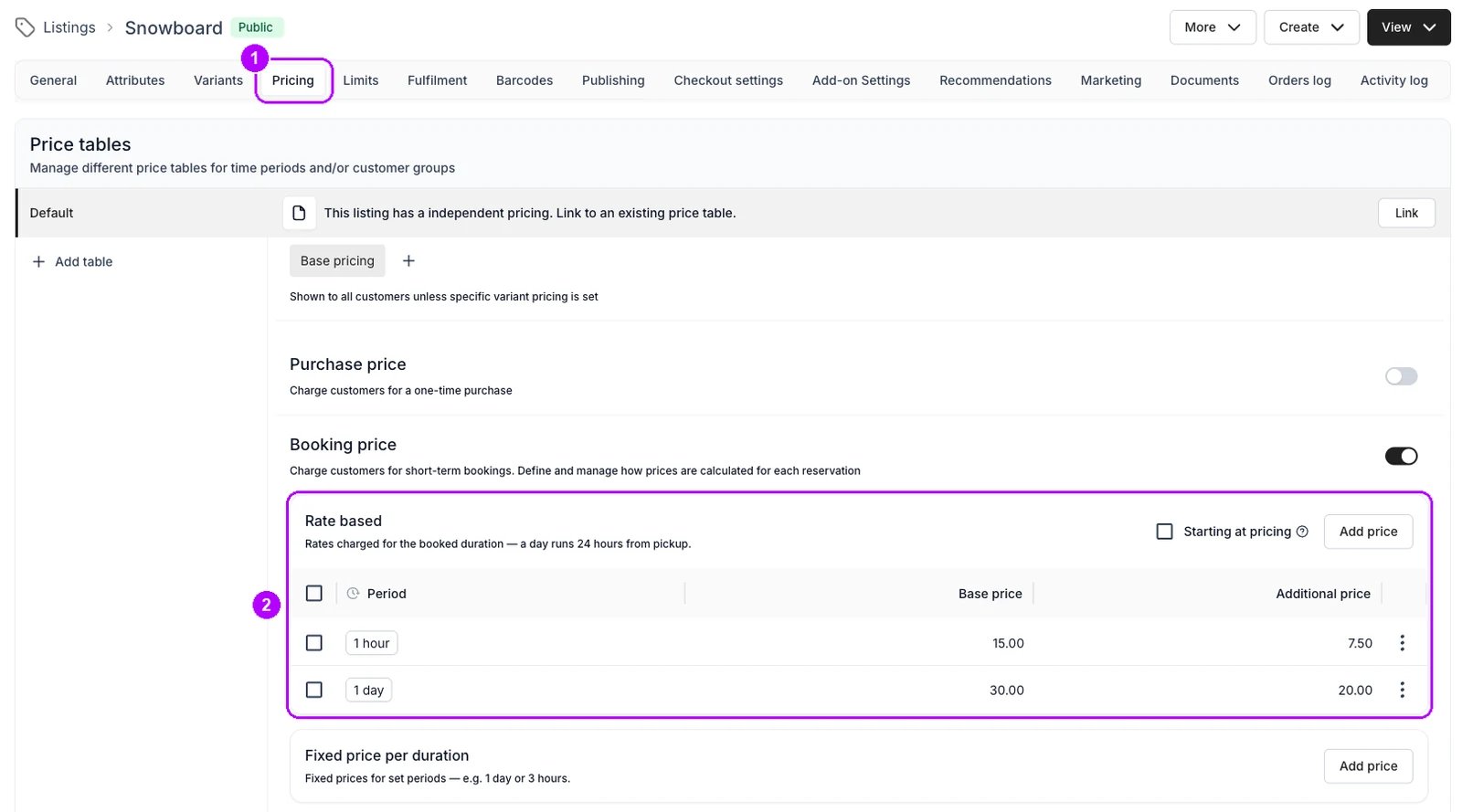
8
Create the add-ons
Make free accessories add-on listings and attach each to the listings it goes with, unless everything the merchant offers is free. Create insurance or a damage waiver as a cart add-on.
9
Create the collections
Create one collection per 1.0 category the merchant still uses, and add its listings. Turn the online channel off on a collection with no online listing in it, or it shows empty in the storefront menu.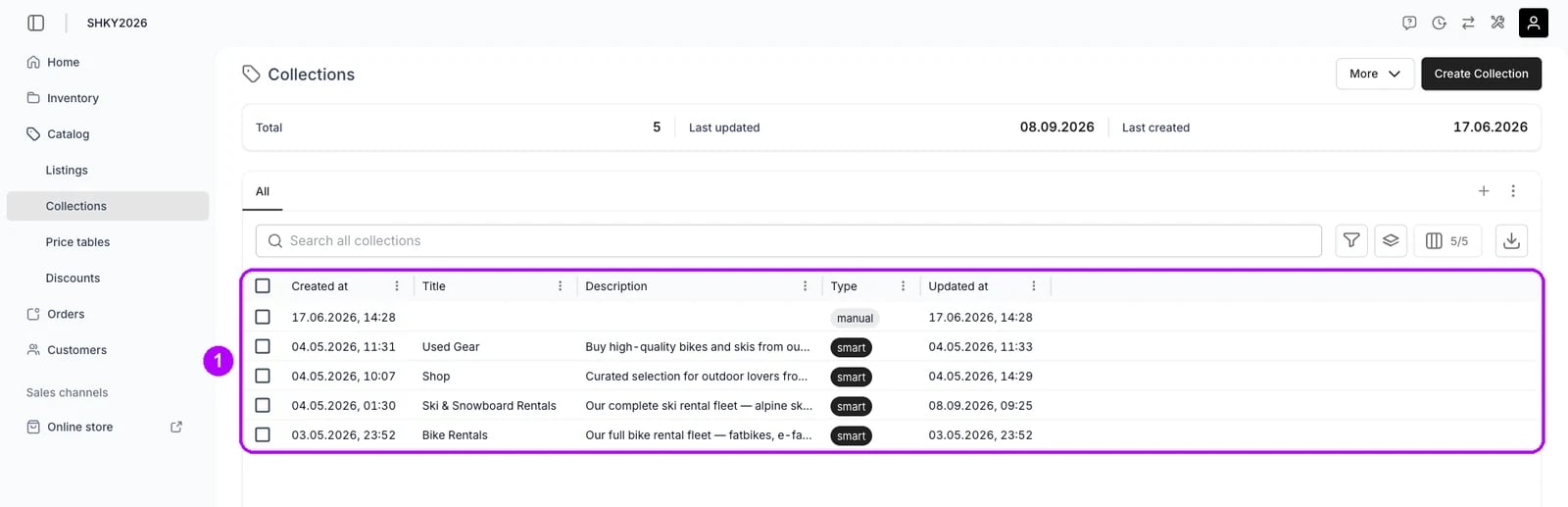
10
Import the customers, if you decided to
Create one customer per 1.0 customer, and match on email to avoid duplicates. Skip this step if the merchant chose to leave customers in 1.0.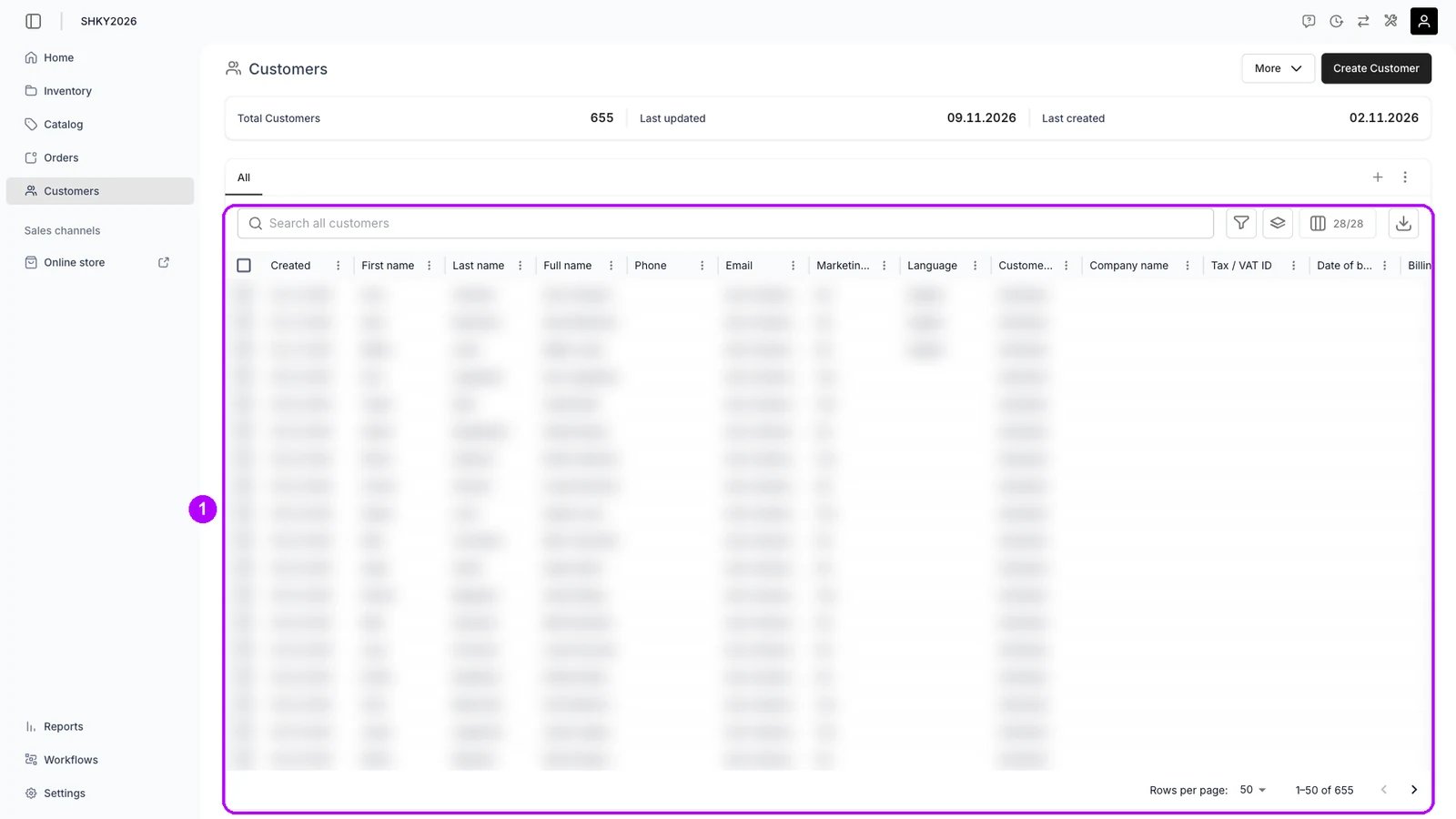
How do I know it worked?
- Every 1.0 SKU, stock item, product and category the merchant kept has a 2.0 counterpart, counted against the totals each API reports.
- Every listing with stock behind it has an inventory rule, and its price rows match 1.0.
- The merchant has run step 3, and every listing can be ordered on the storefront.
Troubleshooting / common pitfalls
Prices are a hundred times too high or too low
Prices are a hundred times too high or too low
This 1.0 account stores prices in a different unit from the one you assumed. Compare one migrated price with what the merchant charges today, then rerun the price stage. See What changes from TWICE 1.0.
A package can be ordered when one component is out of stock
A package can be ordered when one component is out of stock
Its components share one rule, so any one of them satisfies it. Split them into one rule each. See Listing inventory rules.
Related articles
What changes from TWICE 1.0
Every 1.0 object and what replaces it in 2.0.
API keys
Scopes, expiry and how to send a key.
Bulk creation
Create many stock items, SKUs or customers in one call.
Check your data against 1.0
The merchant’s check once the import is done.