The ordered checklist for a listing that looks complete in the admin and won’t sell: five independent layers, cheapest and most common first.
Catalog > Listings > [Listing] > General
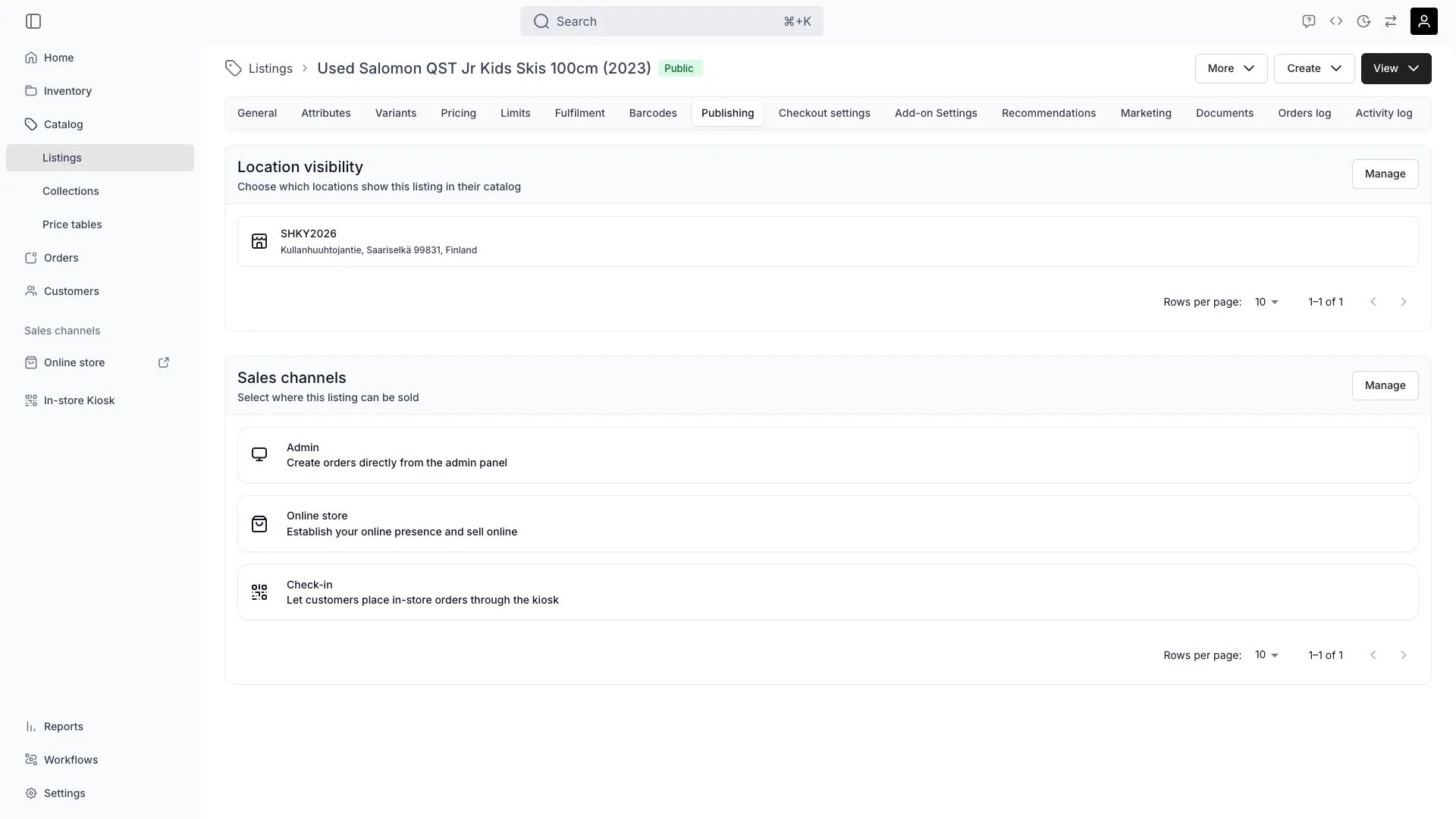
Catalog > Listings > [Listing] > Publishing
Open in TWICE Admin
catalog/listings
A listing that isn’t selling fails silently. Nothing crashes and no error appears, and the listing never turns up where a customer would find it.Five independent layers decide whether a listing can be sold, and any one of them alone is enough to produce nothing:
The listing itself
Its pricing rows
The location fulfilling it
The stock behind it
Whether the storefront can even reach it
Work through them in the order below, cheapest and most common first, rather than guessing which one it is.
Built this catalog by import, or with an AI-assisted or demo-store build? Run this checklist once against a real date before assuming it’s live.A bulk import or an automated build inherits whatever the tool auto-wired, nobody set on purpose:
Default pricing rows
Generated fulfilment rules
Channel switches nobody chose
A listing built that way can look complete in the admin and be unreachable on the storefront, with no record of the setting that caused it.
This is the “nothing about this listing works” version of the question. If you already know a specific stock item is involved and need to clear one date for one customer, Check availability is the shorter path.
Required permission: listing view rights, pricing table view rights, location view rights, and stock item view rights. All four system roles (Owner, Admin, Manager and Member) hold every one of these.
Have ready: which sales channel you’re checking (Online store or Admin), which location, and, if this is about a specific date rather than the listing in general, the dates the customer tried. All three change the answer: the same listing can be sellable in one channel or location and not another.
Open the stock items the rules match and read them against the dates the customer tried.
Check
What wrong looks like
The stock itself is inactive or archived
Contributes no capacity even though it’s visibly in inventory
Buffer time closes the gap
Back-to-back orders become impossible without anything looking wrong
Already committed to another order, or held by a reservation
Looks free on a quick glance, isn’t free on the calendar
Read Check availability for working a specific unit and date once you suspect this is the layer.
9
Check the storefront can reach it
Everything above can be correct and a customer can still never find the listing, because nothing points at it.
Check
What wrong looks like
Not in any collection the storefront’s navigation or homepage links to
The listing is sellable, and nothing on the site leads to it
Storefront not published for this channel
The whole store is unreachable, not just this listing
This isn’t the store’s primary domain
Reachable at one URL, not the one being tested
A listing found this way is not broken: it has no path leading in. Add it to a collection the navigation actually links to, or link it directly, and it starts selling with nothing else changed.
It works when I create an order in the admin, and nowhere else
Cause: the Publishing tab’s two sales-channel switches are independent. Admin can be on while Online store is off, so an order draft succeeds while the storefront shows nothing.What to do: open the Publishing tab and check both switches, not just the one you assume is relevant. Check the same switch on the location, where Online store is the only channel it carries.
It's sellable Monday to Friday and silently dead at the weekend
Cause: the active pricing row’s available weekdays don’t include the day being requested. This is the single most common way a rate-based listing goes quiet on specific days, and nothing in the admin flags it as an error.What to do: open the Pricing tab and check which weekdays each row actually covers, not just whether a row exists.
It sells rentals fine and refuses sales at the same location, or the reverse
Cause: a location’s fulfilment rules are set per purchase type. A location can accept pickup for a sale and refuse it for a rental without anything else about the location looking wrong.What to do: check the location’s fulfilment rules for the specific purchase type being tried, not fulfilment in general.
Every rule matches stock, and the listing still shows nothing
Cause: on a listing with more than one fulfilment rule, all of them must resolve. One rule with nothing free blocks the whole listing regardless of how much stock the others have.What to do: check each rule’s match count separately rather than the total. See Listing inventory rules.
The listing is correct everywhere I look, and a customer still can't find it
Cause: this is almost always the storefront layer, not a configuration error on the listing at all. A sellable listing with no collection linking to it, and no direct link anywhere on the site, is unreachable by browsing even though a direct URL works.What to do: check which collections the listing belongs to, and whether the storefront’s navigation or homepage actually links to any of them.
This catalog was built by import or an AI-assisted build, and half of it doesn't sell
Cause: an automated build sets every field it touches, including the ones a person would have set deliberately: default pricing rows, generated fulfilment rules, channel switches. None of these are wrong in the sense of being invalid; they are not what the catalog actually needs.What to do: run this checklist once per listing type against a single real date before assuming the catalog is live, rather than discovering the gaps one support ticket at a time.
The shorter path when you already know the stock item and the date.
Listing inventory rules
Writing and checking the rules that bind a listing to stock.
Purchase and booking limits
The duration and order-deadline settings behind the first check.
Locations
Fulfilment rules, hours, and the channel switches a location carries of its own.
Was this page helpful?
{"docsConfig":{"theme":"aspen","$schema":"https://mintlify.com/docs.json","name":"TWICE Commerce","colors":{"primary":"#212121","light":"#F4F4F4","dark":"#212121"},"logo":{"light":"https://mintcdn.com/twicecommerce/KD5MbyezoVxgw-eX/logo/twice-logo-solid.svg?fit=max\u0026auto=format\u0026n=KD5MbyezoVxgw-eX\u0026q=85\u0026s=a1a71755cbd917f23fac5655a627e893","dark":"https://mintcdn.com/twicecommerce/KD5MbyezoVxgw-eX/logo/twice-logo-solid_white.svg?fit=max\u0026auto=format\u0026n=KD5MbyezoVxgw-eX\u0026q=85\u0026s=19eb2023f5a2e29f22337e86347abdb5","href":"https://www.twicecommerce.com/"},"favicon":"https://mintcdn.com/twicecommerce/KD5MbyezoVxgw-eX/favicon.svg?fit=max\u0026auto=format\u0026n=KD5MbyezoVxgw-eX\u0026q=85\u0026s=8572ad950e73aaf44bbd9960aa4a8068","api":{"openapi":{"source":"https://server.twicecommerce.com/api/admin/openapi-mintlify.json"},"params":{"expanded":"all"},"playground":{"display":"interactive"}},"appearance":{"default":"light","strict":true},"navbar":{"links":[{"href":"https://www.twicecommerce.com/","label":"Homepage"},{"href":"https://admin.twicecommerce.com/login","label":"Log in"}],"primary":{"type":"button","label":"Book a demo","href":"https://www.twicecommerce.com/demo"}},"footer":{"socials":{"linkedin":"https://linkedin.com/company/twicecommerce"}},"seo":{"metatags":{"charset":"UTF-8","viewport":"width=device-width, initial-scale=1.0","indexing":"navigable"}},"fonts":{"body":{"family":"Inter"}},"styling":{"eyebrows":"breadcrumbs","latex":true},"errors":{"404":{"redirect":false,"title":"Page not found","description":"**Looking for TWICE 1.0 docs?** They moved to [support.twicecommerce.com](https://support.twicecommerce.com) — 1.0 guides that used to live under `/docs` are all there now.\n\nOn **TWICE Commerce 2.0** you're in the right place: use the search above, or [start from the beginning](/index)."}},"contextual":{"options":["copy","view","chatgpt","claude","perplexity","mcp","cursor","vscode"],"display":"header"},"navigation":{"languages":[{"language":"en","href":""},{"language":"fi","href":"fi"}]}},"deployment":{"deploymentMetadataValue":{"subdomain":"twicecommerce","hasAudioNarration":false,"actualSubdomain":"twicecommerce","customDomains":["www.twicecommerce.com"],"gitSource":{"type":"github","owner":"rentle","repo":"twice-docs","deployBranch":"main","contentDirectory":"","isPrivate":true,"mountPath":"","label":""},"chroma":{"liveDeploymentHistoryId":"6adca068aad54c2adb24b287","collectionId":"b7e629e2-c17e-44cf-ae0b-a80cef2a7db8","schemaVersion":"v3","latestBuiltDeploymentHistoryId":"6adca068aad54c2adb24b287"},"feedback":{"thumbs":true,"edits":false},"entitlements":{"AI_CHAT":{"status":"DISABLED"}},"buildId":"6adca068aad54c2adb24b287","clientVersion":"0.0.3965","searchFilterCounts":[{"language":"default","tag":"Admin API","count":402},{"language":"default","tag":"API","count":201},{"language":"en","tag":"Docs","count":183},{"language":"fi","tag":"Dokumentaatio","count":183},{"language":"en","tag":"Navigating in TWICE","count":129},{"language":"fi","tag":"Liikkuminen TWICEssä","count":129},{"language":"en","tag":"Guides","count":86},{"language":"fi","tag":"Oppaat","count":86},{"language":"en","tag":"Working in TWICE","count":58},{"language":"fi","tag":"Työskentely TWICEssä","count":58},{"language":"en","tag":"Understand the system","count":51},{"language":"en","tag":"Settings","count":51},{"language":"fi","tag":"Järjestelmän ymmärtäminen","count":51},{"language":"fi","tag":"Asetukset","count":51},{"language":"en","tag":"Catalog","count":46},{"language":"fi","tag":"Katalogi","count":46},{"language":"fi","tag":"Myyntikanavat","count":43},{"language":"en","tag":"Inventory","count":39},{"language":"en","tag":"Sales Channels","count":39},{"language":"fi","tag":"Inventaario","count":39},{"language":"en","tag":"Online Store","count":38},{"language":"fi","tag":"Verkkokauppa","count":38},{"language":"default","tag":"orders","count":25},{"language":"default","tag":"articles","count":24},{"language":"default","tag":"catalog","count":24},{"language":"default","tag":"pricingTables","count":22},{"language":"default","tag":"files","count":13},{"language":"default","tag":"skus","count":12},{"language":"default","tag":"customers","count":11},{"language":"default","tag":"collections","count":9}]},"assistantConfig":{"enableAskAiButton":false,"enableStarterQuestions":false,"enableAskAiSearchBar":true},"hasChatPermissions":false,"hasWebMcpPermissions":false,"toggles":[{"name":"kill-isr","enabled":true,"variant":{"name":"disabled","enabled":false,"feature_enabled":true},"impressionData":false},{"name":"agent-mintlify-slack","enabled":true,"variant":{"name":"disabled","enabled":false,"feature_enabled":true},"impressionData":false},{"name":"editor-v7-file-tree","enabled":true,"variant":{"name":"disabled","enabled":false,"feature_enabled":true},"impressionData":false},{"name":"agent-integrations-settings","enabled":true,"variant":{"name":"disabled","enabled":false,"feature_enabled":true},"impressionData":false},{"name":"automations-pr-grouping","enabled":true,"variant":{"name":"disabled","enabled":false,"feature_enabled":true},"impressionData":false},{"name":"custom-prefix","enabled":true,"variant":{"name":"disabled","enabled":false,"feature_enabled":true},"impressionData":false},{"name":"analytics-v7","enabled":true,"variant":{"name":"disabled","enabled":false,"feature_enabled":true},"impressionData":false},{"name":"user-flows-analytics","enabled":true,"variant":{"name":"disabled","enabled":false,"feature_enabled":true},"impressionData":false},{"name":"no-publish-flow","enabled":true,"variant":{"name":"disabled","enabled":false,"feature_enabled":true},"impressionData":false},{"name":"workos-onboarding","enabled":true,"variant":{"name":"disabled","enabled":false,"feature_enabled":true},"impressionData":false},{"name":"llms-txt-v2","enabled":true,"variant":{"name":"disabled","enabled":false,"feature_enabled":true},"impressionData":false},{"name":"pause-universal-search-reconcile","enabled":true,"variant":{"name":"disabled","enabled":false,"feature_enabled":true},"impressionData":false},{"name":"snapshot-serving-live","enabled":true,"variant":{"name":"disabled","enabled":false,"feature_enabled":true},"impressionData":false},{"name":"stripTemperatureMiddleware","enabled":true,"variant":{"name":"disabled","enabled":false,"feature_enabled":true},"impressionData":false},{"name":"per-site-search-delta","enabled":true,"variant":{"name":"disabled","enabled":false,"feature_enabled":true},"impressionData":false},{"name":"support-platform-pylon-zendesk","enabled":true,"variant":{"name":"disabled","enabled":false,"feature_enabled":true},"impressionData":false},{"name":"snapshot-serving","enabled":true,"variant":{"name":"disabled","enabled":false,"feature_enabled":true},"impressionData":false},{"name":"instant-rollback","enabled":true,"variant":{"name":"disabled","enabled":false,"feature_enabled":true},"impressionData":false},{"name":"granular-notifications-server","enabled":true,"variant":{"name":"disabled","enabled":false,"feature_enabled":true},"impressionData":false},{"name":"granular-notifications","enabled":true,"variant":{"name":"disabled","enabled":false,"feature_enabled":true},"impressionData":false},{"name":"editor-private-page-search","enabled":true,"variant":{"name":"disabled","enabled":false,"feature_enabled":true},"impressionData":false},{"name":"automations-fable","enabled":true,"variant":{"name":"disabled","enabled":false,"feature_enabled":true},"impressionData":false},{"name":"fixed-ai-action-pricing","enabled":true,"variant":{"name":"disabled","enabled":false,"feature_enabled":true},"impressionData":false},{"name":"automation-resolve-merge-conflict","enabled":true,"variant":{"name":"disabled","enabled":false,"feature_enabled":true},"impressionData":false},{"name":"scoped-publishing","enabled":true,"variant":{"name":"disabled","enabled":false,"feature_enabled":true},"impressionData":false},{"name":"mintql","enabled":true,"variant":{"name":"disabled","enabled":false,"feature_enabled":true},"impressionData":false},{"name":"page-level-analytics","enabled":true,"variant":{"name":"disabled","enabled":false,"feature_enabled":true},"impressionData":false},{"name":"editor-version-history-v2","enabled":true,"variant":{"name":"disabled","enabled":false,"feature_enabled":true},"impressionData":false},{"name":"editor-nav-generations","enabled":true,"variant":{"name":"disabled","enabled":false,"feature_enabled":true},"impressionData":false},{"name":"billing-page-v2","enabled":true,"variant":{"name":"disabled","enabled":false,"feature_enabled":true},"impressionData":false},{"name":"workspace-projects","enabled":true,"variant":{"name":"disabled","enabled":false,"feature_enabled":true},"impressionData":false},{"name":"assistant-v5","enabled":true,"variant":{"name":"disabled","enabled":false,"feature_enabled":true},"impressionData":false},{"name":"byok-sep-25","enabled":true,"variant":{"name":"disabled","enabled":false,"feature_enabled":true},"impressionData":false},{"name":"fork-pr-previews","enabled":true,"variant":{"name":"disabled","enabled":false,"feature_enabled":true},"impressionData":false},{"name":"revalidation-jwt","enabled":true,"variant":{"name":"disabled","enabled":false,"feature_enabled":true},"impressionData":false},{"name":"vite-origin","enabled":true,"variant":{"name":"disabled","enabled":false,"feature_enabled":true},"impressionData":false},{"name":"editor-agent-model-picker","enabled":true,"variant":{"name":"disabled","enabled":false,"feature_enabled":true},"impressionData":false},{"name":"billing-updated-9-15","enabled":true,"variant":{"name":"disabled","enabled":false,"feature_enabled":true},"impressionData":false},{"name":"hobby-abuse-scan","enabled":true,"variant":{"name":"disabled","enabled":false,"feature_enabled":true},"impressionData":false},{"name":"dashboard-inbox","enabled":true,"variant":{"name":"disabled","enabled":false,"feature_enabled":true},"impressionData":false}],"privacy":{"consentBanner":{"enabled":false}},"isAtlas":false,"googleFontsInlined":false},"customCss":[{"filePath":"style.css","content":"@font-face{font-family:\"TWK Everett\";src:url(/docs/fonts/TWKEverett-Medium.woff2) format(\"woff2\"),url(/fonts/TWKEverett-Medium.woff2) format(\"woff2\");font-weight:500;font-style:normal;font-display:swap}:root{--twice-font-nav:\"TWK Everett\", -apple-system, BlinkMacSystemFont, \"Segoe UI\", system-ui, sans-serif;--twice-font-body:\"Inter\", -apple-system, BlinkMacSystemFont, \"Segoe UI\", system-ui, sans-serif;--twice-ink:#212121;--twice-body:#344054;--twice-secondary:#475467;--twice-tertiary:#667085;--twice-muted:#909090;--twice-hairline:#E8E8E8;--twice-surface:#FFFFFF;--twice-pill:#E8E8E8;--twice-purple:#B400FF;--twice-measure:640px;--twice-ease:cubic-bezier(0.16, 1, 0.3, 1);--gray-100:232 232 232}#page-title{font-size:44px;font-weight:500;line-height:1.08;letter-spacing:-.025em;color:var(--twice-ink)}.breadcrumb-item{font-size:14px;color:var(--twice-muted)}#content-area h2:not([data-component-part]){font-size:28px;font-weight:500;line-height:1.2;letter-spacing:-.01em;color:var(--twice-ink)}#content-area h3:not([data-component-part]){font-size:20px;font-weight:500;line-height:1.3;letter-spacing:0;color:var(--twice-ink)}#content-area .prose,#content-area .prose li,#content-area .prose p{font-size:16px;line-height:1.7;color:var(--twice-body)}#content-area #header .prose,#content-area #header .prose p{font-size:20px;line-height:1.4;color:var(--twice-secondary)}#content-container #content-area{max-width:var(--twice-measure)}#content-area .prose a{color:var(--twice-ink);text-decoration:underline;text-underline-offset:2px;transition:color 200ms var(--twice-ease);border-bottom:0}#content-area .prose a.link{border-bottom:0}#content-area .prose a:hover{color:var(--twice-purple)}@media (max-width:640px){#page-title{font-size:30px}#content-area #header .prose,#content-area #header .prose p{font-size:18px}#content-area h2:not([data-component-part]){font-size:24px}#content-area h3:not([data-component-part]){font-size:20px}}#localization-select-trigger,#navbar a,.nav-tabs-item{font-family:var(--twice-font-nav);font-size:14px;font-weight:500}#search-bar-entry,#search-bar-entry-mobile{font-size:14px;font-weight:400;color:var(--twice-muted)}.nav-tabs-item{color:var(--twice-tertiary)}.nav-tabs-item[data-active=true],.sidebar-group-header{color:var(--twice-ink)}.nav-tabs-item[data-active=true]>div{height:2px}#sidebar-content{width:280px;background:0 0;border-right:1px solid var(--twice-hairline)}.sidebar-group-header{font-family:var(--twice-font-nav);font-size:12px;font-weight:500;letter-spacing:.06em;text-transform:uppercase}.sidebar-nav-group-divider{background:0 0}.sidebar-group li>a,.sidebar-group li>button{font-size:14px;color:var(--twice-secondary);border-radius:6px;transition:color 200ms var(--twice-ease)}.sidebar-group li>a:hover,.sidebar-group li>button:hover{background-color:rgba(0,0,0,.04);color:var(--twice-ink)}.sidebar-group li[data-active-nav-item=true]>a{background-color:var(--twice-pill);color:var(--twice-ink);font-weight:500;text-shadow:none}#content-area .prose code{font-size:12.5px;background:var(--twice-surface);border:1px solid var(--twice-hairline);border-radius:4px;padding:1px 5px;color:var(--twice-body)}#content-area .code-block code,#content-area pre code{background:0 0;border:0;border-radius:0;padding:0;font-size:13px}#content-area .accordion-group{border-width:1px 0 0;border-color:var(--twice-hairline);border-radius:0}#content-area details.accordion{background:0 0;border-radius:0;margin-bottom:0}#content-area details.accordion:last-child{border-bottom:1px solid var(--twice-hairline)}#content-area [data-component-part=accordion-button]{padding:16px 0;gap:16px}#content-area [data-component-part=accordion-caret-right]{order:1;margin-left:auto}#content-area [data-component-part=accordion-title-container]{flex:1}#content-area .card[role=link] [data-component-part=card-content-container] div.absolute,#content-area .card[role=link] [data-component-part=card-icon],#content-area [data-component-part=accordion-caret-right] svg,#content-area [data-component-part=accordion-icon]{display:none}#content-area [data-component-part=accordion-button]:hover{background:rgba(0,0,0,.02)}#content-area p[data-component-part=accordion-title]{font-size:17px;font-weight:500;color:var(--twice-ink)}#content-area [data-component-part=accordion-content]{padding:0 0 16px}#content-area [data-component-part=accordion-content] li,#content-area [data-component-part=accordion-content] p{font-size:15px;line-height:1.7;color:var(--twice-secondary)}#content-area [data-component-part=accordion-caret-right]{position:relative}#content-area [data-component-part=accordion-caret-right]::after,#content-area [data-component-part=accordion-caret-right]::before{content:\"\";position:absolute;top:50%;left:50%;width:14px;height:2px;background:var(--twice-tertiary);transform:translate(-50%,-50%)}#content-area [data-component-part=accordion-caret-right]::after{transform:translate(-50%,-50%) rotate(90deg);transition:opacity 200ms var(--twice-ease)}#content-area [aria-expanded=true] [data-component-part=accordion-caret-right]::after{opacity:0}#content-area table{font-size:14px;line-height:1.55;border-collapse:collapse}#content-area table th{font-size:14px;font-weight:600;color:var(--twice-ink);padding:0 16px 12px 0;border-bottom:1px solid var(--twice-hairline)}#content-area table td{padding:14px 16px 14px 0;border-bottom:1px solid var(--twice-hairline);color:var(--twice-secondary)}#content-area table code{font-size:12.5px;background:0 0;border:0;padding:0;color:var(--twice-body)}#content-area .card[role=link]{background:0 0;border:1px solid var(--twice-hairline);border-radius:8px;box-shadow:none;margin:20px 0}#content-area .card[role=link] [data-component-part=card-content-container]{padding:14px 48px 14px 18px;gap:10px}#content-area .card[role=link] [data-component-part=card-title]{display:block;font-size:14px;font-weight:500;color:var(--twice-ink)}#content-area .card[role=link] [data-component-part=card-content]{display:block;margin-top:4px;margin-left:0;font-size:13px;color:var(--twice-secondary)}#content-area .card[role=link] [data-component-part=card-content] span{display:inline!important}#content-area .card[role=link] [data-component-part=card-content-container]::after{content:\"\\2197\";position:absolute;top:14px;right:18px;margin-left:0;color:var(--twice-secondary)}#content-area .card-group:has(.card[role=link]){--cols:1!important;gap:0;border-top:1px solid var(--twice-hairline)}#content-area .card-group .card[role=link]{background:0 0;border:0;border-radius:0;box-shadow:none;margin:0;overflow:visible}#content-area .card-group .card[role=link] [data-component-part=card-content-container]{display:grid;grid-template-columns:1fr 24px;gap:16px;padding:22px 0;align-items:baseline;border-bottom:1px solid var(--twice-hairline)}#content-area .card-group .card[role=link] [data-component-part=card-title]{font-size:17px;font-weight:500;line-height:1.3;color:var(--twice-ink);transition:color 200ms var(--twice-ease)}#content-area .card-group .card[role=link] [data-component-part=card-content],#content-area .card-group .card[role=link] [data-component-part=card-content] span{display:block;font-size:15px;line-height:1.55;color:var(--twice-tertiary)}#content-area .card-group .card[role=link] [data-component-part=card-content]{margin-top:4px;margin-left:0}#content-area .card-group .card[role=link] [data-component-part=card-content-container]::after{content:\"\\2192\";position:static;margin-left:0;justify-self:end;font-size:18px;color:var(--twice-ink);transition:transform 200ms var(--twice-ease)}#content-area .card-group.doc-rows-numbered{counter-reset:twice-row}#content-area .card-group.doc-rows-numbered .card{counter-increment:twice-row}#content-area .card-group.doc-rows-numbered .card[role=link] [data-component-part=card-content-container]{grid-template-columns:48px 1fr 24px}#content-area .card-group.doc-rows-numbered .card[role=link] [data-component-part=card-content-container]::before{content:counter(twice-row,decimal-leading-zero);font-size:13px;color:var(--twice-muted)}#content-area .card-group.doc-rows-numbered .card[role=link] [data-component-part=card-title]{font-size:18px}#content-area .card-group.doc-rows-condensed:has(.card[role=link]){border-top:0}#content-area .card-group.doc-rows-condensed .card[role=link] [data-component-part=card-content]{display:none}#content-area .card-group.doc-rows-condensed .card[role=link] [data-component-part=card-content-container]{padding:9px 0}#content-area .card-group.doc-rows-condensed .card[role=link] [data-component-part=card-title]{font-size:16px}#content-area .card-group .card[role=link]:hover [data-component-part=card-title]{color:var(--twice-purple)}#content-area .card-group .card[role=link]:hover [data-component-part=card-content-container]::after{transform:translateX(4px)}"}],"page":{"pagePath":"guides/catalog/diagnose-an-unsellable-listing","slug":"/guides/catalog/diagnose-an-unsellable-listing","pageMetadata":{"title":"How to find out why a listing isn't selling","description":"The ordered checklist for a listing that looks complete in the admin and won't sell: five independent layers, cheapest and most common first.","sidebarTitle":"Diagnose an unsellable listing","keywords":["availability","not available","sales channels","pricing rows","fulfilment","storefront","diagnostic","unbookable"],"og:title":"Why a listing isn't selling - TWICE Commerce","og:description":"The ordered checklist for diagnosing a listing that looks complete in the admin and isn't selling.","og:type":"article","href":"/guides/catalog/diagnose-an-unsellable-listing"},"description":{"compiledSource":"\"use strict\";\nconst {jsx: _jsx} = arguments[0];\nconst {useMDXComponents: _provideComponents} = arguments[0];\nfunction _createMdxContent(props) {\n const _components = {\n p: \"p\",\n ..._provideComponents(),\n ...props.components\n };\n return _jsx(_components.p, {\n children: \"The ordered checklist for a listing that looks complete in the admin and won’t sell: five independent layers, cheapest and most common first.\"\n });\n}\nfunction MDXContent(props = {}) {\n const {wrapper: MDXLayout} = {\n ..._provideComponents(),\n ...props.components\n };\n return MDXLayout ? _jsx(MDXLayout, {\n ...props,\n children: _jsx(_createMdxContent, {\n ...props\n })\n }) : _createMdxContent(props);\n}\nreturn {\n default: MDXContent\n};\n","frontmatter":{},"scope":{}},"pageType":"default","mdx":{"mdxSource":{"compiledSource":"\"use strict\";const{Fragment:_Fragment,jsx:_jsx,jsxs:_jsxs}=arguments[0];const{useMDXComponents:_provideComponents}=arguments[0];function _createMdxContent(props){const _components={a:`a`,li:`li`,p:`p`,strong:`strong`,tbody:`tbody`,td:`td`,th:`th`,thead:`thead`,tr:`tr`,ul:`ul`,..._provideComponents(),...props.components},{Accordion,AccordionGroup,Card,CardGroup,Frame,Heading,Info,OptimizedImage,Step,Steps,Table,Warning}=_components;if(!Accordion)_missingMdxReference(`Accordion`,true);if(!AccordionGroup)_missingMdxReference(`AccordionGroup`,true);if(!Card)_missingMdxReference(`Card`,true);if(!CardGroup)_missingMdxReference(`CardGroup`,true);if(!Frame)_missingMdxReference(`Frame`,true);if(!Heading)_missingMdxReference(`Heading`,true);if(!Info)_missingMdxReference(`Info`,true);if(!OptimizedImage)_missingMdxReference(`OptimizedImage`,true);if(!Step)_missingMdxReference(`Step`,true);if(!Steps)_missingMdxReference(`Steps`,true);if(!Table)_missingMdxReference(`Table`,true);if(!Warning)_missingMdxReference(`Warning`,true);return _jsxs(_Fragment,{children:[_jsx(Frame,{caption:`Catalog > Listings > [Listing] > General`,children:_jsx(OptimizedImage,{src:`https://mintcdn.com/twicecommerce/FFqpeSkPYIPbOERb/images/catalog-listing-general-status.webp?fit=max\u0026auto=format\u0026n=FFqpeSkPYIPbOERb\u0026q=85\u0026s=f6cb8931c136842d3d47ff3d484b607e`,alt:`A listing's General tab with the Status card reading Public`,\"data-og-width\":`1920`,width:`1920`,\"data-og-height\":`1080`,height:`1080`,\"data-path\":`images/catalog-listing-general-status.webp`,\"data-optimize\":`true`,\"data-opv\":`3`,srcset:`https://mintcdn.com/twicecommerce/FFqpeSkPYIPbOERb/images/catalog-listing-general-status.webp?w=280\u0026fit=max\u0026auto=format\u0026n=FFqpeSkPYIPbOERb\u0026q=85\u0026s=7ce6cb3380133b971ab3dce8fe0de78c 280w, https://mintcdn.com/twicecommerce/FFqpeSkPYIPbOERb/images/catalog-listing-general-status.webp?w=560\u0026fit=max\u0026auto=format\u0026n=FFqpeSkPYIPbOERb\u0026q=85\u0026s=cde48a5e4b130680195868ef4a4a7167 560w, https://mintcdn.com/twicecommerce/FFqpeSkPYIPbOERb/images/catalog-listing-general-status.webp?w=840\u0026fit=max\u0026auto=format\u0026n=FFqpeSkPYIPbOERb\u0026q=85\u0026s=174e147d59f8751e5ea1ba90b0a5c135 840w, https://mintcdn.com/twicecommerce/FFqpeSkPYIPbOERb/images/catalog-listing-general-status.webp?w=1100\u0026fit=max\u0026auto=format\u0026n=FFqpeSkPYIPbOERb\u0026q=85\u0026s=df2ab86091d0304caf102927d8bba347 1100w, https://mintcdn.com/twicecommerce/FFqpeSkPYIPbOERb/images/catalog-listing-general-status.webp?w=1650\u0026fit=max\u0026auto=format\u0026n=FFqpeSkPYIPbOERb\u0026q=85\u0026s=283c188b914093ef6ac779e5f28ce48e 1650w, https://mintcdn.com/twicecommerce/FFqpeSkPYIPbOERb/images/catalog-listing-general-status.webp?w=2500\u0026fit=max\u0026auto=format\u0026n=FFqpeSkPYIPbOERb\u0026q=85\u0026s=0973d435d7c83f36c5f802f58c2d3aac 2500w`})}),`\n`,_jsx(Frame,{caption:`Catalog > Listings > [Listing] > Publishing`,children:_jsx(OptimizedImage,{src:`https://mintcdn.com/twicecommerce/Ab7tx7ih94KQsi0k/images/catalog-listing-publishing.webp?fit=max\u0026auto=format\u0026n=Ab7tx7ih94KQsi0k\u0026q=85\u0026s=a4f7be8042854b28f244353169c7409d`,alt:`The Publishing tab's Sales channels card listing Admin and Online store`,\"data-og-width\":`1920`,width:`1920`,\"data-og-height\":`1080`,height:`1080`,\"data-path\":`images/catalog-listing-publishing.webp`,\"data-optimize\":`true`,\"data-opv\":`3`,srcset:`https://mintcdn.com/twicecommerce/Ab7tx7ih94KQsi0k/images/catalog-listing-publishing.webp?w=280\u0026fit=max\u0026auto=format\u0026n=Ab7tx7ih94KQsi0k\u0026q=85\u0026s=0bbb35cd9356279e7b5bb336825a9fbf 280w, https://mintcdn.com/twicecommerce/Ab7tx7ih94KQsi0k/images/catalog-listing-publishing.webp?w=560\u0026fit=max\u0026auto=format\u0026n=Ab7tx7ih94KQsi0k\u0026q=85\u0026s=7d62be948e8c35f56e956952d54f6311 560w, https://mintcdn.com/twicecommerce/Ab7tx7ih94KQsi0k/images/catalog-listing-publishing.webp?w=840\u0026fit=max\u0026auto=format\u0026n=Ab7tx7ih94KQsi0k\u0026q=85\u0026s=c8d502c7667575fca899dbc3a60e0e09 840w, https://mintcdn.com/twicecommerce/Ab7tx7ih94KQsi0k/images/catalog-listing-publishing.webp?w=1100\u0026fit=max\u0026auto=format\u0026n=Ab7tx7ih94KQsi0k\u0026q=85\u0026s=54269ee7391531e86fabefc46631a535 1100w, https://mintcdn.com/twicecommerce/Ab7tx7ih94KQsi0k/images/catalog-listing-publishing.webp?w=1650\u0026fit=max\u0026auto=format\u0026n=Ab7tx7ih94KQsi0k\u0026q=85\u0026s=a52ee04b1ce32fd5fa32ce59a7e2c7c5 1650w, https://mintcdn.com/twicecommerce/Ab7tx7ih94KQsi0k/images/catalog-listing-publishing.webp?w=2500\u0026fit=max\u0026auto=format\u0026n=Ab7tx7ih94KQsi0k\u0026q=85\u0026s=890c9d32e51c594164f0380ff318eed6 2500w`})}),`\n`,_jsx(Card,{title:`Open in TWICE Admin`,icon:`external-link`,href:`https://admin.twicecommerce.com/catalog/listings`,horizontal:true,children:_jsx(_components.p,{children:`catalog/listings`})}),`\n`,_jsx(_components.p,{children:`A listing that isn’t selling fails silently. Nothing crashes and no error appears, and the listing never turns up where a customer would find it.`}),`\n`,_jsx(_components.p,{children:`Five independent layers decide whether a listing can be sold, and any one of them alone is enough to produce nothing:`}),`\n`,_jsxs(_components.ul,{children:[`\n`,_jsx(_components.li,{children:`The listing itself`}),`\n`,_jsx(_components.li,{children:`Its pricing rows`}),`\n`,_jsx(_components.li,{children:`The location fulfilling it`}),`\n`,_jsx(_components.li,{children:`The stock behind it`}),`\n`,_jsx(_components.li,{children:`Whether the storefront can even reach it`}),`\n`]}),`\n`,_jsx(_components.p,{children:`Work through them in the order below, cheapest and most common first, rather than guessing which one it is.`}),`\n`,_jsxs(Info,{children:[_jsxs(_components.p,{children:[_jsx(_components.strong,{children:`Built this catalog by import, or with an AI-assisted or demo-store build?`}),` Run this checklist once against a real date before assuming it’s live.`]}),_jsx(_components.p,{children:`A bulk import or an automated build inherits whatever the tool auto-wired, nobody set on purpose:`}),_jsxs(_components.ul,{children:[`\n`,_jsx(_components.li,{children:`Default pricing rows`}),`\n`,_jsx(_components.li,{children:`Generated fulfilment rules`}),`\n`,_jsx(_components.li,{children:`Channel switches nobody chose`}),`\n`]}),_jsx(_components.p,{children:`A listing built that way can look complete in the admin and be unreachable on the storefront, with no record of the setting that caused it.`})]}),`\n`,_jsxs(_components.p,{children:[`This is the “nothing about this listing works” version of the question. If you already know a specific stock item is involved and need to clear one date for one customer, `,_jsx(_components.a,{href:`/guides/inventory/check-availability`,children:`Check availability`}),` is the shorter path.`]}),`\n`,_jsx(Heading,{level:`2`,id:`prerequisites`,children:`Prerequisites`}),`\n`,_jsx(Warning,{children:_jsxs(_components.p,{children:[_jsx(_components.strong,{children:`Required permission:`}),` listing view rights, pricing table view rights, location view rights, and stock item view rights. All four system roles (Owner, Admin, Manager and Member) hold every one of these.`]})}),`\n`,_jsx(Info,{children:_jsxs(_components.p,{children:[_jsx(_components.strong,{children:`Have ready:`}),` which sales channel you’re checking (Online store or Admin), which location, and, if this is about a specific date rather than the listing in general, the dates the customer tried. All three change the answer: the same listing can be sellable in one channel or location and not another.`]})}),`\n`,_jsx(Heading,{level:`2`,id:`the-walkthrough`,children:`The walkthrough`}),`\n`,_jsxs(Steps,{children:[_jsxs(Step,{title:`Check the listing is published and in the right channel`,children:[_jsxs(_components.p,{children:[`Open the listing and start on `,_jsx(_components.strong,{children:`General`}),` and `,_jsx(_components.strong,{children:`Publishing`}),`.`]}),_jsxs(Table,{children:[_jsx(_components.thead,{children:_jsxs(_components.tr,{children:[_jsx(_components.th,{children:`Check`}),_jsx(_components.th,{children:`Where`}),_jsx(_components.th,{children:`What wrong looks like`})]})}),_jsxs(_components.tbody,{children:[_jsxs(_components.tr,{children:[_jsx(_components.td,{children:`Not published`}),_jsxs(_components.td,{children:[`General tab, `,_jsx(_components.strong,{children:`Status`}),` is Draft rather than Public`]}),_jsx(_components.td,{children:`Invisible in every channel`})]}),_jsxs(_components.tr,{children:[_jsx(_components.td,{children:`Archived`}),_jsx(_components.td,{children:`Listing is archived, not just Draft`}),_jsx(_components.td,{children:`Gone from the storefront and from the default Listings table, a more permanent state than Draft`})]}),_jsxs(_components.tr,{children:[_jsx(_components.td,{children:`Wrong sales channel`}),_jsxs(_components.td,{children:[`Publishing tab, where `,_jsx(_components.strong,{children:`Online store`}),` and `,_jsx(_components.strong,{children:`Admin`}),` are the two independent switches the card carries`]}),_jsx(_components.td,{children:`Works when you create an order in the admin, invisible on the storefront. The single most common report`})]})]})]})]}),_jsxs(Step,{title:`Check the listing's own locations and limits`,children:[_jsxs(_components.p,{children:[`Stay on the listing and open `,_jsx(_components.strong,{children:`Publishing`}),` and `,_jsx(_components.strong,{children:`Limits`}),`.`]}),_jsxs(Table,{children:[_jsx(_components.thead,{children:_jsxs(_components.tr,{children:[_jsx(_components.th,{children:`Check`}),_jsx(_components.th,{children:`Where`}),_jsx(_components.th,{children:`What wrong looks like`})]})}),_jsxs(_components.tbody,{children:[_jsxs(_components.tr,{children:[_jsx(_components.td,{children:`Not linked to a location`}),_jsxs(_components.td,{children:[`Publishing tab, `,_jsx(_components.strong,{children:`Store locations`}),` has nothing attached`]}),_jsx(_components.td,{children:`Nothing can fulfil it, so it has nowhere to be sold from`})]}),_jsxs(_components.tr,{children:[_jsx(_components.td,{children:`Outside its duration or order-deadline limits (bookings only)`}),_jsx(_components.td,{children:`Limits tab: minimum/maximum duration, the increment, the order deadline`}),_jsx(_components.td,{children:`A request that falls outside any of these returns no bookable option, with nothing that looks broken`})]})]})]}),_jsxs(_components.p,{children:[`Duration and deadline limits are their own guide, not repeated here: `,_jsx(_components.a,{href:`/guides/catalog/purchase-and-booking-limits`,children:`Purchase and booking limits`}),`.`]})]}),_jsxs(Step,{title:`Check the pricing rows are offered at all`,children:[_jsx(_components.p,{children:`Open the Pricing tab. This is the layer most often wrong, and the hardest to see, because the listing itself looks entirely correct.`}),_jsxs(Table,{children:[_jsx(_components.thead,{children:_jsxs(_components.tr,{children:[_jsx(_components.th,{children:`Check`}),_jsx(_components.th,{children:`Where`}),_jsx(_components.th,{children:`What wrong looks like`})]})}),_jsxs(_components.tbody,{children:[_jsxs(_components.tr,{children:[_jsx(_components.td,{children:`Row switched off`}),_jsxs(_components.td,{children:[`a row’s `,_jsx(_components.strong,{children:`Enabled`}),` setting`]}),_jsx(_components.td,{children:`Row visible to you in the admin, absent at checkout`})]}),_jsxs(_components.tr,{children:[_jsx(_components.td,{children:`Row hidden`}),_jsxs(_components.td,{children:[`a row’s `,_jsx(_components.strong,{children:`Hidden`}),` setting`]}),_jsx(_components.td,{children:`Priced, but never offered. Same effect as switched off, different setting`})]}),_jsxs(_components.tr,{children:[_jsx(_components.td,{children:`No row at all for the purchase type being tried`}),_jsx(_components.td,{children:`Pricing tab`}),_jsx(_components.td,{children:`Priced to rent and not to buy, or the reverse, so that option never appears`})]})]})]})]}),_jsxs(Step,{title:`Check the pricing rows cover the day being requested`,children:[_jsx(_components.p,{children:`Stay on the Pricing tab and read each row’s windows against the dates the customer tried.`}),_jsxs(Table,{children:[_jsx(_components.thead,{children:_jsxs(_components.tr,{children:[_jsx(_components.th,{children:`Check`}),_jsx(_components.th,{children:`Where`}),_jsx(_components.th,{children:`What wrong looks like`})]})}),_jsxs(_components.tbody,{children:[_jsxs(_components.tr,{children:[_jsx(_components.td,{children:`Restricted to certain weekdays (booking rows)`}),_jsx(_components.td,{children:`a row’s available weekdays`}),_jsx(_components.td,{children:`Sellable Monday to Friday, silently dead at the weekend`})]}),_jsxs(_components.tr,{children:[_jsx(_components.td,{children:`Restricted to a time of day (booking rows)`}),_jsx(_components.td,{children:`a row’s time-of-day range`}),_jsx(_components.td,{children:`Morning bookings work, evening ones return nothing`})]}),_jsxs(_components.tr,{children:[_jsx(_components.td,{children:`Outside its seasonal window`}),_jsx(_components.td,{children:`a row’s validity period`}),_jsx(_components.td,{children:`A summer-only row still set to last summer`})]})]})]}),_jsxs(_components.p,{children:[`Read more: `,_jsx(_components.a,{href:`/guides/catalog/price-a-listing`,children:`Price a listing`}),` and `,_jsx(_components.a,{href:`/guides/catalog/build-a-price-table`,children:`Build a price table`}),` cover how these rows are built and why a listing can carry more than one.`]})]}),_jsxs(Step,{title:`Check the location is live and enabled for the online store`,children:[_jsxs(_components.p,{children:[`Open the location under `,_jsx(_components.strong,{children:`Settings`}),`. Every check above can pass and the listing still fail at the location it sells from.`]}),_jsxs(Table,{children:[_jsx(_components.thead,{children:_jsxs(_components.tr,{children:[_jsx(_components.th,{children:`Check`}),_jsx(_components.th,{children:`Where`}),_jsx(_components.th,{children:`What wrong looks like`})]})}),_jsxs(_components.tbody,{children:[_jsxs(_components.tr,{children:[_jsx(_components.td,{children:`Inactive or archived`}),_jsx(_components.td,{children:`the location’s own status`}),_jsx(_components.td,{children:`Every listing sold there disappears at once. Rule this out first`})]}),_jsxs(_components.tr,{children:[_jsx(_components.td,{children:`Not enabled for the online store`}),_jsxs(_components.td,{children:[`the location’s own `,_jsx(_components.strong,{children:`Online store`}),` switch, its only channel switch`]}),_jsx(_components.td,{children:`The storefront leaves it out and checkout refuses it. Admin orders still work; a new location starts off`})]}),_jsxs(_components.tr,{children:[_jsx(_components.td,{children:`Closed that weekday`}),_jsx(_components.td,{children:`the location’s opening hours`}),_jsx(_components.td,{children:`Nothing to check availability against on a day it is shut`})]}),_jsxs(_components.tr,{children:[_jsx(_components.td,{children:`Timezone`}),_jsx(_components.td,{children:`the location’s timezone setting`}),_jsx(_components.td,{children:`Off-by-one-day at the boundaries. An order deadline resolves in the location’s timezone, not yours`})]})]})]})]}),_jsxs(Step,{title:`Check the location's fulfilment rules and hours`,children:[_jsx(_components.p,{children:`Stay on the location and read its fulfilment settings for this purchase type.`}),_jsxs(Table,{children:[_jsx(_components.thead,{children:_jsxs(_components.tr,{children:[_jsx(_components.th,{children:`Check`}),_jsx(_components.th,{children:`Where`}),_jsx(_components.th,{children:`What wrong looks like`})]})}),_jsxs(_components.tbody,{children:[_jsxs(_components.tr,{children:[_jsx(_components.td,{children:`Fulfilment not enabled for the way this is being sold`}),_jsxs(_components.td,{children:[`the location’s fulfilment rules, set `,_jsx(_components.strong,{children:`per purchase type`})]}),_jsx(_components.td,{children:`The one a merchant almost never thinks to check. A location can accept sale pickups and refuse rental pickups`})]}),_jsxs(_components.tr,{children:[_jsx(_components.td,{children:`Fulfilment hours resolve to nothing`}),_jsx(_components.td,{children:`the location’s pickup and return hours, whether they follow opening hours, offset them, or run a custom schedule`}),_jsx(_components.td,{children:`A custom schedule with no hours in it, or an offset buffer large enough to shrink the window to zero`})]})]})]}),_jsxs(_components.p,{children:[`Read more: `,_jsx(_components.a,{href:`/concepts/admin/locations`,children:`Locations`}),` and `,_jsx(_components.a,{href:`/concepts/catalog/availability`,children:`Availability`}),` cover how eligibility at a location is actually decided.`]})]}),_jsxs(Step,{title:`Check the rules behind the listing match stock`,children:[_jsx(_components.p,{children:`Open the listing’s inventory rules. A listing can be published, correctly priced, and sold from the right location, and still have nothing behind it.`}),_jsxs(Table,{children:[_jsx(_components.thead,{children:_jsxs(_components.tr,{children:[_jsx(_components.th,{children:`Check`}),_jsx(_components.th,{children:`What wrong looks like`})]})}),_jsxs(_components.tbody,{children:[_jsxs(_components.tr,{children:[_jsx(_components.td,{children:`A fulfilment rule matches nothing`}),_jsx(_components.td,{children:`The rule exists and resolves to zero stock items`})]}),_jsxs(_components.tr,{children:[_jsx(_components.td,{children:`A rule needs more units than exist`}),_jsx(_components.td,{children:`The rule wants 2, one unit exists, availability is zero`})]}),_jsxs(_components.tr,{children:[_jsx(_components.td,{children:`One variant has no matching rule`}),_jsx(_components.td,{children:`One variant sells fine, another never does, same listing`})]})]})]}),_jsxs(_components.p,{children:[`Read `,_jsx(_components.a,{href:`/guides/catalog/listing-inventory-rules`,children:`Listing inventory rules`}),` for writing and checking a rule’s matches.`]})]}),_jsxs(Step,{title:`Check the matched stock is free for those dates`,children:[_jsx(_components.p,{children:`Open the stock items the rules match and read them against the dates the customer tried.`}),_jsxs(Table,{children:[_jsx(_components.thead,{children:_jsxs(_components.tr,{children:[_jsx(_components.th,{children:`Check`}),_jsx(_components.th,{children:`What wrong looks like`})]})}),_jsxs(_components.tbody,{children:[_jsxs(_components.tr,{children:[_jsx(_components.td,{children:`The stock itself is inactive or archived`}),_jsx(_components.td,{children:`Contributes no capacity even though it’s visibly in inventory`})]}),_jsxs(_components.tr,{children:[_jsx(_components.td,{children:`Buffer time closes the gap`}),_jsx(_components.td,{children:`Back-to-back orders become impossible without anything looking wrong`})]}),_jsxs(_components.tr,{children:[_jsx(_components.td,{children:`Already committed to another order, or held by a reservation`}),_jsx(_components.td,{children:`Looks free on a quick glance, isn’t free on the calendar`})]})]})]}),_jsxs(_components.p,{children:[`Read `,_jsx(_components.a,{href:`/guides/inventory/check-availability`,children:`Check availability`}),` for working a specific unit and date once you suspect this is the layer.`]})]}),_jsxs(Step,{title:`Check the storefront can reach it`,children:[_jsx(_components.p,{children:`Everything above can be correct and a customer can still never find the listing, because nothing points at it.`}),_jsxs(Table,{children:[_jsx(_components.thead,{children:_jsxs(_components.tr,{children:[_jsx(_components.th,{children:`Check`}),_jsx(_components.th,{children:`What wrong looks like`})]})}),_jsxs(_components.tbody,{children:[_jsxs(_components.tr,{children:[_jsx(_components.td,{children:`Not in any collection the storefront’s navigation or homepage links to`}),_jsx(_components.td,{children:`The listing is sellable, and nothing on the site leads to it`})]}),_jsxs(_components.tr,{children:[_jsx(_components.td,{children:`Storefront not published for this channel`}),_jsx(_components.td,{children:`The whole store is unreachable, not just this listing`})]}),_jsxs(_components.tr,{children:[_jsx(_components.td,{children:`This isn’t the store’s primary domain`}),_jsx(_components.td,{children:`Reachable at one URL, not the one being tested`})]})]})]}),_jsx(_components.p,{children:`A listing found this way is not broken: it has no path leading in. Add it to a collection the navigation actually links to, or link it directly, and it starts selling with nothing else changed.`})]})]}),`\n`,_jsx(Heading,{level:`2`,id:`how-do-i-know-it-worked`,children:`How do I know it worked?`}),`\n`,_jsx(_components.p,{children:`Browse the storefront as a customer would, on the same channel, at the same location, for the dates you tried. You can see:`}),`\n`,_jsxs(_components.ul,{children:[`\n`,_jsx(_components.li,{children:`The listing shown in its channel, at the location you checked.`}),`\n`,_jsx(_components.li,{children:`The correct price and purchase options for the dates you tried.`}),`\n`,_jsx(_components.li,{children:`A path to the listing from the storefront’s own navigation, without knowing the direct URL.`}),`\n`]}),`\n`,_jsx(_components.p,{children:`“It should work” is not one of these three. If you get there, name which layer actually failed. The fix belongs on that layer, not on a guess.`}),`\n`,_jsx(Heading,{level:`2`,id:`troubleshooting-/-common-pitfalls`,children:`Troubleshooting / common pitfalls`}),`\n`,_jsxs(AccordionGroup,{children:[_jsxs(Accordion,{title:`It works when I create an order in the admin, and nowhere else`,id:`it-works-when-i-create-an-order-in-the-admin-and-nowhere-else`,children:[_jsxs(_components.p,{children:[_jsx(_components.strong,{children:`Cause:`}),` the Publishing tab’s two sales-channel switches are independent. Admin can be on while Online store is off, so an order draft succeeds while the storefront shows nothing.`]}),_jsxs(_components.p,{children:[_jsx(_components.strong,{children:`What to do:`}),` open the Publishing tab and check both switches, not just the one you assume is relevant. Check the same switch on the location, where `,_jsx(_components.strong,{children:`Online store`}),` is the only channel it carries.`]})]}),_jsxs(Accordion,{title:`It's sellable Monday to Friday and silently dead at the weekend`,id:`its-sellable-monday-to-friday-and-silently-dead-at-the-weekend`,children:[_jsxs(_components.p,{children:[_jsx(_components.strong,{children:`Cause:`}),` the active pricing row’s available weekdays don’t include the day being requested. This is the single most common way a rate-based listing goes quiet on specific days, and nothing in the admin flags it as an error.`]}),_jsxs(_components.p,{children:[_jsx(_components.strong,{children:`What to do:`}),` open the Pricing tab and check which weekdays each row actually covers, not just whether a row exists.`]})]}),_jsxs(Accordion,{title:`It sells rentals fine and refuses sales at the same location, or the reverse`,id:`it-sells-rentals-fine-and-refuses-sales-at-the-same-location-or-the-reverse`,children:[_jsxs(_components.p,{children:[_jsx(_components.strong,{children:`Cause:`}),` a location’s fulfilment rules are set per purchase type. A location can accept pickup for a sale and refuse it for a rental without anything else about the location looking wrong.`]}),_jsxs(_components.p,{children:[_jsx(_components.strong,{children:`What to do:`}),` check the location’s fulfilment rules for the specific purchase type being tried, not fulfilment in general.`]})]}),_jsxs(Accordion,{title:`Every rule matches stock, and the listing still shows nothing`,id:`every-rule-matches-stock-and-the-listing-still-shows-nothing`,children:[_jsxs(_components.p,{children:[_jsx(_components.strong,{children:`Cause:`}),` on a listing with more than one fulfilment rule, all of them must resolve. One rule with nothing free blocks the whole listing regardless of how much stock the others have.`]}),_jsxs(_components.p,{children:[_jsx(_components.strong,{children:`What to do:`}),` check each rule’s match count separately rather than the total. See `,_jsx(_components.a,{href:`/guides/catalog/listing-inventory-rules`,children:`Listing inventory rules`}),`.`]})]}),_jsxs(Accordion,{title:`The listing is correct everywhere I look, and a customer still can't find it`,id:`the-listing-is-correct-everywhere-i-look-and-a-customer-still-cant-find-it`,children:[_jsxs(_components.p,{children:[_jsx(_components.strong,{children:`Cause:`}),` this is almost always the storefront layer, not a configuration error on the listing at all. A sellable listing with no collection linking to it, and no direct link anywhere on the site, is unreachable by browsing even though a direct URL works.`]}),_jsxs(_components.p,{children:[_jsx(_components.strong,{children:`What to do:`}),` check which collections the listing belongs to, and whether the storefront’s navigation or homepage actually links to any of them.`]})]}),_jsxs(Accordion,{title:`This catalog was built by import or an AI-assisted build, and half of it doesn't sell`,id:`this-catalog-was-built-by-import-or-an-ai-assisted-build-and-half-of-it-doesnt-sell`,children:[_jsxs(_components.p,{children:[_jsx(_components.strong,{children:`Cause:`}),` an automated build sets every field it touches, including the ones a person would have set deliberately: default pricing rows, generated fulfilment rules, channel switches. None of these are wrong in the sense of being invalid; they are not what the catalog actually needs.`]}),_jsxs(_components.p,{children:[_jsx(_components.strong,{children:`What to do:`}),` run this checklist once per listing type against a single real date before assuming the catalog is live, rather than discovering the gaps one support ticket at a time.`]})]})]}),`\n`,_jsx(Heading,{level:`2`,id:`related-articles`,children:`Related articles`}),`\n`,_jsxs(CardGroup,{cols:2,className:`doc-rows-condensed`,children:[_jsx(Card,{title:`Availability`,icon:`calendar-check`,href:`/concepts/catalog/availability`,children:_jsx(_components.p,{children:`The model behind every check in this guide.`})}),_jsx(Card,{title:`Check availability`,icon:`magnifying-glass`,href:`/guides/inventory/check-availability`,children:_jsx(_components.p,{children:`The shorter path when you already know the stock item and the date.`})}),_jsx(Card,{title:`Listing inventory rules`,icon:`sitemap`,href:`/guides/catalog/listing-inventory-rules`,children:_jsx(_components.p,{children:`Writing and checking the rules that bind a listing to stock.`})}),_jsx(Card,{title:`Purchase and booking limits`,icon:`gauge`,href:`/guides/catalog/purchase-and-booking-limits`,children:_jsx(_components.p,{children:`The duration and order-deadline settings behind the first check.`})}),_jsx(Card,{title:`Locations`,icon:`location-dot`,href:`/concepts/admin/locations`,children:_jsx(_components.p,{children:`Fulfilment rules, hours, and the channel switches a location carries of its own.`})})]})]})}function MDXContent(props={}){const{wrapper:MDXLayout}={..._provideComponents(),...props.components};return MDXLayout?_jsx(MDXLayout,{...props,children:_jsx(_createMdxContent,{...props})}):_createMdxContent(props)}return{default:MDXContent};function _missingMdxReference(id,component){throw new Error(`Expected `+(component?`component`:`object`)+\" `\"+id+\"` to be defined: you likely forgot to import, pass, or provide it.\")}","frontmatter":{},"scope":{"config":{},"pageMetadata":{"title":"How to find out why a listing isn't selling","description":"The ordered checklist for a listing that looks complete in the admin and won't sell: five independent layers, cheapest and most common first.","sidebarTitle":"Diagnose an unsellable listing","keywords":["availability","not available","sales channels","pricing rows","fulfilment","storefront","diagnostic","unbookable"],"og:title":"Why a listing isn't selling - TWICE Commerce","og:description":"The ordered checklist for diagnosing a listing that looks complete in the admin and isn't selling.","og:type":"article","href":"/guides/catalog/diagnose-an-unsellable-listing"}}},"mdxSourceWithNoJs":null},"mdxExtracts":{"tableOfContents":[{"title":"Prerequisites","slug":"prerequisites","depth":2,"children":[]},{"title":"The walkthrough","slug":"the-walkthrough","depth":2,"children":[]},{"title":"How do I know it worked?","slug":"how-do-i-know-it-worked","depth":2,"children":[]},{"title":"Troubleshooting / common pitfalls","slug":"troubleshooting-/-common-pitfalls","depth":2,"children":[]},{"title":"Related articles","slug":"related-articles","depth":2,"children":[]}],"codeExamples":{}},"jsLinks":[],"subdomain":"twicecommerce","siteName":"TWICE Commerce","title":"Why a listing isn't selling - TWICE Commerce","navMaps":{"firstHrefInVersion":{},"firstHrefInLanguage":{"en":{"href":"/guides/catalog/diagnose-an-unsellable-listing","matchLevel":0},"fi":{"href":"/fi/guides/catalog/diagnose-an-unsellable-listing","matchLevel":1}}},"lastModified":"2026-09-28T07:32:25.520Z","originalFileLocation":"guides/catalog/diagnose-an-unsellable-listing.mdx","locale":"en"},"headHtml":"\u003cscript data-mint-head>(function(){var d=document.documentElement,p=\"light\";if(!p){try{p=localStorage.getItem(\"isDarkMode\")}catch(e){}if(p==='true')p='dark';else if(p==='false')p='light';if(p!=='light'\u0026\u0026p!=='dark'\u0026\u0026p!=='system')p=\"light\"}var r=p==='system'?(matchMedia(\"(prefers-color-scheme: dark)\").matches?'dark':'light'):p;d.classList.remove(r==='dark'?'light':'dark');d.classList.add(r);d.setAttribute(\"data-theme-preference\",p)})();\u003c/script>\u003cmeta data-mint-head name=\"description\" content=\"The ordered checklist for a listing that looks complete in the admin and won\u0026#x27;t sell: five independent layers, cheapest and most common first.\">\u003cmeta data-mint-head name=\"application-name\" content=\"TWICE Commerce\">\u003cmeta data-mint-head name=\"generator\" content=\"Mintlify\">\u003clink data-mint-head rel=\"icon\" type=\"image/png\" sizes=\"192x192\" href=\"/docs/mintlify-assets/_mintlify/favicons/twicecommerce/iaNQCT4hiBv_0g5S/_generated/favicon/android-chrome-192x192.png\" media=\"(prefers-color-scheme: light)\">\u003clink data-mint-head rel=\"apple-touch-icon\" type=\"image/png\" sizes=\"180x180\" href=\"/docs/mintlify-assets/_mintlify/favicons/twicecommerce/iaNQCT4hiBv_0g5S/_generated/favicon/apple-touch-icon.png\">\u003clink data-mint-head rel=\"icon\" type=\"image/png\" sizes=\"16x16\" href=\"/docs/mintlify-assets/_mintlify/favicons/twicecommerce/iaNQCT4hiBv_0g5S/_generated/favicon/favicon-16x16.png\" media=\"(prefers-color-scheme: light)\">\u003clink data-mint-head rel=\"icon\" type=\"image/png\" sizes=\"32x32\" href=\"/docs/mintlify-assets/_mintlify/favicons/twicecommerce/iaNQCT4hiBv_0g5S/_generated/favicon/favicon-32x32.png\" media=\"(prefers-color-scheme: light)\">\u003clink data-mint-head rel=\"shortcut icon\" type=\"image/x-icon\" href=\"/docs/mintlify-assets/_mintlify/favicons/twicecommerce/iaNQCT4hiBv_0g5S/_generated/favicon/favicon.ico\" media=\"(prefers-color-scheme: light)\">\u003clink data-mint-head rel=\"icon\" type=\"image/png\" sizes=\"192x192\" href=\"/docs/mintlify-assets/_mintlify/favicons/twicecommerce/iaNQCT4hiBv_0g5S/_generated/favicon-dark/android-chrome-192x192.png\" media=\"(prefers-color-scheme: dark)\">\u003clink data-mint-head rel=\"icon\" type=\"image/png\" sizes=\"16x16\" href=\"/docs/mintlify-assets/_mintlify/favicons/twicecommerce/iaNQCT4hiBv_0g5S/_generated/favicon-dark/favicon-16x16.png\" media=\"(prefers-color-scheme: dark)\">\u003clink data-mint-head rel=\"icon\" type=\"image/png\" sizes=\"32x32\" href=\"/docs/mintlify-assets/_mintlify/favicons/twicecommerce/iaNQCT4hiBv_0g5S/_generated/favicon-dark/favicon-32x32.png\" media=\"(prefers-color-scheme: dark)\">\u003clink data-mint-head rel=\"shortcut icon\" type=\"image/x-icon\" href=\"/docs/mintlify-assets/_mintlify/favicons/twicecommerce/iaNQCT4hiBv_0g5S/_generated/favicon-dark/favicon.ico\" media=\"(prefers-color-scheme: dark)\">\u003cmeta data-mint-head property=\"og:title\" content=\"Why a listing isn\u0026#x27;t selling - TWICE Commerce\">\u003cmeta data-mint-head property=\"og:description\" content=\"The ordered checklist for diagnosing a listing that looks complete in the admin and isn\u0026#x27;t selling.\">\u003cmeta data-mint-head property=\"og:site_name\" content=\"TWICE Commerce\">\u003cmeta data-mint-head property=\"og:url\" content=\"https://www.twicecommerce.com/docs/guides/catalog/diagnose-an-unsellable-listing\">\u003cmeta data-mint-head property=\"og:type\" content=\"website\">\u003cmeta data-mint-head property=\"og:image\" content=\"https://twicecommerce.mintlify.app/_mintlify/api/og/v2?division=Availability+and+rules\u0026amp;title=How+to+find+out+why+a+listing+isn%27t+selling\u0026amp;description=The+ordered+checklist+for+a+listing+that+looks+complete+in+the+admin+and+won%27t+sell%3A+five+independent+layers%2C+cheapest+and+most+common+first.\u0026amp;theme=bac3779e923a16e3fc403731\u0026amp;signature=072de81921fdb187614c61124df70754e7707774e98be3d8118f7e354e2171c0\">\u003cmeta data-mint-head property=\"og:image:width\" content=\"1200\">\u003cmeta data-mint-head property=\"og:image:height\" content=\"630\">\u003cmeta data-mint-head name=\"twitter:card\" content=\"summary_large_image\">\u003cmeta data-mint-head name=\"twitter:title\" content=\"Why a listing isn\u0026#x27;t selling - TWICE Commerce\">\u003cmeta data-mint-head name=\"twitter:description\" content=\"The ordered checklist for diagnosing a listing that looks complete in the admin and isn\u0026#x27;t selling.\">\u003cmeta data-mint-head name=\"twitter:image\" content=\"https://twicecommerce.mintlify.app/_mintlify/api/og/v2?division=Availability+and+rules\u0026amp;title=How+to+find+out+why+a+listing+isn%27t+selling\u0026amp;description=The+ordered+checklist+for+a+listing+that+looks+complete+in+the+admin+and+won%27t+sell%3A+five+independent+layers%2C+cheapest+and+most+common+first.\u0026amp;theme=bac3779e923a16e3fc403731\u0026amp;signature=072de81921fdb187614c61124df70754e7707774e98be3d8118f7e354e2171c0\">\u003cmeta data-mint-head name=\"twitter:image:width\" content=\"1200\">\u003cmeta data-mint-head name=\"twitter:image:height\" content=\"630\">\u003cmeta data-mint-head name=\"msapplication-config\" content=\"/docs/mintlify-assets/_mintlify/favicons/twicecommerce/iaNQCT4hiBv_0g5S/_generated/favicon/browserconfig.xml\">\u003cmeta data-mint-head name=\"apple-mobile-web-app-title\" content=\"TWICE Commerce\">\u003cmeta data-mint-head name=\"msapplication-TileColor\" content=\"#212121\">\u003cmeta data-mint-head name=\"charset\" content=\"UTF-8\">\u003cmeta data-mint-head name=\"viewport\" content=\"width=device-width, initial-scale=1.0\">\u003cmeta data-mint-head name=\"indexing\" content=\"navigable\">\u003clink data-mint-head rel=\"canonical\" href=\"https://www.twicecommerce.com/docs/guides/catalog/diagnose-an-unsellable-listing\">\u003clink data-mint-head rel=\"alternate\" type=\"application/xml\" href=\"/docs/sitemap.xml\">\u003clink data-mint-head rel=\"alternate\" type=\"text/markdown\" href=\"/docs/guides/catalog/diagnose-an-unsellable-listing.md\">\u003clink data-mint-head rel=\"alternate\" hreflang=\"en\" href=\"https://www.twicecommerce.com/docs/guides/catalog/diagnose-an-unsellable-listing\">\u003clink data-mint-head rel=\"alternate\" hreflang=\"fi\" href=\"https://www.twicecommerce.com/docs/fi/guides/catalog/diagnose-an-unsellable-listing\">\u003clink data-mint-head rel=\"alternate\" hreflang=\"x-default\" href=\"https://www.twicecommerce.com/docs/guides/catalog/diagnose-an-unsellable-listing\">\u003cscript data-mint-head type=\"application/ld+json\">{\"@context\":\"https://schema.org\",\"@graph\":[{\"@type\":\"Organization\",\"@id\":\"https://www.twicecommerce.com/#organization\",\"name\":\"TWICE Commerce\",\"url\":\"https://www.twicecommerce.com\",\"logo\":{\"@type\":\"ImageObject\",\"url\":\"https://mintcdn.com/twicecommerce/KD5MbyezoVxgw-eX/logo/twice-logo-solid.svg?fit=max\u0026auto=format\u0026n=KD5MbyezoVxgw-eX\u0026q=85\u0026s=a1a71755cbd917f23fac5655a627e893\"}},{\"@type\":\"WebSite\",\"@id\":\"https://www.twicecommerce.com/docs#website\",\"name\":\"TWICE Commerce\",\"url\":\"https://www.twicecommerce.com/docs\",\"publisher\":{\"@id\":\"https://www.twicecommerce.com/#organization\"}},{\"@type\":\"WebPage\",\"@id\":\"https://www.twicecommerce.com/docs/guides/catalog/diagnose-an-unsellable-listing#webpage\",\"url\":\"https://www.twicecommerce.com/docs/guides/catalog/diagnose-an-unsellable-listing\",\"name\":\"How to find out why a listing isn't selling\",\"description\":\"The ordered checklist for a listing that looks complete in the admin and won't sell: five independent layers, cheapest and most common first.\",\"dateModified\":\"2026-09-28T07:32:25.520Z\",\"isPartOf\":{\"@id\":\"https://www.twicecommerce.com/docs#website\"},\"breadcrumb\":{\"@id\":\"https://www.twicecommerce.com/docs/guides/catalog/diagnose-an-unsellable-listing#breadcrumb\"}},{\"@type\":\"BreadcrumbList\",\"@id\":\"https://www.twicecommerce.com/docs/guides/catalog/diagnose-an-unsellable-listing#breadcrumb\",\"itemListElement\":[{\"@type\":\"ListItem\",\"position\":1,\"name\":\"Working in TWICE\",\"item\":\"https://www.twicecommerce.com/docs/guides/inventory/register-stock-items\"},{\"@type\":\"ListItem\",\"position\":2,\"name\":\"Catalog\",\"item\":\"https://www.twicecommerce.com/docs/guides/catalog/overview\"},{\"@type\":\"ListItem\",\"position\":3,\"name\":\"Availability and rules\",\"item\":\"https://www.twicecommerce.com/docs/guides/catalog/listing-inventory-rules\"},{\"@type\":\"ListItem\",\"position\":4,\"name\":\"How to find out why a listing isn't selling\",\"item\":\"https://www.twicecommerce.com/docs/guides/catalog/diagnose-an-unsellable-listing\"}]},{\"@type\":[\"Article\",\"TechArticle\"],\"@id\":\"https://www.twicecommerce.com/docs/guides/catalog/diagnose-an-unsellable-listing#article\",\"headline\":\"How to find out why a listing isn't selling\",\"name\":\"How to find out why a listing isn't selling\",\"description\":\"The ordered checklist for a listing that looks complete in the admin and won't sell: five independent layers, cheapest and most common first.\",\"url\":\"https://www.twicecommerce.com/docs/guides/catalog/diagnose-an-unsellable-listing\",\"mainEntityOfPage\":{\"@id\":\"https://www.twicecommerce.com/docs/guides/catalog/diagnose-an-unsellable-listing#webpage\"},\"dateModified\":\"2026-09-28T07:32:25.520Z\",\"keywords\":\"availability, not available, sales channels, pricing rows, fulfilment, storefront, diagnostic, unbookable\",\"publisher\":{\"@id\":\"https://www.twicecommerce.com/#organization\"},\"isPartOf\":{\"@id\":\"https://www.twicecommerce.com/docs#website\"}}]}\u003c/script>\u003cscript data-mint-head type=\"application/ld+json\">{\"@context\":\"https://schema.org\",\"@type\":\"WebSite\",\"name\":\"TWICE Commerce\",\"creator\":{\"@type\":\"Organization\",\"name\":\"Mintlify\",\"url\":\"https://mintlify.com\"}}\u003c/script>","siteName":"TWICE Commerce","nav":{"global":null,"languages":[{"language":"en","tabs":[{"tab":"Docs","pages":[{"title":"Docs","href":""}]},{"tab":"Guides","groups":[{"group":"Launch TWICE","pages":[{"group":"Launch path","icon":"/icons/tasks.svg","root":{"title":"Launch TWICE","href":"/guides/launch/overview"},"pages":[{"group":"Before you start","root":{"title":"Before you start","href":"/guides/launch/before-you-start"},"pages":[{"title":"Check what your plan includes","sidebarTitle":"What your plan includes","href":"/guides/launch/check-what-your-plan-includes"}]},{"group":"Connect payments","root":{"title":"Connect payments","href":"/guides/launch/make-it-sellable"},"pages":[{"title":"Connect payments and build your checkout","sidebarTitle":"Connect payments and checkout","href":"/guides/launch/connect-payments-and-build-your-checkout"},{"title":"Set up your terms, documents and emails","sidebarTitle":"Terms, documents and emails","href":"/guides/launch/set-up-your-terms-documents-and-emails"}]},{"group":"Set up your business","root":{"title":"Set up your business","href":"/guides/launch/set-up-the-foundation"},"pages":[{"title":"Set up your business, locations and taxes","sidebarTitle":"Business, locations and taxes","href":"/guides/launch/set-up-business-locations-and-taxes"},{"title":"Design your attributes before you import","sidebarTitle":"Design your attributes","href":"/guides/launch/design-your-attributes"},{"title":"Get your team into TWICE","sidebarTitle":"Get your team in","href":"/guides/launch/get-your-team-into-twice"},{"title":"Decide who owns admin access","sidebarTitle":"Who owns access","href":"/guides/launch/decide-who-owns-access"}]},{"group":"Bring in your data","root":{"title":"Bring in your data","href":"/guides/launch/bring-in-inventory-and-catalog"},"pages":[{"title":"Get your stock into TWICE","sidebarTitle":"Get your stock in","href":"/guides/launch/get-your-stock-in"}]},{"group":"Build your catalog","root":{"title":"Build your catalog","href":"/guides/launch/build-your-catalog"},"pages":[{"title":"Build your first listings","sidebarTitle":"Build your first listings","href":"/guides/launch/build-your-first-listings"}]},{"group":"Design your storefront","root":{"title":"Design your storefront","href":"/guides/launch/shape-the-storefront"},"pages":[{"title":"Make the storefront yours","sidebarTitle":"Make the storefront yours","href":"/guides/launch/make-the-storefront-yours"},{"title":"Sell in more than one language","sidebarTitle":"Sell in more than one language","href":"/guides/launch/sell-in-more-than-one-language"}]},{"title":"Clear external dependencies","href":"/guides/launch/clear-external-dependencies"},{"group":"Test your processes","root":{"title":"Test your processes","href":"/guides/launch/test-end-to-end"},"pages":[{"title":"Run your pre-launch test order","sidebarTitle":"Run your test order","href":"/guides/launch/run-your-pre-launch-test-order"}]},{"group":"Train your team","root":{"title":"Train your team","href":"/guides/launch/train-your-staff"},"pages":[{"title":"Day one at the counter","sidebarTitle":"Day one at the counter","href":"/guides/launch/day-one-at-the-counter"},{"title":"Day one in the warehouse","sidebarTitle":"Day one in the warehouse","href":"/guides/launch/day-one-in-the-warehouse"}]},{"group":"Go live","root":{"title":"Go live","href":"/guides/launch/go-live"},"pages":[{"title":"Run the pre-launch check","sidebarTitle":"Run the pre-launch check","href":"/guides/launch/run-the-pre-launch-check"},{"title":"Verify your first real order","sidebarTitle":"Verify your first real order","href":"/guides/launch/verify-your-first-real-order"}]},{"group":"Your first weeks","root":{"title":"Your first weeks","href":"/guides/launch/first-weeks-live"},"pages":[{"title":"Read your first weeks' numbers","sidebarTitle":"Read your first weeks' numbers","href":"/guides/launch/read-your-first-weeks-numbers"},{"title":"Reconcile your first payouts","sidebarTitle":"Reconcile your first payouts","href":"/guides/launch/reconcile-your-first-payouts"}]}]},{"group":"Migrating from TWICE 1.0","icon":"/icons/clock-rewind.svg","root":{"title":"Migrating from TWICE 1.0","href":"/guides/migration/overview"},"pages":[{"title":"Check what was migrated","href":"/guides/migration/check-what-was-migrated"},{"title":"Configure settings","href":"/guides/migration/configure-settings"},{"title":"Connect payments","href":"/guides/migration/connect-payments"},{"title":"Move your subscription","href":"/guides/migration/move-your-subscription"},{"title":"Test your processes","href":"/guides/migration/test-your-processes"},{"title":"Set up and train your team","href":"/guides/migration/set-up-and-train-your-team"},{"title":"Clear the external dependencies","href":"/guides/migration/clear-external-dependencies"},{"title":"Switch new orders to 2.0","href":"/guides/migration/switch-new-orders"},{"title":"Run both systems until 1.0 is finished","href":"/guides/migration/run-both-systems-down"}]}]},{"group":"Working in TWICE","pages":[{"group":"Inventory","icon":"/icons/inventory.svg","root":{"title":"Inventory guides","href":"/guides/inventory/overview"},"pages":[{"group":"Getting stock in","pages":[{"title":"How to register stock items and connect them to a SKU","sidebarTitle":"Register stock items","href":"/guides/inventory/register-stock-items"},{"title":"How to import inventory from a CSV","sidebarTitle":"Import inventory from a CSV","href":"/guides/inventory/import-inventory-csv"},{"title":"How to register stock items from photos","sidebarTitle":"Register from photos","href":"/guides/inventory/register-from-photos"},{"title":"How to take used stock in and grade it","sidebarTitle":"Intake and grading","href":"/guides/inventory/intake-and-grading"}]},{"group":"Organising stock","pages":[{"title":"How to bulk-edit stock items","sidebarTitle":"Bulk-edit stock items","href":"/guides/inventory/bulk-edit-stock-items"},{"title":"How to identify stock items with stock codes and barcodes","sidebarTitle":"Stock codes and barcodes","href":"/guides/inventory/stock-codes-and-barcodes"},{"title":"How to run stock across several locations","sidebarTitle":"Stock across locations","href":"/guides/inventory/stock-across-locations"},{"title":"How to add a new SKU to an existing listing","sidebarTitle":"Add a SKU to a listing","href":"/guides/inventory/add-a-sku-to-a-listing"}]},{"group":"Running stock day to day","pages":[{"title":"How to reserve a stock item","sidebarTitle":"Reserve a stock item","href":"/guides/inventory/reserve-a-stock-item"},{"title":"How to set buffer times and fulfillment fields","sidebarTitle":"Buffer times and fulfillment fields","href":"/guides/inventory/buffer-times-and-bin-locations"},{"title":"How to work out what is available, and why something is not","sidebarTitle":"Check availability","href":"/guides/inventory/check-availability"},{"title":"How to run a maintenance programme","sidebarTitle":"Run a maintenance programme","href":"/guides/inventory/maintenance-programme"}]},{"group":"Costs and lifecycle","pages":[{"title":"How to archive stock items","sidebarTitle":"Archive stock items","href":"/guides/inventory/archive-stock-items"},{"title":"How to read a stock item's history","sidebarTitle":"Read a stock item's history","href":"/guides/inventory/read-stock-item-history"},{"title":"How to track a stock item's costs and income","sidebarTitle":"Track item costs and income","href":"/guides/inventory/track-item-costs-and-income"},{"title":"How to move a stock item from the rental fleet into resale","sidebarTitle":"Fleet into resale","href":"/guides/inventory/fleet-to-resale"}]}]},{"group":"Catalog","icon":"/icons/catalog.svg","root":{"title":"Catalog guides","href":"/guides/catalog/overview"},"pages":[{"group":"Building a listing","pages":[{"title":"How to create and publish a listing","sidebarTitle":"Create and publish a listing","href":"/guides/catalog/create-and-publish-a-listing"},{"title":"How to create a rental listing","sidebarTitle":"Create a rental listing","href":"/guides/catalog/create-a-rental-listing"},{"title":"How to create a sales listing","sidebarTitle":"Create a sales listing","href":"/guides/catalog/create-a-sales-listing"},{"title":"How to create an add-on listing","sidebarTitle":"Create an add-on listing","href":"/guides/catalog/create-an-addon-listing"},{"title":"How to set up variants on a listing","sidebarTitle":"Set up variants","href":"/guides/catalog/set-up-variants"}]},{"group":"Pricing and offers","pages":[{"title":"How to price a listing","sidebarTitle":"Price a listing","href":"/guides/catalog/price-a-listing"},{"title":"How to create and share a discount code","sidebarTitle":"Create a discount code","href":"/guides/catalog/create-a-discount-code"},{"title":"How to build a price table and share it across listings","sidebarTitle":"Build a price table","href":"/guides/catalog/build-a-price-table"}]},{"group":"Availability and rules","pages":[{"title":"How to control what stock a listing draws from","sidebarTitle":"Listing inventory rules","href":"/guides/catalog/listing-inventory-rules"},{"title":"How to set purchase and booking limits","description":"Constrain which dates a listing can be booked, the times a booking may start and end, how long it runs, and how late it can be ordered.","sidebarTitle":"Purchase and booking limits","href":"/guides/catalog/purchase-and-booking-limits"},{"title":"How to find out why a listing isn't selling","sidebarTitle":"Diagnose an unsellable listing","href":"/guides/catalog/diagnose-an-unsellable-listing"}]},{"group":"Merchandising","pages":[{"title":"How to build a collection and merchandise it","description":"Group listings into a collection, choose manual or smart membership, and put the collection where customers will find it.","sidebarTitle":"Build a collection","href":"/guides/catalog/build-a-collection"},{"title":"How to build a category tree and show it in your store","sidebarTitle":"Build a category tree","href":"/guides/catalog/build-a-category-tree"},{"title":"How to ask customers for information at checkout","sidebarTitle":"Checkout fields","href":"/guides/catalog/listing-checkout-fields"}]}]},{"group":"Orders","icon":"/icons/orders.svg","root":{"title":"Orders guides","href":"/guides/orders/overview"},"pages":[{"group":"Creating orders","pages":[{"title":"How to take an order in admin, from reservation to return","sidebarTitle":"Take an order in admin","href":"/guides/orders/take-an-order-in-admin"}]},{"group":"Changing an order","pages":[{"title":"How to edit an existing order","sidebarTitle":"Edit an order","href":"/guides/orders/edit-an-order"},{"title":"How to assign and swap stock items on an order","sidebarTitle":"Assign and swap stock items","href":"/guides/orders/assign-stock-items"},{"title":"How to resolve a stock item conflict","sidebarTitle":"Resolve stock item conflicts","href":"/guides/orders/resolve-stock-item-conflicts"}]},{"group":"Money","pages":[{"title":"How to take payment and deposits on an order","sidebarTitle":"Take payment and deposits","href":"/guides/orders/take-payment"},{"title":"How to refund an order","sidebarTitle":"Refund an order","href":"/guides/orders/refund-an-order"}]},{"group":"Closing an order","pages":[{"title":"How to work the day's pickups and returns","sidebarTitle":"The day's pickups and returns","href":"/guides/orders/daily-pickups-and-returns"},{"title":"How to handle a late, damaged, or partial return","sidebarTitle":"Handle a return","href":"/guides/orders/handle-a-return"},{"title":"How to cancel or archive an order","sidebarTitle":"Cancel or archive an order","href":"/guides/orders/cancel-or-archive-an-order"}]}]},{"group":"Customers","icon":"/icons/customers.svg","root":{"title":"Customers guides","href":"/guides/customers/overview"},"pages":[{"group":"Customer records","pages":[{"title":"How to create a customer profile and attach it to an order","sidebarTitle":"Create a customer","href":"/guides/customers/create-a-customer"},{"title":"How to set up business customers (B2B)","sidebarTitle":"Business customers","href":"/guides/customers/business-customers"},{"title":"How to import customers from a CSV","sidebarTitle":"Import customers","href":"/guides/customers/import-customers"},{"title":"How to read a customer's history","sidebarTitle":"Read a customer's history","href":"/guides/customers/read-customer-history"}]},{"group":"Data you collect","pages":[{"title":"How to collect customer data at checkout","sidebarTitle":"Collect data at checkout","href":"/guides/customers/collect-customer-data-at-checkout"},{"title":"How to verify a customer's identity with documents","sidebarTitle":"Verify customer identity","href":"/guides/customers/verify-customer-identity"}]},{"group":"Segmentation","pages":[{"title":"How to segment customers with groups and attributes","sidebarTitle":"Segment customers","href":"/guides/customers/segment-customers"},{"title":"How to export customers for your email tool","sidebarTitle":"Export customers","href":"/guides/customers/export-customers"}]},{"group":"Privacy","pages":[{"title":"How to export or erase a customer's data","sidebarTitle":"Handle a data request","href":"/guides/customers/handle-a-data-request"}]}]},{"group":"Sales channels","icon":"/icons/online-store.svg","root":{"title":"Sales channels guides","href":"/guides/sales-channels/overview"},"pages":[{"group":"Launching a store","pages":[{"title":"How to set up the online store and connect a custom domain","sidebarTitle":"Set up the online store","href":"/guides/sales-channels/set-up-the-online-store"}]},{"group":"Storefront design","pages":[{"title":"How to design the storefront in the theme editor","sidebarTitle":"Design the storefront","href":"/guides/sales-channels/design-the-storefront"},{"title":"How to build the storefront's pages and navigation","sidebarTitle":"Pages and navigation","href":"/guides/sales-channels/storefront-pages-and-navigation"}]},{"group":"What sells where","pages":[{"title":"How to control where a listing sells","sidebarTitle":"Where a listing sells","href":"/guides/sales-channels/control-where-a-listing-sells"}]}]},{"group":"Reports","icon":"/icons/reports.svg","root":{"title":"Reports guides","href":"/guides/reports/overview"},"pages":[{"group":"Connecting a BI tool","pages":[{"title":"How to pull your data into a BI tool","sidebarTitle":"Pull data into a BI tool","href":"/guides/reports/pull-report-data"},{"title":"How to connect Power BI to TWICE Commerce","sidebarTitle":"Connect Power BI","href":"/guides/reports/connect-power-bi"},{"title":"How to connect Excel to TWICE Commerce","sidebarTitle":"Connect Excel","href":"/guides/reports/connect-excel"},{"title":"How to connect Google Sheets to TWICE Commerce","sidebarTitle":"Connect Google Sheets","href":"/guides/reports/connect-google-sheets"},{"title":"How to connect Tableau to TWICE Commerce","sidebarTitle":"Connect Tableau","href":"/guides/reports/connect-tableau"},{"title":"How to connect Looker Studio to TWICE Commerce","sidebarTitle":"Connect Looker Studio","href":"/guides/reports/connect-looker-studio"}]}]},{"group":"Account structure","icon":"/icons/admin.svg","root":{"title":"Account structure guides","href":"/guides/account-structure/overview"},"pages":[]},{"group":"Settings","icon":"/icons/settings.svg","root":{"title":"Settings guides","href":"/guides/settings/overview"},"pages":[]}]}]},{"tab":"Updates","pages":[{"title":"Updates","href":"/updates"}]},{"tab":"Roadmap","pages":[{"title":"Roadmap","href":"/roadmap"}]},{"tab":"API","dropdowns":[{"dropdown":"Admin API","icon":"briefcase","description":"Merchant-facing API","groups":[{"group":"Admin API","pages":[{"group":"articles","pages":[{"title":"List articles by filters","deprecated":null,"version":null,"openapi":"https://server.twicecommerce.com/api/admin/openapi-mintlify.json get /v1/admin/articles/","href":"/api-reference/articles/list-articles-by-filters"},{"title":"Create a stock item","deprecated":null,"version":null,"openapi":"https://server.twicecommerce.com/api/admin/openapi-mintlify.json post /v1/admin/articles/","href":"/api-reference/articles/create-a-stock-item"},{"title":"Create many stock items","deprecated":null,"version":null,"openapi":"https://server.twicecommerce.com/api/admin/openapi-mintlify.json post /v1/admin/articles/create-many","href":"/api-reference/articles/create-many-stock-items"},{"title":"Get article by ID","deprecated":null,"version":null,"openapi":"https://server.twicecommerce.com/api/admin/openapi-mintlify.json get /v1/admin/articles/{id}","href":"/api-reference/articles/get-article-by-id"},{"title":"Update a stock item","deprecated":null,"version":null,"openapi":"https://server.twicecommerce.com/api/admin/openapi-mintlify.json put /v1/admin/articles/{id}","href":"/api-reference/articles/update-a-stock-item"},{"title":"List scheduled events for a stock item","deprecated":null,"version":null,"openapi":"https://server.twicecommerce.com/api/admin/openapi-mintlify.json get /v1/admin/articles/{id}/scheduled-events","href":"/api-reference/articles/list-scheduled-events-for-a-stock-item"},{"title":"Create a scheduled event","deprecated":null,"version":null,"openapi":"https://server.twicecommerce.com/api/admin/openapi-mintlify.json post /v1/admin/articles/{id}/scheduled-events","href":"/api-reference/articles/create-a-scheduled-event"},{"title":"Get a scheduled event","deprecated":null,"version":null,"openapi":"https://server.twicecommerce.com/api/admin/openapi-mintlify.json get /v1/admin/articles/{id}/scheduled-events/{eventId}","href":"/api-reference/articles/get-a-scheduled-event"},{"title":"Update a scheduled event","deprecated":null,"version":null,"openapi":"https://server.twicecommerce.com/api/admin/openapi-mintlify.json put /v1/admin/articles/{id}/scheduled-events/{eventId}","href":"/api-reference/articles/update-a-scheduled-event"},{"title":"Delete a scheduled event","deprecated":null,"version":null,"openapi":"https://server.twicecommerce.com/api/admin/openapi-mintlify.json delete /v1/admin/articles/{id}/scheduled-events/{eventId}","href":"/api-reference/articles/delete-a-scheduled-event"},{"title":"Deactivate a stock item","deprecated":null,"version":null,"openapi":"https://server.twicecommerce.com/api/admin/openapi-mintlify.json post /v1/admin/articles/{id}/inactivate","href":"/api-reference/articles/deactivate-a-stock-item"},{"title":"Archive article","deprecated":null,"version":null,"openapi":"https://server.twicecommerce.com/api/admin/openapi-mintlify.json put /v1/admin/articles/{id}/archive","href":"/api-reference/articles/archive-article"},{"title":"Unarchive article","deprecated":null,"version":null,"openapi":"https://server.twicecommerce.com/api/admin/openapi-mintlify.json put /v1/admin/articles/{id}/unarchive","href":"/api-reference/articles/unarchive-article"},{"title":"Check whether a stock-item code is available","deprecated":null,"version":null,"openapi":"https://server.twicecommerce.com/api/admin/openapi-mintlify.json get /v1/admin/articles/validate-code","href":"/api-reference/articles/check-whether-a-stock-item-code-is-available"},{"title":"Check whether stock-item codes are available","deprecated":null,"version":null,"openapi":"https://server.twicecommerce.com/api/admin/openapi-mintlify.json post /v1/admin/articles/validate-codes","href":"/api-reference/articles/check-whether-stock-item-codes-are-available"},{"title":"Preview a stock-item quantity reduction","deprecated":null,"version":null,"openapi":"https://server.twicecommerce.com/api/admin/openapi-mintlify.json get /v1/admin/articles/{id}/plan-quantity-change","href":"/api-reference/articles/preview-a-stock-item-quantity-reduction"},{"title":"Preview a stock-item buffer-time change","deprecated":null,"version":null,"openapi":"https://server.twicecommerce.com/api/admin/openapi-mintlify.json get /v1/admin/articles/{id}/plan-buffer-change","href":"/api-reference/articles/preview-a-stock-item-buffer-time-change"},{"title":"Apply a buffer-time change, optionally skipping bookings it cannot fit","deprecated":null,"version":null,"openapi":"https://server.twicecommerce.com/api/admin/openapi-mintlify.json post /v1/admin/articles/{id}/apply-buffer-change","href":"/api-reference/articles/apply-a-buffer-time-change-optionally-skipping-bookings-it-cannot-fit"},{"title":"List per-booking buffers for a stock item","deprecated":null,"version":null,"openapi":"https://server.twicecommerce.com/api/admin/openapi-mintlify.json get /v1/admin/articles/{id}/booking-buffer","href":"/api-reference/articles/list-per-booking-buffers-for-a-stock-item"},{"title":"Set the buffer for a single booking","deprecated":null,"version":null,"openapi":"https://server.twicecommerce.com/api/admin/openapi-mintlify.json post /v1/admin/articles/{id}/booking-buffer","href":"/api-reference/articles/set-the-buffer-for-a-single-booking"},{"title":"Increase stock-item quantity","deprecated":null,"version":null,"openapi":"https://server.twicecommerce.com/api/admin/openapi-mintlify.json post /v1/admin/articles/{id}/increase-quantity","href":"/api-reference/articles/increase-stock-item-quantity"},{"title":"Reduce stock-item quantity","deprecated":null,"version":null,"openapi":"https://server.twicecommerce.com/api/admin/openapi-mintlify.json post /v1/admin/articles/{id}/decrease-quantity","href":"/api-reference/articles/reduce-stock-item-quantity"},{"title":"Add tags to a stock item","deprecated":null,"version":null,"openapi":"https://server.twicecommerce.com/api/admin/openapi-mintlify.json post /v1/admin/articles/{id}/tags","href":"/api-reference/articles/add-tags-to-a-stock-item"},{"title":"Remove tags from a stock item","deprecated":null,"version":null,"openapi":"https://server.twicecommerce.com/api/admin/openapi-mintlify.json delete /v1/admin/articles/{id}/tags","href":"/api-reference/articles/remove-tags-from-a-stock-item"}]},{"group":"attributes","pages":[{"title":"Get an attribute by ID","deprecated":null,"version":null,"openapi":"https://server.twicecommerce.com/api/admin/openapi-mintlify.json get /v1/admin/attributes/{attributeId}","href":"/api-reference/attributes/get-an-attribute-by-id"},{"title":"Delete an attribute","deprecated":null,"version":null,"openapi":"https://server.twicecommerce.com/api/admin/openapi-mintlify.json delete /v1/admin/attributes/{attributeId}","href":"/api-reference/attributes/delete-an-attribute"},{"title":"Update an attribute","deprecated":null,"version":null,"openapi":"https://server.twicecommerce.com/api/admin/openapi-mintlify.json patch /v1/admin/attributes/{attributeId}","href":"/api-reference/attributes/update-an-attribute"},{"title":"Get all attributes","deprecated":null,"version":null,"openapi":"https://server.twicecommerce.com/api/admin/openapi-mintlify.json get /v1/admin/attributes","href":"/api-reference/attributes/get-all-attributes"},{"title":"Create a new attribute","deprecated":null,"version":null,"openapi":"https://server.twicecommerce.com/api/admin/openapi-mintlify.json post /v1/admin/attributes","href":"/api-reference/attributes/create-a-new-attribute"},{"title":"Get all values for an attribute","deprecated":null,"version":null,"openapi":"https://server.twicecommerce.com/api/admin/openapi-mintlify.json get /v1/admin/attributes/{attributeId}/values","href":"/api-reference/attributes/get-all-values-for-an-attribute"}]},{"group":"availability","pages":[{"title":"Get bookable availability across a date range (calendar view)","deprecated":null,"version":null,"openapi":"https://server.twicecommerce.com/api/admin/openapi-mintlify.json get /v1/admin/availability/{catalogItemId}/range","href":"/api-reference/availability/get-bookable-availability-across-a-date-range-calendar-view"},{"title":"Check whether one booking window is bookable (pre-order validation)","deprecated":null,"version":null,"openapi":"https://server.twicecommerce.com/api/admin/openapi-mintlify.json get /v1/admin/availability/{catalogItemId}/period","href":"/api-reference/availability/check-whether-one-booking-window-is-bookable-pre-order-validation"}]},{"group":"catalog","pages":[{"title":"List catalog items","deprecated":null,"version":null,"openapi":"https://server.twicecommerce.com/api/admin/openapi-mintlify.json get /v1/admin/catalog/","href":"/api-reference/catalog/list-catalog-items"},{"title":"Create catalog item","deprecated":null,"version":null,"openapi":"https://server.twicecommerce.com/api/admin/openapi-mintlify.json post /v1/admin/catalog/","href":"/api-reference/catalog/create-catalog-item"},{"title":"Get catalog item","deprecated":null,"version":null,"openapi":"https://server.twicecommerce.com/api/admin/openapi-mintlify.json get /v1/admin/catalog/{id}","href":"/api-reference/catalog/get-catalog-item"},{"title":"Update catalog item","deprecated":null,"version":null,"openapi":"https://server.twicecommerce.com/api/admin/openapi-mintlify.json put /v1/admin/catalog/{id}","href":"/api-reference/catalog/update-catalog-item"},{"title":"Set inventory rules for a catalog item","deprecated":null,"version":null,"openapi":"https://server.twicecommerce.com/api/admin/openapi-mintlify.json put /v1/admin/catalog/{id}/rules","href":"/api-reference/catalog/set-inventory-rules-for-a-catalog-item"},{"title":"Set variant inventory rules for a catalog item","deprecated":null,"version":null,"openapi":"https://server.twicecommerce.com/api/admin/openapi-mintlify.json put /v1/admin/catalog/{id}/variant-rules","href":"/api-reference/catalog/set-variant-inventory-rules-for-a-catalog-item"},{"title":"Archive catalog item","deprecated":null,"version":null,"openapi":"https://server.twicecommerce.com/api/admin/openapi-mintlify.json put /v1/admin/catalog/{id}/archive","href":"/api-reference/catalog/archive-catalog-item"},{"title":"Unarchive catalog item","deprecated":null,"version":null,"openapi":"https://server.twicecommerce.com/api/admin/openapi-mintlify.json put /v1/admin/catalog/{id}/unarchive","href":"/api-reference/catalog/unarchive-catalog-item"},{"title":"Delete a catalog item inventory rule","deprecated":null,"version":null,"openapi":"https://server.twicecommerce.com/api/admin/openapi-mintlify.json delete /v1/admin/catalog/{id}/rules/{ruleId}","href":"/api-reference/catalog/delete-a-catalog-item-inventory-rule"},{"title":"Delete a rule condition from a catalog item","deprecated":null,"version":null,"openapi":"https://server.twicecommerce.com/api/admin/openapi-mintlify.json delete /v1/admin/catalog/{id}/conditions/{conditionId}","href":"/api-reference/catalog/delete-a-rule-condition-from-a-catalog-item"},{"title":"Link catalog item to service location","deprecated":null,"version":null,"openapi":"https://server.twicecommerce.com/api/admin/openapi-mintlify.json post /v1/admin/catalog/{id}/service-locations","href":"/api-reference/catalog/link-catalog-item-to-service-location"},{"title":"Unlink catalog item from service location","deprecated":null,"version":null,"openapi":"https://server.twicecommerce.com/api/admin/openapi-mintlify.json delete /v1/admin/catalog/{id}/service-locations/{linkId}","href":"/api-reference/catalog/unlink-catalog-item-from-service-location"},{"title":"Add tags to a catalog item","deprecated":null,"version":null,"openapi":"https://server.twicecommerce.com/api/admin/openapi-mintlify.json post /v1/admin/catalog/{id}/tags","href":"/api-reference/catalog/add-tags-to-a-catalog-item"},{"title":"Remove tags from a catalog item","deprecated":null,"version":null,"openapi":"https://server.twicecommerce.com/api/admin/openapi-mintlify.json delete /v1/admin/catalog/{id}/tags","href":"/api-reference/catalog/remove-tags-from-a-catalog-item"},{"title":"Get checkout requirements for a catalog item","deprecated":null,"version":null,"openapi":"https://server.twicecommerce.com/api/admin/openapi-mintlify.json get /v1/admin/catalog/{id}/checkout-requirements","href":"/api-reference/catalog/get-checkout-requirements-for-a-catalog-item"},{"title":"Update checkout requirements for a catalog item","deprecated":null,"version":null,"openapi":"https://server.twicecommerce.com/api/admin/openapi-mintlify.json put /v1/admin/catalog/{id}/checkout-requirements","href":"/api-reference/catalog/update-checkout-requirements-for-a-catalog-item"},{"title":"Add a checkout requirement field to a catalog item","deprecated":null,"version":null,"openapi":"https://server.twicecommerce.com/api/admin/openapi-mintlify.json post /v1/admin/catalog/{id}/checkout-requirements/fields","href":"/api-reference/catalog/add-a-checkout-requirement-field-to-a-catalog-item"},{"title":"Delete a checkout requirement field for a catalog item","deprecated":null,"version":null,"openapi":"https://server.twicecommerce.com/api/admin/openapi-mintlify.json delete /v1/admin/catalog/{id}/checkout-requirements/fields/{fieldId}","href":"/api-reference/catalog/delete-a-checkout-requirement-field-for-a-catalog-item"},{"title":"Update a checkout requirement field for a catalog item","deprecated":null,"version":null,"openapi":"https://server.twicecommerce.com/api/admin/openapi-mintlify.json patch /v1/admin/catalog/{id}/checkout-requirements/fields/{fieldId}","href":"/api-reference/catalog/update-a-checkout-requirement-field-for-a-catalog-item"},{"title":"List add-ons","deprecated":null,"version":null,"openapi":"https://server.twicecommerce.com/api/admin/openapi-mintlify.json get /v1/admin/catalog/{id}/add-ons","href":"/api-reference/catalog/list-add-ons"},{"title":"Create add-on","deprecated":null,"version":null,"openapi":"https://server.twicecommerce.com/api/admin/openapi-mintlify.json post /v1/admin/catalog/{id}/add-ons","href":"/api-reference/catalog/create-add-on"},{"title":"Get add-on","deprecated":null,"version":null,"openapi":"https://server.twicecommerce.com/api/admin/openapi-mintlify.json get /v1/admin/catalog/{id}/add-ons/{addonId}","href":"/api-reference/catalog/get-add-on"},{"title":"Delete add-on","deprecated":null,"version":null,"openapi":"https://server.twicecommerce.com/api/admin/openapi-mintlify.json delete /v1/admin/catalog/{id}/add-ons/{addonId}","href":"/api-reference/catalog/delete-add-on"},{"title":"Update add-on","deprecated":null,"version":null,"openapi":"https://server.twicecommerce.com/api/admin/openapi-mintlify.json patch /v1/admin/catalog/{id}/add-ons/{addonId}","href":"/api-reference/catalog/update-add-on"}]},{"group":"checkoutLinks","pages":[{"title":"Create a checkout link for an existing order","deprecated":null,"version":null,"openapi":"https://server.twicecommerce.com/api/admin/openapi-mintlify.json post /v1/admin/checkout-links/","href":"/api-reference/checkoutlinks/create-a-checkout-link-for-an-existing-order"},{"title":"Revoke a checkout link so it can no longer be opened or paid","deprecated":null,"version":null,"openapi":"https://server.twicecommerce.com/api/admin/openapi-mintlify.json post /v1/admin/checkout-links/{checkoutLinkId}/revoke","href":"/api-reference/checkoutlinks/revoke-a-checkout-link-so-it-can-no-longer-be-opened-or-paid"}]},{"group":"collections","pages":[{"title":"List collections","deprecated":null,"version":null,"openapi":"https://server.twicecommerce.com/api/admin/openapi-mintlify.json get /v1/admin/collections","href":"/api-reference/collections/list-collections"},{"title":"Create collection","deprecated":null,"version":null,"openapi":"https://server.twicecommerce.com/api/admin/openapi-mintlify.json post /v1/admin/collections","href":"/api-reference/collections/create-collection"},{"title":"Get collection by ID","deprecated":null,"version":null,"openapi":"https://server.twicecommerce.com/api/admin/openapi-mintlify.json get /v1/admin/collections/{id}","href":"/api-reference/collections/get-collection-by-id"},{"title":"Update collection","deprecated":null,"version":null,"openapi":"https://server.twicecommerce.com/api/admin/openapi-mintlify.json patch /v1/admin/collections/{id}","href":"/api-reference/collections/update-collection"},{"title":"Archive collection","deprecated":null,"version":null,"openapi":"https://server.twicecommerce.com/api/admin/openapi-mintlify.json put /v1/admin/collections/{id}/archive","href":"/api-reference/collections/archive-collection"},{"title":"Unarchive collection","deprecated":null,"version":null,"openapi":"https://server.twicecommerce.com/api/admin/openapi-mintlify.json put /v1/admin/collections/{id}/unarchive","href":"/api-reference/collections/unarchive-collection"},{"title":"Add catalog item to collection","deprecated":null,"version":null,"openapi":"https://server.twicecommerce.com/api/admin/openapi-mintlify.json post /v1/admin/collections/{id}/items","href":"/api-reference/collections/add-catalog-item-to-collection"},{"title":"Delete catalog item from collection","deprecated":null,"version":null,"openapi":"https://server.twicecommerce.com/api/admin/openapi-mintlify.json delete /v1/admin/collections/{id}/items","href":"/api-reference/collections/delete-catalog-item-from-collection"},{"title":"List catalog items for collection","deprecated":null,"version":null,"openapi":"https://server.twicecommerce.com/api/admin/openapi-mintlify.json get /v1/admin/collections/{id}/catalog-items","href":"/api-reference/collections/list-catalog-items-for-collection"}]},{"group":"customers","pages":[{"title":"Get a customer by ID","deprecated":null,"version":null,"openapi":"https://server.twicecommerce.com/api/admin/openapi-mintlify.json get /v1/admin/customers/{customerId}","href":"/api-reference/customers/get-a-customer-by-id"},{"title":"Update customer details","deprecated":null,"version":null,"openapi":"https://server.twicecommerce.com/api/admin/openapi-mintlify.json patch /v1/admin/customers/{customerId}","href":"/api-reference/customers/update-customer-details"},{"title":"Get customer orders","deprecated":null,"version":null,"openapi":"https://server.twicecommerce.com/api/admin/openapi-mintlify.json get /v1/admin/customers/{customerId}/orders","href":"/api-reference/customers/get-customer-orders"},{"title":"Get all customers","deprecated":null,"version":null,"openapi":"https://server.twicecommerce.com/api/admin/openapi-mintlify.json get /v1/admin/customers","href":"/api-reference/customers/get-all-customers"},{"title":"Create a new customer","deprecated":null,"version":null,"openapi":"https://server.twicecommerce.com/api/admin/openapi-mintlify.json post /v1/admin/customers","href":"/api-reference/customers/create-a-new-customer"},{"title":"Create new customers","deprecated":null,"version":null,"openapi":"https://server.twicecommerce.com/api/admin/openapi-mintlify.json post /v1/admin/customers/many","href":"/api-reference/customers/create-new-customers"},{"title":"Archive a customer","deprecated":null,"version":null,"openapi":"https://server.twicecommerce.com/api/admin/openapi-mintlify.json put /v1/admin/customers/{customerId}/archive","href":"/api-reference/customers/archive-a-customer"},{"title":"Unarchive a customer","deprecated":null,"version":null,"openapi":"https://server.twicecommerce.com/api/admin/openapi-mintlify.json put /v1/admin/customers/{customerId}/unarchive","href":"/api-reference/customers/unarchive-a-customer"},{"title":"Check whether customer emails are available","deprecated":null,"version":null,"openapi":"https://server.twicecommerce.com/api/admin/openapi-mintlify.json post /v1/admin/customers/validate-emails","href":"/api-reference/customers/check-whether-customer-emails-are-available"},{"title":"Add tags to a customer","deprecated":null,"version":null,"openapi":"https://server.twicecommerce.com/api/admin/openapi-mintlify.json post /v1/admin/customers/{id}/tags","href":"/api-reference/customers/add-tags-to-a-customer"},{"title":"Remove tags from a customer","deprecated":null,"version":null,"openapi":"https://server.twicecommerce.com/api/admin/openapi-mintlify.json delete /v1/admin/customers/{id}/tags","href":"/api-reference/customers/remove-tags-from-a-customer"}]},{"group":"discountCodes","pages":[{"title":"List discount codes","deprecated":null,"version":null,"openapi":"https://server.twicecommerce.com/api/admin/openapi-mintlify.json get /v1/admin/discount-codes","href":"/api-reference/discountcodes/list-discount-codes"},{"title":"Create a discount code","deprecated":null,"version":null,"openapi":"https://server.twicecommerce.com/api/admin/openapi-mintlify.json post /v1/admin/discount-codes","href":"/api-reference/discountcodes/create-a-discount-code"},{"title":"Get discount code by id","deprecated":null,"version":null,"openapi":"https://server.twicecommerce.com/api/admin/openapi-mintlify.json get /v1/admin/discount-codes/{id}","href":"/api-reference/discountcodes/get-discount-code-by-id"},{"title":"Update a discount code","deprecated":null,"version":null,"openapi":"https://server.twicecommerce.com/api/admin/openapi-mintlify.json put /v1/admin/discount-codes/{id}","href":"/api-reference/discountcodes/update-a-discount-code"},{"title":"Archive a discount code","deprecated":null,"version":null,"openapi":"https://server.twicecommerce.com/api/admin/openapi-mintlify.json put /v1/admin/discount-codes/{id}/archive","href":"/api-reference/discountcodes/archive-a-discount-code"},{"title":"Unarchive a discount code","deprecated":null,"version":null,"openapi":"https://server.twicecommerce.com/api/admin/openapi-mintlify.json put /v1/admin/discount-codes/{id}/unarchive","href":"/api-reference/discountcodes/unarchive-a-discount-code"},{"title":"Validate a discount code against an order context","deprecated":null,"version":null,"openapi":"https://server.twicecommerce.com/api/admin/openapi-mintlify.json post /v1/admin/discount-codes/validate","href":"/api-reference/discountcodes/validate-a-discount-code-against-an-order-context"}]},{"group":"files","pages":[{"title":"Upload files","deprecated":null,"version":null,"openapi":"https://server.twicecommerce.com/api/admin/openapi-mintlify.json post /v1/admin/files/create","href":"/api-reference/files/upload-files"},{"title":"List files","deprecated":null,"version":null,"openapi":"https://server.twicecommerce.com/api/admin/openapi-mintlify.json get /v1/admin/files/list","href":"/api-reference/files/list-files"},{"title":"Delete files","deprecated":null,"version":null,"openapi":"https://server.twicecommerce.com/api/admin/openapi-mintlify.json post /v1/admin/files/delete-many","href":"/api-reference/files/delete-files"},{"title":"Update files","deprecated":null,"version":null,"openapi":"https://server.twicecommerce.com/api/admin/openapi-mintlify.json put /v1/admin/files/update-many","href":"/api-reference/files/update-files"},{"title":"List documents for a resource","deprecated":null,"version":null,"openapi":"https://server.twicecommerce.com/api/admin/openapi-mintlify.json get /v1/admin/files/documents/{resourceType}/{resourceId}","href":"/api-reference/files/list-documents-for-a-resource"},{"title":"Link documents to a resource","deprecated":null,"version":null,"openapi":"https://server.twicecommerce.com/api/admin/openapi-mintlify.json post /v1/admin/files/documents/{resourceType}/{resourceId}","href":"/api-reference/files/link-documents-to-a-resource"},{"title":"Unlink documents from a resource","deprecated":null,"version":null,"openapi":"https://server.twicecommerce.com/api/admin/openapi-mintlify.json delete /v1/admin/files/documents/{resourceType}/{resourceId}","href":"/api-reference/files/unlink-documents-from-a-resource"},{"title":"Reorder documents for a resource","deprecated":null,"version":null,"openapi":"https://server.twicecommerce.com/api/admin/openapi-mintlify.json put /v1/admin/files/documents/{resourceType}/{resourceId}/reorder","href":"/api-reference/files/reorder-documents-for-a-resource"},{"title":"List media for a resource","deprecated":null,"version":null,"openapi":"https://server.twicecommerce.com/api/admin/openapi-mintlify.json get /v1/admin/files/media/{resourceType}/{resourceId}","href":"/api-reference/files/list-media-for-a-resource"},{"title":"Link media to a resource","deprecated":null,"version":null,"openapi":"https://server.twicecommerce.com/api/admin/openapi-mintlify.json post /v1/admin/files/media/{resourceType}/{resourceId}","href":"/api-reference/files/link-media-to-a-resource"},{"title":"Unlink media from a resource","deprecated":null,"version":null,"openapi":"https://server.twicecommerce.com/api/admin/openapi-mintlify.json delete /v1/admin/files/media/{resourceType}/{resourceId}","href":"/api-reference/files/unlink-media-from-a-resource"},{"title":"Reorder media for a resource","deprecated":null,"version":null,"openapi":"https://server.twicecommerce.com/api/admin/openapi-mintlify.json put /v1/admin/files/media/{resourceType}/{resourceId}/reorder","href":"/api-reference/files/reorder-media-for-a-resource"},{"title":"Get resolved documents for an order","deprecated":null,"version":null,"openapi":"https://server.twicecommerce.com/api/admin/openapi-mintlify.json get /v1/admin/files/orders/{orderId}/documents","href":"/api-reference/files/get-resolved-documents-for-an-order"}]},{"group":"orderAttributes","pages":[{"title":"List captured attribute values for an order","deprecated":null,"version":null,"openapi":"https://server.twicecommerce.com/api/admin/openapi-mintlify.json get /v1/admin/orders/{orderId}/attributes","href":"/api-reference/orderattributes/list-captured-attribute-values-for-an-order"},{"title":"Remove a captured attribute value from an order","deprecated":null,"version":null,"openapi":"https://server.twicecommerce.com/api/admin/openapi-mintlify.json delete /v1/admin/orders/{orderId}/attributes/{attributeId}","href":"/api-reference/orderattributes/remove-a-captured-attribute-value-from-an-order"},{"title":"Set a captured attribute value on an order","deprecated":null,"version":null,"openapi":"https://server.twicecommerce.com/api/admin/openapi-mintlify.json patch /v1/admin/orders/{orderId}/attributes/{attributeId}","href":"/api-reference/orderattributes/set-a-captured-attribute-value-on-an-order"}]},{"group":"orders","pages":[{"title":"Get an order by ID","deprecated":null,"version":null,"openapi":"https://server.twicecommerce.com/api/admin/openapi-mintlify.json get /v1/admin/orders/{orderId}","href":"/api-reference/orders/get-an-order-by-id"},{"title":"Update order main details","deprecated":null,"version":null,"openapi":"https://server.twicecommerce.com/api/admin/openapi-mintlify.json patch /v1/admin/orders/{orderId}","href":"/api-reference/orders/update-order-main-details"},{"title":"Get all orders","deprecated":null,"version":null,"openapi":"https://server.twicecommerce.com/api/admin/openapi-mintlify.json get /v1/admin/orders","href":"/api-reference/orders/get-all-orders"},{"title":"Create a new order","deprecated":null,"version":null,"openapi":"https://server.twicecommerce.com/api/admin/openapi-mintlify.json post /v1/admin/orders","href":"/api-reference/orders/create-a-new-order"},{"title":"Close an order (terminal transition)","deprecated":null,"version":null,"openapi":"https://server.twicecommerce.com/api/admin/openapi-mintlify.json post /v1/admin/orders/{orderId}/close","href":"/api-reference/orders/close-an-order-terminal-transition"},{"title":"Add tags to an order","deprecated":null,"version":null,"openapi":"https://server.twicecommerce.com/api/admin/openapi-mintlify.json post /v1/admin/orders/{orderId}/tags","href":"/api-reference/orders/add-tags-to-an-order"},{"title":"Remove tags from an order","deprecated":null,"version":null,"openapi":"https://server.twicecommerce.com/api/admin/openapi-mintlify.json delete /v1/admin/orders/{orderId}/tags","href":"/api-reference/orders/remove-tags-from-an-order"},{"title":"Add item to order","deprecated":null,"version":null,"openapi":"https://server.twicecommerce.com/api/admin/openapi-mintlify.json post /v1/admin/orders/{orderId}/lineItems","href":"/api-reference/orders/add-item-to-order"},{"title":"Add many items to order","deprecated":null,"version":null,"openapi":"https://server.twicecommerce.com/api/admin/openapi-mintlify.json post /v1/admin/orders/{orderId}/lineItems/create-many","href":"/api-reference/orders/add-many-items-to-order"},{"title":"Update order item","deprecated":null,"version":null,"openapi":"https://server.twicecommerce.com/api/admin/openapi-mintlify.json put /v1/admin/orders/{orderId}/lineItems/{lineItemId}","href":"/api-reference/orders/update-order-item"},{"title":"Remove item from order","deprecated":null,"version":null,"openapi":"https://server.twicecommerce.com/api/admin/openapi-mintlify.json delete /v1/admin/orders/{orderId}/lineItems/{lineItemId}","href":"/api-reference/orders/remove-item-from-order"},{"title":"Update article in order item","deprecated":null,"version":null,"openapi":"https://server.twicecommerce.com/api/admin/openapi-mintlify.json put /v1/admin/orders/{orderId}/stockItems/{stockItemId}","href":"/api-reference/orders/update-article-in-order-item"},{"title":"Remove article from order item","deprecated":null,"version":null,"openapi":"https://server.twicecommerce.com/api/admin/openapi-mintlify.json delete /v1/admin/orders/{orderId}/stockItems/{stockItemId}","href":"/api-reference/orders/remove-article-from-order-item"},{"title":"Add customer to order","deprecated":null,"version":null,"openapi":"https://server.twicecommerce.com/api/admin/openapi-mintlify.json post /v1/admin/orders/{orderId}/customers","href":"/api-reference/orders/add-customer-to-order"},{"title":"Update customer in order","deprecated":null,"version":null,"openapi":"https://server.twicecommerce.com/api/admin/openapi-mintlify.json put /v1/admin/orders/{orderId}/customers/{customerId}","href":"/api-reference/orders/update-customer-in-order"},{"title":"Remove customer from order with explicit line-item handling","deprecated":null,"version":null,"openapi":"https://server.twicecommerce.com/api/admin/openapi-mintlify.json delete /v1/admin/orders/{orderId}/customers/{customerId}","href":"/api-reference/orders/remove-customer-from-order-with-explicit-line-item-handling"},{"title":"Add comment to order","deprecated":null,"version":null,"openapi":"https://server.twicecommerce.com/api/admin/openapi-mintlify.json post /v1/admin/orders/{orderId}/comments","href":"/api-reference/orders/add-comment-to-order"},{"title":"Update comment in order","deprecated":null,"version":null,"openapi":"https://server.twicecommerce.com/api/admin/openapi-mintlify.json put /v1/admin/orders/{orderId}/comments/{commentId}","href":"/api-reference/orders/update-comment-in-order"},{"title":"Remove comment from order","deprecated":null,"version":null,"openapi":"https://server.twicecommerce.com/api/admin/openapi-mintlify.json delete /v1/admin/orders/{orderId}/comments/{commentId}","href":"/api-reference/orders/remove-comment-from-order"},{"title":"Validate a discount code against the order and, when valid, allocate it across eligible line items","deprecated":null,"version":null,"openapi":"https://server.twicecommerce.com/api/admin/openapi-mintlify.json post /v1/admin/orders/{orderId}/discount-codes","href":"/api-reference/orders/validate-a-discount-code-against-the-order-and-when-valid-allocate-it-across-eligible-line-items"},{"title":"Remove an applied discount code from all line items of the order","deprecated":null,"version":null,"openapi":"https://server.twicecommerce.com/api/admin/openapi-mintlify.json delete /v1/admin/orders/{orderId}/discount-codes/{code}","href":"/api-reference/orders/remove-an-applied-discount-code-from-all-line-items-of-the-order"},{"title":"Get payments for an order","deprecated":null,"version":null,"openapi":"https://server.twicecommerce.com/api/admin/openapi-mintlify.json get /v1/admin/orders/{orderId}/payments","href":"/api-reference/orders/get-payments-for-an-order"},{"title":"Get invoices for an order (incl. upcoming scheduled subscription invoices)","deprecated":null,"version":null,"openapi":"https://server.twicecommerce.com/api/admin/openapi-mintlify.json get /v1/admin/orders/{orderId}/invoices","href":"/api-reference/orders/get-invoices-for-an-order-incl-upcoming-scheduled-subscription-invoices"},{"title":"Cancel a subscription — stop future billing and withdraw its open invoice","deprecated":null,"version":null,"openapi":"https://server.twicecommerce.com/api/admin/openapi-mintlify.json post /v1/admin/orders/{orderId}/subscriptions/{subscriptionId}/cancel","href":"/api-reference/orders/cancel-a-subscription-—-stop-future-billing-and-withdraw-its-open-invoice"},{"title":"Get checkout links for an order","deprecated":null,"version":null,"openapi":"https://server.twicecommerce.com/api/admin/openapi-mintlify.json get /v1/admin/orders/{orderId}/checkout-links","href":"/api-reference/orders/get-checkout-links-for-an-order"}]},{"group":"payments","pages":[{"title":"Refund a transaction","deprecated":null,"version":null,"openapi":"https://server.twicecommerce.com/api/admin/openapi-mintlify.json post /v1/admin/transactions/{transactionId}/refund","href":"/api-reference/payments/refund-a-transaction"},{"title":"Capture an authorised deposit hold on a deposit-auth transaction","deprecated":null,"version":null,"openapi":"https://server.twicecommerce.com/api/admin/openapi-mintlify.json post /v1/admin/transactions/{transactionId}/capture-deposit","href":"/api-reference/payments/capture-an-authorised-deposit-hold-on-a-deposit-auth-transaction"},{"title":"Cancel (release) the remaining hold on a deposit-auth transaction","deprecated":null,"version":null,"openapi":"https://server.twicecommerce.com/api/admin/openapi-mintlify.json post /v1/admin/transactions/{transactionId}/cancel-deposit","href":"/api-reference/payments/cancel-release-the-remaining-hold-on-a-deposit-auth-transaction"},{"title":"Record a manual payment against an order","deprecated":null,"version":null,"openapi":"https://server.twicecommerce.com/api/admin/openapi-mintlify.json post /v1/admin/orders/{orderId}/payments/manual","href":"/api-reference/payments/record-a-manual-payment-against-an-order"}]},{"group":"pricingTables","pages":[{"title":"List catalog pricing configurations","deprecated":null,"version":null,"openapi":"https://server.twicecommerce.com/api/admin/openapi-mintlify.json get /v1/admin/pricing-tables/","href":"/api-reference/pricingtables/list-catalog-pricing-configurations"},{"title":"Create a pricing table","deprecated":null,"version":null,"openapi":"https://server.twicecommerce.com/api/admin/openapi-mintlify.json post /v1/admin/pricing-tables/","href":"/api-reference/pricingtables/create-a-pricing-table"},{"title":"Get a catalog pricing configuration","deprecated":null,"version":null,"openapi":"https://server.twicecommerce.com/api/admin/openapi-mintlify.json get /v1/admin/pricing-tables/{pricingTableId}","href":"/api-reference/pricingtables/get-a-catalog-pricing-configuration"},{"title":"Update a pricing table","deprecated":null,"version":null,"openapi":"https://server.twicecommerce.com/api/admin/openapi-mintlify.json patch /v1/admin/pricing-tables/update-table/{pricingTableId}/","href":"/api-reference/pricingtables/update-a-pricing-table"},{"title":"Archive catalog pricing table","deprecated":null,"version":null,"openapi":"https://server.twicecommerce.com/api/admin/openapi-mintlify.json put /v1/admin/pricing-tables/archive-table/{pricingTableId}","href":"/api-reference/pricingtables/archive-catalog-pricing-table"},{"title":"Unarchive catalog pricing table","deprecated":null,"version":null,"openapi":"https://server.twicecommerce.com/api/admin/openapi-mintlify.json put /v1/admin/pricing-tables/unarchive-table/{pricingTableId}","href":"/api-reference/pricingtables/unarchive-catalog-pricing-table"},{"title":"Add a rental pricing row","deprecated":null,"version":null,"openapi":"https://server.twicecommerce.com/api/admin/openapi-mintlify.json post /v1/admin/pricing-tables/pricing-table/{pricingTableId}/row","href":"/api-reference/pricingtables/add-a-rental-pricing-row"},{"title":"Delete a rental pricing row","deprecated":null,"version":null,"openapi":"https://server.twicecommerce.com/api/admin/openapi-mintlify.json delete /v1/admin/pricing-tables/pricing-table/{pricingTableId}/row/{pricingRowId}","href":"/api-reference/pricingtables/delete-a-rental-pricing-row"},{"title":"Update a rental pricing row","deprecated":null,"version":null,"openapi":"https://server.twicecommerce.com/api/admin/openapi-mintlify.json patch /v1/admin/pricing-tables/pricing-table/{pricingTableId}/row/{pricingRowId}","href":"/api-reference/pricingtables/update-a-rental-pricing-row"},{"title":"Add a sale pricing row","deprecated":null,"version":null,"openapi":"https://server.twicecommerce.com/api/admin/openapi-mintlify.json post /v1/admin/pricing-tables/pricing-table/{pricingTableId}/sales-row","href":"/api-reference/pricingtables/add-a-sale-pricing-row"},{"title":"Delete a sale pricing row","deprecated":null,"version":null,"openapi":"https://server.twicecommerce.com/api/admin/openapi-mintlify.json delete /v1/admin/pricing-tables/pricing-table/{pricingTableId}/sales-row/{salesRowId}","href":"/api-reference/pricingtables/delete-a-sale-pricing-row"},{"title":"Update a sale pricing row","deprecated":null,"version":null,"openapi":"https://server.twicecommerce.com/api/admin/openapi-mintlify.json patch /v1/admin/pricing-tables/pricing-table/{pricingTableId}/sales-row/{salesRowId}","href":"/api-reference/pricingtables/update-a-sale-pricing-row"},{"title":"Add a subscription pricing row","deprecated":null,"version":null,"openapi":"https://server.twicecommerce.com/api/admin/openapi-mintlify.json post /v1/admin/pricing-tables/pricing-table/{pricingTableId}/subscription-row","href":"/api-reference/pricingtables/add-a-subscription-pricing-row"},{"title":"Delete a subscription pricing row","deprecated":null,"version":null,"openapi":"https://server.twicecommerce.com/api/admin/openapi-mintlify.json delete /v1/admin/pricing-tables/pricing-table/{pricingTableId}/subscription-row/{subscriptionRowId}","href":"/api-reference/pricingtables/delete-a-subscription-pricing-row"},{"title":"Update a subscription pricing row","deprecated":null,"version":null,"openapi":"https://server.twicecommerce.com/api/admin/openapi-mintlify.json patch /v1/admin/pricing-tables/pricing-table/{pricingTableId}/subscription-row/{subscriptionRowId}","href":"/api-reference/pricingtables/update-a-subscription-pricing-row"},{"title":"Add an external pricing row","deprecated":null,"version":null,"openapi":"https://server.twicecommerce.com/api/admin/openapi-mintlify.json post /v1/admin/pricing-tables/pricing-table/{pricingTableId}/external-pricing-row","href":"/api-reference/pricingtables/add-an-external-pricing-row"},{"title":"Delete an external pricing row","deprecated":null,"version":null,"openapi":"https://server.twicecommerce.com/api/admin/openapi-mintlify.json delete /v1/admin/pricing-tables/pricing-table/{pricingTableId}/external-pricing-row/{externalPricingRowId}","href":"/api-reference/pricingtables/delete-an-external-pricing-row"},{"title":"Update an external pricing row","deprecated":null,"version":null,"openapi":"https://server.twicecommerce.com/api/admin/openapi-mintlify.json patch /v1/admin/pricing-tables/pricing-table/{pricingTableId}/external-pricing-row/{externalPricingRowId}","href":"/api-reference/pricingtables/update-an-external-pricing-row"},{"title":"Calculate catalog item price for selected pricing row","deprecated":null,"version":null,"openapi":"https://server.twicecommerce.com/api/admin/openapi-mintlify.json get /v1/admin/pricing-tables/pricing-table/{pricingTableId}/fixed-price","href":"/api-reference/pricingtables/calculate-catalog-item-price-for-selected-pricing-row"},{"title":"Calculate catalog item price for selected date range","deprecated":null,"version":null,"openapi":"https://server.twicecommerce.com/api/admin/openapi-mintlify.json get /v1/admin/pricing-tables/pricing-table/{pricingTableId}/rate-based-price","href":"/api-reference/pricingtables/calculate-catalog-item-price-for-selected-date-range"},{"title":"List catalog items using a pricing table","deprecated":null,"version":null,"openapi":"https://server.twicecommerce.com/api/admin/openapi-mintlify.json get /v1/admin/pricing-tables/pricing-table/{pricingTableId}/connected-catalog-items","href":"/api-reference/pricingtables/list-catalog-items-using-a-pricing-table"},{"title":"Attach a pricing table to a catalog item","deprecated":null,"version":null,"openapi":"https://server.twicecommerce.com/api/admin/openapi-mintlify.json post /v1/admin/pricing-tables/pricing-table/{pricingTableId}/link-catalog-item","href":"/api-reference/pricingtables/attach-a-pricing-table-to-a-catalog-item"}]},{"group":"serviceLocations","pages":[{"title":"List service locations","deprecated":null,"version":null,"openapi":"https://server.twicecommerce.com/api/admin/openapi-mintlify.json get /v1/admin/service-locations/","href":"/api-reference/servicelocations/list-service-locations"},{"title":"Create a pickup location","deprecated":null,"version":null,"openapi":"https://server.twicecommerce.com/api/admin/openapi-mintlify.json post /v1/admin/service-locations/","href":"/api-reference/servicelocations/create-a-pickup-location"},{"title":"Get a service location","deprecated":null,"version":null,"openapi":"https://server.twicecommerce.com/api/admin/openapi-mintlify.json get /v1/admin/service-locations/{id}","href":"/api-reference/servicelocations/get-a-service-location"},{"title":"Update a service location","deprecated":null,"version":null,"openapi":"https://server.twicecommerce.com/api/admin/openapi-mintlify.json put /v1/admin/service-locations/{id}","href":"/api-reference/servicelocations/update-a-service-location"},{"title":"Archive a service location","deprecated":null,"version":null,"openapi":"https://server.twicecommerce.com/api/admin/openapi-mintlify.json put /v1/admin/service-locations/{id}/archive","href":"/api-reference/servicelocations/archive-a-service-location"},{"title":"Unarchive a service location","deprecated":null,"version":null,"openapi":"https://server.twicecommerce.com/api/admin/openapi-mintlify.json put /v1/admin/service-locations/{id}/unarchive","href":"/api-reference/servicelocations/unarchive-a-service-location"}]},{"group":"skus","pages":[{"title":"Get all SKUs","deprecated":null,"version":null,"openapi":"https://server.twicecommerce.com/api/admin/openapi-mintlify.json get /v1/admin/skus","href":"/api-reference/skus/get-all-skus"},{"title":"Create a SKU","deprecated":null,"version":null,"openapi":"https://server.twicecommerce.com/api/admin/openapi-mintlify.json post /v1/admin/skus","href":"/api-reference/skus/create-a-sku"},{"title":"Get a SKU by ID","deprecated":null,"version":null,"openapi":"https://server.twicecommerce.com/api/admin/openapi-mintlify.json get /v1/admin/skus/{skuId}","href":"/api-reference/skus/get-a-sku-by-id"},{"title":"Update a SKU","deprecated":null,"version":null,"openapi":"https://server.twicecommerce.com/api/admin/openapi-mintlify.json patch /v1/admin/skus/{skuId}","href":"/api-reference/skus/update-a-sku"},{"title":"Create many SKUs","deprecated":null,"version":null,"openapi":"https://server.twicecommerce.com/api/admin/openapi-mintlify.json post /v1/admin/skus/many","href":"/api-reference/skus/create-many-skus"},{"title":"Check whether SKU codes are available","deprecated":null,"version":null,"openapi":"https://server.twicecommerce.com/api/admin/openapi-mintlify.json post /v1/admin/skus/validate-codes","href":"/api-reference/skus/check-whether-sku-codes-are-available"},{"title":"Preview a SKU buffer-time change","deprecated":null,"version":null,"openapi":"https://server.twicecommerce.com/api/admin/openapi-mintlify.json get /v1/admin/skus/{skuId}/plan-buffer-change","href":"/api-reference/skus/preview-a-sku-buffer-time-change"},{"title":"Change SKU default buffer times","deprecated":null,"version":null,"openapi":"https://server.twicecommerce.com/api/admin/openapi-mintlify.json post /v1/admin/skus/{skuId}/apply-buffer-change","href":"/api-reference/skus/change-sku-default-buffer-times"},{"title":"Archive a SKU","deprecated":null,"version":null,"openapi":"https://server.twicecommerce.com/api/admin/openapi-mintlify.json put /v1/admin/skus/{skuId}/archive","href":"/api-reference/skus/archive-a-sku"},{"title":"Unarchive a SKU","deprecated":null,"version":null,"openapi":"https://server.twicecommerce.com/api/admin/openapi-mintlify.json put /v1/admin/skus/{skuId}/unarchive","href":"/api-reference/skus/unarchive-a-sku"},{"title":"Add tags to a SKU","deprecated":null,"version":null,"openapi":"https://server.twicecommerce.com/api/admin/openapi-mintlify.json post /v1/admin/skus/{id}/tags","href":"/api-reference/skus/add-tags-to-a-sku"},{"title":"Remove tags from a SKU","deprecated":null,"version":null,"openapi":"https://server.twicecommerce.com/api/admin/openapi-mintlify.json delete /v1/admin/skus/{id}/tags","href":"/api-reference/skus/remove-tags-from-a-sku"}]},{"group":"tags","pages":[{"title":"Get all tags","deprecated":null,"version":null,"openapi":"https://server.twicecommerce.com/api/admin/openapi-mintlify.json get /v1/admin/tags","href":"/api-reference/tags/get-all-tags"},{"title":"Create a new tag","deprecated":null,"version":null,"openapi":"https://server.twicecommerce.com/api/admin/openapi-mintlify.json post /v1/admin/tags","href":"/api-reference/tags/create-a-new-tag"},{"title":"Get tag by id","deprecated":null,"version":null,"openapi":"https://server.twicecommerce.com/api/admin/openapi-mintlify.json get /v1/admin/tags/{id}","href":"/api-reference/tags/get-tag-by-id"},{"title":"Update a tag","deprecated":null,"version":null,"openapi":"https://server.twicecommerce.com/api/admin/openapi-mintlify.json put /v1/admin/tags/{id}","href":"/api-reference/tags/update-a-tag"},{"title":"Delete a tag","deprecated":null,"version":null,"openapi":"https://server.twicecommerce.com/api/admin/openapi-mintlify.json delete /v1/admin/tags/{id}","href":"/api-reference/tags/delete-a-tag"}]},{"group":"taxes","pages":[{"title":"Get a tax by ID","deprecated":null,"version":null,"openapi":"https://server.twicecommerce.com/api/admin/openapi-mintlify.json get /v1/admin/taxes/{taxId}","href":"/api-reference/taxes/get-a-tax-by-id"},{"title":"Delete a tax","deprecated":null,"version":null,"openapi":"https://server.twicecommerce.com/api/admin/openapi-mintlify.json delete /v1/admin/taxes/{taxId}","href":"/api-reference/taxes/delete-a-tax"},{"title":"Update a tax","deprecated":null,"version":null,"openapi":"https://server.twicecommerce.com/api/admin/openapi-mintlify.json patch /v1/admin/taxes/{taxId}","href":"/api-reference/taxes/update-a-tax"},{"title":"Get all taxes","deprecated":null,"version":null,"openapi":"https://server.twicecommerce.com/api/admin/openapi-mintlify.json get /v1/admin/taxes/","href":"/api-reference/taxes/get-all-taxes"},{"title":"Create a new tax","deprecated":null,"version":null,"openapi":"https://server.twicecommerce.com/api/admin/openapi-mintlify.json post /v1/admin/taxes/","href":"/api-reference/taxes/create-a-new-tax"}]},{"group":"tenants","pages":[{"title":"Get your own merchant data","deprecated":null,"version":null,"openapi":"https://server.twicecommerce.com/api/admin/openapi-mintlify.json get /v1/admin/merchant","href":"/api-reference/tenants/get-your-own-merchant-data"},{"title":"Update current merchant data","deprecated":null,"version":null,"openapi":"https://server.twicecommerce.com/api/admin/openapi-mintlify.json patch /v1/admin/merchant","href":"/api-reference/tenants/update-current-merchant-data"}]},{"group":"unavailability","pages":[{"title":"List unavailabilities by filters","deprecated":null,"version":null,"openapi":"https://server.twicecommerce.com/api/admin/openapi-mintlify.json get /v1/admin/unavailabilities/","href":"/api-reference/unavailability/list-unavailabilities-by-filters"},{"title":"Create an unavailability range for an article","deprecated":null,"version":null,"openapi":"https://server.twicecommerce.com/api/admin/openapi-mintlify.json post /v1/admin/unavailabilities/","href":"/api-reference/unavailability/create-an-unavailability-range-for-an-article"},{"title":"Delete an unavailability","deprecated":null,"version":null,"openapi":"https://server.twicecommerce.com/api/admin/openapi-mintlify.json delete /v1/admin/unavailabilities/{id}","href":"/api-reference/unavailability/delete-an-unavailability"}]},{"group":"variants","pages":[{"title":"Get all variants for a catalog item","deprecated":null,"version":null,"openapi":"https://server.twicecommerce.com/api/admin/openapi-mintlify.json get /v1/admin/variants/{catalogItemId}","href":"/api-reference/variants/get-all-variants-for-a-catalog-item"},{"title":"Create a new variant for a catalog item","deprecated":null,"version":null,"openapi":"https://server.twicecommerce.com/api/admin/openapi-mintlify.json post /v1/admin/variants/{catalogItemId}","href":"/api-reference/variants/create-a-new-variant-for-a-catalog-item"},{"title":"Update a variant for a catalog item","deprecated":null,"version":null,"openapi":"https://server.twicecommerce.com/api/admin/openapi-mintlify.json put /v1/admin/variants/{catalogItemId}/{variantId}","href":"/api-reference/variants/update-a-variant-for-a-catalog-item"},{"title":"Delete a variant for a catalog item","deprecated":null,"version":null,"openapi":"https://server.twicecommerce.com/api/admin/openapi-mintlify.json delete /v1/admin/variants/{catalogItemId}/{variantId}","href":"/api-reference/variants/delete-a-variant-for-a-catalog-item"},{"title":"Get all values for a variant","deprecated":null,"version":null,"openapi":"https://server.twicecommerce.com/api/admin/openapi-mintlify.json get /v1/admin/variants/{catalogItemId}/values/{variantId}","href":"/api-reference/variants/get-all-values-for-a-variant"},{"title":"Create new values for a variant","deprecated":null,"version":null,"openapi":"https://server.twicecommerce.com/api/admin/openapi-mintlify.json post /v1/admin/variants/{catalogItemId}/values/{variantId}","href":"/api-reference/variants/create-new-values-for-a-variant"},{"title":"Delete a value for a variant","deprecated":null,"version":null,"openapi":"https://server.twicecommerce.com/api/admin/openapi-mintlify.json delete /v1/admin/variants/{catalogItemId}/values/{variantId}","href":"/api-reference/variants/delete-a-value-for-a-variant"}]},{"group":"webhook subscriptions","pages":[{"title":"List subscriptions for webhooks","deprecated":null,"version":null,"openapi":"https://server.twicecommerce.com/api/admin/openapi-mintlify.json get /v1/admin/hooks/webhooks/subscription","href":"/api-reference/webhook-subscriptions/list-subscriptions-for-webhooks"},{"title":"Create a webhook subscription","deprecated":null,"version":null,"openapi":"https://server.twicecommerce.com/api/admin/openapi-mintlify.json post /v1/admin/hooks/webhooks/subscription","href":"/api-reference/webhook-subscriptions/create-a-webhook-subscription"},{"title":"Get a webhook subscription","deprecated":null,"version":null,"openapi":"https://server.twicecommerce.com/api/admin/openapi-mintlify.json get /v1/admin/hooks/webhooks/subscription/{id}","href":"/api-reference/webhook-subscriptions/get-a-webhook-subscription"},{"title":"Update a webhook subscription","deprecated":null,"version":null,"openapi":"https://server.twicecommerce.com/api/admin/openapi-mintlify.json put /v1/admin/hooks/webhooks/subscription/{id}","href":"/api-reference/webhook-subscriptions/update-a-webhook-subscription"},{"title":"Delete a webhook subscription","deprecated":null,"version":null,"openapi":"https://server.twicecommerce.com/api/admin/openapi-mintlify.json delete /v1/admin/hooks/webhooks/subscription/{id}","href":"/api-reference/webhook-subscriptions/delete-a-webhook-subscription"},{"title":"Get the signing secret of a webhook subscription","deprecated":null,"version":null,"openapi":"https://server.twicecommerce.com/api/admin/openapi-mintlify.json get /v1/admin/hooks/webhooks/subscription/{id}/secret","href":"/api-reference/webhook-subscriptions/get-the-signing-secret-of-a-webhook-subscription"},{"title":"Rotate the signing secret of a webhook subscription","deprecated":null,"version":null,"openapi":"https://server.twicecommerce.com/api/admin/openapi-mintlify.json post /v1/admin/hooks/webhooks/subscription/{id}/secret/rotate","href":"/api-reference/webhook-subscriptions/rotate-the-signing-secret-of-a-webhook-subscription"},{"title":"List delivery deliveries for a webhook subscription","deprecated":null,"version":null,"openapi":"https://server.twicecommerce.com/api/admin/openapi-mintlify.json get /v1/admin/hooks/webhooks/subscription/{id}/deliveries","href":"/api-reference/webhook-subscriptions/list-delivery-deliveries-for-a-webhook-subscription"},{"title":"Redeliver a recorded webhook delivery to the target URL","deprecated":null,"version":null,"openapi":"https://server.twicecommerce.com/api/admin/openapi-mintlify.json post /v1/admin/hooks/webhooks/subscription/{id}/deliveries/{deliveryId}/redeliver","href":"/api-reference/webhook-subscriptions/redeliver-a-recorded-webhook-delivery-to-the-target-url"}]}]}]}]}]},{"language":"fi","pages":[{"title":"fi","href":"/fi/guides/catalog/diagnose-an-unsellable-listing"}]}]},"title":"Why a listing isn't selling - TWICE Commerce","buildId":"dpl_BvXubCjoPYfvfFiCP5WgKvGYUZ9k","deploymentId":"dpl_BvXubCjoPYfvfFiCP5WgKvGYUZ9k","dynamics":["07c022d89b","a74be98ba7","a9bb46feb3"],"chunks":["Frame-kGT3JtHF.js","DynamicMarkdown-DteaQut7.js","zoom-image-lightbox-kIzybAsE.js","lightbox-handle-r17bVUz3.js","Markdown-BIU4AXHQ.js","clsx-Ds0AvV0Z.js","lib--scc4DXi.js","lib-B8HbPgcC.js","html-void-elements-mCSPHezU.js","dist-Ka3QKbKd.js","katex-YMM-FMeD.js","marked.esm-CZWythHk.js","AssistantPageLink-BURaoZsB.js"]}