

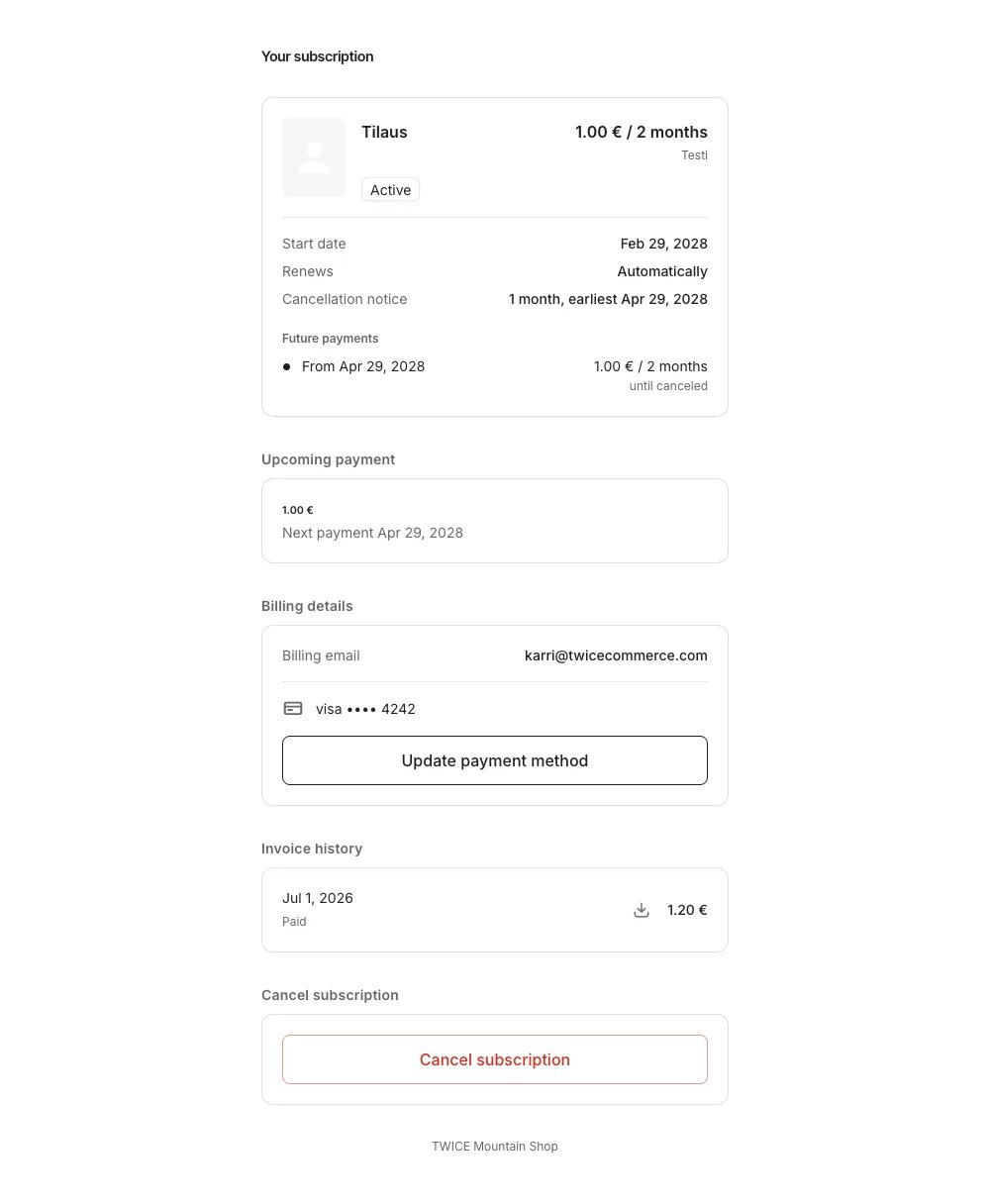
The subscription portal as the customer sees it
How it works
Magic link access
Customers reach the portal through a link embedded in subscription-related emails:- Order confirmation — sent when a subscription order is placed
- Payment failed — sent when an automatic charge fails
- Renewal reminder — sent before an upcoming billing cycle
- Recovery email — sent when a customer requests a new link
An order holds at most 20 unexpired links at a time. Past that, issuing another one expires the oldest. This is a runaway guard rather than a security limit — a customer who has asked for several replacements in a row still has the recent ones.
Recovery flow
A link past its 7 days sends the customer to a recovery form, which emails a fresh link to the order’s contact address. How much they have to type depends on where they came from:- From an expired link — the order reference is resolved from the link and filled in for them, so they enter only their email address.
- From a bookmarked portal page — a customer who saved the portal page instead of keeping the email lands on the same form, with the reference resolved from the order id already in the address. Again only the email address is needed.
- From neither — a customer starting cold enters both their email address and the order reference shown on their order confirmation, such as
#1042.
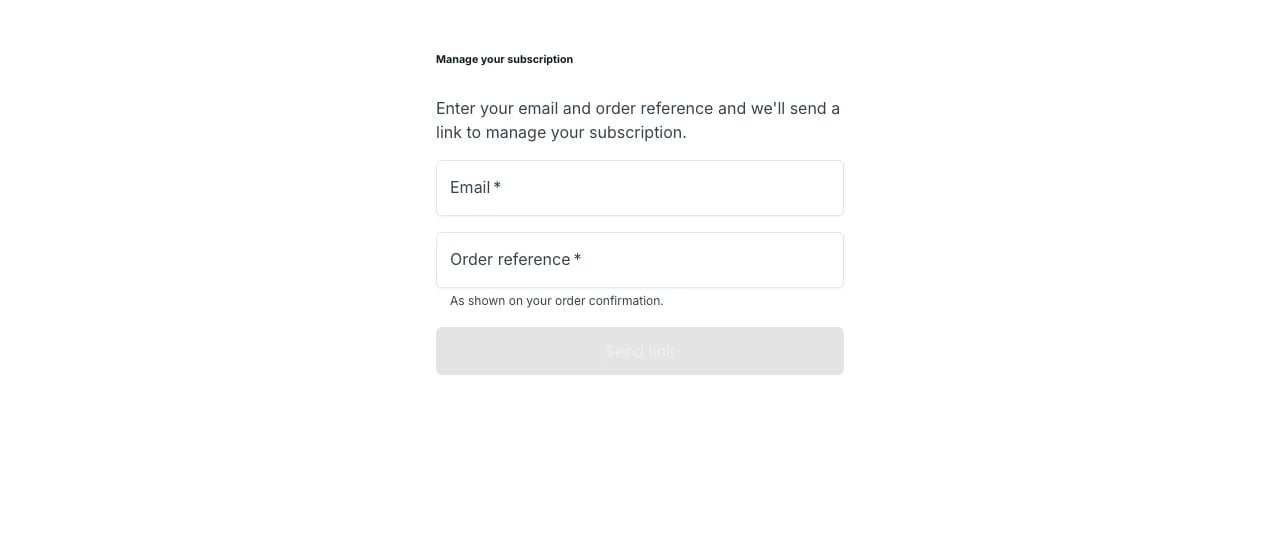
The recovery form as a customer starting cold sees it — both fields to fill
Rate limiting
Opening links very frequently is rate-limited. The customer is told “Too many attempts just now. Please wait a few minutes and open your link again.” Their link is not expired and no replacement is needed — the limit is applied before the link is looked up at all, so the message says nothing either way about whether the link is valid.Portal sections
Subscription cards
Each subscription on the order appears as a card showing:- Listing name and variants
- Recurring price and billing cycle (e.g. “$29.99/month”)
- Plan label
- Status indicator
Plan details are shown below the status:
- Start date
- Renewal type (automatic or non-renewing)
- Minimum term, when a commitment period applies (e.g. “6 months, until Jan 15, 2027”)
- Cancellation notice period, when the plan auto-renews (e.g. “1 month, earliest Jan 15, 2027” or “Anytime”)
- Payment schedule timeline — a list of upcoming billing-rate segments
Upcoming payment
Displays the next scheduled payment amount and date. Shows “Overdue since ” for past-due invoices, or “No upcoming payments” when nothing is scheduled.Billing details
Shows the customer’s billing email and saved payment method (card brand and last four digits). Customers can update their card or add a new one from this section.Invoice history
Lists all issued invoices with date, status, and amount. Each invoice supports:- Retry — re-attempt a failed charge using the saved card (available when the invoice is open and a card is on file)
- Download invoice PDF — available for all issued invoices
- Download receipt PDF — available after payment is captured
Cancel subscription
Customers can cancel individual subscriptions or all subscriptions on the order at once.Subscription states
The portal shows these statuses on each subscription card:Cancellation flow
When a customer cancels, the portal shows a confirmation dialog with the effective cancellation date. The date depends on the subscription plan’s commitment period and cancellation notice period:- The subscription stays active and continues billing until the effective date
- If the effective date is today, the cancellation takes effect immediately
- The subscription runs to the end of the effective date in the order’s pickup location time zone, so access ends at the end of that local day
- The confirmation dialog shows any outstanding balance and remaining scheduled charges before the effective date
- Immediate cancellation — the subscription status changes to “Cancelled” and billing stops
- Scheduled cancellation — the subscription is marked “Cancelling” and continues billing until the effective date, then automatically transitions to “Cancelled”
Cancellation stops future automatic charges but does not clear existing unpaid balances. Outstanding invoices remain collectible.
Payment updates
Updating a payment method creates a zero-amount authorization to verify the card. If the card requires 3D Secure verification, the customer completes the challenge in the portal. After a successful card update, the portal automatically attempts to settle any outstanding balance. The Pay now action charges all open invoices using the saved card in a single transaction. If no card is on file or the charge fails, the customer is prompted to add or update their payment method.Prerequisites
The portal requires:- A payment gateway (Stripe or Adyen) connected to your account — needed for card updates and payment actions
- Your online store deployed — the portal is hosted on your storefront
- Email delivery active — magic links are sent via email
Related articles
Order Types
Purchase types including subscription orders.
Payments
Payment processing, refunds, and provider requirements.