

Open in TWICE Admin
orders
Prerequisites
Have ready before you start:
- The order’s reference or the customer’s name, to find the order.
- The items you are handing over, to check against the order.
- Any payment or deposit due, taken before the items leave. See Take payment and deposits.
The walkthrough
1
Open the order
Open Orders and click the order’s row. Type its reference or the customer’s name in Search all orders to find it. With more than one location, check the location selector in the top-left corner first: the table lists only that location’s orders.The order opens on its Summary tab.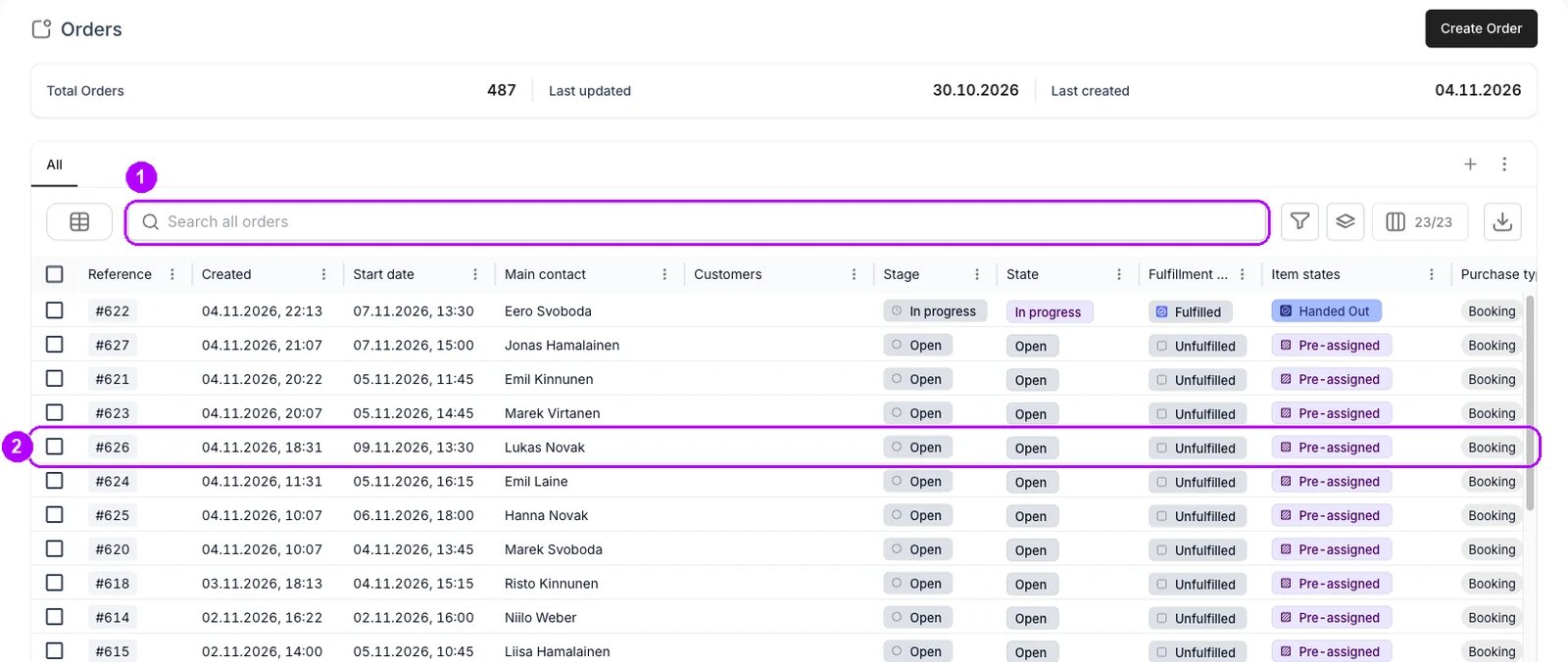
2
Check what goes out
On the Summary tab, check the lines against the items you are handing over. Each line lists its stock items, each with a chip showing its state, such as Pre-assigned. The status chip in the top-right corner reads Open.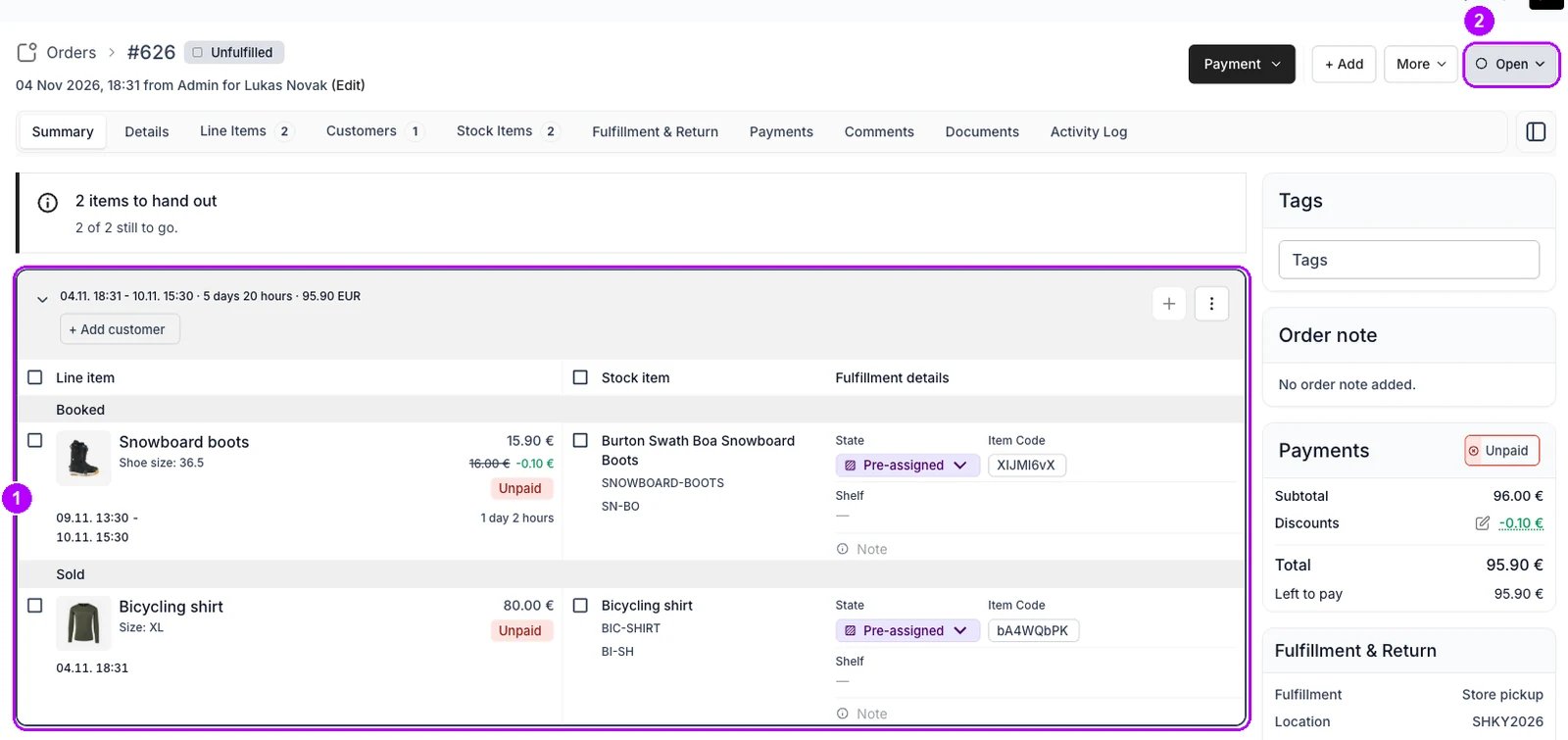
3
Choose In progress
Click the Open status chip in the top-right corner. A menu of your order states opens, grouped by status. Choose In progress.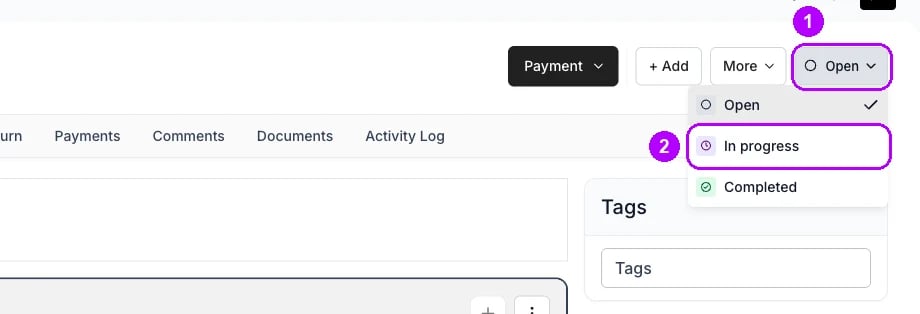
4
Confirm the move
A dialog opens to confirm the move. Under Item automations, a ticked line moves the items to Handed Out by default. Leave it ticked and click Move to In progress.When your account runs these moves without asking, no dialog opens and the order moves straight away.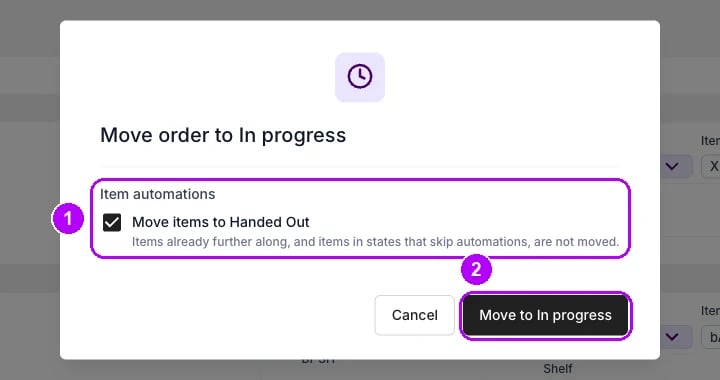
5
Check the items are handed over
The status chip now reads In progress. On the Summary tab, each item’s chip reads Handed Out, and the fulfillment chip beside the order reference reads Fulfilled.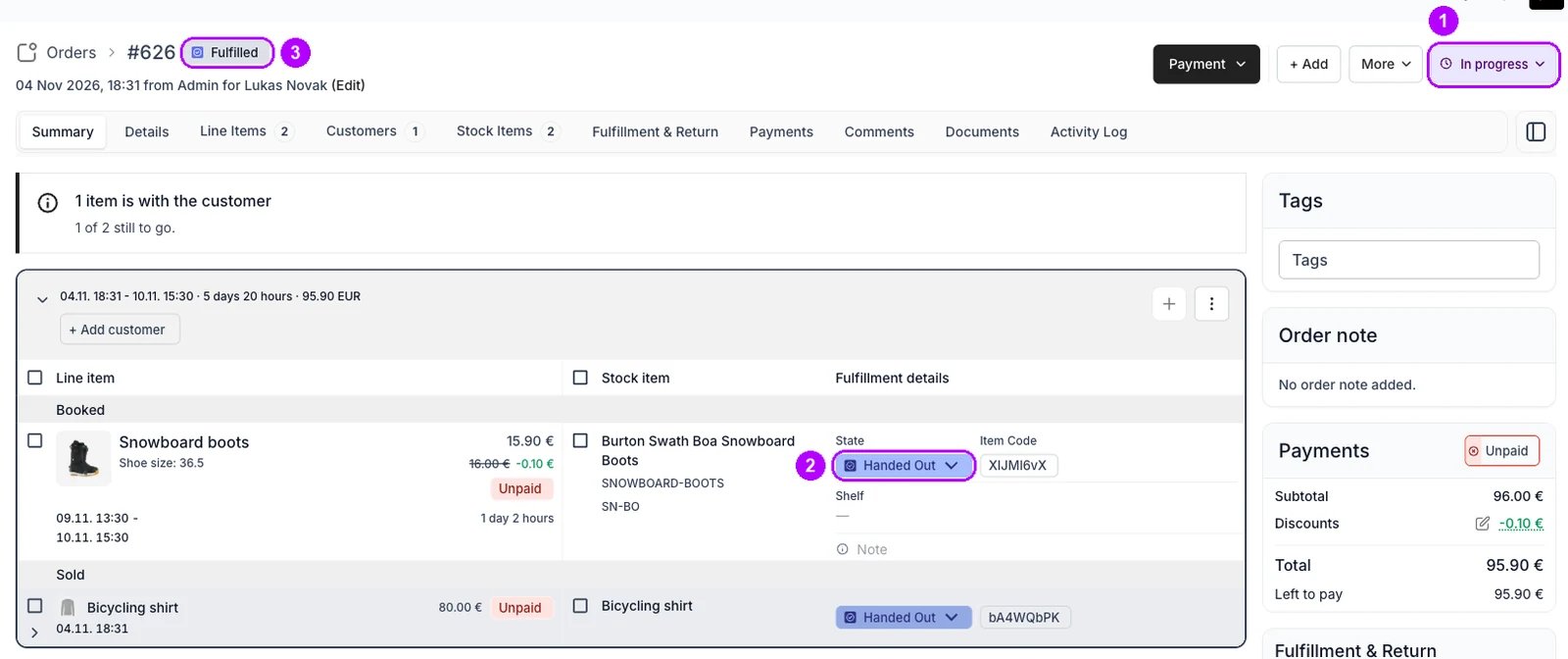
How do I know it worked?
- The status chip reads In progress in the top-right corner of the order.
- Each item reads Handed Out on the Summary tab.
- The fulfillment chip reads Fulfilled beside the order reference once every item is out.
- The order is listed as In progress when you filter the Orders table by Stage.
Troubleshooting / common pitfalls
The items did not move to Handed Out
The items did not move to Handed Out
Your account’s automation for In progress decides what the move does to the items, and an item in a state that skips automations stays where it is. Set such an item by hand from its own chip. See Order lifecycle settings.
The dialog says the order cannot move yet
The dialog says the order cannot move yet
A check your account runs before an order starts, such as Order is unpaid, is set to block, and the dialog lists what stands in the way. Fix it and try again. A check set to warn offers Move anyway instead. See Order lifecycle settings.
Related articles
Order Lifecycle
The statuses an order moves through, and what each move does.
Take an order in admin
Every step of an admin order, from creating it to closing it.
Complete an order
Close the order once nothing is left to do on it.
Order lifecycle settings
What each move does to the items, and what is checked first.