

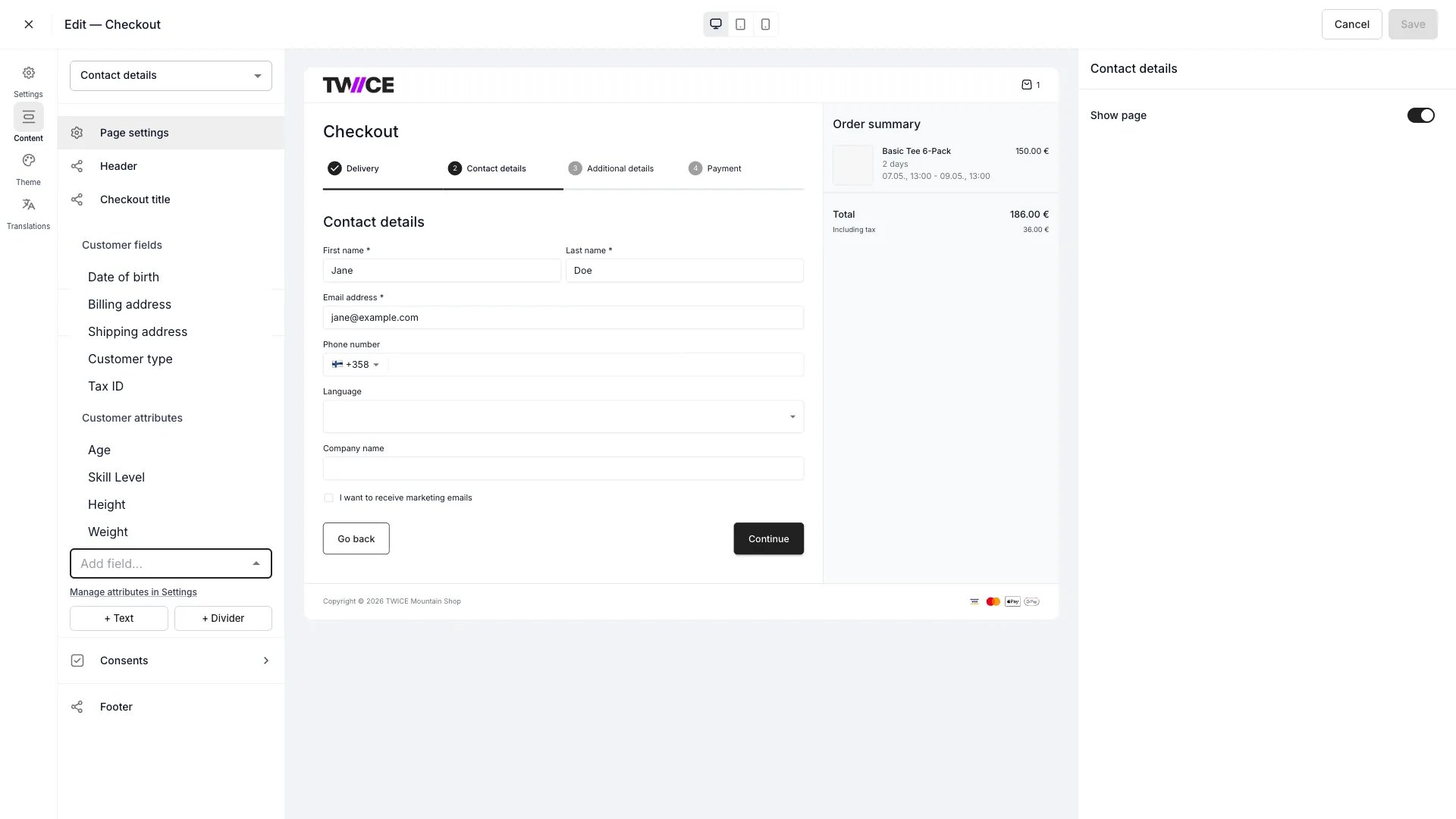
Settings > Checkouts > [checkout] > Steps > Contact
Open in TWICE Admin
settings/checkouts
Prerequisites
Decide before you start:
- Will you filter or report on this? If yes, make it a field or an attribute rather than free text in a note.
- Is it about the person or about the item? That single question picks the place. See the first step.
- Do you need it every time? Required fields block the checkout, which is a real cost on a phone at a trailhead.
The walkthrough
1
Route the question to the right place
Pick the destination from what the question is about. The three are not interchangeable:
2
Send item questions to the listing, not the checkout
Take the third row to ask customers for information at checkout, because a question about the item belongs to the listing. Height for a bike fitting is an item question. Driving licence number is a person question.
3
Add the built-in profile fields you need
Add them on the Contact step, grouped under Customer fields in the Add field picker. Seven fields from the customer profile can be collected: Date of birth, Billing address, Shipping address, Language, Customer type, Company name and Tax ID.Set Required, a Label, a Placeholder, and whether the field sits on the same row as the previous one. Each field can be added once per checkout.Add Customer type, Company name and Tax ID where you sell to companies. They turn a checkout into a business customer record without anyone retyping it.Full control-by-control detail is on Checkout steps.
4
Use attributes for anything the built-ins do not cover
Create a customer attribute for anything else about the person, such as a membership number, a licence class or a club affiliation. Create it once, then surface it on the Contact step.An attribute is a column in the customers table, so it can be filtered, sorted and grouped, which is what makes segmentation possible. A value typed into a general note cannot be found again at scale.Attribute-backed fields inherit the attribute’s input mask, so a licence number is validated in the shape you defined rather than accepted as any text.
5
Be sparing with Required
Set Required only for what you cannot legally or operationally proceed without, such as an age check where you sell to over-18s only. Leave everything merely useful optional.Required blocks the customer from continuing past the Contact step. The step is late enough in the flow that friction there is expensive.
6
Know what a repeat checkout writes to the profile
Expect a returning customer’s submission to overwrite what they were asked for. TWICE Commerce matches an order against an existing customer by email. On a match, a field the checkout collected is written over the stored value, and a field it did not collect keeps what is already on the record.First name and Marketing consent are the exception among the fields a customer fills in. Every submission carries them, so they always take the newest value.
7
Keep values you do not want customers changing off the checkout
Leave a value off the Contact step and the admin stays the only place it is set. The fields you put there are the fields a returning customer can change. Clearing a stored value is an explicit edit in the admin or through the API, never something an order does on its own.
8
Expect a matching email to revive an archived profile
A matching email also revives an archived profile. A customer you archived who then checks out again returns to active with their new order attached, rather than accumulating orders on a hidden record. Archiving is not a way to make someone go away.
How do I know it worked?
- Place a test order through the checkout and open the resulting customer record. Every field you added should be populated from what you typed.
- The values are on the profile, not only on the order.
- Attribute columns appear in the customers table, filterable, which confirms they are usable for segmentation.
- A second test order with the same email updates the same profile rather than creating a second one.
Troubleshooting / common pitfalls
The field is not in the Add field picker
The field is not in the Add field picker
It is already on the form. Fields already placed leave the picker, since each can be added only once per checkout.Check the Contact step. Move the field where you want it in a different position, rather than adding it again.
A returning customer's details changed after a new order
A returning customer's details changed after a new order
The customer changed them at checkout. An order matching an existing email writes the fields that checkout collected over the stored ones, and leaves the rest of the record alone.Take the value off the Contact step and set it in the admin where it must not be customer-editable. A field you never ask for at checkout cannot be overwritten by one.
A business customer came back as an individual
A business customer came back as an individual
The checkout they used has no Customer type field, and that field takes the checkout’s value whether or not the customer was asked, so the order arrives as Individual.Set Customer type back to Business on the customer record, then add the Customer type field to the Contact step of that checkout so the next order keeps it. Their stored Company name and Tax ID are untouched either way.
I collected the data but cannot filter customers by it
I collected the data but cannot filter customers by it
It went somewhere unfilterable: a general note, or a listing checkout field that landed on the order line rather than the customer.Make it a customer attribute and collect it as a Customer field. Data about the person that lives on an order line cannot be segmented on.
Customers are abandoning the checkout
Customers are abandoning the checkout
Count the Required fields you have added. The Contact step is late in the flow, and every required field is a chance to give up.Make everything optional that you do not strictly need, and reconsider whether the question belongs at checkout at all. Some things are better asked at pickup, by a person.
I need the same question per item, not per customer
I need the same question per item, not per customer
A per-item question belongs to the listing, not to the checkout.See ask customers for information at checkout. Those answers land on the order line, which is where a per-item answer is useful.
Related articles
Checkout steps
The Contact step, field by field.
Segment customers
Using what you collect to build groups.
Ask for information at checkout
The per-item version of this decision.
Attributes
How attributes and input masks work.