

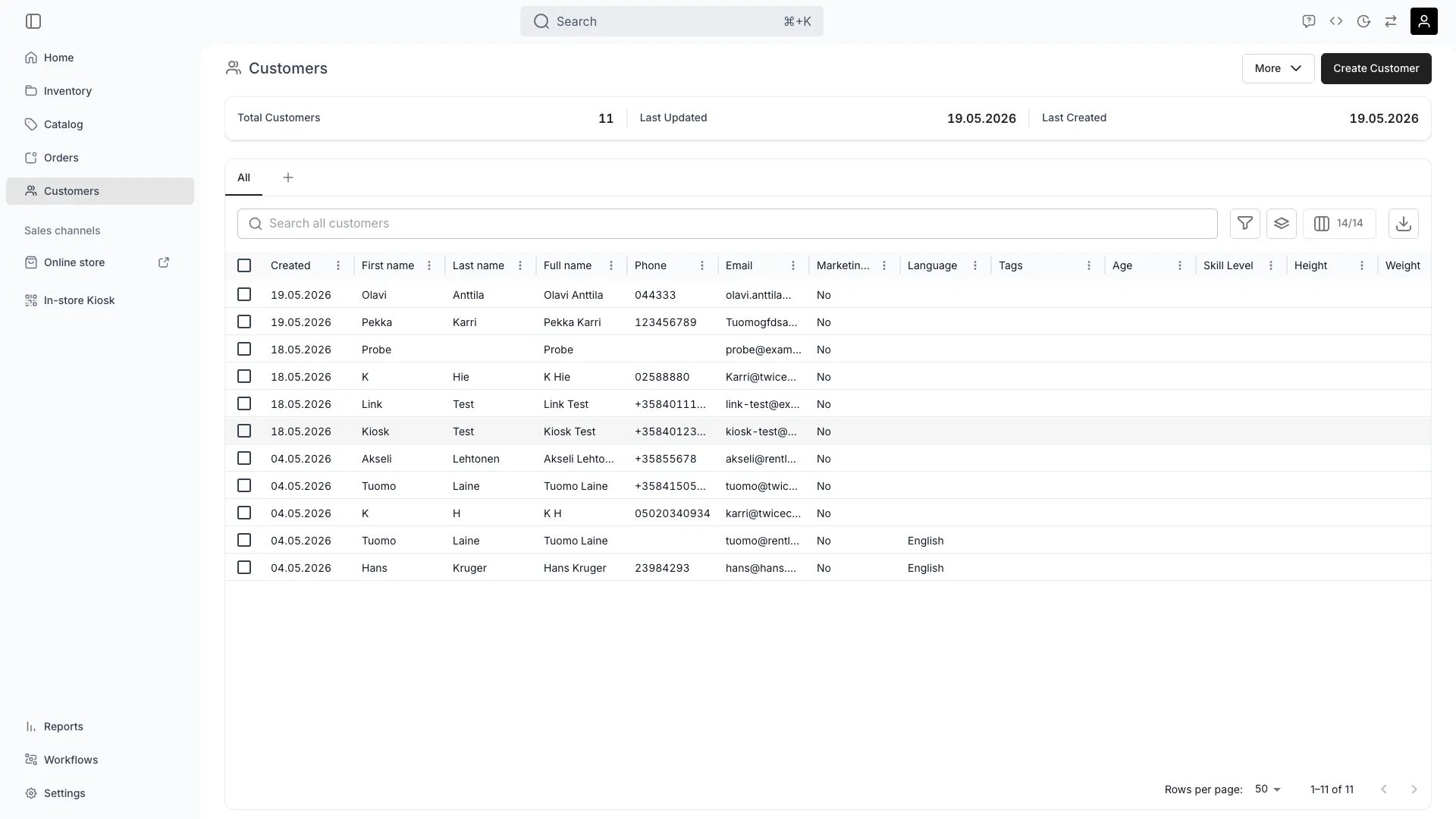
Customers
Open in TWICE Admin
customers
Prerequisites
Decide before you start:
- Is this membership or a fact? Ski club member is membership, so a tag. Licence class B is a fact, so an attribute. See the first step.
- Who maintains it? A tag applied by hand needs someone to keep applying it. An attribute collected at checkout maintains itself.
The walkthrough
1
Choose tags or attributes
Pick by whether you would ever want to know the value. If yes, use an attribute; if the only question is in-or-out, a tag is simpler.
Both are filterable columns in the customers table, so either can drive a segment. Full detail on the distinction is in Customer groups.
2
Build a group with tags
Apply tags on a customer’s General tab, on the Tags card. The tag set is shared across your customers, so a tag applied here is available everywhere and appears in the table’s Tags column.Keep the taxonomy small and agree the list before you scale it. Tags proliferate quietly: three people inventing vip, VIP and v.i.p. produce three groups where you wanted one, and nothing merges them for you.Use tags to restrict what a group can see, since a listing can be limited to customer tags. That is how a members-only or trade-only offer is built. See Create and publish a listing.
3
Record facts with attributes
Create the attribute once, then set it per customer by hand on the Attributes tab, or automatically by collecting it at checkout.Prefer collected attributes, because they maintain themselves as customers order. An attribute nobody fills is a column of blanks, which is worse than not having it.Choose the type carefully, because it decides how useful filtering is. A select attribute filters to exact choices, a number by range, and a date by period. A text attribute filters by substring, which is the weakest of the four.
4
Filter the table down to the segment
Combine filters to isolate the group. Anything in the table is fair game: tags, attributes, Marketing consent, Customer type, Language, Created, and the billing and shipping address columns.Some combinations that earn their keep:
- Marketing consent is true, plus a tag, for the segment you are allowed to email.
- Customer type is Business, plus a Tax / VAT ID that is set, for companies you can invoice.
- Language, for a campaign that only exists in one language.
- Created in a period, for customers acquired by a specific push.
5
Save the segment as a view
Save the filter as a view, so the segment is a tab rather than a reconstruction. Views appear on the table’s tab row, and the panel at the right of that row searches, reorders and hides them.Save the ones you use routinely, so consented Finnish-speaking members stops being a query somebody remembers and becomes a thing anyone on the team can open. See Tables.Reordering and hiding tabs is per-user and per-browser, so your arrangement is yours. The views themselves are shared.
6
Use the segment
Take a saved view to one of three places:
- Export it, since the export respects your filters, sorts, groupings and visible columns. That is how a segment reaches an email tool. See Export customers.
- Restrict a listing to it via tags, for members-only or trade pricing.
- Read it, for a straightforward count of how big a group actually is before you plan around it.
How do I know it worked?
- The filter returns the customers you expected, and a spot-check of two or three confirms they belong.
- The count is plausible. A segment of three when you expected three hundred usually means the attribute is unfilled rather than the segment being small.
- The view is saved and opens to the same set tomorrow.
- The export contains the columns you need, not only the ones the table happened to be showing.
Troubleshooting / common pitfalls
The segment is much smaller than expected
The segment is much smaller than expected
Usually an unfilled attribute. Filtering on an attribute only finds customers who have a value for it, and an attribute added last month is blank on everyone who ordered before that.Count how many customers have the attribute set at all before trusting a filter on it. An attribute collected at checkout fills over time, but it never backfills.
I cannot filter on the thing I collected
I cannot filter on the thing I collected
It is not a tag or an attribute. Free text on a profile, or an answer that landed on an order line, is not a customer column.Make it an attribute and collect it going forward. See Collect customer data at checkout.
I want to email the segment and some of them have not consented
I want to email the segment and some of them have not consented
Marketing consent is a column, and it is the flag that says whether you may.Make consent part of every marketing segment rather than a check you do afterwards. See Export customers.
Can a segment update itself?
Can a segment update itself?
A saved view does. It is a filter, so it re-resolves every time it opens and picks up customers who newly match. A tag does not: it is applied per customer and stays until someone changes it.Express the group as a filter on attributes rather than as a tag somebody has to maintain, where its definition is a rule rather than a decision.
Related articles
Export customers
Getting a segment into an email tool.
Collect data at checkout
Filling attributes without anyone typing.
Customer groups
Tags, attributes, and the taxonomy question.
Tables
Filters, grouping and saved views in full.