

Open in TWICE Admin
catalog/listings
Prerequisites
Have ready before you start:
- The partner’s fares, to quote in the description.
- The pickup points the partner serves, such as the airport and the ferry terminal.
- What the partner needs to know, such as the flight or ferry and the arrival time.
The walkthrough
1
Create the listing
Select Catalog in the left sidebar and click Create Listing at the top right. In the Create listing list that opens in the middle of the screen, choose Manual entry. The new listing opens on its General tab, with Status at Draft.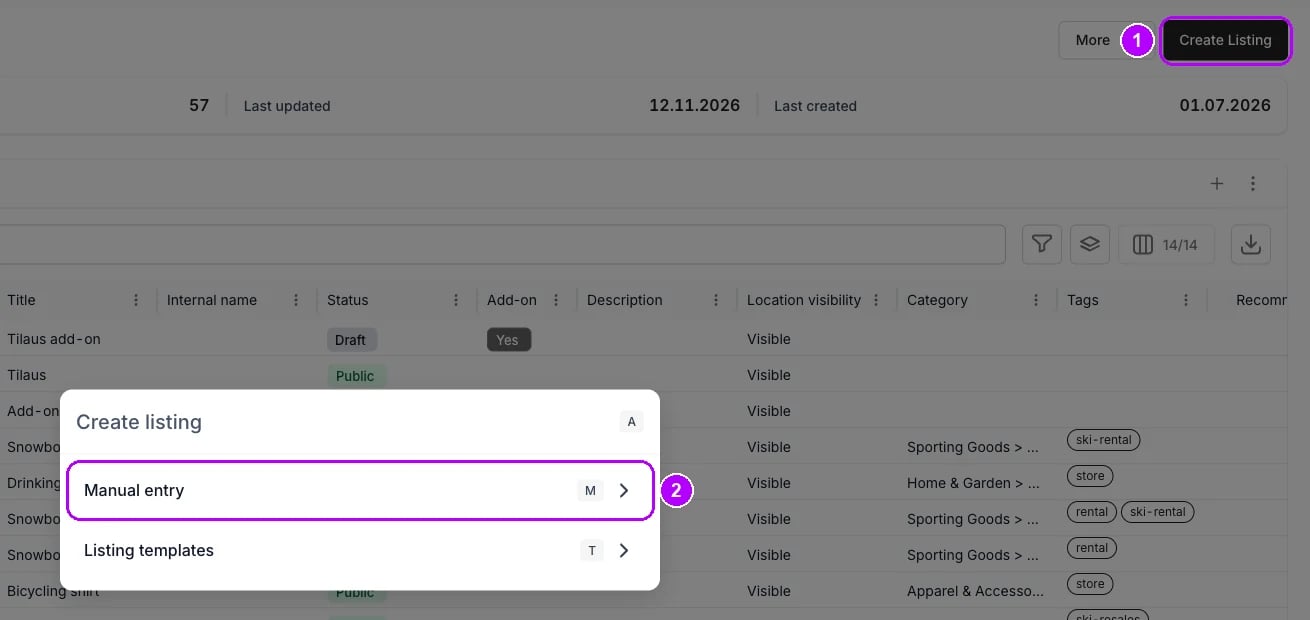
2
Name the service and say who is paid
Enter the name customers see in Title, such as Airport transfer. In Description, say who the customer pays, such as the driver, and quote their fares. Click Save changes in the bar at the top.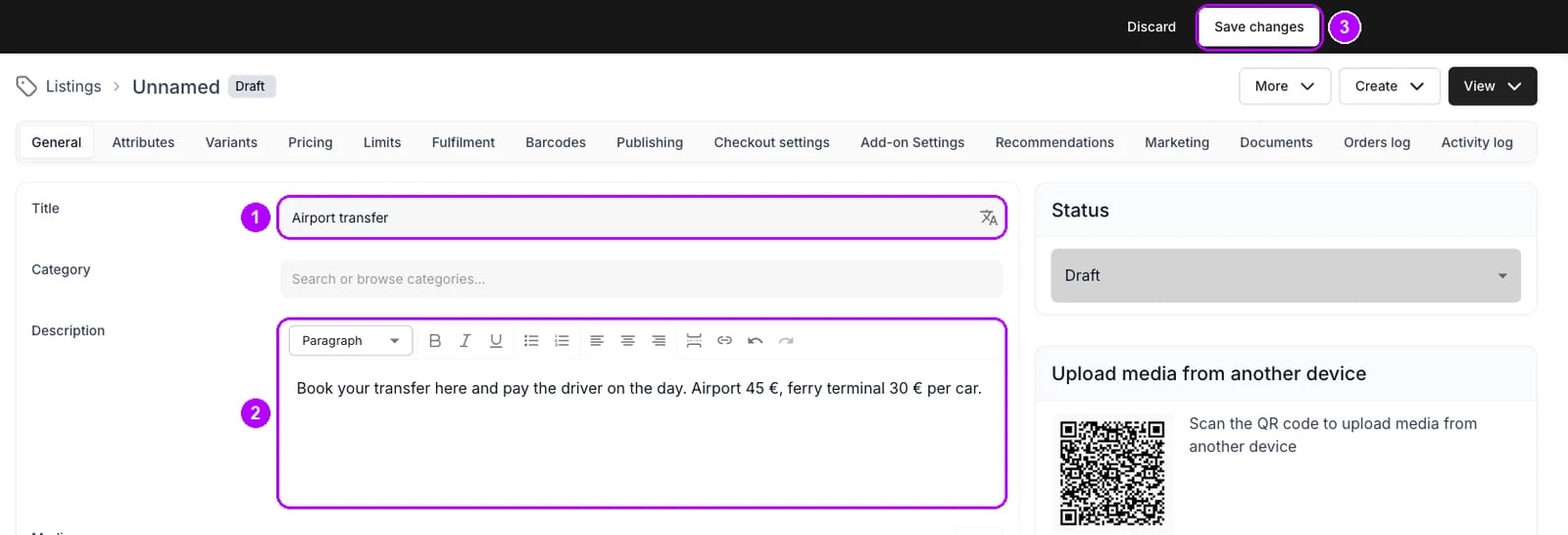
3
Switch on Purchase price
Click Pricing in the tab row. On the Default price table, switch on Purchase price with the switch at the right end of its row. A Price field appears under it.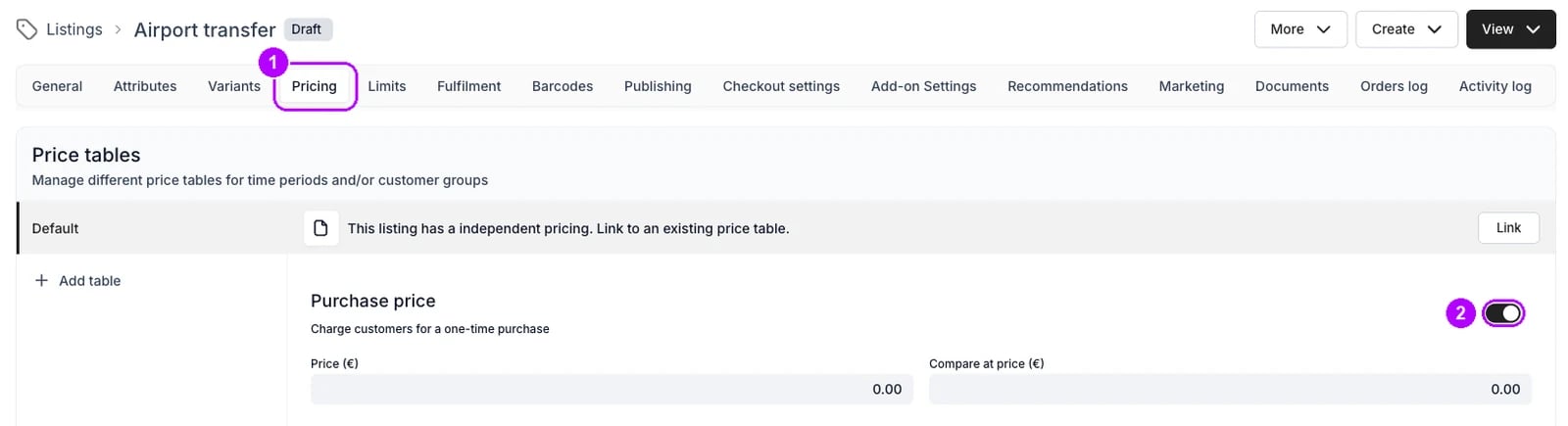
4
Set the price to zero
Enter 0 in Price, even though the field already shows it. The price is stored only once you type it. Click Save changes in the bar at the top.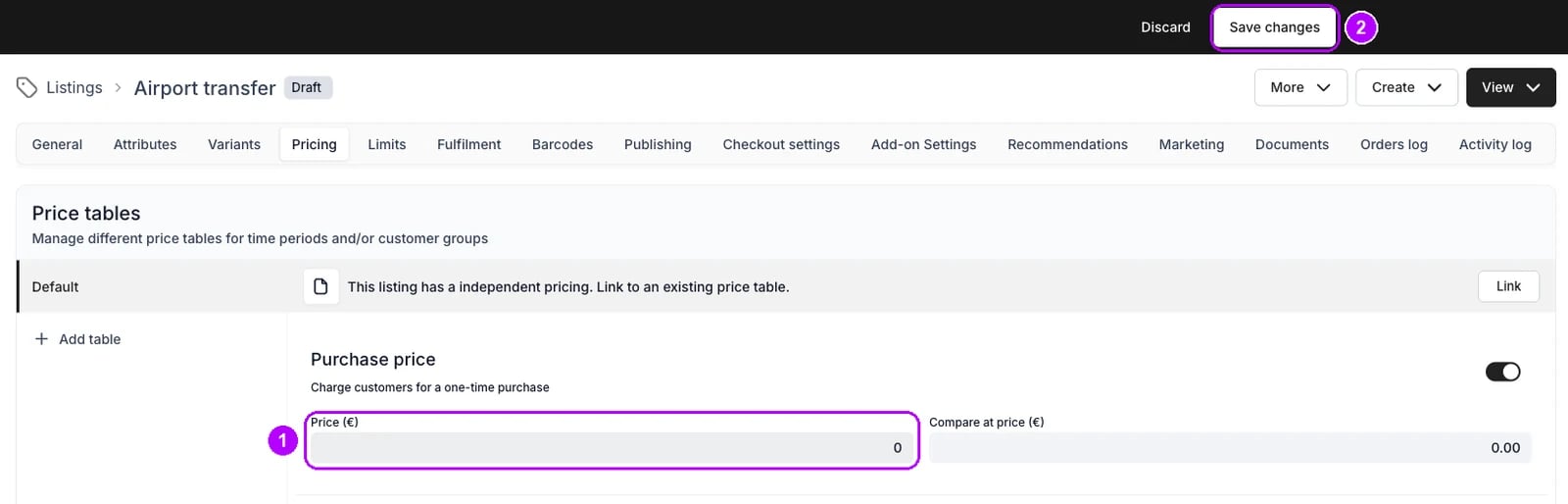
5
Open Add fields
Click Checkout settings in the tab row, then Add fields at the top right of the Checkout fields card. The Add field panel opens on the right with a Type list.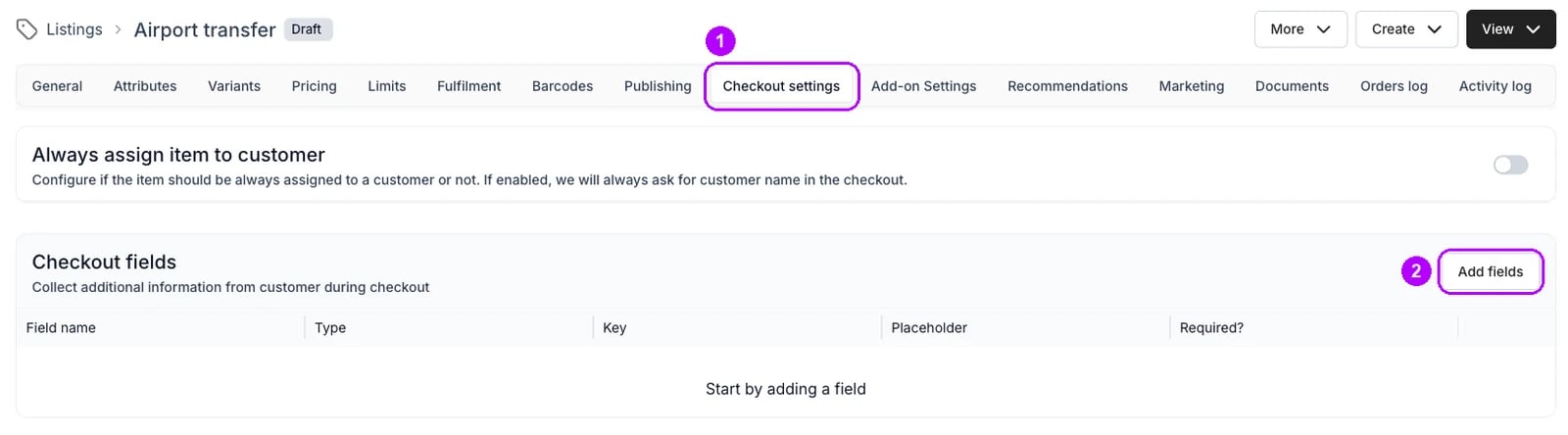
6
Add the pickup point
Choose Select field in Type and enter Pickup point in Field name. Click Add option once for each pickup point, and type its name in the row that appears.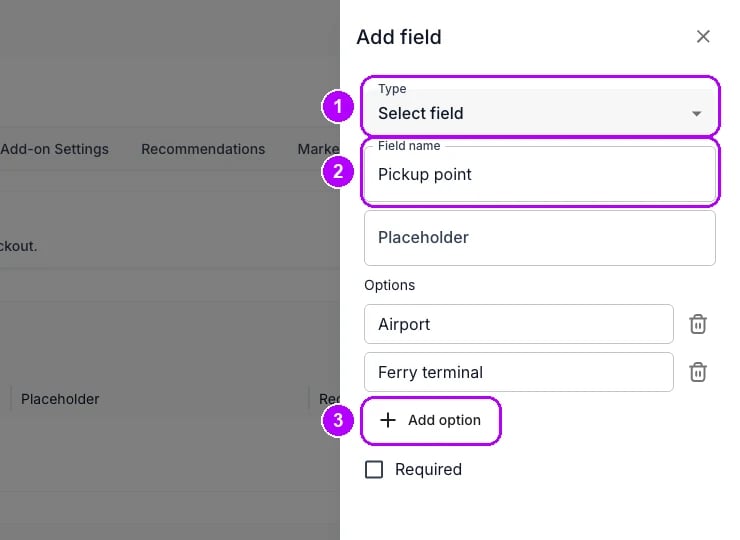
7
Make it required and save
Tick Required and click Save at the bottom of the panel. The panel closes, and the Checkout fields table lists the field.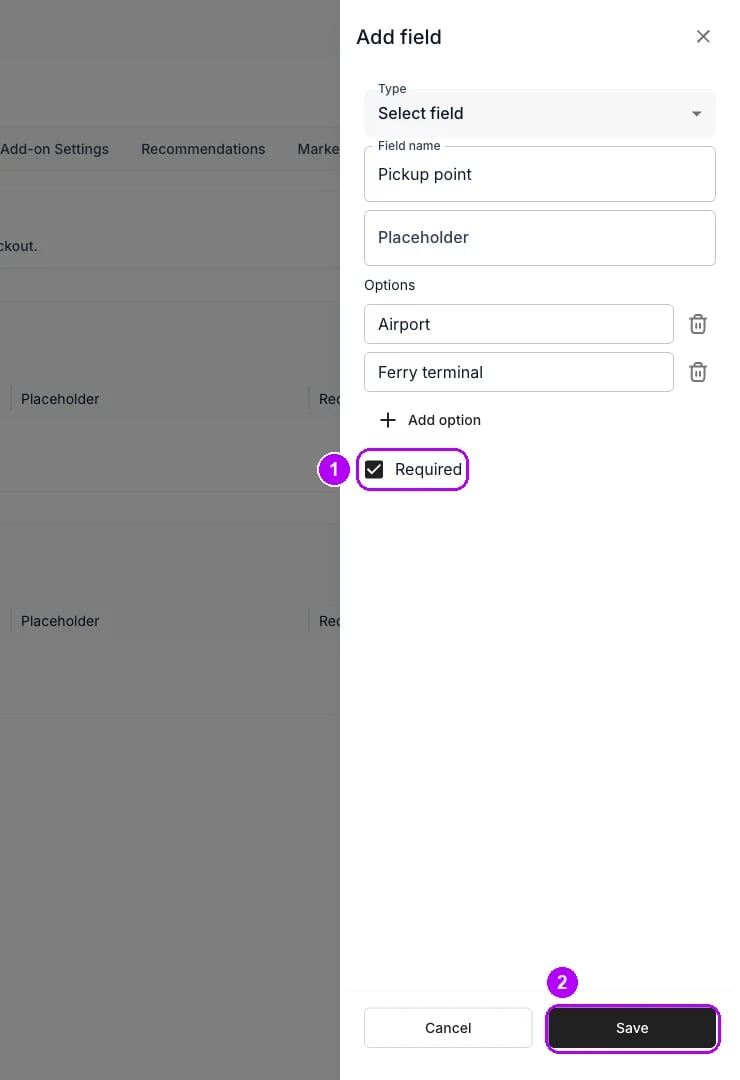
8
Add the travel details
Click Add fields again and choose Text field in Type. Enter what the partner needs in Field name, such as Flight or ferry and arrival time. Tick Required and click Save.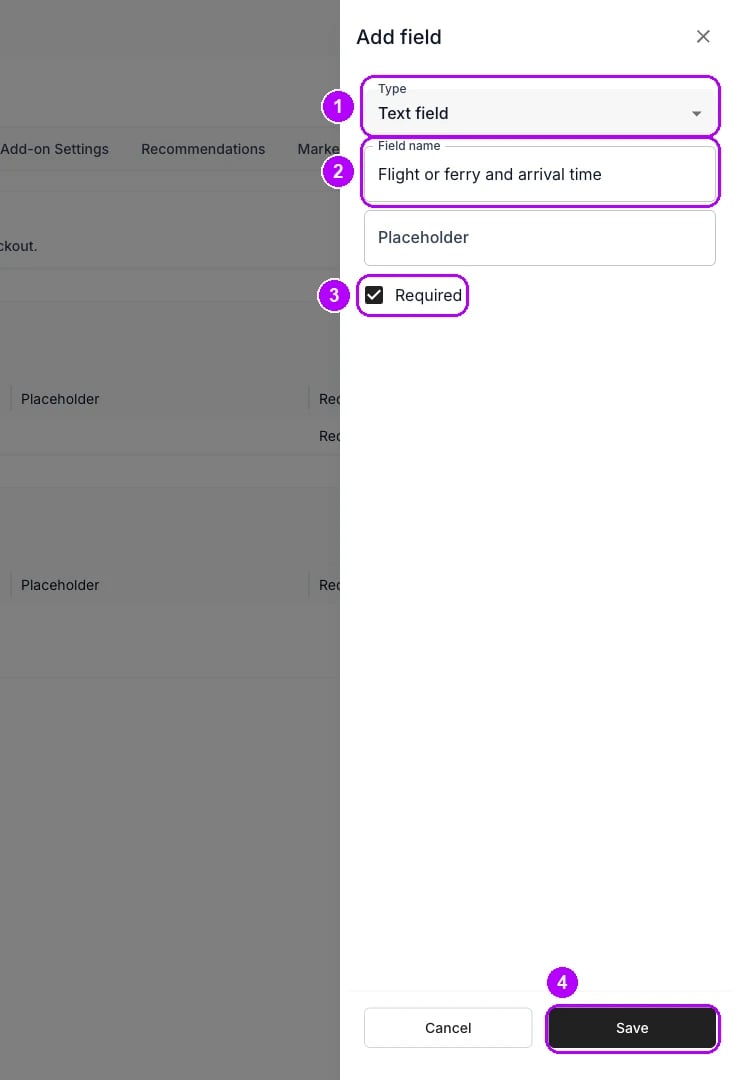
9
Publish it
Click General in the tab row. Open Status on the right and choose Public, then click Save changes in the bar at the top.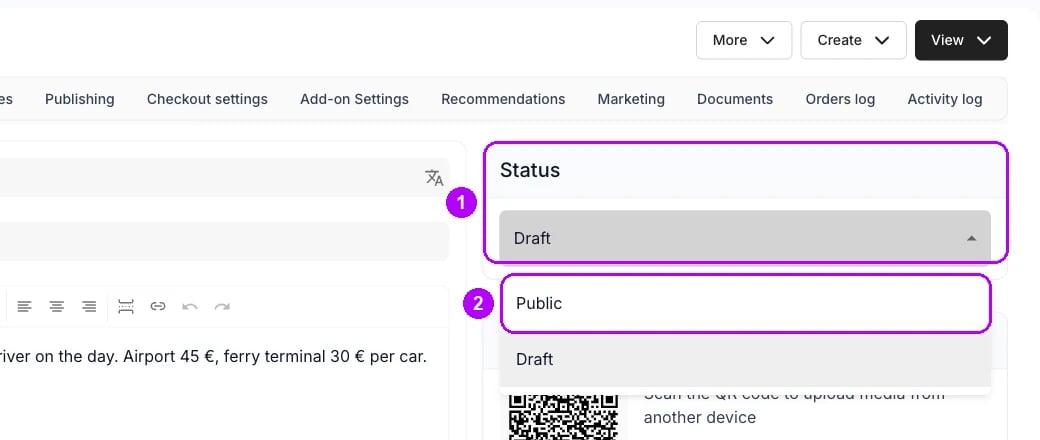
How do I know it worked?
- The listing is Public, with Purchase price on and Price at 0 on its Pricing tab.
- Its Fulfilment tab has no stock rule. The Stock items card reads “No stock items reserved or deducted when the listing is purchased”, so the service never sells out.
- Checkout asks for the pickup point and the travel details when a customer orders the service.
- The service line on the order reads Paid from the start, since nothing is owed on it, and the customer’s answers show under it on the Summary tab.
- Filtering Orders on Listings for the service lists every order that holds it, which is the partner’s list.
Troubleshooting / common pitfalls
Customers cannot add the service to the cart
Customers cannot add the service to the cart
Purchase price is on, but no price was saved. Type 0 in Price and click Save changes. See Listing pricing.
The service shows as sold out
The service shows as sold out
The listing has a stock rule on its Fulfilment tab. Delete it, so nothing is reserved or deducted. See Fulfilment.
The service does not appear in the online store
The service does not appear in the online store
Status is still Draft, or the listing is not offered at the store’s location. Check Store locations on its Publishing tab. See Create and publish a listing.
Related articles
Fulfilment
Stock rules, and why a listing with none is available without limit.
Checkout Settings
Every checkout field type, and where the answers land.
Create a sales listing
A listing customers buy outright, with stock that is deducted.
Save a daily view
Save a filtered Orders table as a view with its own tab.