

Open in TWICE Admin
catalog/listings
Prerequisites
Have ready before you start:
- A listing for the consumable, with Only available as add-on switched on and a Purchase price saved. Enter 0 as the price if you do not charge for it. See Create an add-on listing.
- How many go with the listing, such as two tablets.
The walkthrough
1
Open the listing
Select Catalog in the left sidebar. The Listings table opens. Search for the listing the consumable goes with in Search all listings, then click its row. The listing opens on its General tab.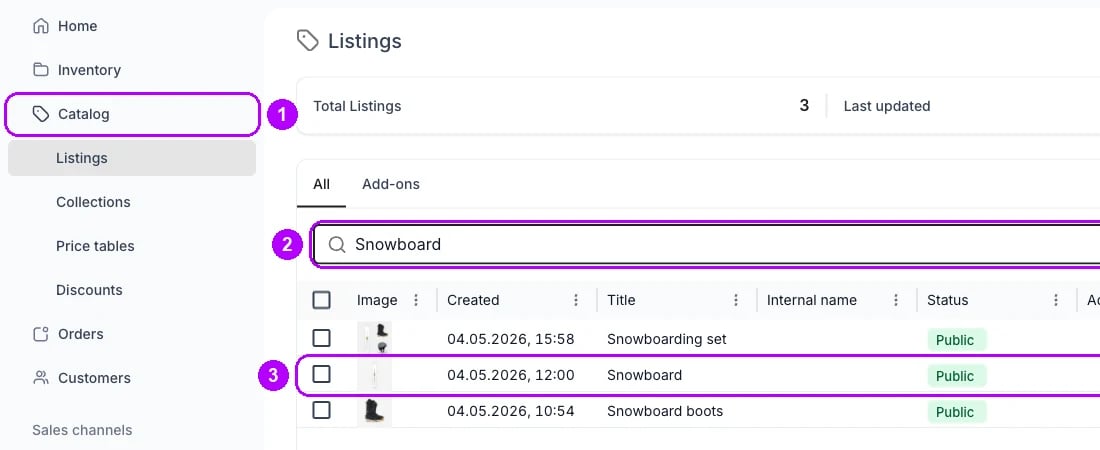
2
Open Recommendations
Click Recommendations in the tab row. The tab shows two cards: Add-ons, the listings offered with this one, and Related listings.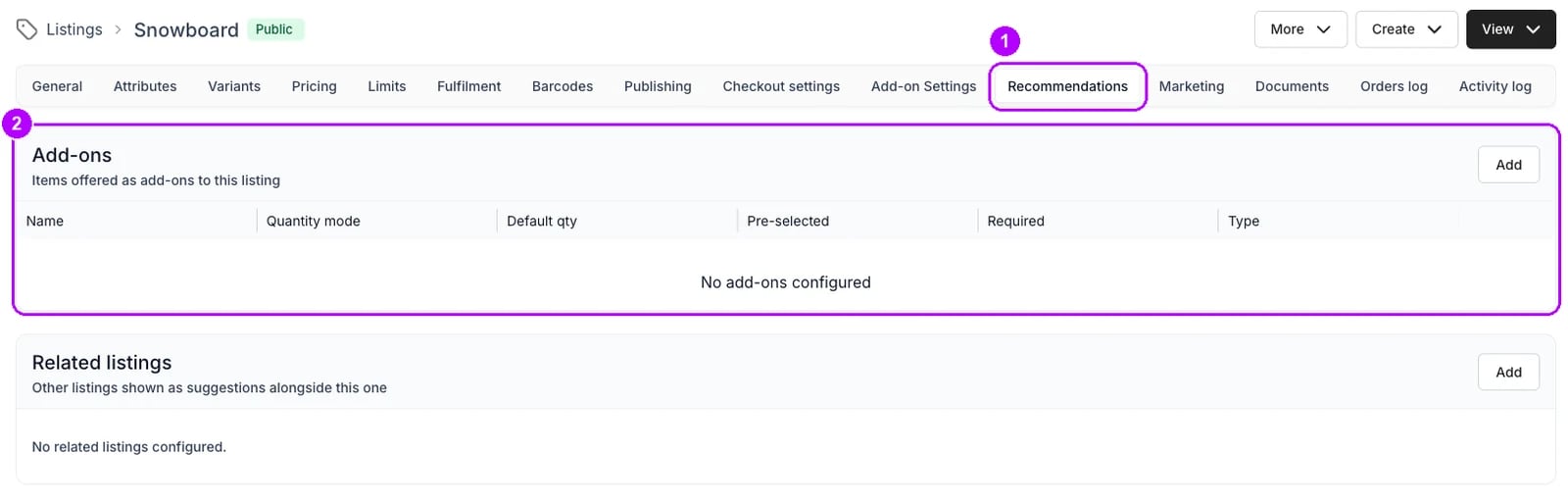
3
Click Add
Click Add at the top right of the Add-ons card. The Add add-on panel opens on the right, with a search box and a list of your listings.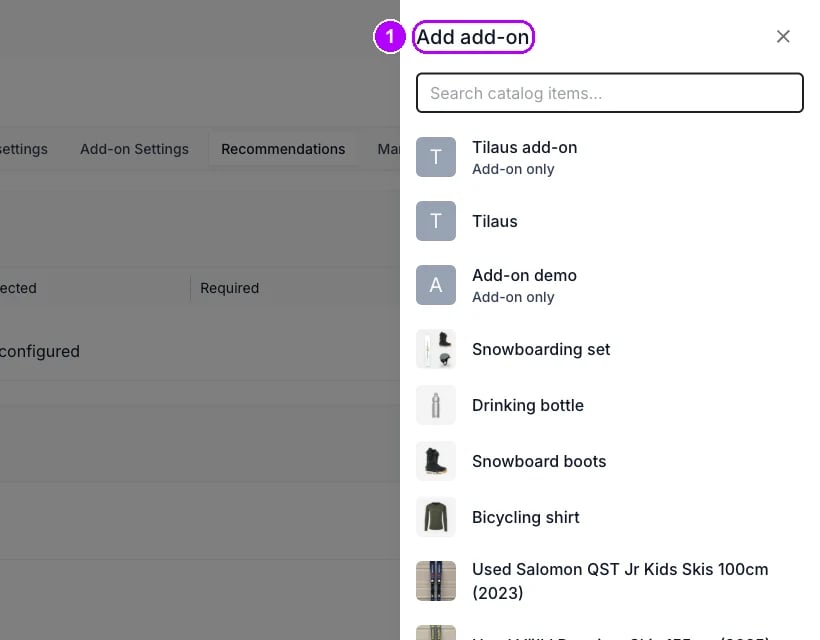
4
Pick the consumable
Type the consumable’s name in the search box at the top of the panel, then click it in the list. The panel changes to Configure add-on, with the consumable’s name under the title.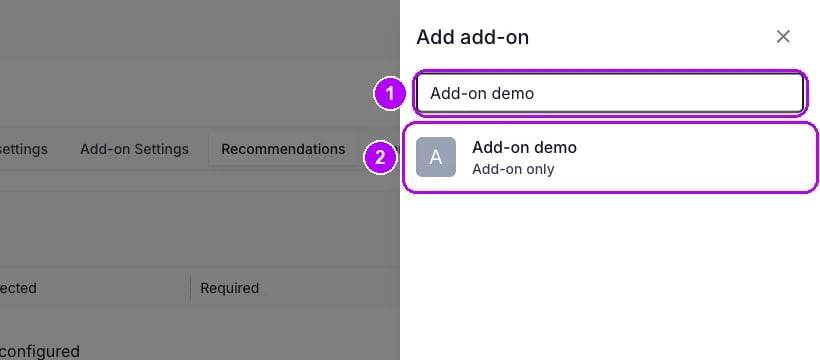
5
Fix the quantity
Open Quantity mode and choose Fixed, so the customer cannot change how many come with the listing. Enter that number in Default quantity.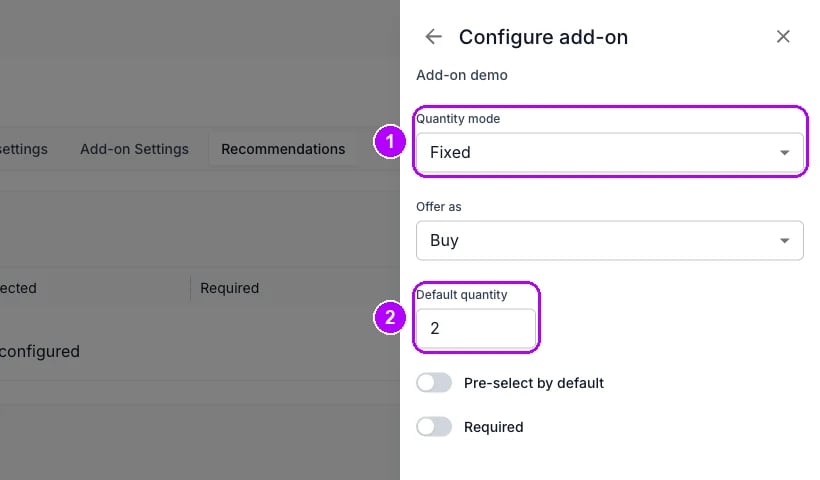
6
Make it required
Leave Offer as at Buy, which sells the consumable rather than booking it. Switch on Required. “Customers cannot uncheck this add-on” appears under the switch.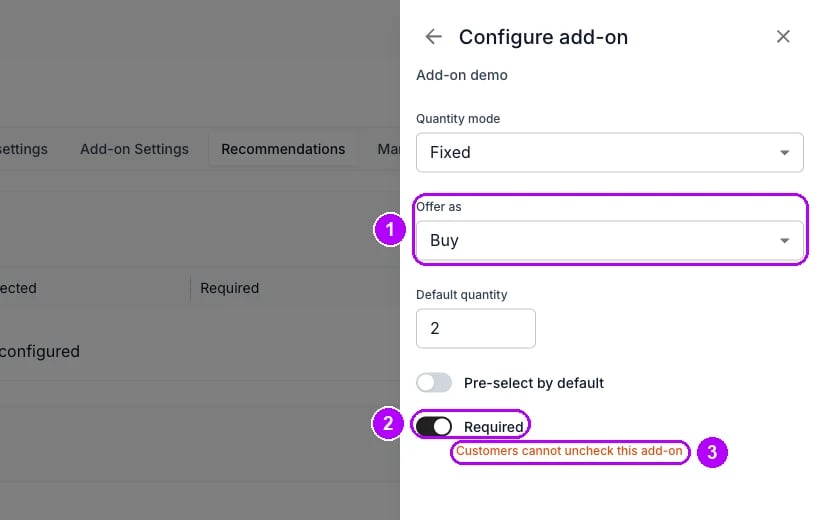
7
Add it
Click Add at the bottom of the panel. The panel closes, and the Add-ons table lists the consumable with Fixed under Quantity mode, Yes under Required and Buy under Type.
How do I know it worked?
- The Add-ons table lists the consumable, with Required at Yes.
- The listing’s page in your online store shows the consumable as included, with a tick in place of a box to clear and no quantity to change.
- A new order of the listing carries the consumable as its own line on the order’s Summary tab, reading Add-on to and the listing’s name.
- Staff adding the listing to an order in the admin find the consumable ticked under Add-ons, and can clear it for an order that does not need it.
Troubleshooting / common pitfalls
The consumable is missing from new orders
The consumable is missing from new orders
The consumable listing has no Purchase price, so there is no price to add it at. Save one, 0 if you do not charge for it. See Create an add-on listing.
Customers cannot add the listing to the cart
Customers cannot add the listing to the cart
The consumable has a stock rule and has run out. A required add-on that cannot be supplied blocks the listing it is attached to. Add stock, or delete the rule on the consumable’s Fulfilment tab. See Fulfilment.
Orders taken before the change do not have it
Orders taken before the change do not have it
Required applies when the listing is added to an order. Add the consumable to an existing order from its line items. See Order Line Items.
Related articles
Recommendations
Every add-on setting on the Recommendations tab, control by control.
Create an add-on listing
Build the consumable’s own listing, its price and its add-on settings.
Record a cost or income
Put what a consumable costs into a stock item’s profitability, by hand.
Order Line Items
Add an add-on to an order that is already placed.