

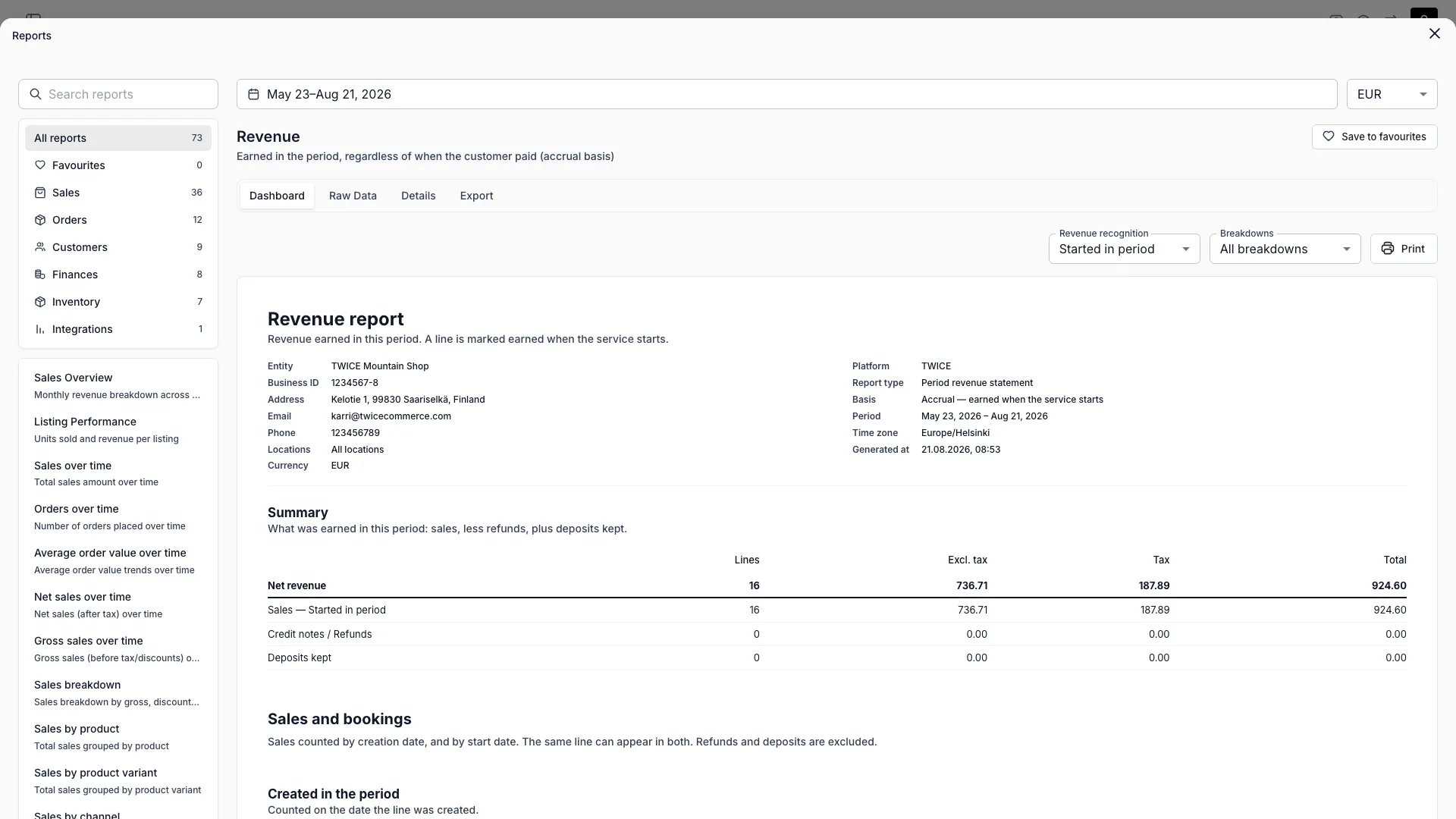
Both reports share a filter bar carrying date range, currency, and location. The Revenue report adds a Revenue recognition select and the Payments report a Payment methods multi-select — see Filters. Each report has four tabs — Dashboard, Raw Data, Details, and Export.
The Raw Data tab shows at most 1,000 rows. When the ledger is larger, a warning shows how many rows exist and points you to the Export tab, where the CSV export includes up to 100,000 rows.
Revenue report
The Revenue report answers: how much did you earn in this period? Revenue is recognized on the date you select — by default when the service starts — not when the customer pays. Navigate to Reports → Revenue.Revenue recognition
A select labeled Revenue recognition at the top of the report controls which of a line’s three dates decides the period its revenue is earned in:
This is a read-time parameter, not stored configuration. Switch between the three options at any time to view the same data from any of the three perspectives.
Everything that follows from “earned” follows your selection:
- The summary’s sales line
- Every breakdown
- The deferred-revenue movement
- The payments reconciliation
Summary
The top section shows what was earned in the period: sales, less refunds, plus deposits kept.
Each row shows a line count, amount excluding tax, tax, and total. The Sales row is labeled with the recognition option you selected — Sales — Started in period, for example.
Sales and bookings
This section states two populations of the same period, each split three ways by the other’s date:
Both cover sale documents only. Refunds and kept deposits are payment documents with no notion of being sold, and are stated once on their own summary lines instead.
The Created in the period table splits by where the recognition date falls, and its rows are labeled for the date you selected — Start within the period, Start after the period (sold now, earned later), and Start before the period (a backdated line), or the same three named for the end date under Ended in period.
The backdated row appears only when it carries something.
The recognized table splits by when the line was written — Created within the period, Created before the period (sold earlier, earned now), and Created after the period (entered late, shown only when present).
Only the recognized table foots to the summary’s Sales row. Order intake is not revenue.
Under Created in period recognition both tables describe the same date, so the report renders one table.
Deferred revenue
Payments received for services not yet started, net of refunds. This section shows the period’s movement, not a running balance. Two rows:
Neither row shows a line count.
Released has a line set behind it and Added does not, so the column would be blank on one row and meaningless on the other.
The section states no opening or closing balance, and there is no month-by-month recognition schedule. To carry a balance forward, run the movement for each period and accumulate it yourself.
Reconciliation to payments received
This section bridges accrual revenue to cash payments — it explains why the Revenue report total differs from the Payments report total. Every component is a signed addend:
When the bridge balances, a footnote confirms reconciliation.
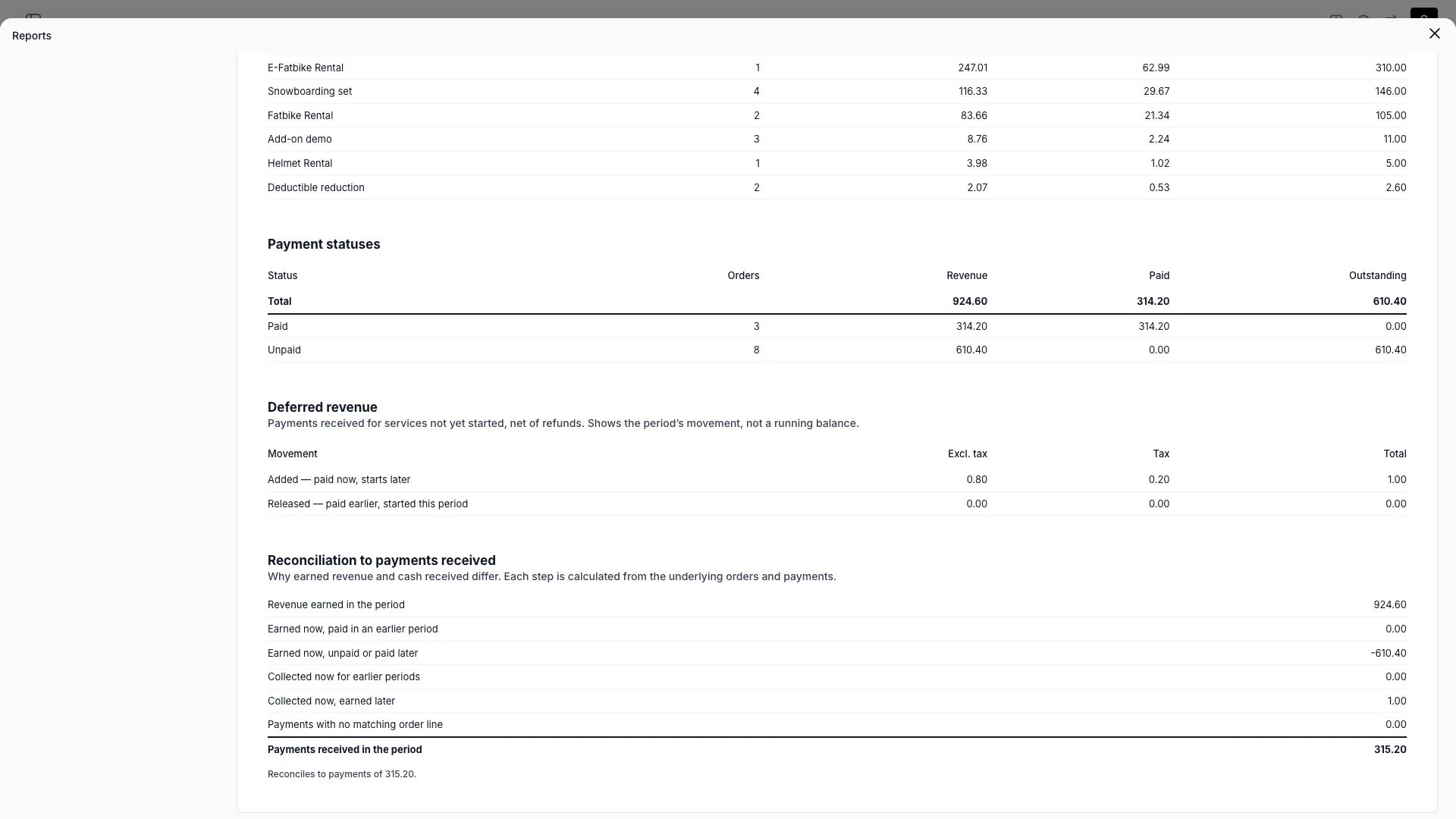
Payment statuses, deferred revenue, and the reconciliation bridge
Breakdown sections
These sit under a Breakdowns heading, noted as “Revenue earned (your recognition rule), net of refunds.” Toggle them on or off from the section visibility menu:Revenue categories
Both reports classify each line into one of these categories:booking, booking_addon, sale, sale_addon, subscription, buyback, shipping, fee, rounding, deposit, and unknown.
There is no standalone add-on category — an add-on carries its parent line’s purchase type, so a booking’s add-ons post as booking_addon and a sale’s add-ons as sale_addon. Rows the report cannot classify land in unknown rather than being dropped or mislabeled, so breakdown totals always foot.
Taxes
Both reports break tax down by rate, and both group it the same way: the Revenue report’s Taxes section groups revenue lines, and the Payments report’s By tax rate section groups payment lines. Platform transaction fees are excluded from the Payments section — they carry their own per-rate breakdown under Platform transaction fees. Each row is one rate group:
Groups are keyed on the rate together with its label. Rates that are numerically equal but recorded at different scales —
0.24 and 0.240 — merge into a single group. A rate recorded without a label shows its own percentage as the label, so an unlabelled 24% rate appears as 24%. Groups are ordered by rate, then by label.
A line carrying no tax at all — a tax-free deposit, for example — appears in the 0% group with its own base rather than being dropped, so no revenue is missing from the section.
A single line can carry more than one rate at once — US state, county, and city tax, or the multi-rate schedules used in parts of Australia and Canada. Those rates apply to one shared base, so every group reports that same base in full.
A €100 line taxed at two rates contributes €100 to both groups: each group states the base you file that rate against, but the column adds up to €200 against €100 of actual revenue.
The section’s own Total row adds the column, so it overstates the base by the same amount, and the Lines count does too — a stacked line is counted once in each group it belongs to.
Reconcile the base against the Revenue summary’s amount excluding tax, or against the Payments report’s net payments. Where no line carries stacked rates, the section and the summary agree to the cent. The control checks treat this difference as expected and do not surface a notice for it.
Tax comes from the line’s own recorded tax whenever the line carries a single rate, which keeps the section exact even for older lines whose stored per-rate split has drifted. Only genuinely multi-rate lines read that split, and only to apportion tax between their rates.
The base is derived from each line’s own amounts when you run the report rather than read from storage, so lines written under earlier versions of this calculation report current figures without a backfill.
Payments report
The Payments report answers: how much money moved in this period? It shows cash received and refunded, regardless of when the associated revenue was earned. Navigate to Reports → Payments.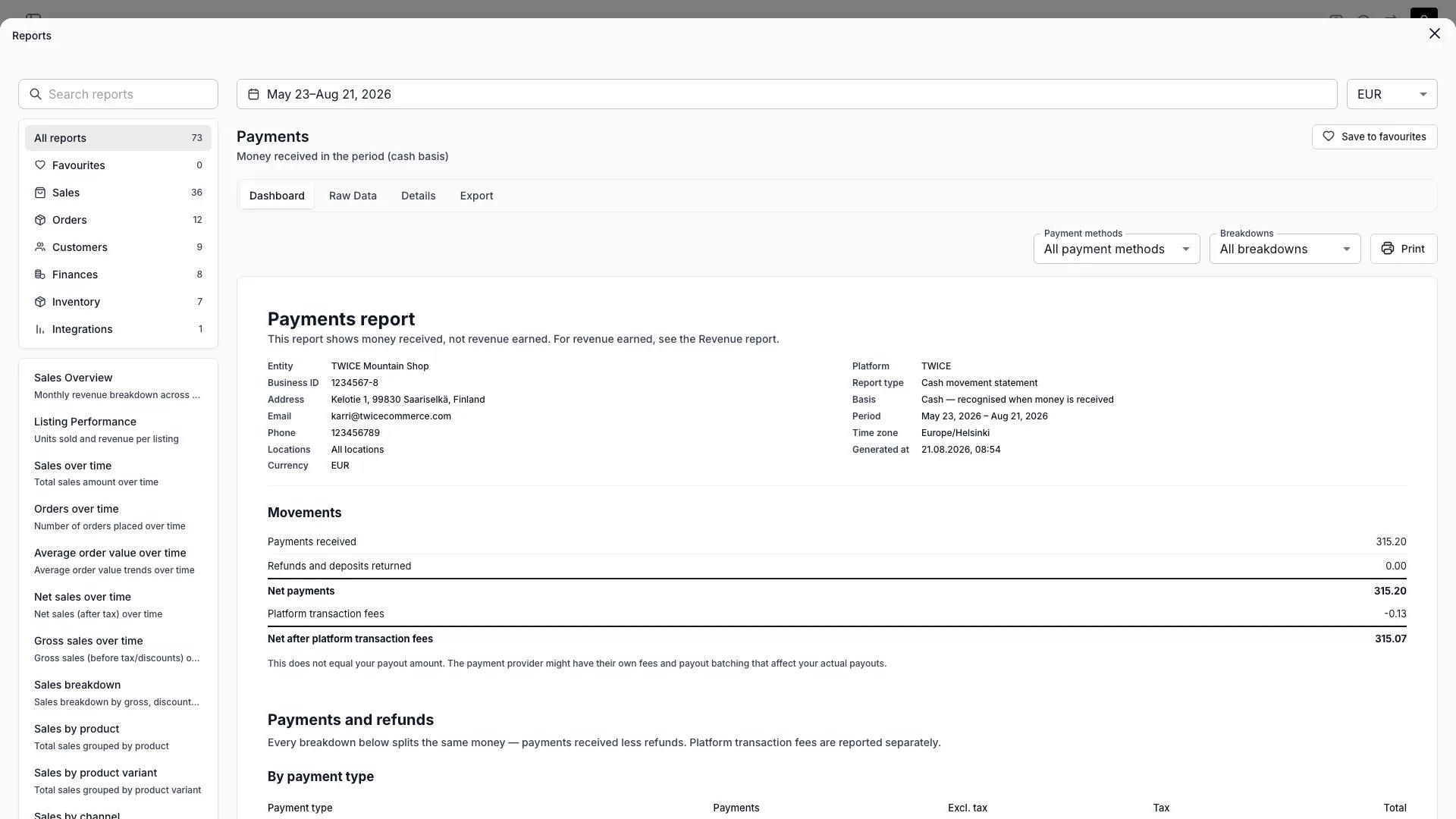
Movements
The top section shows:Net after platform transaction fees does not equal your payout amount. Your payment provider may apply their own fees and batch payouts separately.
Platform transaction fees
A dedicated section breaks down TWICE’s service fees by VAT rate. These fees are excluded from the payment breakdowns above because they are not customer money movements. Fees bucket into a period by their own recorded date, not the parent payment’s date. A fee the payment provider posts late lands in the period it arrives — it never rewrites the fee figures of a month you already exported.Breakdown sections
Toggle these on or off:Filters
Both reports share a common filter bar:
The Revenue report adds a Revenue recognition select (see above).
The Payments report adds a Payment methods multi-select, defaulting to All payment methods. Options are grouped by provider and keyed on provider and method together, because the same method key exists under several providers — manual payments appear under a Manual provider.
An empty selection means no filter, and the list keeps offering every method in the period even while one is selected.
The currency list is built from the period itself, not from a configured list. The Revenue report offers every currency with revenue recognized in the period — paid or not — plus every currency money moved in. The Payments report offers every currency money moved in, plus every currency a platform fee posting landed in.
Rows with no location
A payment can exist with no order behind it — a captured deposit whose order was later hard-deleted, for example. Such a payment belongs to no pickup location, and it is not assigned to one, because any assignment would be a guess:- In the all-locations view it appears in the location breakdown under No location.
- Selecting one or more locations excludes it from the report entirely.
Report sheet header
Both reports display an organizational header above the report sections — on screen, in print, and in CSV exports. The header pulls from your Account Details and report metadata:
Fields left blank in Account Details are omitted from the header.
Printing
Both reports are designed as printable financial statements. Click Print to produce an A4-formatted sheet with the report header, the report period, and all visible sections. What you see on screen is what prints.CSV export
Both reports export to CSV from the Export tab. Each export includes up to 100,000 rows.Revenue CSV
Each row represents one revenue line (an order line item, subscription cycle, or payment event). The file contains both the sales and bookings created in the period and those earned in it. The file asserts no recognition rule of its own. It carries all three of a line’s dates, each with a Yes/No column saying whether that date falls in the period, so you pick your own rule by choosing a column instead of inheriting the one the report was run on:- Create_Date, Start_Date, End_Date — in your timezone
- Created_In_Period, Started_In_Period, Ended_In_Period —
YesorNo
Amount_Total where Created_In_Period = Yes for what was sold, Started_In_Period for what was delivered, and Ended_In_Period for what was returned. A booking created, started and ended inside one period is one row flagged Yes three times, so no single sum double counts it.
Refunds, reversals and kept deposits carry the payment date on all three dates, so no recognition rule drops them out of the file.
Other key columns:
- Document_Type —
sale,credit_note, ordeposit_charge - Revenue_Category — one of the revenue categories, e.g.
booking,booking_addon,sale_addon,shipping,deposit - Order_Number — carries the order’s formatted reference, not the raw sequence number
- Item_Name, Quantity
- Account, Location, Cost_Center, Timezone — the location’s name and its accounting cost center, blank when the location has none set
- Amount_Excl_Tax, tax columns (one per rate), Amount_Total
- Payment_Status —
paid,partially_paid, orunpaid - Amount_Paid, Amount_Refunded, Amount_Outstanding.
Amount_Paidis not net ofAmount_Refunded— a fully refunded line reads paid in full and refunded in full, with the refund carried as its own credit-note row in the period it happened. - First_Payment_Date — the date of the earliest sale payment against the line, in your timezone. Empty when no sale payment in the report currency reached the line by the period end.
- Row_ID — unique and stable across exports (use for idempotent import)
SUM(Amount_Total) equals net revenue.
Payment_Status, the amount columns, and First_Payment_Date all stop at the period end. A payment made after the period never appears on that period’s rows, so a row exported as unpaid cannot cite a later payment date, and re-exporting a closed period returns the same figures it returned the first time.
Payments CSV
Each row represents one payment line or platform fee posting. Key columns:- Payment_Date and Payment_Datetime — in your timezone
- Payment_Type —
sale,deposit_charge,refund,refund_reverse,unknown, orfee - Payment_Method and Payment_Provider
- Account, Location, Cost_Center, Timezone — the location’s name and its accounting cost center, blank when the location has none set
- Amount_Excl_Tax, tax columns, Amount_Total
- Revenue_Row_ID — matches the revenue export’s
Row_ID(empty on platform fees and orphaned collections) - Row_ID — unique and stable across exports
SUM(Amount_Total) equals net proceeds.
Joining the two exports
The payments CSV includes a Revenue_Row_ID column that references the revenue CSV’s Row_ID. Use this to join cash payments to their corresponding accrual revenue lines. Platform transaction fees and orphaned collections have no matching revenue row.Control checks
Both reports run automated integrity checks on every request. The checks verify that breakdown totals match the summary and that the reconciliation bridge balances. Only failures that indicate a defect in the report itself surface a notice with a reference ID; routine data-quality findings — differences that can occur on ordinary merchant data, such as legacy tax rows — are logged for TWICE to review and do not appear in the report.Related articles
Reports
All report categories and shared features.
Account Details
Business name, address, and contact info shown in the report header.
Payments
Payment providers, methods, and processing.
Deposits
Deposit holds, captures, and releases.
Order Types
Booking, sale, and subscription orders.