

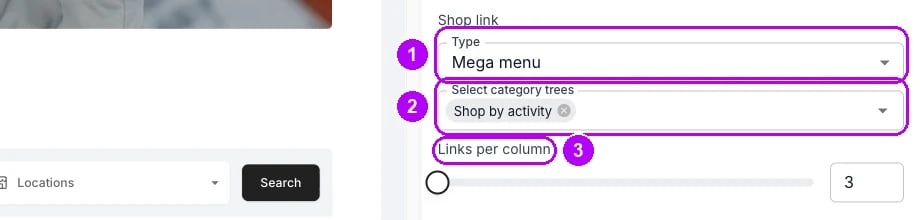
How it works
Shop link appears under Header once you have built a tree. It controls the header’s built-in Shop item, and any navigation item you point at Shop (Collections) with no collection picked. The examples below use the same two trees throughout. Shop by activity holds Winter, Cycling, Clothing and Drinkware, and Pre-owned holds Skis and Bikes.Mega menu
Mega menu opens a panel across the width of the header with one column per tree. The tree’s name heads the column and opens the tree’s page. Its first-level groups are listed beneath as links. A column lists as many groups as Links per column allows, from 3 to 20 and 8 to start with. A longer column ends in View all, with the number of groups, which opens the tree’s page. The cap keeps the columns about even, however long one tree is.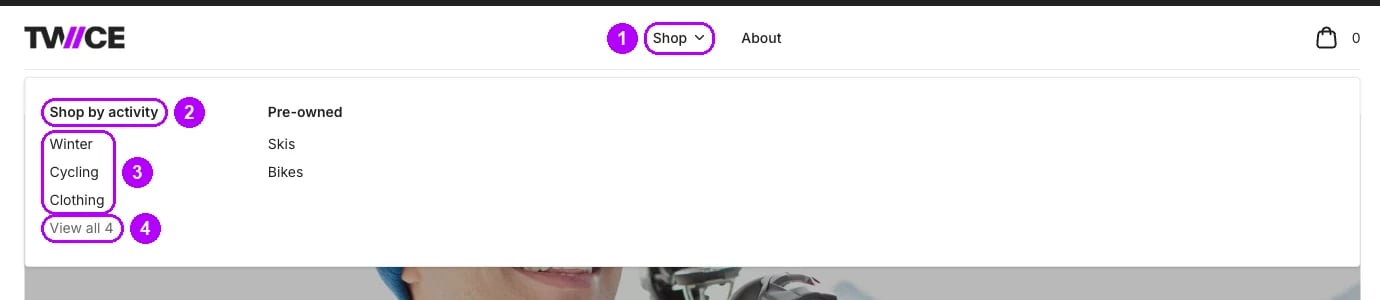
Dropdown
Dropdown opens a short list of the tree names. Each name opens its tree’s page, where the sidebar takes over.
Link only
Link only opens nothing. Shop is a plain link, as in a store without trees.Where the Shop link leads
A link over one tree opens that tree’s page. A link over several trees opens the shop overview at/shop, as long as the shop sidebar shows a tree. Where it shows none, the link opens the first tree’s page instead.
The Shop menu lists trees, never your flat collections. To link a collection from the header, add a navigation item with Page set to Shop (Collections) and pick it in Collection.
Usage
Add a tree as its own menu item
Add a navigation item with Add page link under Navigation items, and set Page to Category trees. Pick the trees in Select category trees, or leave it empty for The shop’s category trees. Then set Dropdown: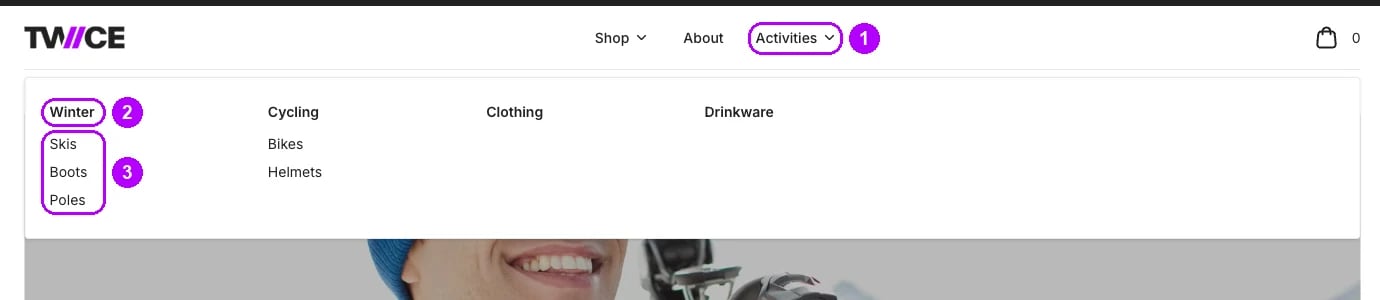
Open the menus from a keyboard
A menu opens when the pointer rests on its link, or from the chevron beside the link. The chevron works with Enter and Space, and Escape closes the menu. A panel taller than three quarters of the screen scrolls inside itself. Following a link closes the menu.Check the phone layout
On a phone, the header items sit in a drawer opened from the menu icon. Every row starts closed. The name opens the item’s page, and the chevron at the end of the row opens what is beneath it, at every depth you set. An open row lists as many entries as Links per column allows, then View all.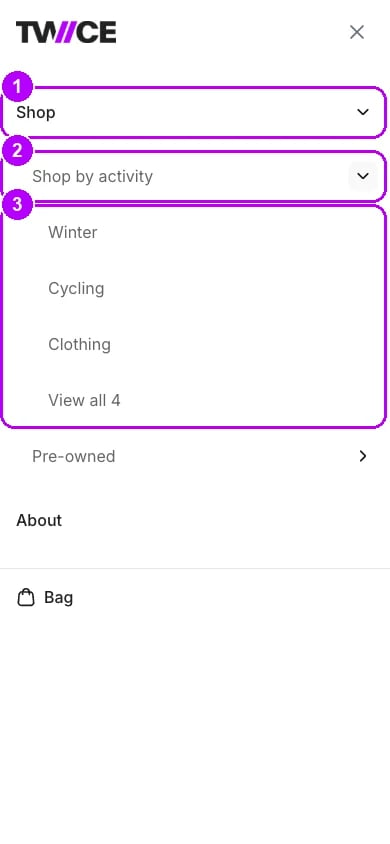
Show a tree only in the header
The header can open any tree, including one the shop sidebar does not show. That tree’s pages open at their own address with no sidebar. Pick the tree in Select category trees on the Collection page as well to give them one. See Category tree styles in the shop sidebar. A navigation item with no tree left to cover is hidden from the header, so it never leads to a missing page. That happens when every tree it picked is deleted, or when it picks none and the shop sidebar shows none.Related articles
Category tree styles in the shop sidebar
The four ways the shop sidebar shows your trees.
Build a category tree
Build a tree and add it to the header.
Category tree
How groups and levels narrow your listings.
Theme editor
The header block and the other blocks on every page.