

/shop and on every tree and group page beneath it.
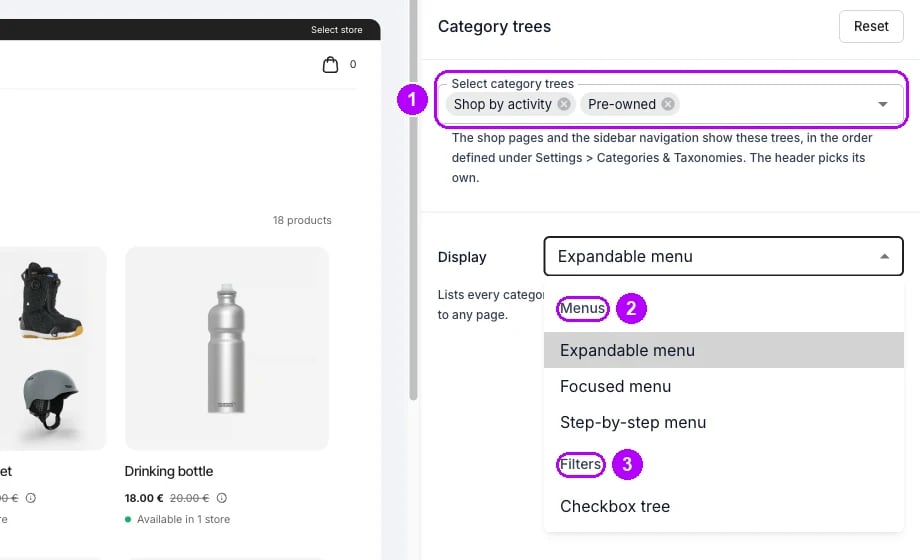
How it works
A menu style sits in a block of its own at the top of the sidebar, under the search box. Checkbox tree sits among the filter sections instead, in a section headed Browse. The examples below use one store with two trees. Shop by activity holds Winter, Cycling, Clothing and Drinkware. Winter holds Skis, Boots and Poles, and Skis holds For rent and Pre-owned. Pre-owned, the second tree, holds Skis and Bikes. The menu screenshots show the shopper on the Skis page, so you can compare the styles in one spot.Expandable menu
Expandable menu lists every tree in full. Each tree opens at its first level, and the path to the page the shopper is on opens down to that page. Every other branch starts folded. A group’s name opens its page. The chevron at the end of a row only folds or unfolds it, so the shopper can look into another branch without leaving the page. All, which leads to the shop overview, stays at the top.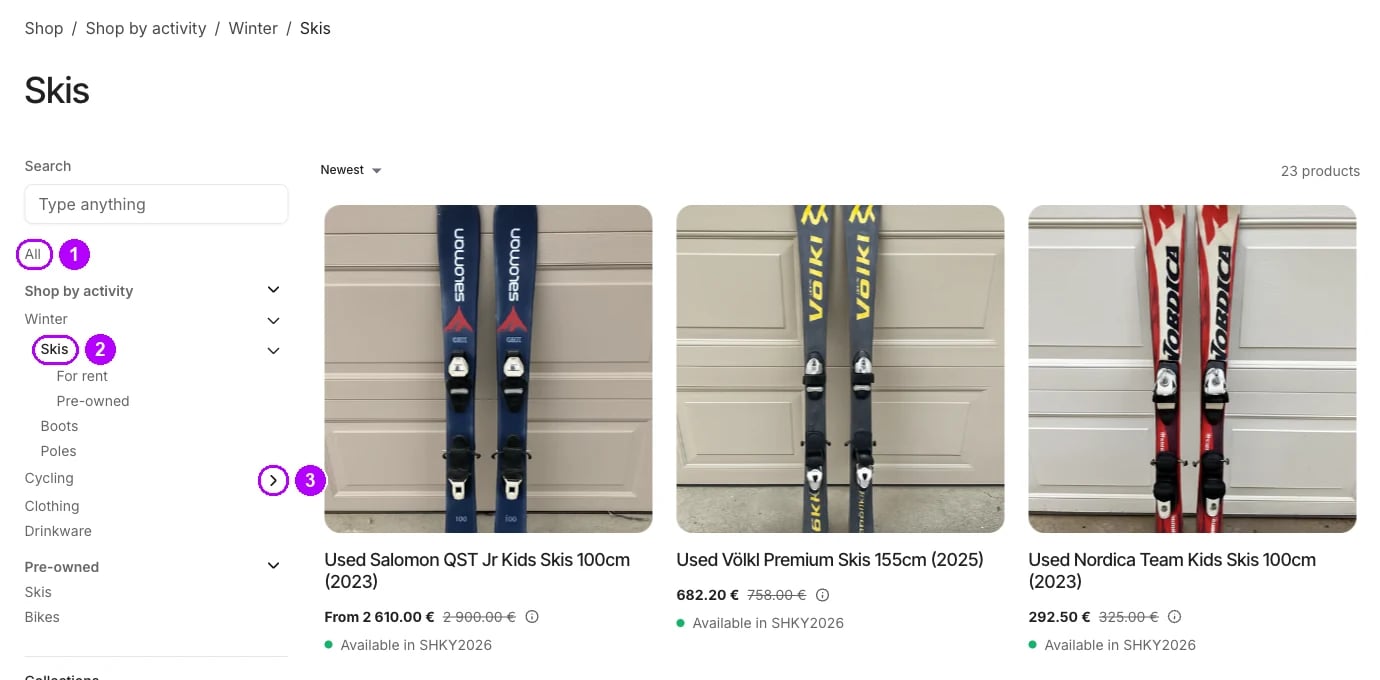
Focused menu
Focused menu shows only where the shopper is. On a group’s page it lists a link one step back, the group among the groups alongside it, and the groups beneath it. Other branches and the levels further up are left out, and the breadcrumb above the grid leads back to them. On a tree’s own page it lists All, the tree names, and the open tree’s first level under its name. On the shop overview it lists All and the tree names.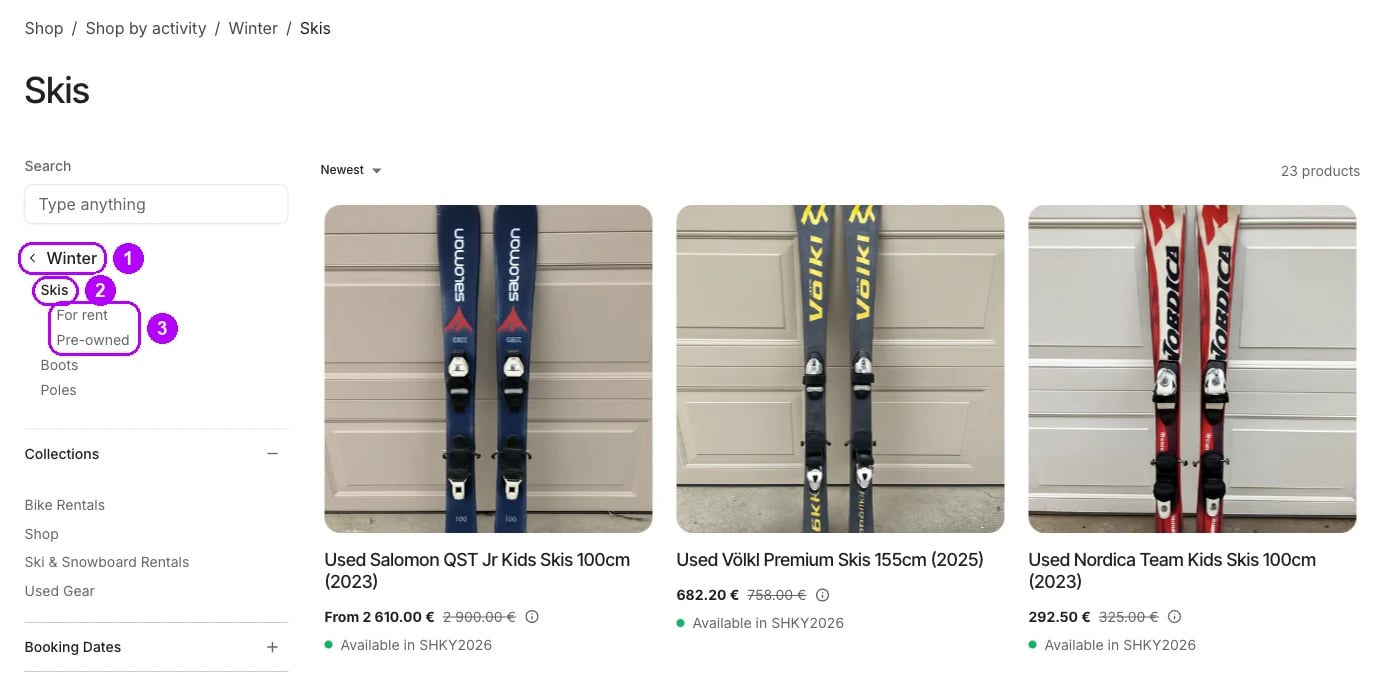
Step-by-step menu
Step-by-step menu shows one level at a time. On a group’s page it lists a link one step back and the groups beneath the group. The page heading names the group, so the list leaves it out. A group with nothing beneath it lists its siblings instead, itself marked, so the shopper can still move sideways. On a tree’s page the link back reads All and leads to the shop overview. On the overview the sidebar lists All and the tree names.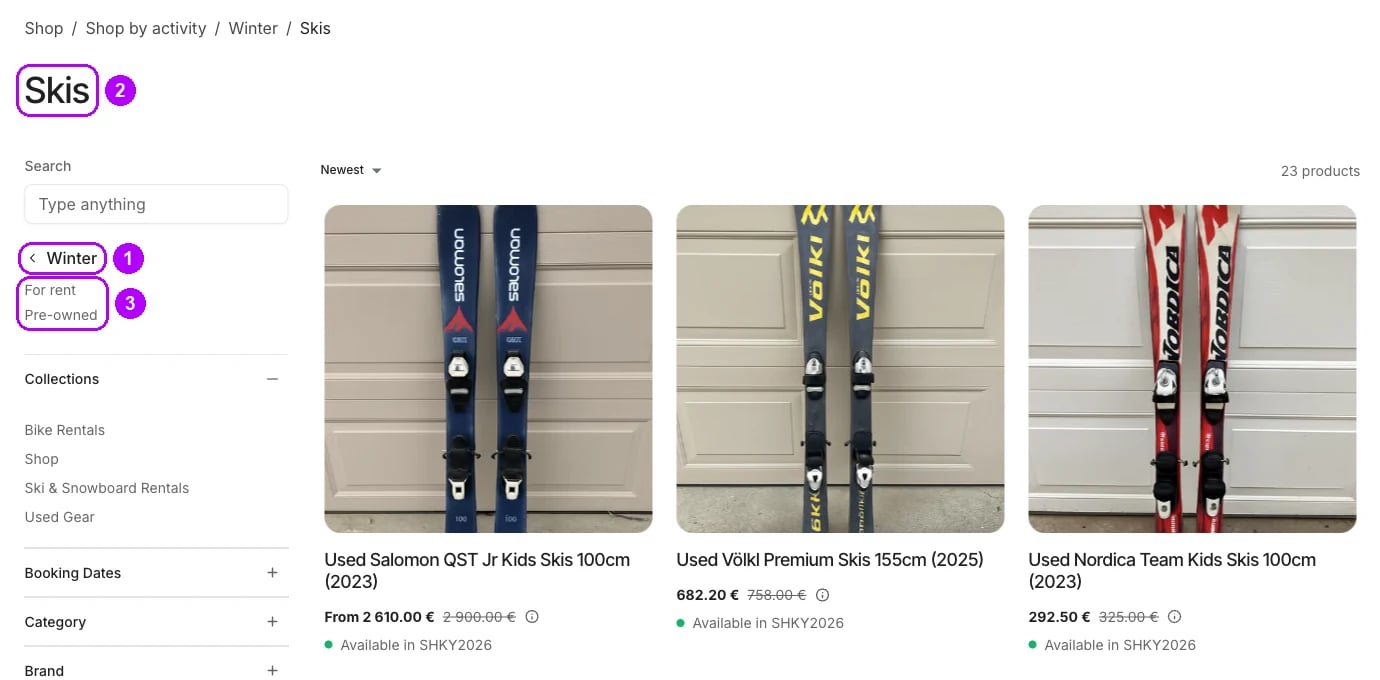
Checkbox tree
Checkbox tree turns the trees into a filter. Each tree is a checkbox row with its groups beneath it, and every row carries the number of listings behind it. The grid lists what is in any ticked group, whichever tree it is in, so each tick adds listings. The other filter sections then narrow that result.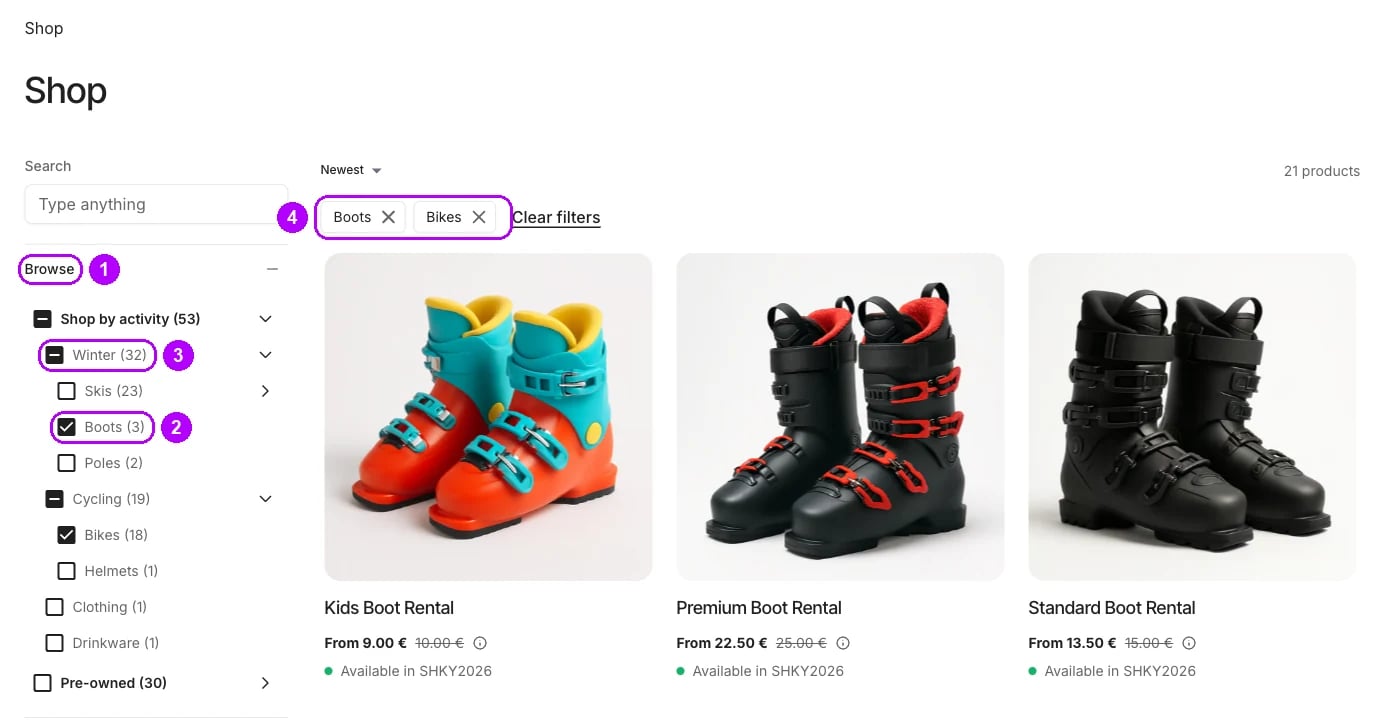
A tree built from taxonomy categories shows the same hierarchy as the Categories filter. Turn Categories off under Listings grid if you show that tree as a Checkbox tree, so the sidebar does not offer it twice.
Usage
Compare the styles at each position
The menu styles differ most on a group page deep in a tree. This is what each one lists at every position:Check the phone layout
On a phone, the sidebar opens from Filter and sort above the grid. Trees start folded there in Expandable menu and Checkbox tree, so the drawer opens short. In Expandable menu, the way to the page the shopper is on opens once they unfold its tree.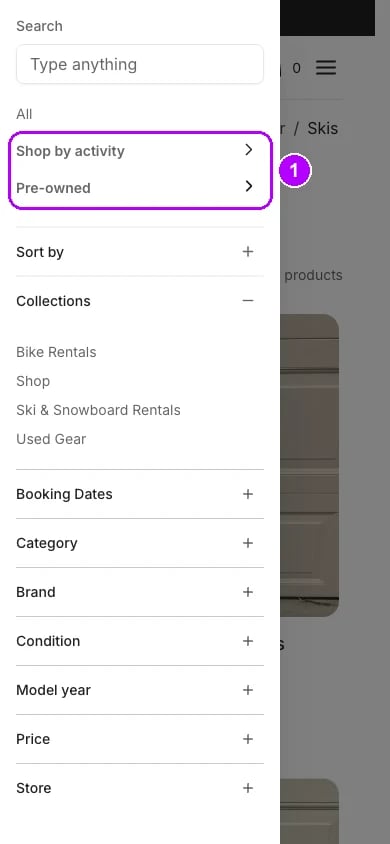
Keep the flat collections beside the trees
The Collections filter switch under Listings grid controls the flat list of collections only. With a menu style, the trees sit in their own block and the Collections section lists your collections below. With Checkbox tree, the Browse section takes the place of Collections in the filter order, and the flat list follows it while the switch is on.Show a tree only in the header
A tree you pick under Header but not in Select category trees opens at its own address, with no sidebar. To give its pages the sidebar, pick it in Select category trees as well. See Category trees in the header.Related articles
Category trees in the header
The menus the Shop link and your own navigation items open.
Build a category tree
Build a tree and pick the trees your store shows.
Category tree
How groups and levels narrow your listings.
Theme editor: Collection page
The page where the sidebar and its filters are set.
Offer online store filters
Attribute filters, which narrow what the trees gather.