

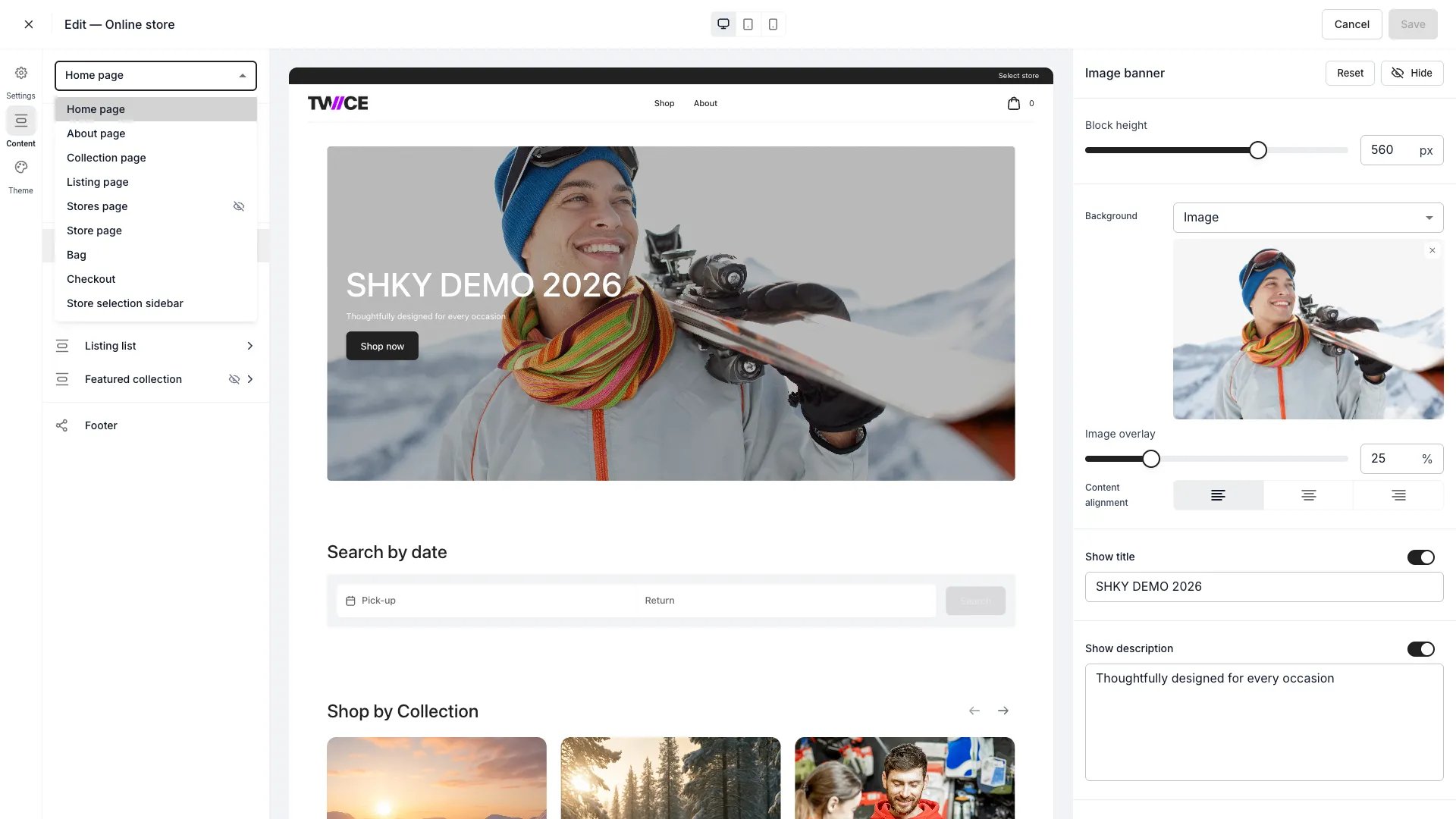
Sales Channels > Online Store > Theme Editor (page dropdown)
Open in TWICE Admin
online-store/themes
Prerequisites
Set the global design first. Theme tokens re-render every page, so composing pages before
you fix colours and typography means doing the work twice. Read
Design the storefront.Build your collections before you start too, because most home page blocks point at one.Note that the editor has Save changes and Discard and no draft state, so a
half-composed page goes live the moment you save it.
The walkthrough
1
Open the editor in Content mode
Go to Online Store → Themes, open the theme editor, and select Content. The editor
also carries Settings, Theme and Translations modes; this guide stays in
Content.Pick the template you want from the page dropdown: Home page, About page, Collection page,
Listing page, Stores page, Store page, Bag, Checkout, Store selection sidebar, or Custom
scripts.
2
Learn which blocks are storewide
Read the block list on the left as two kinds of thing.
Edit the header once rather than per page. The page you happen to be standing on when you
change it does not matter.
Not every template carries every block. Checkout and Store selection sidebar expose Page settings alone, Custom scripts exposes only its head-scripts editor, and the footer editor is unavailable on both Checkout and Custom scripts.
3
Compose the home page
Stack the home page’s blocks: image banners, featured collections, listing grids, collection
lists, rich text. Decide two things before you drag anything in.
- Settle what the first screen has to do, which is usually to say what you sell and move the customer into a collection.
- Choose which collections earn a block, and treat that as a merchandising call rather than a design one. Read Build a collection.
4
Tune the templates that render your catalog
Work through the three templates that do the commercial job.
- Set how a collection lists its listings on Collection, including listings per page and the filter section.
- Arrange the booking options, availability and listing information blocks on Listing, the page a customer decides on.
- Set up Store and Stores for one location and for the list of them.
5
Check a Listing template change against an awkward listing
Preview the Listing template against an unusual listing rather than your neatest one: take
something with variants, something with add-ons, something with a long description. The
template renders every listing, so the worst case is the one that matters.
6
Wire the header so customers can get around
Set the logo, the logo and menu position, Sticky header and the cart icon style on the
Header block.Add navigation items with Add page link to point at a storefront page, or with
Add external link for anything else: a cancellation policy on your marketing site, a
parent brand, a help centre.Set Open in new tab on each external link. It is on by default, so the store stays open
behind the page the customer opened. Switch it off only for a link meant to replace the store.Keep the menu short. A storefront menu is not a sitemap, and the Search bar block covers
what the menu cannot.
7
Fill in the footer, where policies reach the customer
Turn on the menu links, email signup, description, payment icons, policy links and copyright
text you want on the Footer block.Write your terms, privacy and cancellation policies under
Terms & policies first, then switch the policy links on here.
8
Set visibility and SEO in Page settings
Open Page settings on each template and set Show page to decide whether customers
see it. Turning the home page off starts the store at the Collection page instead.Write the Meta title and Meta description under SEO optimization for the pages
that get found in search: home, collections and the About page. The editor counts characters
against 70 for the title and 160 for the description.
URL handle is read-only. Page paths are fixed, so
/collections cannot become /shop. Change the domain in front of them under Set up the online store.9
Add checkout location overrides if you need them
Select Add location override on the Checkout template to assign a different checkout
to specific locations. Locations without an override use the checkout selected above it, so
a site with different payment arrangements per store needs no duplicate storefront.Read each override’s location state, because an override can point at a checkout that is
Draft or Unavailable.
How do I know it worked?
- A customer can reach every page you built from the header, the footer, or a home page block. A page with no route to it is not published, whatever its visibility says.
- The Listing template holds up on an awkward listing, not only a tidy one.
- Policy links resolve to the documents you intend.
- Search results show the meta titles you wrote rather than a default.
- The header and footer look right on every page, because you edited them once.
Troubleshooting / common pitfalls
I edited the header on one page and it changed on all of them
I edited the header on one page and it changed on all of them
Working as designed. The header, footer and announcement bar are storewide blocks, so the
page you were standing on is irrelevant.What to do: nothing, if that is what you wanted. Note that the storefront offers no way
to give one page a different header.
I cannot change a page's URL
I cannot change a page's URL
URL handle is read-only and page paths are fixed.What to do: change the domain rather than the path, under
Set up the online store. Put the effort
into the meta title and description instead, which you do control.
A page will not let me hide it
A page will not let me hide it
Expected on Checkout and Store selection sidebar, which report “This page can’t be
hidden” rather than failing quietly, because a storefront without them does not function.What to do: remove the page from the header and footer navigation instead of hiding it.
I built a page and nobody can find it
I built a page and nobody can find it
Visibility and reachability are different things. A visible page with no link to it is
reachable only by typing the URL.What to do: add it to the header navigation, the footer menu, or a block on the home
page.
The Listing page looks wrong for one particular listing
The Listing page looks wrong for one particular listing
You tuned the template against a listing that does not exercise it: no variants, no add-ons,
a short description.What to do: re-check the template against your most awkward listing.
The checkout is fine on one location and not another
The checkout is fine on one location and not another
A location override on the Checkout template is doing it, or the absence of one is.What to do: open the Checkout template’s Location overrides and read each location’s
state. An override can point at a checkout that is Draft or Unavailable, and a
location with no override falls back to the checkout selected above.
Related articles
Design the storefront
The global design work that should come before this.
Where a listing sells
Why a template renders but the catalog is empty.
Pages
Every block on every template, in full.
Build a collection
The collections your home page blocks point at.