

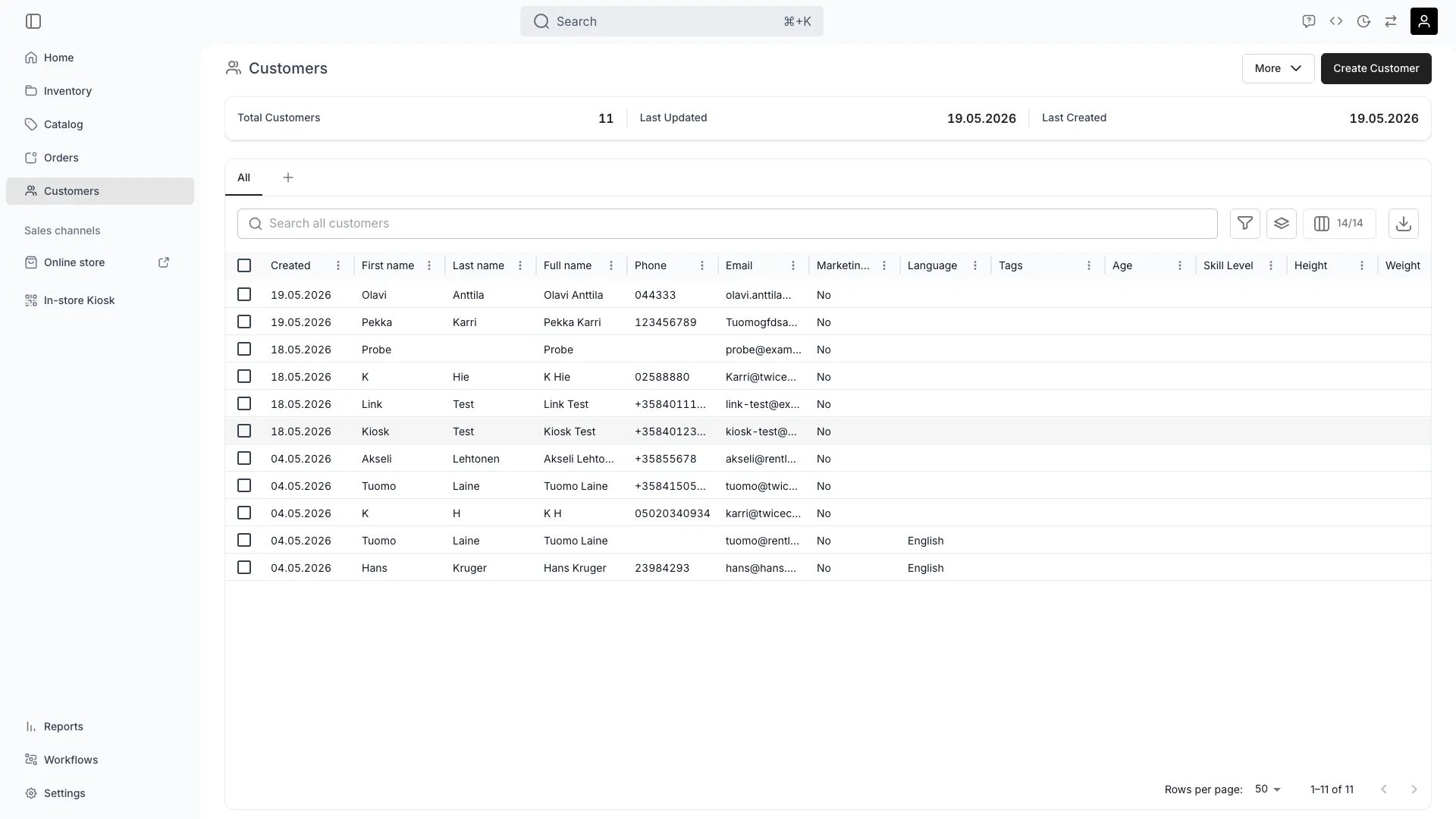
Customers
Open in TWICE Admin
customers
Prerequisites
Have ready before you start:
- A CSV with a header row. The importer matches your column names against the ones it expects, and recognises common variants (
first name,firstname,first_name). - A first name and a unique email on every row. These are the two required columns, and a row missing either cannot be imported.
- A deduplicated file. Two rows sharing an email fail each other. See the pitfalls.
The walkthrough
1
Prepare the columns the importer accepts
Build the file from six columns, which is the whole list:
2
Expect everything outside those six columns to be dropped
Leave out anything else, because the importer ignores it. It does not carry Customer type, Company name, Tax / VAT ID, addresses, tags, or custom attributes, so a B2B list arrives as a set of individuals with no company details and an empty Billing address.
3
Run Import customers
Open Import customers from the customers table, upload the file, map your columns onto the expected ones, and review what the importer flags before committing.Column mapping is where a differently-named header gets pointed at the right field. The importer pre-matches obvious variants, so usually you are confirming rather than mapping.
4
Read the validation before you commit
Fix the file and re-upload rather than committing a partial set. Validation runs per row, and the email check runs twice, once inside your file and once against your existing customers.Three messages you will actually see:
A row that fails validation is not imported, and there is no report afterwards telling you which ones did not make it.
5
Understand that import only ever creates
Treat the first run as the only run that lands. The importer creates profiles and never matches or updates an existing one, which is why an existing email is an error rather than a merge.
- Do not use import to bulk-update customers. Re-importing a corrected file fails on every row that matched, and fixes nothing already in TWICE.
- Do not import in passes, such as one file with names and another adding phone numbers. The second pass fails entirely.
6
Fill in what the import could not carry
Add the rest per profile after the import, in the order your operation actually needs:
- Business customers need Customer type, Company name and Tax / VAT ID set. See Set up business customers.
- Addresses are empty and have to be added where you invoice or deliver.
- Tags and attributes are unset, so any segmentation you had is gone. Rebuild it. See Segment customers.
How do I know it worked?
- The customers table row count matches your file, less any rows you knowingly dropped.
- A sample of records reads correctly. Spot-check a few, especially any with accented characters or unusual phone formats.
- Marketing consent is true only where it should be, which is worth filtering the table to check before you send anything.
- Language is right, since it decides which language each customer’s emails render in.
Troubleshooting / common pitfalls
"Email already exists for another customer"
"Email already exists for another customer"
That address is already on a profile. The importer creates only, so it treats a known email as a collision rather than an update.Remove those rows from the file. Where the existing record needs the file’s data instead, edit it directly.
"Email must be unique" on rows that look fine
"Email must be unique" on rows that look fine
The duplicate is inside your file. Two rows share the address, so both fail.Deduplicate before uploading. Exports from older systems frequently contain the same person twice under different names.
I re-imported a corrected file and nothing changed
I re-imported a corrected file and nothing changed
Import cannot update. Every row matching an existing email was rejected, and any that succeeded created a second profile.Check for duplicates the import may have created, then correct the originals in the table.
My customers have no company details after importing
My customers have no company details after importing
Customer type, Company name and Tax / VAT ID are not importable columns, so a B2B list arrives as individuals.Set them per profile, or accept individuals where you do not invoice companies. There is no bulk route for this.
A row has no email and I want to import it anyway
A row has no email and I want to import it anyway
Email is required and must be unique, because it is the identity the record is found and contacted by.Create the profile by hand for a customer you genuinely have no email for, rather than trying to force the file through.
The file is very large
The file is very large
The importer batches it, so size alone is not a problem. Rows are sent in chunks rather than one request.Give it time and leave the dialog open until the run finishes.
Related articles
Segment customers
Rebuilding groups and attributes the import did not carry.
Set up business customers
Adding the company details after an import.
Export customers
Getting the list back out again.
Customers overview
The table, its columns and its filters.