Registering a stock item creates the inventory record that everything else hangs off — availability, orders, income and expenses, and lifecycle events. Connecting it to a SKU at the same time means the shared product data is defined once and inherited by every item linked to it.
Required permissions: creating a stock item needs inventory:stock_item_general:create. Two fields in the dialog are gated separately — a quantity above 1 needs inventory:stock_item_fulfilment:create, and attributes need inventory:stock_item_attributes:create. Creating a SKU without leaving the dialog needs inventory:sku_general:create.All four built-in system roles (Owner, Admin, Manager, Member) include these. A custom role may not — check with whoever manages your roles if the Register Items button does nothing.
Before you start, decide:
The item name — the label you and your team will recognise in tables and orders.
The item codes — whether TWICE generates them or you enter your own existing labels or barcodes.
The SKU — which product definition these items belong to, or the name and code of a new one.
The entry location — the location the items enter your inventory at.
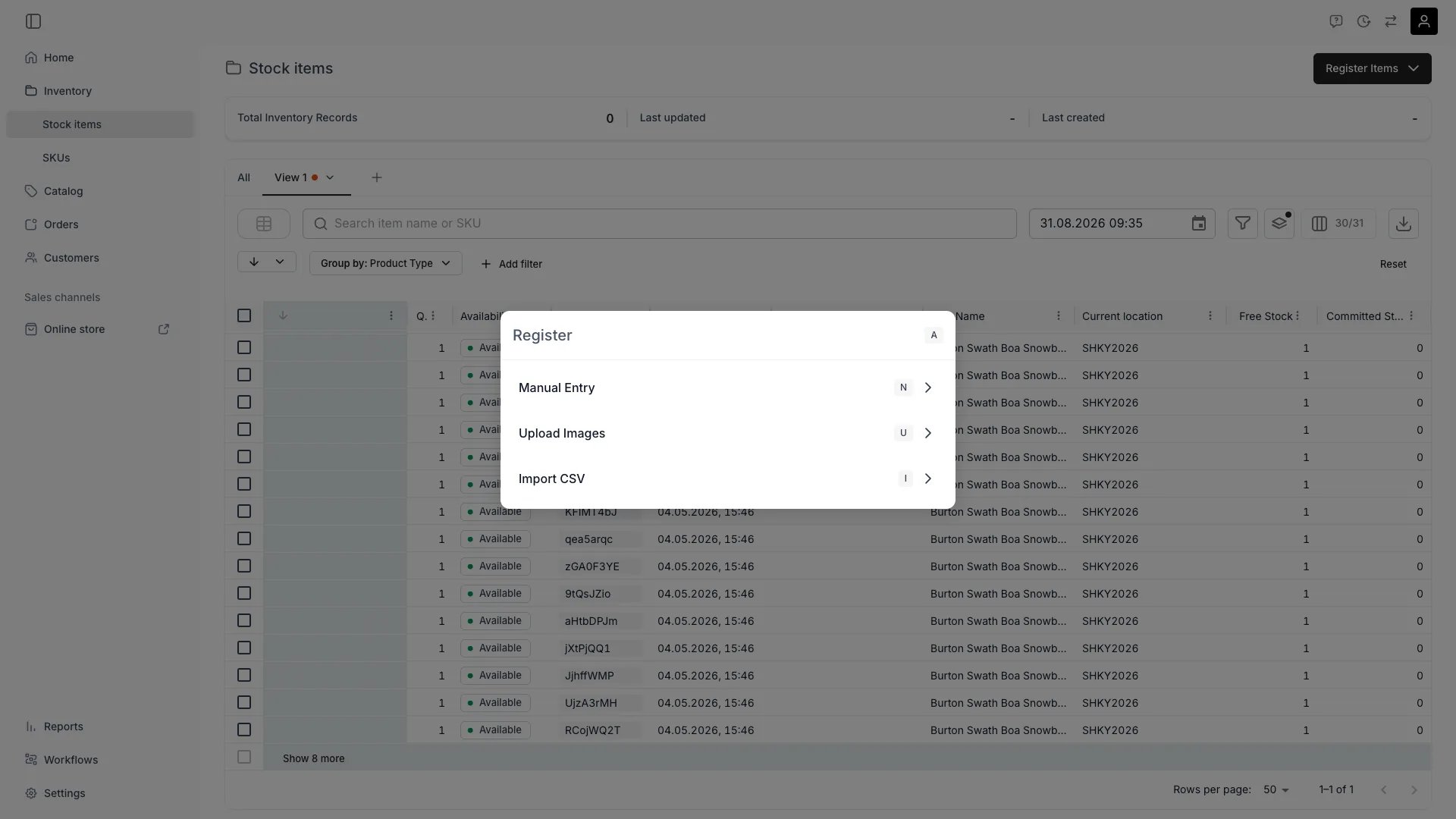
Select Register Items in the top right, then Manual Entry. The Register new stock item dialog opens.Two other entry points sit in the same menu: Upload Images creates items from photos in the file manager, and Import CSV registers items in bulk from a file.
Inventory > Stock Items > Register Items
3
Name the item
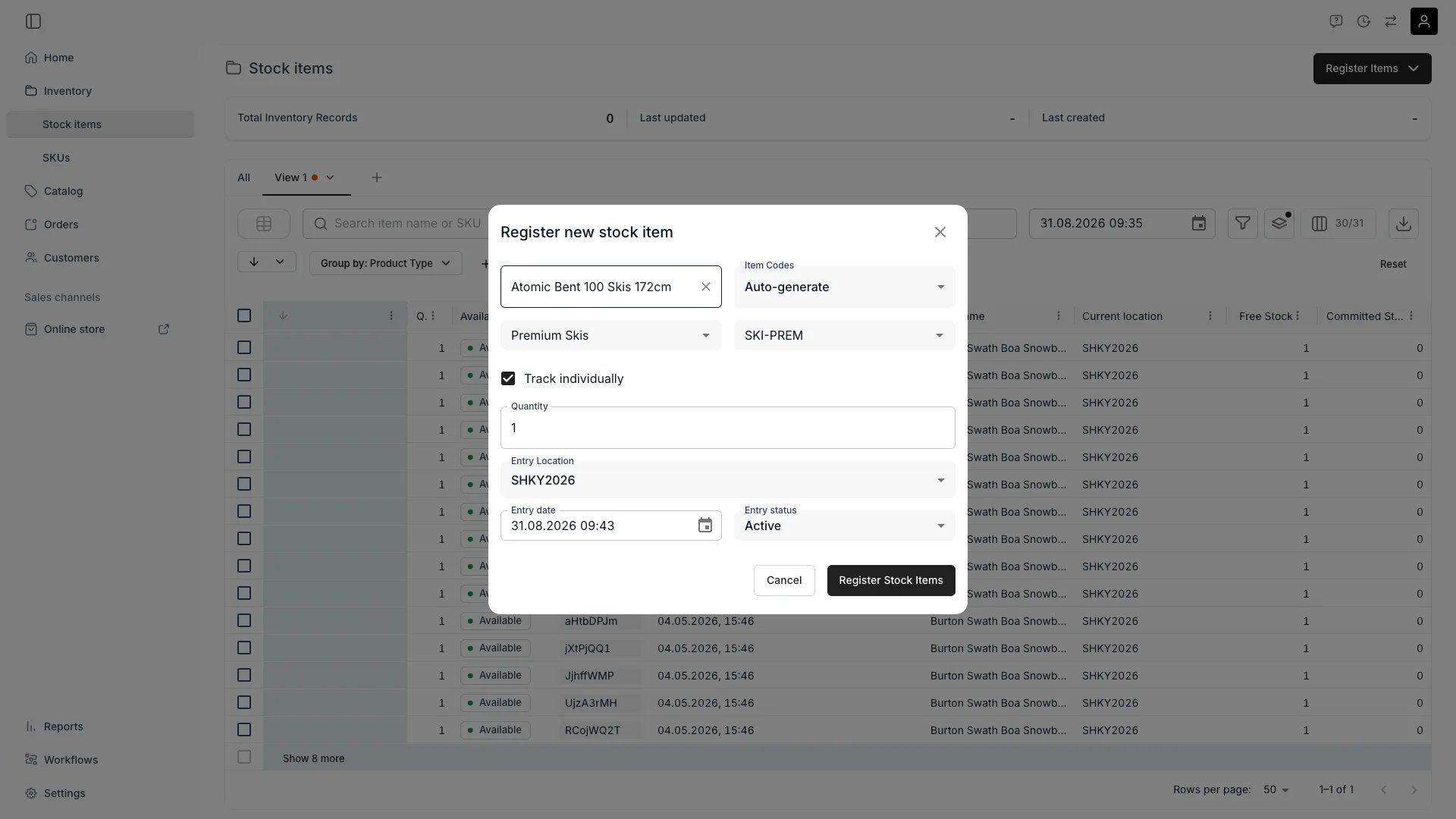
In the item name field, search the names already in your inventory and pick one, or type a new name and add it. Reusing an existing name keeps identical items grouped consistently in tables and search.
4
Choose how item codes are assigned
Set Item Codes to Auto-generate or Manual.
Auto-generate — TWICE assigns a unique eight-character code to each item, and the Quantity field appears.
Manual — enter or scan your own codes. Codes are stored in uppercase, and you can paste several at once separated by commas, spaces, or line breaks. Codes that duplicate each other or an existing item are flagged, and the submit button stays disabled until you resolve them. With manual codes, the number of codes you enter is the number of items registered.
5
Connect the SKU
The dialog has two SKU fields, both reading Search or create SKU. The left one searches SKU names, the right one SKU codes, and both set the same SKU — filling one is enough.Search for an existing SKU, or type a new name or code and select the add option to open the Add new SKU drawer. Give the SKU a name (required) and a code, save, and the new SKU is selected in the dialog.Leaving both fields empty registers the items without a SKU. You can connect one later from the item’s General tab.
6
Decide how the items are tracked
Track individually is on by default. Together with Quantity it determines how many records you get:
Quantity
Track individually
Result
1
On or off
One stock item
5
On
Five stock items, each with its own code, history, and costs
5
Off
One stock item with a stock balance of 5, pooled under a single code
Track each item individually when you need per-item history — condition, repairs, income. Pool them when the units are interchangeable and only the count matters.
7
Untick Track individually for bulk goods
Furniture, tableware, event equipment. 400 chairs as one record show on an order as a single line with a quantity; tracked individually, as 400 lines.
The tracking mode is fixed at creation. It cannot be switched either way afterwards, so a batch registered the wrong way has to be archived and registered again. Decide this before you register hundreds of units.
8
Set the entry details
Entry Location — the location the items are registered at.
Entry date — when the items become part of your inventory. A future date means they are not available before it.
Entry status — Active makes them available for operations, Inactive keeps them out until you change it.
Where you land depends on how many records were created:
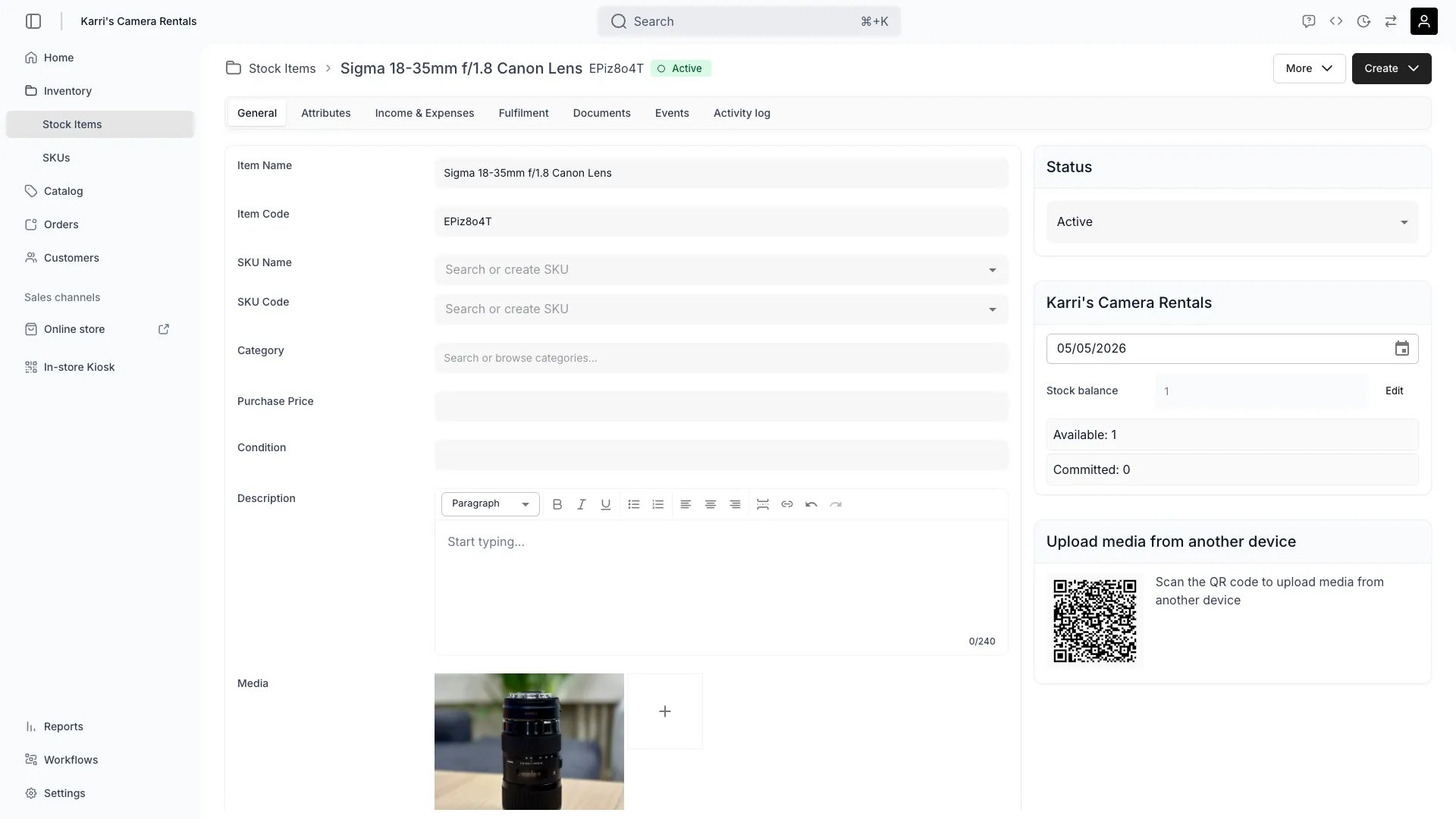
One item — its stock item page opens on the General tab, with the item code and an Active chip in the header.
Several individually tracked items — the Editing multiple items view opens. Anything you change there applies to every item you registered. The items already exist at this point, so closing the view loses nothing.
Back in Inventory → Stock items, the new rows appear in the table, and Total Inventory Records and Last created in the header reflect the registration.To confirm the SKU connection, open any of the new items. SKU Name and SKU Code on the General tab show the SKU, and the item is listed on that SKU’s Stock items tab.
Cause: the form is incomplete or the codes are invalid.Solution: an item name, an entry location, and an entry status are all required, and quantity must be at least 1. With Manual codes, at least one valid code is required and every flagged duplicate has to be removed.
A code is rejected as a duplicate
Cause: item codes are unique across your merchant account, and the input also flags repeats within your own paste.Solution: remove the flagged entries, or switch Item Codes to Auto-generate and add your own codes to the items afterwards.
I registered 10 items and got 10 lines on the order, I wanted one
Cause:Track individually was on, so each unit is its own record and the order takes one line per record. For bulk goods that is rarely what you want.Solution: archive the ten records and register the batch again with Track individually off and Quantity ten. The mode cannot be changed on an existing record, so re-registering is the only route.Read more: Inventory tracking
I registered 10 items but only one record appeared
Cause:Track individually was off, so the ten units were pooled into one record with a stock balance of 10.Solution: if you need per-item history, register the items again with Track individually on and archive the pooled record.Read more: Inventory Tracking
The new items are not available
When this happens: the entry date is in the future, or the entry status is Inactive.What to do: check both on the item’s General tab. Availability is computed from the item’s capacity minus anything overlapping it, so an item that has not entered inventory yet shows as unavailable until its entry date passes.
The SKU I need is not in the dropdown
Possible reasons:
The search runs against every SKU in your account, so a SKU that does not appear does not exist under that name or code.
You are searching a name in the code field, or a code in the name field — the left SKU field matches names only, the right one codes only.
Solution: search the other field, or type the new name or code and create the SKU from the dialog.
I closed the Editing multiple items view too early
When this happens: the bulk edit view is a one-hour session tied to the browser tab, so reloading or navigating away ends it.What to do: nothing is lost — every item was created. Open them individually from the Stock Items table, or filter the table by Created to find the batch.