

Open in TWICE Admin
catalog/listings
Prerequisites
Have ready before you start:
- A listing with Booking price turned on in its price table. Price a listing sets that up.
- Your ladder, a price for each step. The walkthrough uses the one below.
The walkthrough
The walkthrough builds this ladder. Put your own prices in the same five rows.1
Open the listing's Pricing tab
Open Catalog → Listings, open the listing and select the Pricing tab. Select the table under Price tables. In its Booking price section, the Rate based list holds the table’s rate-based prices, with Add price at its top right.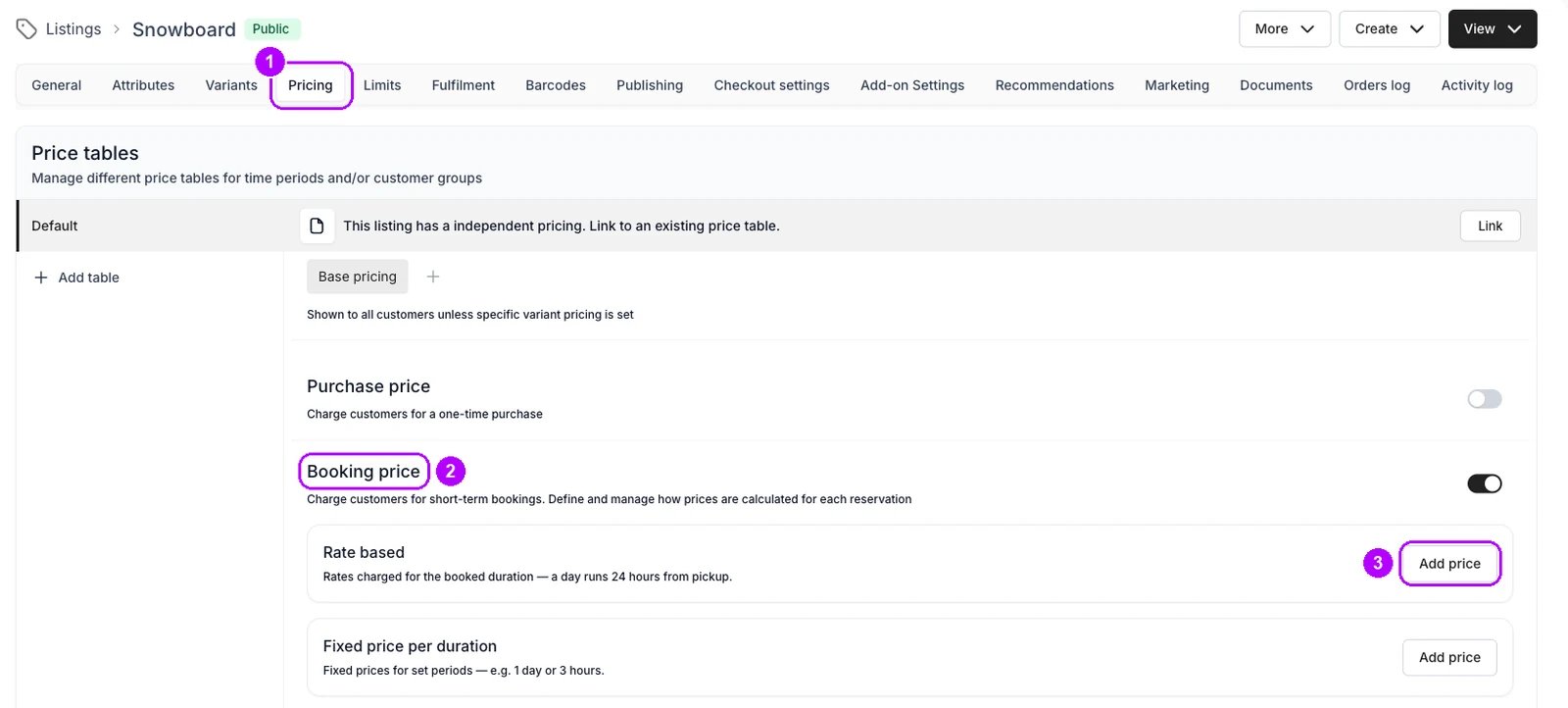
2
Add the 3-hour price
Click Add price in the Rate based list. In the Add rate based price panel, enter 3 in Base duration and choose hour, 15 in Base rate price and 0 in Additional price. Leave Advanced settings closed and click Add. Type the 0: an empty Additional price charges the base price again.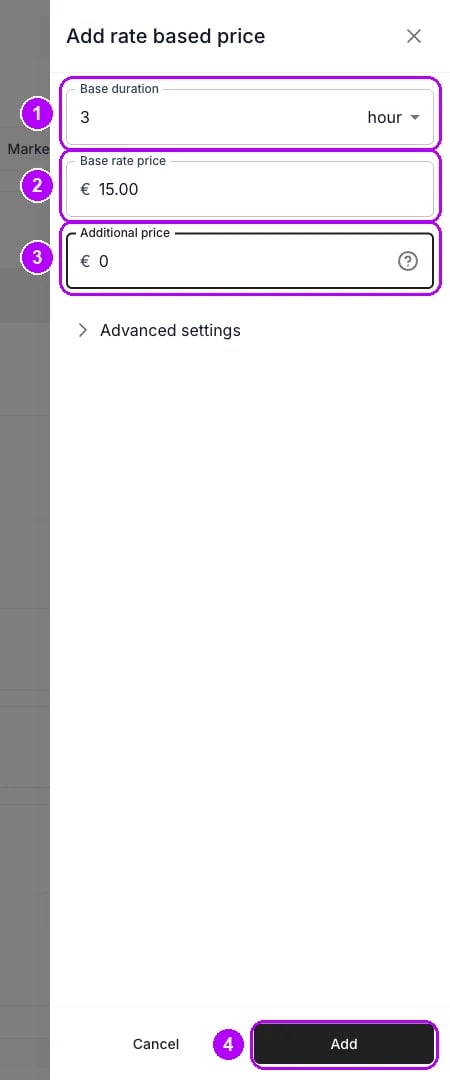
3
Add the 4-hour price
Click Add price again and add 4 hour at 18, with 0 in Additional price. The list shows its prices shortest first, so 4 hours sits under 3 hours.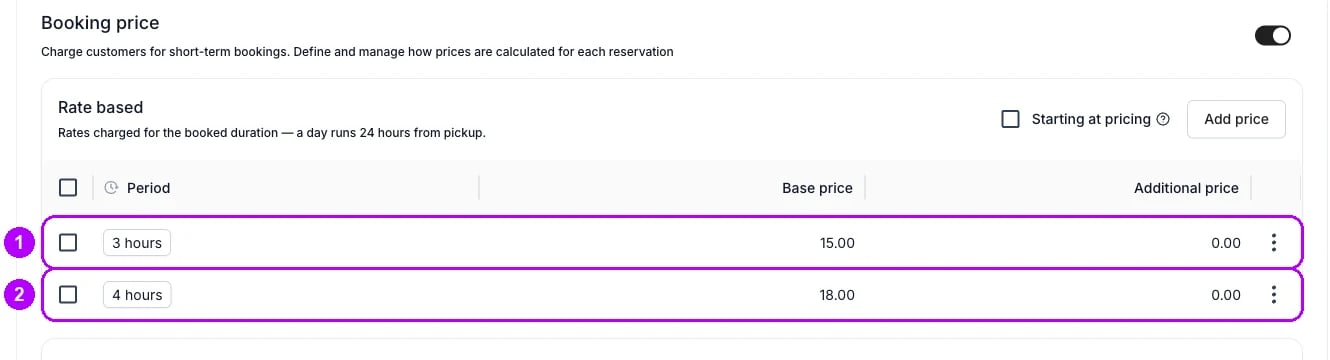
4
Add the day price at 5 hours
Add 5 hour at 25, the day price, with 0 in Additional price. This price puts every booking from 5 hours up to a day at €25. It covers the first 5 hours, and the zero additional prices cover the rest of the day. The same zeros also put every booking from a day to almost two days at €25.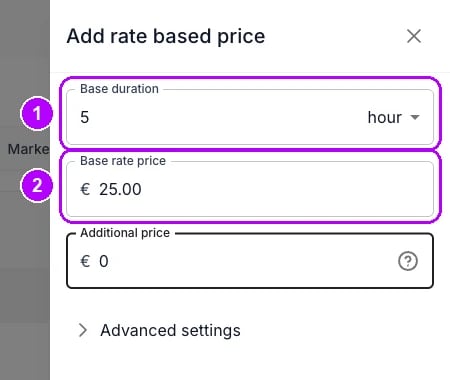
5
Add the 1-day price
Add 1 day at 25, with 12 in Additional price. A booking of exactly a day takes this price, and 12 is what one extra day costs.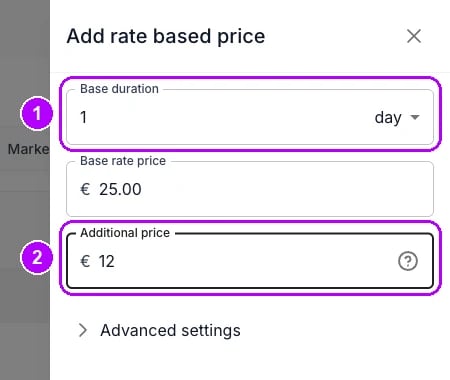
6
Add the 2-day price
Add 2 day at 40, with 24 in Additional price, the price of two extra days. Left empty, every further pair of days would cost 40.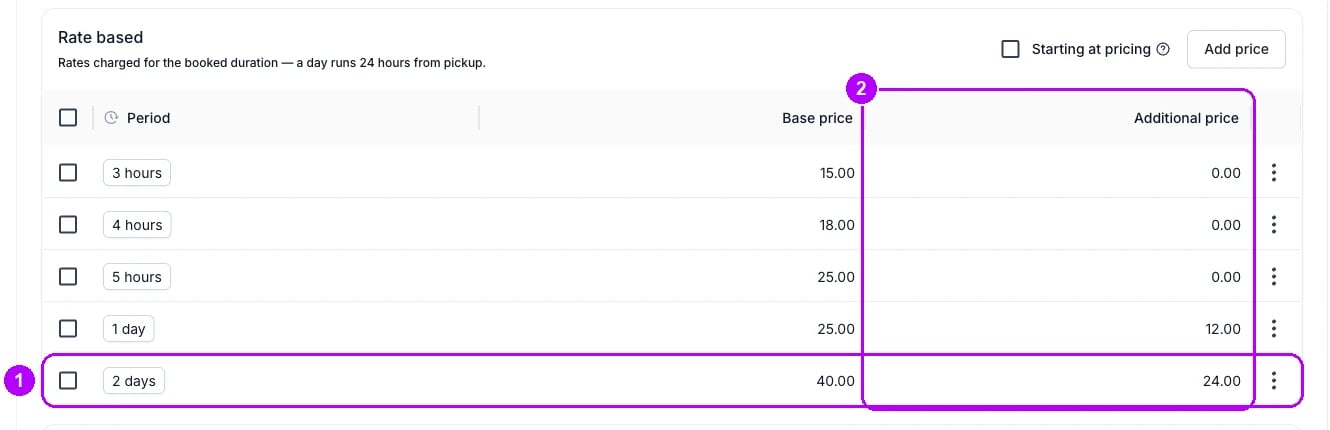
7
Leave Starting at pricing unticked
Check Starting at pricing at the top of the Rate based list, next to Add price. Leave it unticked. The line under Rate based then says a day runs 24 hours from pickup, which is how this ladder counts. Ticked, every calendar day a booking touches is charged.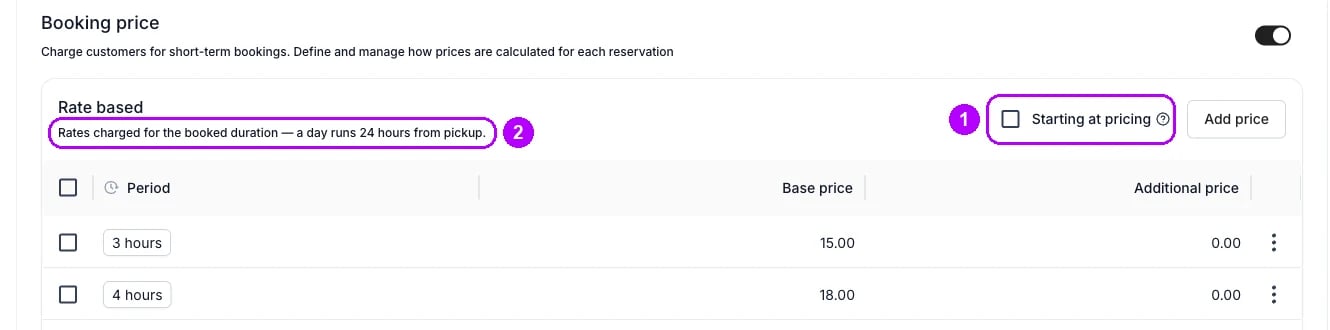
8
Set a 1-hour duration increment
Open the listing’s Limits tab. On the Booking limits card, enter 1 in Booking duration increment and choose hours. Every booking is then a whole number of hours. Without the increment, a booking of 4 hours 30 minutes costs the 4-hour price.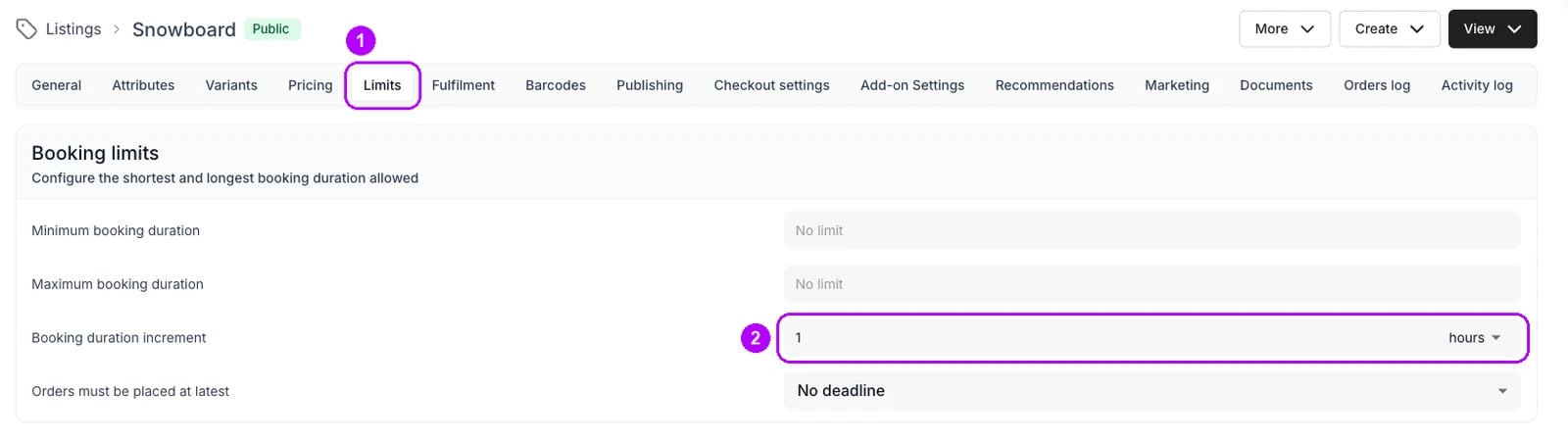
9
Set a 3-hour minimum
On the same card, enter 3 in Minimum booking duration and choose hours. Click Save changes in the bar at the top of the page. The storefront then offers no return earlier than 3 hours after pickup, and checkout rejects one.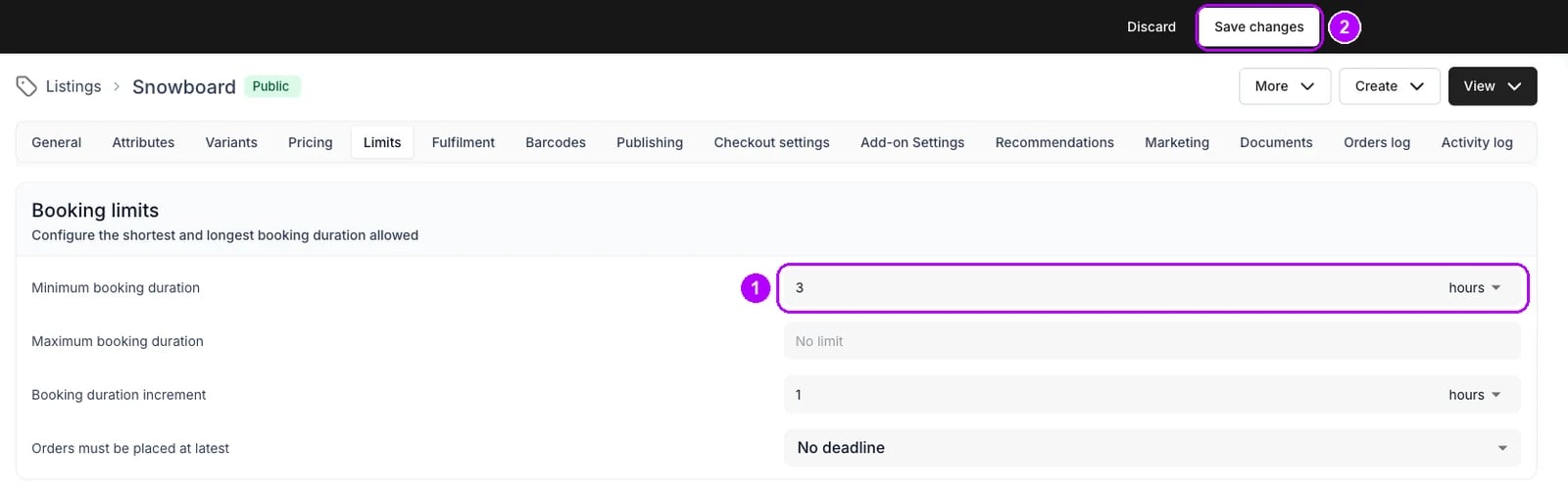
10
Check the hour steps on the storefront
Open the listing on your online store. On its booking calendar, pick a pickup day and time, then a return 3 hours later. The booking button reads Book for and €15. Change the return to 4 and then 5 hours after pickup, and check €18 and €25.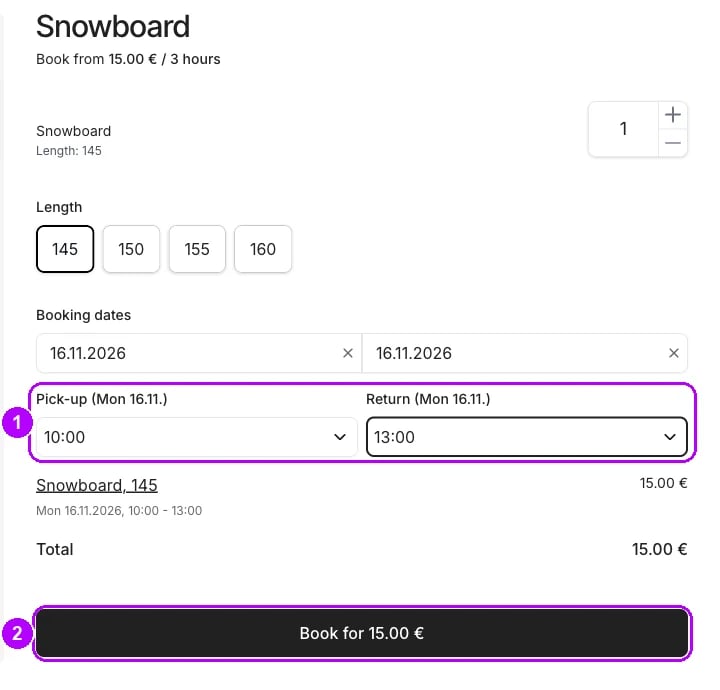
11
Check the day steps
Keep the pickup and pick a return 1, 2 and then 3 days later at the same time. The button reads €25, €40 and €52. A return 7 days later reads €100, because each day after the second adds €12.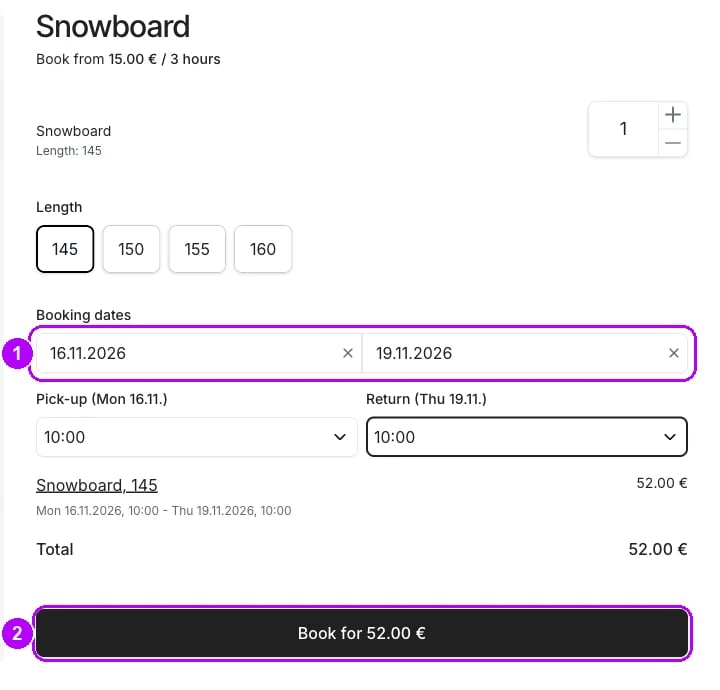
How do I know it worked?
The Rate based list shows five prices, shortest first:
The storefront prices these bookings:
Troubleshooting / common pitfalls
A booking of up to two days costs the day price
A booking of up to two days costs the day price
The hours past a whole day are priced at the hour prices’ Additional price, which is 0 so that 5 hours to a day stays at €25. So every booking from a day to almost two days costs €25.Giving the hour prices an Additional price charges those hours, and also lifts every booking between 5 hours and a day above €25. Choose the trade-off your bookings need. See Rate-based pricing.
A 7-day booking does not get the week price you added
A 7-day booking does not get the week price you added
Cause: the booking cannot use that week price. A fixed week package never prices a booking whose dates the customer picks. A rate-based week price applies only to a booking at least 7 full days long, and only while it is enabled and no weekday, time window or date limit excludes it. See Rate-based pricing.
Part of a booking is priced differently, or has no price
Part of a booking is priced differently, or has no price
Cause: one of the prices has a Daily time window under Advanced settings, so it prices only the part of a booking that starts inside those hours. Clear the window on every price in the ladder. Listing pricing explains the window.
Related articles
Rate-based pricing
How the prices combine into a total, and what happens between them.
Price tables
The model behind tables, prices and Starting at pricing.
Listing pricing
The Pricing tab field by field, the Daily time window included.
Listing limits
Minimum and maximum booking duration, and the duration increment.
Build a price table
A shared rate card, tiered by duration and linked to many listings.
Price a listing
Turn on booking prices and choose how a partial period is charged.