> ## Documentation Index
> Fetch the complete documentation index at: https://www.twicecommerce.com/docs/llms.txt
> Use this file to discover all available pages before exploring further.
# Settings - Users & Roles
> Invite team members, assign multiple roles, and control what each user can see and do.
export const userRoleDefinition = "What a user can see and do. Each user has one built-in system role — Owner, Admin, Manager, or Member — and can also be assigned any number of custom roles you create with specific permissions. Effective access is the combination of all their roles.";
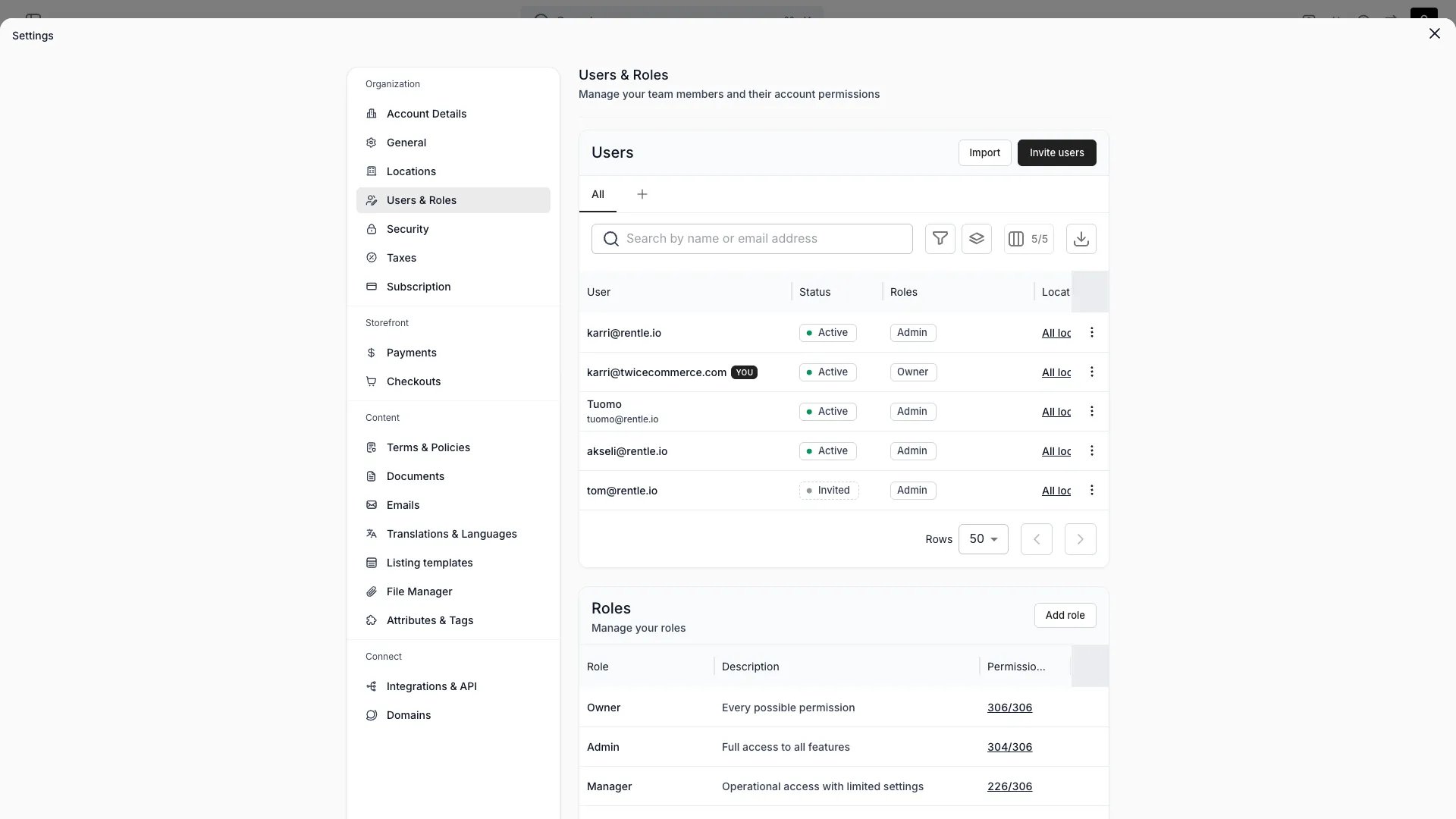 This view can look different dependent on your user role.
See [Visibility & Permissions](#visibility-and-permissions) for details.
## Primary Purpose
Invite team members, assign roles, and control what each user can see and do. Each user can hold a base system role and any number of custom roles. Effective permissions are the union of all assigned roles.
**Customisable user roles** are available on the **Standard** and **Enterprise** plans. The **Self-service** plan includes the built-in system roles (Owner, Admin, Manager, and Member). See [plans](/docs/twice-commerce-overview#pricing).
Invite team members by email. An invited user shows as **Invited** until their first sign-in, then flips to **Active** — see [Invite lifecycle](#invite-lifecycle). Active users can be suspended without losing their audit trail.
Four built-in system roles: **Owner** (every permission, including billing and subscription), **Admin** (full feature access — finance is read-only), **Manager** (operational access with limited settings), and **Member** (limited access). System roles are fixed templates you cannot edit. Every user has exactly one, and it sets their baseline permissions.
Create roles tailored to your team structure — for example, a "Refunder" role with permission to give refunds or a warehouse role with edit access to inventory. Assign any number of custom roles to a user alongside their system role. Each custom role also defines which [visible areas](/docs/concepts/admin/visible-areas) appear in the sidebar, independently from data access permissions.
## Invite lifecycle
A user you invite by email appears in the users list as **Invited**. Their roles are already in effect at that point — the status records whether they have accepted, not whether they have access.
### From Invited to Active
An invited user becomes **Active** the first time they use the admin with your merchant account selected. Clicking the link in the invite email is one way to get there, but it is not required: signing in through SSO, or setting a password from the login page, activates the membership just the same.
Two cases behave differently:
* **The invited email is new to TWICE Commerce.** The invite creates their account pointed at your merchant account, so their first sign-in lands there and flips them to **Active** automatically.
* **The invited email already belongs to another merchant account.** Their sign-in lands on that account instead. To reach yours they open the invite link, or select **Join** next to the **Invited** merchant account in the admin's merchant-account list. Switching merchant accounts is blocked while the invitation is unaccepted.
An **Invited** user who never signs in still holds every permission their roles grant. If you invited someone by mistake, delete them from the users list rather than waiting for the invite to lapse.
### Managing an open invite
* **Resend** — the invite link expires 7 days after it is sent. An invitee who opens an expired link gets a **Send new invitation** button on that page, which emails a fresh link and restarts the 7 days. There is no resend action in the admin.
* **Revoke** — delete the user from the users list. This removes their membership and their pending invite.
* **Suspend** — available for **Active** users only. You cannot suspend or reactivate an **Invited** user, and you cannot flip one to **Active** by hand.
Link expiry only governs the emailed link. It never revokes the invited user's access, so an invitation whose link has lapsed still activates on the next sign-in.
## Multi-role assignment
A user's access is determined by the combination of their system role and any custom roles assigned to them.
* **System role** — one per user. Sets the baseline: Owner, Admin, Manager, or Member.
* **Custom roles** — zero or more per user. Each adds specific permissions on top of the system role.
* **Effective permissions** — the union of all assigned roles. If any role grants a permission, the user has it.
```json Effective permissions example theme={null}
{
"system_role": "Member",
"custom_roles": ["Refunder", "Warehouse"],
"effective_permissions": [
"orders:view",
"orders:order_payments:create",
"inventory:view",
"inventory:manage"
]
}
```
A Member with the "Refunder" and "Warehouse" custom roles can view orders, issue refunds, and manage inventory — even though the base Member role alone does not grant those permissions.
Deleting a custom role requires removing it from all users first. You cannot delete a role that is still assigned.
## Visible areas
Each role defines a set of **visible areas** — the top-level admin sections that appear in the sidebar. Visible areas are independent from data access permissions. A role can grant `customers:view` (so the user can pick customers inside the order flow) without showing the Customers tab in the sidebar.
When you create or edit a custom role, the permissions matrix includes a **Show in UI** column. Toggling it on for a resource adds that resource to the role's visible areas. The matrix enforces an asymmetric rule: enabling Show in UI automatically enables View data, but enabling View data does not enable Show in UI.
A user's effective visible areas are the union of all assigned roles. If any role includes an area, that area appears.
Visible areas are a UI convenience, not a security boundary. Data access is always governed by permissions, regardless of sidebar visibility.
Read more: [Visible Areas concept guide](/docs/concepts/admin/visible-areas)
## Settings navigation gating
The Settings dialog only shows pages you have permission to access. If your combined roles do not include the required `:view` permission for a settings page, that page is hidden from both the sidebar and the URL. The [Security page](/docs/settings/security) is the exception — it is always visible to every role, though saving changes still requires manage access.
## Visibility and Permissions
Access to this view is controlled by your user role.
| Feature | Owner | Admin | Manager | Member |
| ----------------- | :---: | :---: | :-----: | :----: |
| View settings | ✓ | ✓ | ✗ | ✗ |
| Edit settings | ✓ | ✓ | ✗ | ✗ |
| Manage users | ✓ | ✓ | ✗ | ✗ |
| Assign roles | ✓ | ✓ | ✗ | ✗ |
| Create/edit roles | ✓ | ✓ | ✗ | ✗ |
| Manage billing | ✓ | ✗ | ✗ | ✗ |