> ## Documentation Index
> Fetch the complete documentation index at: https://www.twicecommerce.com/docs/llms.txt
> Use this file to discover all available pages before exploring further.
# Settings - Translations
> Manage multi-language translations for the storefront, emails, and customer-facing content.
export const userRoleDefinition = "What a user can see and do. Each user has one built-in system role — Owner, Admin, Manager, or Member — and can also be assigned any number of custom roles you create with specific permissions. Effective access is the combination of all their roles.";
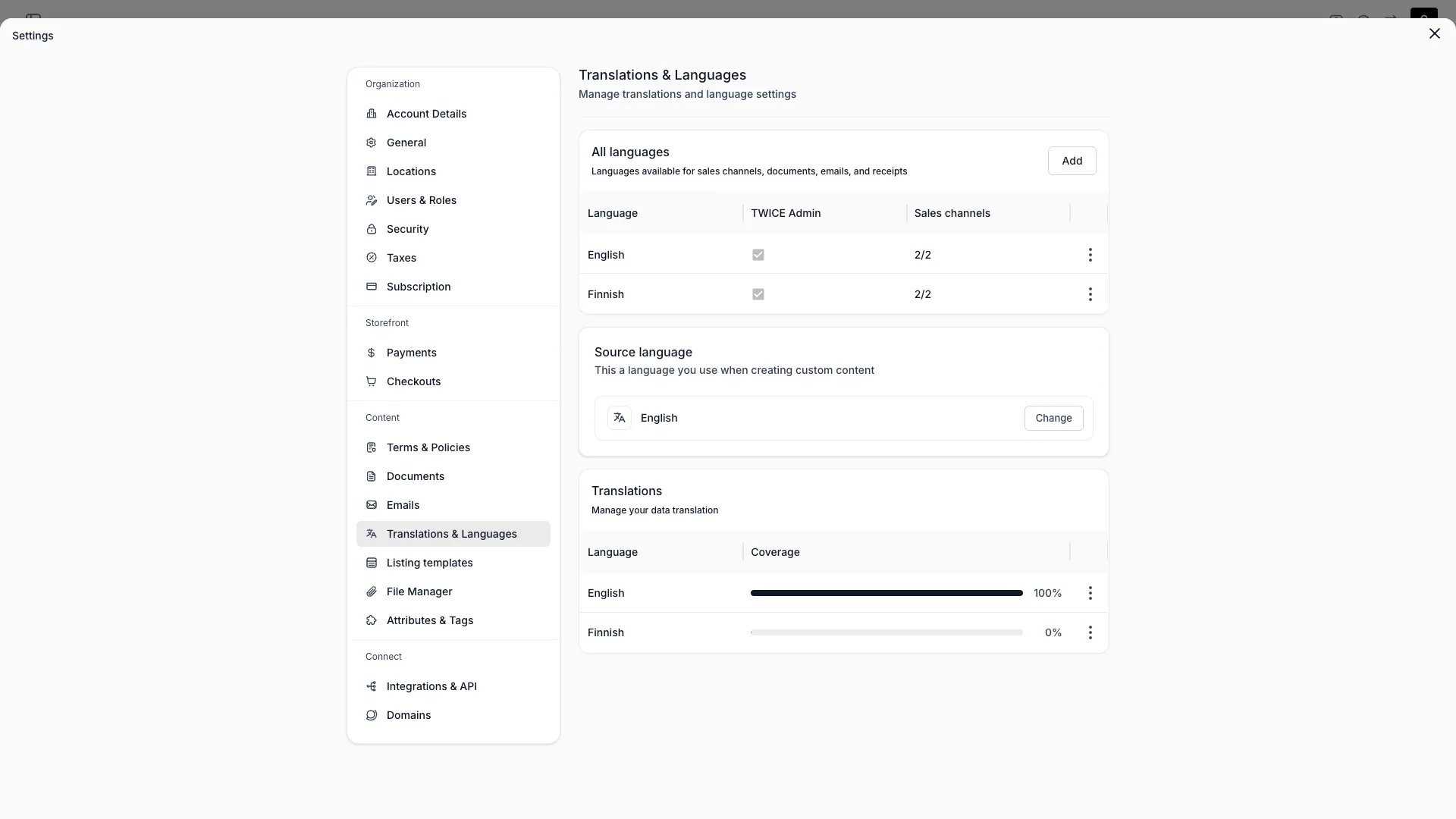 This view can look different dependent on your user role.
See [Visibility & Permissions](#visibility-and-permissions) for details.
## Primary Purpose
Manage multi-language translations for the storefront, emails, and customer-facing content.
Enable the languages your storefront supports. Each enabled language gets its own set of translations for listings, collections, locations, attributes, variants, pages, and emails.
Each language row displays a **completion percentage** — the share of translatable fields that have a translation in that language. The source language always shows 100 %. Coverage updates automatically when you add, edit, or delete translations.
The coverage card at the bottom of the page shows a progress bar and percentage for every enabled language. Click a row to open the translation editor for that language.
Coverage is computed across all translatable entity groups: listings, variants, variant values, collections, locations, policy documents, online store content, checkout content, email templates, document templates, and attributes. Only fields with a non-empty value in the source language count toward the total — empty source fields are excluded.
Changing the source language recalculates all percentages, since coverage is relative to the source.
Edit translations side-by-side for all translatable entity types — listings (including custom section headings and content), collections, locations, policy documents, attributes (including option labels), and variants. Missing translations fall back to the default language until filled. Storefront content and checkout step descriptions are translated through the online store and checkout editors respectively.
Export translations as CSV/JSON, hand them to a translator, and import the results back.
Override built-in system labels and wording to match your business — for example, rename "Rental" to "Hire" across the storefront and checkout. Overrides apply per language — including the default language — alongside your content translations.
**Storefront content** (hero text, section labels, about page, SEO metadata) and **system string overrides** are translated in the [Theme Editor > Translations](/docs/sales-channels/online-store/theme-editor/overview) mode, not on this page. Checkout content has its own Translations tab in **Settings > Checkouts**.
## Visibility and Permissions
Access to this view is controlled by your user role.
| Feature | Admin | Manager | Member |
| ------------- | :---: | :-----: | :----: |
| View settings | ✓ | ✗ | ✗ |
| Edit settings | ✓ | ✗ | ✗ |