> ## Documentation Index
> Fetch the complete documentation index at: https://www.twicecommerce.com/docs/llms.txt
> Use this file to discover all available pages before exploring further.
# Settings - Terms & Policies
> Create the policy documents customers see — as inline content or links to external pages.
export const userRoleDefinition = "What a user can see and do. Each user has one built-in system role — Owner, Admin, Manager, or Member — and can also be assigned any number of custom roles you create with specific permissions. Effective access is the combination of all their roles.";
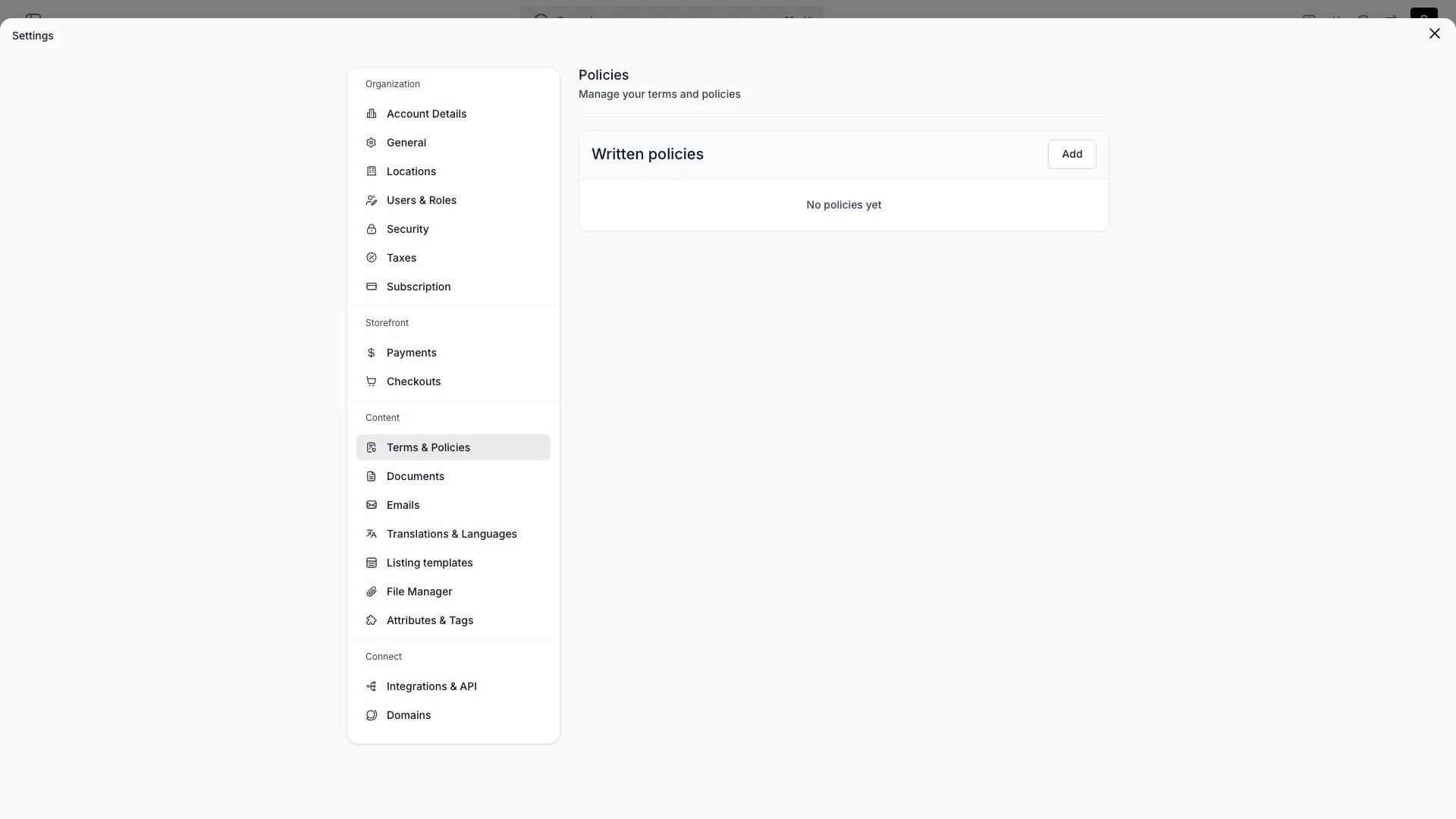 This view can look different dependent on your user role.
See [Visibility & Permissions](#visibility-and-permissions) for details.
## Primary Purpose
Create the policy documents customers see — terms, privacy, return policy, or any others you need.
Give the policy a name and choose its content type: **inline content** (write it in TWICE) or a **link** to an external URL you host elsewhere.
Keep a policy as **draft** while you write it and set it **active** to publish. Preview the rendered policy before publishing.
Active policies can be linked in the storefront footer and attached to a [checkout](/docs/settings/checkouts) as required consents.
Policies have no fixed types — name them whatever you need. They apply account-wide.
## Visibility and Permissions
Access to this view is controlled by your user role.
| Feature | Admin | Manager | Member |
| ------------- | :---: | :-----: | :----: |
| View settings | ✓ | ✗ | ✗ |
| Edit settings | ✓ | ✗ | ✗ |