> ## Documentation Index
> Fetch the complete documentation index at: https://www.twicecommerce.com/docs/llms.txt
> Use this file to discover all available pages before exploring further.
# Settings - Security
> Control which sign-in methods your team can use and configure the security restrictions bypass.
export const userRoleDefinition = "What a user can see and do. Each user has one built-in system role — Owner, Admin, Manager, or Member — and can also be assigned any number of custom roles you create with specific permissions. Effective access is the combination of all their roles.";
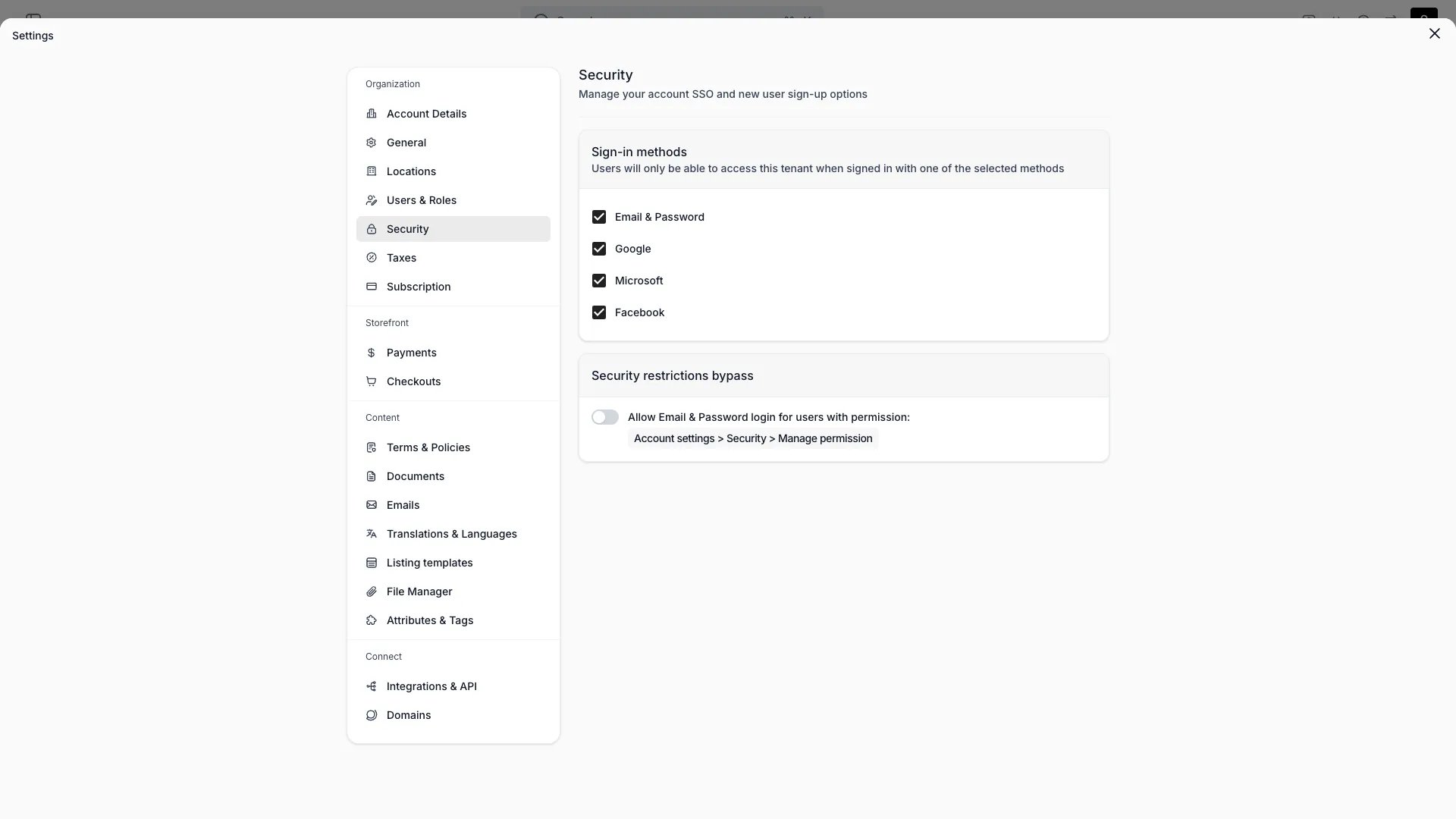 This view can look different dependent on your user role.
See [Visibility & Permissions](#visibility-and-permissions) for details.
## Primary Purpose
Control how your team signs in to the admin.
Choose which methods users can sign in with: **Email & Password**, **Google**, **Microsoft**, or **Facebook**. Users can only access your account when signed in with one of the selected methods. At least one method must stay selected. New accounts allow all four methods until you restrict them.
Allow Email & Password sign-in for users who hold the **Account settings > Security > Manage** permission, even when Email & Password is not a selected sign-in method. This acts as an escape hatch: a user with that permission can still sign in and fix the configuration if an identity provider is misconfigured.
## Related Concepts
Team members, system roles, and custom roles.
Your personal details and interface language.
## Visibility and Permissions
Access to this view is controlled by your user role. The Security page is visible to every role; saving changes requires manage access to general account settings.
| Feature | Admin | Manager | Member |
| ------------- | :---: | :-----: | :----: |
| View settings | ✓ | ✓ | ✓ |
| Edit settings | ✓ | ✗ | ✗ |