> ## Documentation Index
> Fetch the complete documentation index at: https://www.twicecommerce.com/docs/llms.txt
> Use this file to discover all available pages before exploring further.
# Profile Settings
> Manage your personal account details, interface language, and merchant accounts.
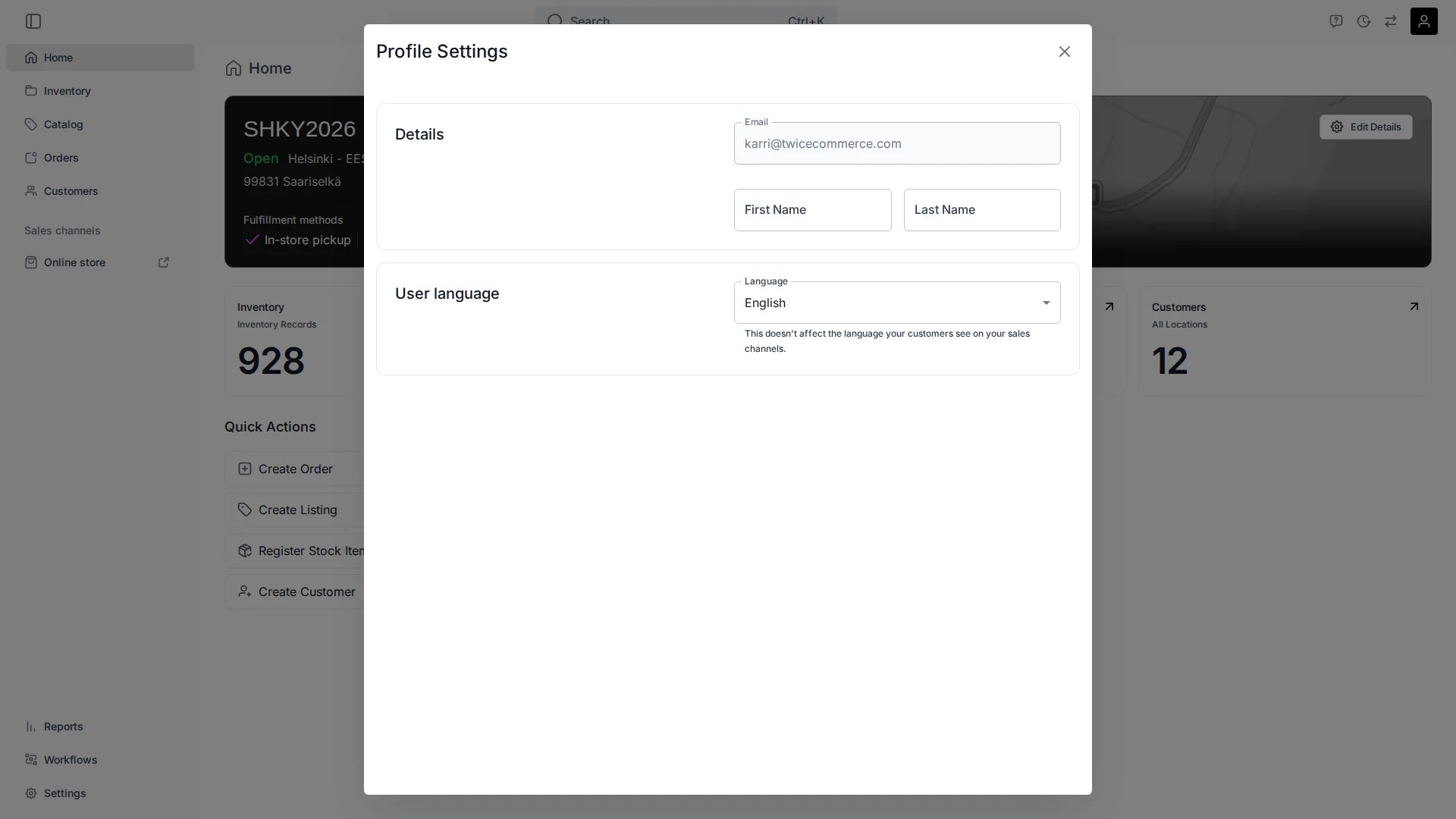 Profile Settings holds your **personal** account details, separate from organisation-wide [Settings](/docs/settings/account). Open it from the avatar menu in the top-right of the [top navigation](/docs/global-navigation/top-navigation) → **Profile Settings**.
## Details
* Email address
* First name and last name
## User language
Set the language of your admin interface. This is personal to you and does **not** affect the language your customers see on your sales channels.
Organisation-wide sign-in restrictions — which sign-in methods your team can use — are managed under [Security settings](/docs/settings/security), not here.
## Merchant accounts
If you belong to more than one merchant account, the **Merchant accounts** card appears on this page. It lists every merchant account linked to your email address, split into two tabs:
* **Active** — merchant accounts you already belong to. Click a row to switch to that merchant.
* **Invited** — pending invitations. Click **Join** to accept an invitation and switch to that merchant immediately.
Each row shows the merchant name and admin URL. When a tab contains more than one merchant, a search field appears at the top of the list. It filters by merchant name or slug in real time.
### Standalone account switcher
You can also switch merchant accounts from the dedicated switcher at **Profile menu → Switch Merchant Account**. This full-page view shows all your merchants in a single list — active accounts, pending invitations, and any accounts that require re-authentication. A search field appears when you have more than one merchant.
The search field is hidden when you belong to only one merchant account.
## Related
Team members and what they can access.
Which sign-in methods your team can use.
Profile Settings holds your **personal** account details, separate from organisation-wide [Settings](/docs/settings/account). Open it from the avatar menu in the top-right of the [top navigation](/docs/global-navigation/top-navigation) → **Profile Settings**.
## Details
* Email address
* First name and last name
## User language
Set the language of your admin interface. This is personal to you and does **not** affect the language your customers see on your sales channels.
Organisation-wide sign-in restrictions — which sign-in methods your team can use — are managed under [Security settings](/docs/settings/security), not here.
## Merchant accounts
If you belong to more than one merchant account, the **Merchant accounts** card appears on this page. It lists every merchant account linked to your email address, split into two tabs:
* **Active** — merchant accounts you already belong to. Click a row to switch to that merchant.
* **Invited** — pending invitations. Click **Join** to accept an invitation and switch to that merchant immediately.
Each row shows the merchant name and admin URL. When a tab contains more than one merchant, a search field appears at the top of the list. It filters by merchant name or slug in real time.
### Standalone account switcher
You can also switch merchant accounts from the dedicated switcher at **Profile menu → Switch Merchant Account**. This full-page view shows all your merchants in a single list — active accounts, pending invitations, and any accounts that require re-authentication. A search field appears when you have more than one merchant.
The search field is hidden when you belong to only one merchant account.
## Related
Team members and what they can access.
Which sign-in methods your team can use.