> ## Documentation Index
> Fetch the complete documentation index at: https://www.twicecommerce.com/docs/llms.txt
> Use this file to discover all available pages before exploring further.
# Settings - Orders
> Set the format and sequence every order reference is built from.
export const viewAccessDefinition = "The view operation: read a record without changing it.";
export const manageAccessDefinition = "The manage operation: update an existing record. Creating and deleting are separate operations.";
export const deleteAccessDefinition = "The delete operation: remove a record. Most areas archive instead of deleting.";
export const createAccessDefinition = "The create operation: add a new record. Updating an existing one is the manage operation.";
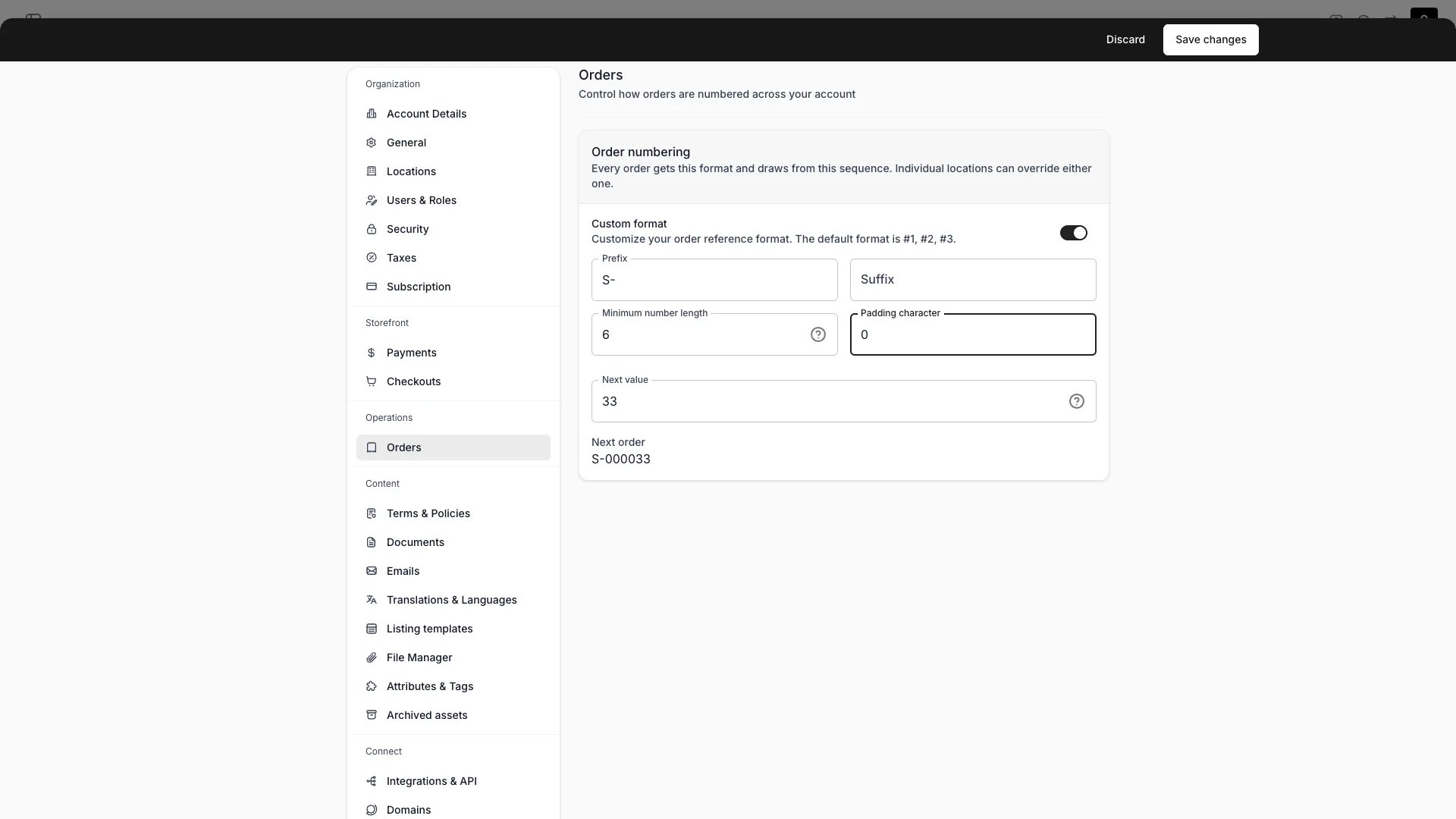 This view can look different dependent on your user role.
See [Visibility & Permissions](#visibility-and-permissions) for details.
## Primary Purpose
Orders sits under **Operations** in Settings and holds one card: **Order numbering**. It sets the account-wide format and sequence that every order reference is built from. Individual [locations](/docs/settings/locations) can override either half.
Each order carries two values. The **number** is the raw sequence value — `1042`. The **reference** is what the number is rendered as — `#1042`, `S-001042`, or whatever your format produces — and it is the value shown in the admin, on emails and documents, and in the customer portal. Both are allocated when the order leaves `pending`, so an abandoned checkout never consumes a number.
Off by default, which numbers orders `#1`, `#2`, `#3`. Turn it on to build the reference yourself from a prefix, a suffix, and a minimum number length.
A custom format with **every field left empty is not "no format"** — it produces the bare number (`42`), and that is how you drop the `#` entirely.
| Field | Rule |
| :------------------------ | :------------------------------------------------------------------------------------------------------------------ |
| **Prefix** | Up to 16 characters, placed before the number — for example `S-` |
| **Suffix** | Up to 16 characters, placed after the number — for example `-Z` |
| **Minimum number length** | 0–20. Numbers shorter than this are padded up to it. Longer numbers are never shortened. Leave empty for no padding |
| **Padding character** | One character, used to pad. Defaults to `0` when a minimum length is set and this is left empty |
Prefix, suffix, and padding are capped so that the longest reference a format can produce still fits the **Order reference** field on the [customer portal](/docs/concepts/orders/subscription-portal) recovery form — a reference a customer cannot type back in would lock them out of their own order.
The number the next order receives, unless its location draws from its own sequence. Allocation hands out this value and then increments.
Editing it restarts numbering from that point. This is a deliberate operation — usually paired with a new prefix, for example a yearly `2026-` reset — and it re-issues numbers that existing orders may already carry, so change it only when you mean to. The form sends this value only when you actually edited it, so saving a prefix change never rewinds a counter that moved while the page was open.
Below the fields, **Next order** renders the reference your current settings produce for the next value. It uses the same formatting the server uses when allocating, so the preview and the real reference cannot drift.
### Worked examples
| Custom format | Prefix | Minimum number length | Padding character | Number `42` renders as |
| :------------ | :-------- | :-------------------- | :---------------- | :--------------------- |
| Off | — | — | — | `#42` |
| On | *(empty)* | *(empty)* | *(empty)* | `42` |
| On | `S-` | `6` | `0` | `S-000042` |
| On | `2026-` | `4` | `0` | `2026-0042` |
Order numbering is separate from document numbering. Receipt and invoice numbers draw their own sequences and render bare — a format set here never reaches them. See [Documents](/docs/settings/documents).
## Related Concepts
Give a location its own prefix, its own sequence, or both
Render the reference in email and document templates with `{{reference}}`
When an order leaves `pending` and earns its number
The Reference column in the Orders table
## Visibility and Permissions
This page is gated by `account_settings:orders`, in the four operations — view, create, manage and delete.
Owner and Admin hold every operation. Manager and Member do not hold it at all.
For what each operation means and the full role matrix, see [Users & Roles](/docs/settings/users-roles).