> ## Documentation Index
> Fetch the complete documentation index at: https://www.twicecommerce.com/docs/llms.txt
> Use this file to discover all available pages before exploring further.
# Settings - Listing Templates
> Pre-fill new listings from an existing catalog item to create similar listings quickly.
export const userRoleDefinition = "What a user can see and do. Each user has one built-in system role — Owner, Admin, Manager, or Member — and can also be assigned any number of custom roles you create with specific permissions. Effective access is the combination of all their roles.";
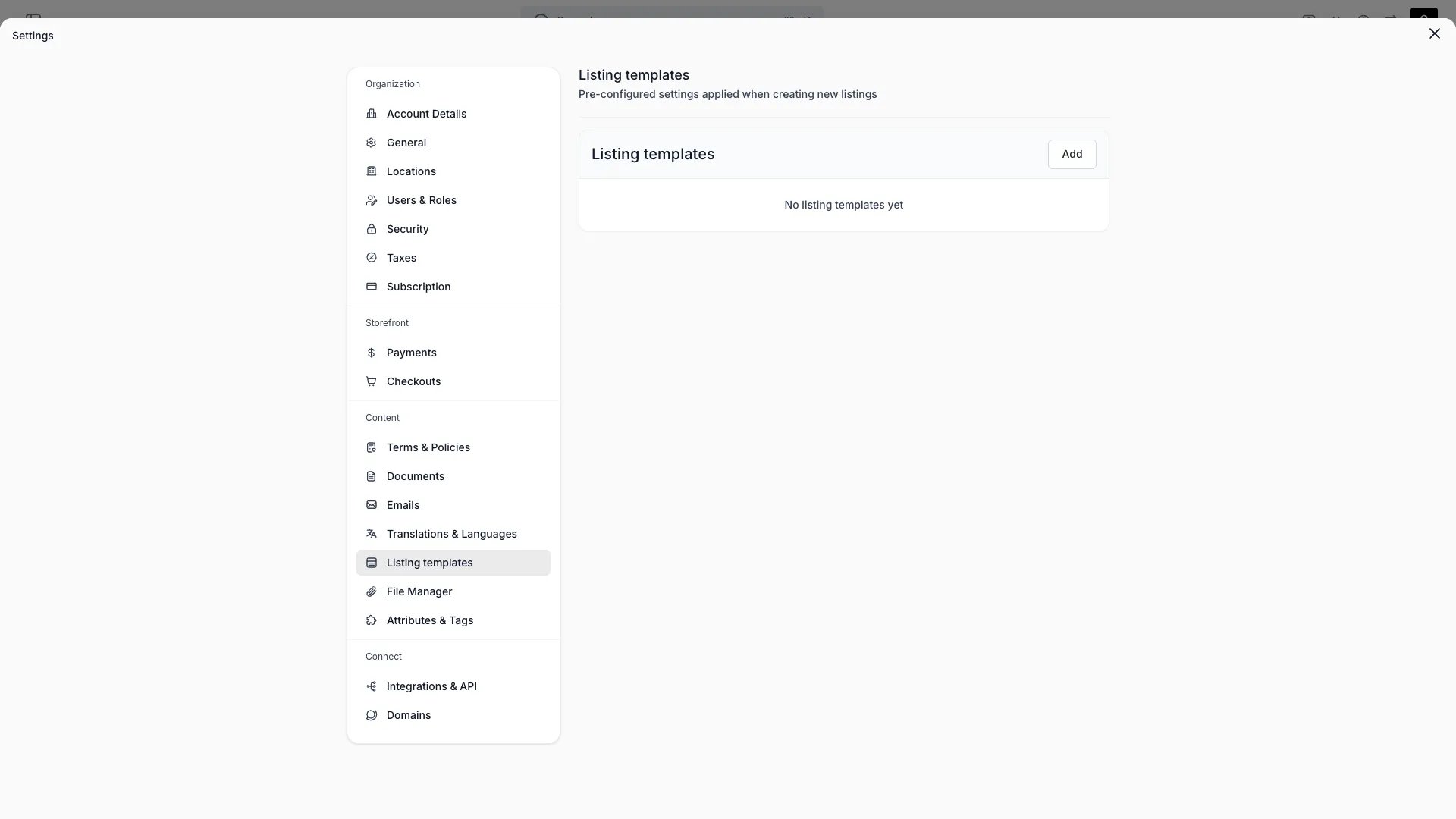 This view can look different dependent on your user role.
See [Visibility & Permissions](#visibility-and-permissions) for details.
## Primary Purpose
A listing template lets you start a new [listing](/docs/concepts/catalog/listings) from an existing catalog item, so creating similar listings is fast.
A named reference to a catalog item, optionally with one or more [document templates](/docs/settings/documents) attached.
Name the template, pick the catalog item it starts from, and choose any document templates to attach. Edit or delete templates at any time.
New listings created from the template start from its catalog item and attached documents.
A template stores this reference only — it doesn't define its own field-by-field defaults.
## Visibility and Permissions
Access to this view is controlled by your user role.
| Feature | Admin | Manager | Member |
| ------------- | :---: | :-----: | :----: |
| View settings | ✓ | ✓ | ✓ |
| Edit settings | ✓ | ✓ | ✓ |