> ## Documentation Index
> Fetch the complete documentation index at: https://www.twicecommerce.com/docs/llms.txt
> Use this file to discover all available pages before exploring further.
# Settings - Emails
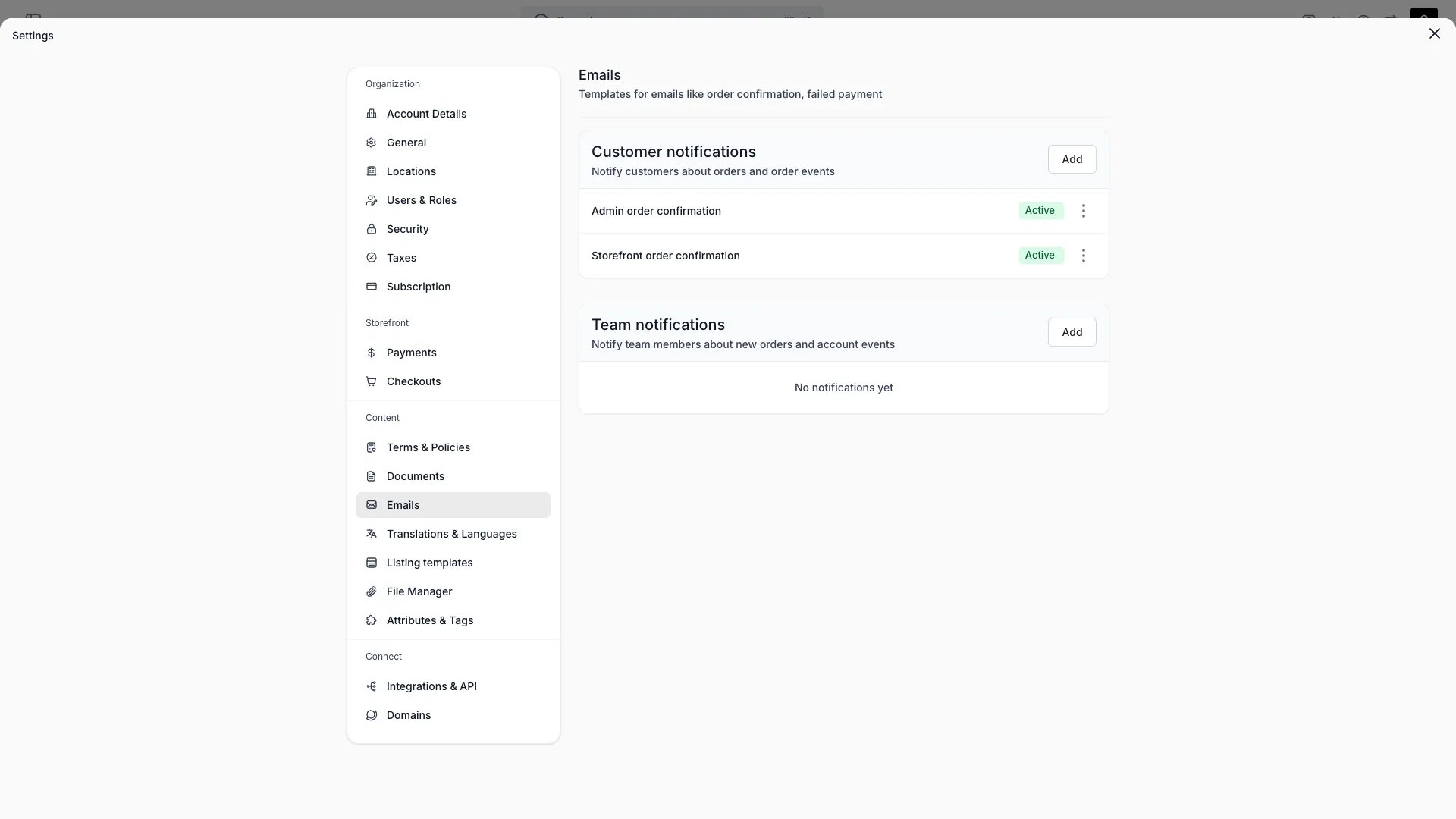
> Manage the transactional emails TWICE sends to customers and your team, with per-language template support.
export const userRoleDefinition = "What a user can see and do. Each user has one built-in system role — Owner, Admin, Manager, or Member — and can also be assigned any number of custom roles you create with specific permissions. Effective access is the combination of all their roles.";
 This view can look different dependent on your user role.
See [Visibility & Permissions](#visibility-and-permissions) for details.
## Primary Purpose
Manage the transactional emails TWICE sends — order confirmations plus your own custom emails.
Eight system email templates are built in. You can edit their subject and content but not delete them.
| Template | Audience | Default status |
| :----------------------------- | :------- | :------------- |
| Admin order confirmation | Team | Active |
| Storefront order confirmation | Customer | Active |
| Checkout link | Customer | Active |
| Subscription payment upcoming | Customer | Draft |
| Subscription payment confirmed | Customer | Active |
| Subscription payment failed | Customer | Active |
| Subscription cancelled | Customer | Active |
| Subscription ending soon | Customer | Draft |
Templates in **Draft** status are not sent until you activate them.
Create additional emails to customers or your team, with a subject and HTML content.
Each email template — system or custom — can have per-language content. Select a language in the template editor to write a translated version of the subject and body.
When you edit in a language other than the source language, the override is stored as a translation. The template resolves content in this order:
1. **Per-language override** — the translated subject and body for the recipient's language, if one exists.
2. **Template content** — the subject and body saved on the template itself (your source language version).
3. **Code default** — for system templates only, the built-in default in the requested language.
Custom templates have no code default — if no per-language override exists, the source-language content is used.
You can revert a system template to its code default at any time from the editor.
Attach document templates, policy documents, or uploaded files to an email.
Send a test email to yourself, and keep a template draft or active.
Emails are sent from your organisation's contact email (set in [Account details](/docs/settings/account)). There is no separate sender or SPF/DKIM configuration here.
## Email Language
Order notification emails render in the customer's language. The system determines the language as follows:
1. The storefront captures the customer's **browsing language** during checkout.
2. At order creation, the customer record stores this language.
3. When sending the email, the system validates the customer's language against your [enabled languages](/docs/settings/translations). If the language is enabled, the email renders in that language. Otherwise, it falls back to your **default language**.
Both the template content and system-generated copy (dates, labels, line items) render in the same language — emails are never a mix of two languages.
## Related Concepts
Document templates with the same per-language support
How translations work across your catalog, locations, and templates
Enable languages and manage translations for customer-facing content
## Template Variables
Email templates use Handlebars syntax for dynamic content. Wrap a variable name in double curly braces — `{{variable}}` — to insert order data into the subject or body.
### Helpers
Helpers format raw values before they appear in the email.
| Helper | Example | Output |
| ---------------- | ----------------------------------------- | ------------------------------------------------------ |
| `formatDate` | `{{formatDate createdAt}}` | Date in the location's format (e.g. `15.03.2026`) |
| `formatDateTime` | `{{formatDateTime earliestStartDate}}` | Date and time (e.g. `15.03.2026, 14:00`) |
| `formatDateOnly` | `{{formatDateOnly subscription.endDate}}` | Calendar date without timezone conversion |
| `formatPrice` | `{{formatPrice pricing.total}}` | Formatted price from minor units (e.g. `€25.00`) |
| `formatCycle` | `{{formatCycle unit amount}}` | Billing cadence (e.g. `month`, `3 months`) |
| `formatDuration` | `{{formatDuration unit amount}}` | Duration with count (e.g. `1 week`, `6 months`) |
| `eq` | `{{#if (eq status "completed")}}` | Equality check for conditionals |
| `localeField` | `{{localeField name}}` | Extracts the default value from a multi-language field |
Standard Handlebars block helpers are available: `{{#each}}`, `{{#if}}`, `{{#unless}}`, `{{#with}}`.
### Order variables
Order email templates receive the full Order object. Commonly used fields:
| Variable | Description |
| ----------------------- | -------------------------- |
| `number` | Order number |
| `createdAt` | Order creation timestamp |
| `status` | Current order status |
| `mainContact.firstName` | Customer's first name |
| `mainContact.lastName` | Customer's last name |
| `mainContact.email` | Customer's email address |
| `pickupLocation.name` | Pickup location name |
| `returnLocation.name` | Return location name |
| `earliestStartDate` | Earliest line item start |
| `latestEndDate` | Latest line item end |
| `pricing.total` | Total price in minor units |
| `pricing.subtotal` | Subtotal in minor units |
| `pricing.currency` | Currency code |
| `note` | Order note |
Access line items with `{{#each lineItems}}`. Each item exposes `name`, `startDate`, `endDate`, `purchaseType`, `pricing`, and `variants`.
### Timezone handling
Date and time helpers (`formatDate`, `formatDateTime`) render values in the **pickup location's timezone**. If the location has no timezone set, the system falls back to your account's default timezone.
This means customers see dates matching the location they are picking up from — not UTC.
### Subject example
Use template variables in the subject line to create dynamic subjects:
```
Order {{number}} confirmed — pickup {{formatDate earliestStartDate}}
```
If a template variable or helper contains a syntax error, the email still sends with the raw text. No email is lost due to a template mistake.
## Visibility and Permissions
Access to this view is controlled by your user role.
| Feature | Admin | Manager | Member |
| ------------- | :---: | :-----: | :----: |
| View settings | ✓ | ✓ | ✗ |
| Edit settings | ✓ | ✗ | ✗ |