> ## Documentation Index
> Fetch the complete documentation index at: https://www.twicecommerce.com/docs/llms.txt
> Use this file to discover all available pages before exploring further.
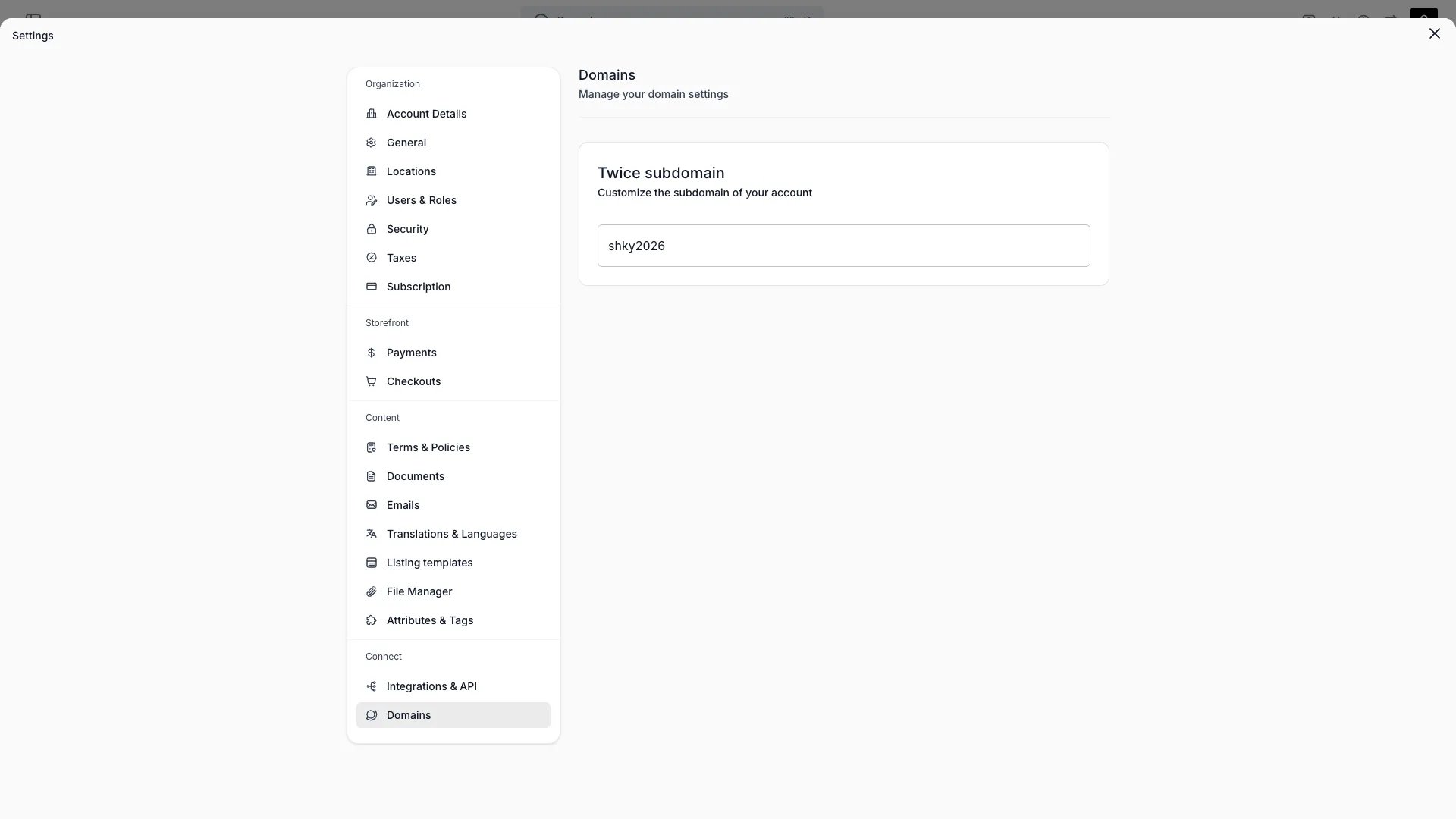
# Settings - Domains
> Control your store's web address — your TWICE subdomain and custom domains.
export const userRoleDefinition = "What a user can see and do. Each user has one built-in system role — Owner, Admin, Manager, or Member — and can also be assigned any number of custom roles you create with specific permissions. Effective access is the combination of all their roles.";
This view can look different dependent on your user role. See [Visibility & Permissions](#visibility-and-permissions) for details.
## Primary Purpose
Control the web address of your online store.
Every store has a TWICE subdomain (for example `yourstore.rentle.store`). You can change the slug. Changing it breaks existing links to the old address — there is no automatic redirect.
Connect your own domain: add it, update your DNS as instructed, and TWICE Commerce issues the TLS certificate automatically. Track its status (needs setup → pending → active) and set one domain as primary.
Mark one custom domain as **primary** to consolidate your store's SEO signals. The primary domain drives three automatic behaviors:
* **Canonical URLs** — every indexable storefront page emits a `` tag pointing to the primary custom domain. When the same page is reachable at both `yourstore.twice.shop` and `yourdomain.com`, search engines treat the custom domain URL as the authoritative version, avoiding duplicate-content penalties.
* **Open Graph URLs** — the `og:url` meta tag uses the primary custom domain, so social previews and link shares always reference your custom address.
* **Admin-generated links** — checkout links, store preview buttons, and share links in the admin use the primary custom domain instead of the TWICE subdomain.
Non-primary custom domains, alternate slugs, and the TWICE subdomain still resolve to the correct page — their canonical tags point crawlers to the primary domain URL.
If you remove or deactivate the primary domain, URLs revert to the TWICE subdomain.
Canonical and Open Graph tags apply to all public storefront pages (home, listings, collections, about, terms, privacy). Cart, checkout, and preview pages are excluded.
Your TWICE subdomain is available on every plan. **Custom domain** availability depends on your plan — see [pricing](/docs/twice-commerce-overview#pricing).
## Connecting a custom domain
### Step 1 — Add the domain
Go to **Settings > Domains** and click **Connect a domain**. Enter the hostname you want to use (for example `shop.yourbrand.com` or `yourbrand.com`). TWICE validates the format and creates a domain record with status **Needs setup**.
### Step 2 — Add DNS records
After adding the domain, TWICE opens a setup dialog showing the DNS records to add at your registrar.
| Type | Host | Value |
| :---- | :--------------------------------------------------- | :------------------- |
| CNAME | Your subdomain (e.g. `shop`) or `@` for root domains | `domains.twice.shop` |
Add this CNAME record at your domain registrar (e.g. Cloudflare, GoDaddy, Namecheap, Route 53). The **Host** field depends on whether you are connecting a subdomain or a root domain:
* **Subdomain** (e.g. `shop.yourbrand.com`) — set the host to the subdomain label (`shop`).
* **Root domain** (e.g. `yourbrand.com`) — set the host to `@`. Your registrar must support CNAME, ALIAS, or ANAME records at the zone root. The setup dialog warns you if you are connecting a root domain.
DNS changes can take up to 24 hours to propagate, though most providers update within minutes.
### Step 3 — Verify
Once you have added the DNS record, return to the setup dialog and click **Verify**. TWICE checks that the hostname resolves correctly:
* If the DNS records have propagated, TWICE registers the domain and begins SSL provisioning. The status changes to **Pending** while the SSL certificate is provisioned.
* If the records have not propagated yet, the verification fails with a message explaining the issue. Wait and try again.
### Step 4 — SSL provisioning
After successful verification, TWICE provisions a TLS certificate through Cloudflare automatically. This usually completes within a few minutes. No action is required from you — the status updates to **Connected** once SSL is active and traffic is routing.
A background job also checks pending domains periodically, so even if you close the dialog the domain activates on its own once DNS and SSL are ready.
### HTTPS enforcement
Every storefront response — on your TWICE subdomain and on every connected custom domain — carries the header `Strict-Transport-Security: max-age=31536000`. Redirects and error responses carry it too, so a security or PCI scan sees it on any URL it probes.
A browser that has loaded your storefront once uses HTTPS for that hostname for the next year. If a visitor types `http://` or follows an old plain-HTTP link, the browser rewrites the request to HTTPS before sending it, so nothing travels unencrypted.
The policy covers the storefront hostname alone. It sets neither `includeSubDomains` nor `preload`, so connecting `shop.yourbrand.com` does not change how browsers treat `www.yourbrand.com`, `mail.yourbrand.com`, or any other host you run.
Moving a connected domain back to plain HTTP is not immediate. Browsers that already received the header keep enforcing HTTPS for that hostname until the one-year `max-age` expires, and each visitor has to clear their own browser's HSTS state to override it sooner.
## Domain status
Each custom domain has one of four statuses:
| Status | Meaning |
| :-------------- | :----------------------------------------------------------------------------------------- |
| **Needs setup** | Domain added but DNS records not yet verified. Add the CNAME record and click Verify. |
| **Pending** | DNS verified and registered. SSL certificate is being provisioned. |
| **Connected** | SSL active, traffic routing through the domain. |
| **Failed** | Verification or SSL provisioning failed. Open the setup dialog to see the error and retry. |
## Managing custom domains
The custom domains table shows all connected domains with their status, date added, and whether each is the primary domain.
Click the actions menu (three dots) on any domain row for available actions:
| Action | When available | What it does |
| :-------------------------- | :---------------------- | :------------------------------------------------------------------------------------------------------------------------------------------ |
| **View setup instructions** | Needs setup, Failed | Opens the setup dialog with DNS records and the Verify button. |
| **Refresh status** | Pending, Failed | Re-checks the domain status with Cloudflare. |
| **Set as primary** | Connected (non-primary) | Makes this domain the canonical storefront URL. Other domains redirect here with a 301. |
| **Clear primary** | Primary domain | Removes the primary designation. The storefront falls back to the TWICE subdomain as canonical. |
| **Delete** | Always | Removes the domain from your account and Cloudflare. For active domains, the storefront immediately stops being available at that hostname. |
Deleting an active domain takes your storefront offline at that hostname immediately. To use the domain again you must reconnect and verify it.
## Limits
The number of custom domains you can connect depends on your plan, up to a maximum of five per account.
## Related Concepts
Storefront architecture, domain types, and multi-store support.
Wallet payments are auto-registered on newly activated custom domains.
## Visibility and Permissions
Access to this view is controlled by your user role.
| Feature | Admin | Manager | Member |
| ------------- | :---: | :-----: | :----: |
| View settings | ✓ | ✗ | ✗ |
| Edit settings | ✓ | ✗ | ✗ |