> ## Documentation Index
> Fetch the complete documentation index at: https://www.twicecommerce.com/docs/llms.txt
> Use this file to discover all available pages before exploring further.
# Settings - Documents
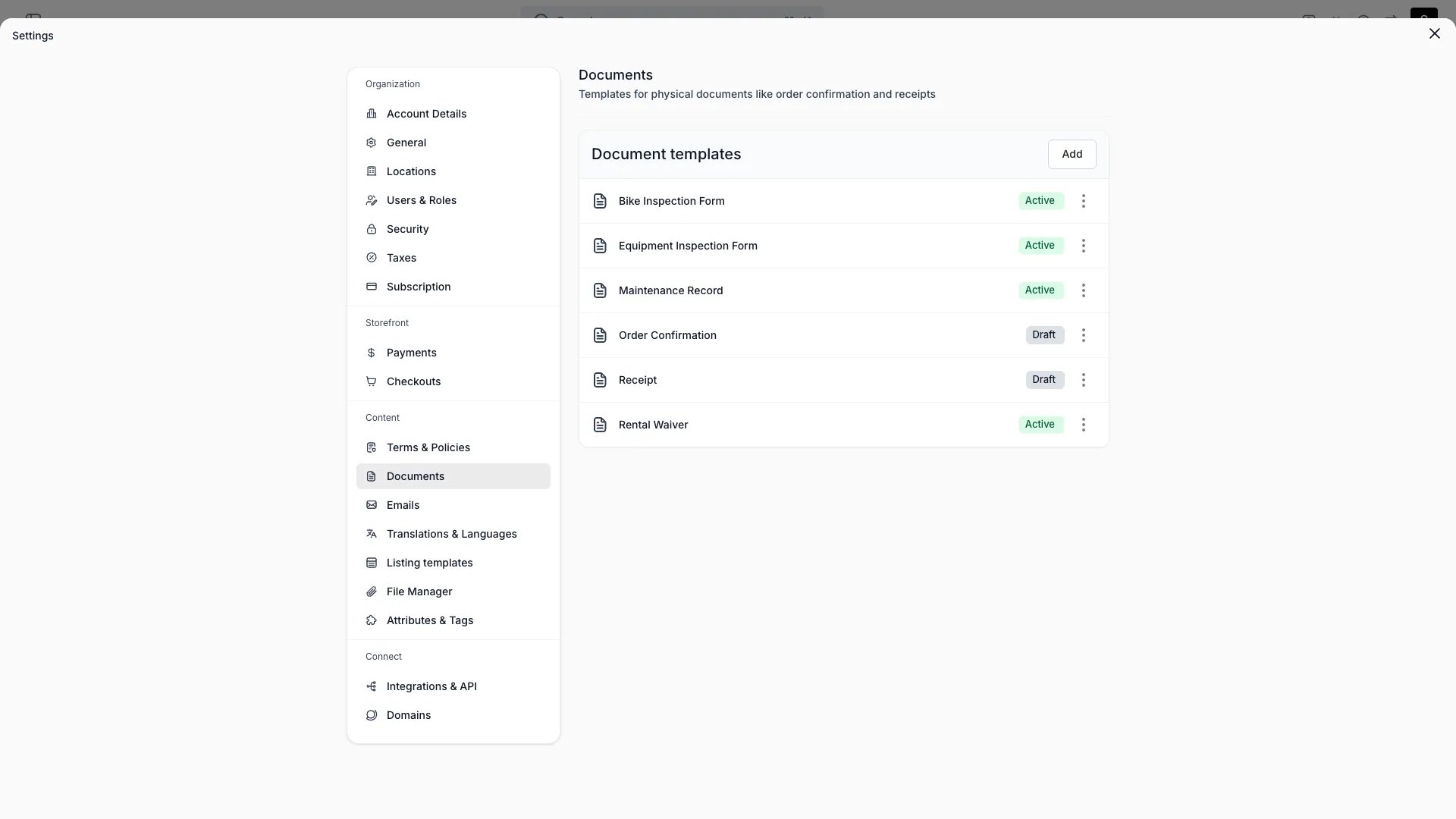
> Create document templates TWICE renders for orders, listings, stock items, customers, and collections, with per-language support.
export const userRoleDefinition = "What a user can see and do. Each user has one built-in system role — Owner, Admin, Manager, or Member — and can also be assigned any number of custom roles you create with specific permissions. Effective access is the combination of all their roles.";
 This view can look different dependent on your user role.
See [Visibility & Permissions](#visibility-and-permissions) for details.
## Primary Purpose
Create document templates that TWICE renders for your records and customers.
Build templates for an **order** (such as an invoice or receipt), a **listing**, a **stock item**, a **customer**, or a **collection**.
Author the template as HTML, then preview it rendered with sample data before publishing.
Each document template can have per-language content. Select a language in the template editor to write a translated version of the body.
When rendering a document, the system resolves content in this order:
1. **Per-language override** — the translated body for the requested language, if one exists.
2. **Template content** — the body saved on the template itself (your source language version).
3. **Code default** — for system templates (order confirmation, receipt), the built-in default in the requested language.
Custom document templates have no code default — if no per-language override exists, the source-language content is used.
Mark one template per type as the default, choose which entity types can use it, and keep it draft or active.
Document numbering is applied automatically when a document is issued — it isn't configured here.
## Related Concepts
Email templates with the same per-language support and language routing
How translations work across your catalog, locations, and templates
## Visibility and Permissions
Access to this view is controlled by your user role.
| Feature | Admin | Manager | Member |
| ------------- | :---: | :-----: | :----: |
| View settings | ✓ | ✓ | ✗ |
| Edit settings | ✓ | ✗ | ✗ |