> ## Documentation Index
> Fetch the complete documentation index at: https://www.twicecommerce.com/docs/llms.txt
> Use this file to discover all available pages before exploring further.
# Settings - Archived Assets
> Review everything you have archived, bring it back into use, or delete it for good.
 ## Primary Purpose
Everything you remove elsewhere in the admin is archived rather than deleted, and lands here. From this view you review archived assets by type, unarchive them back into use, or delete them for good. See [Archiving and Deletion](/docs/concepts/repeating-patterns/archiving-and-deletion) for the lifecycle behind it.
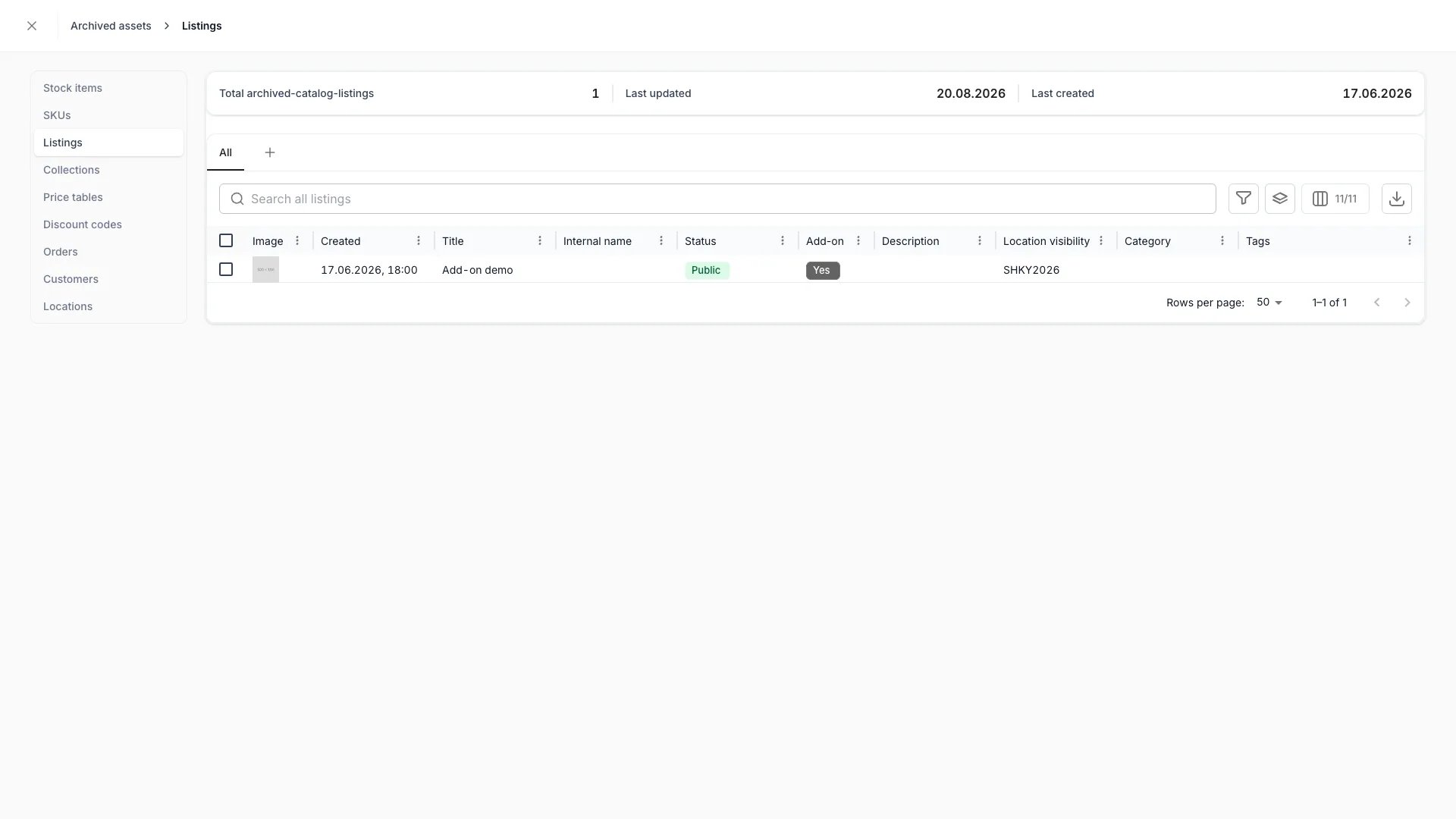
The page lists every archivable asset type, grouped the way the main navigation groups them: **Inventory** (stock items, SKUs), **Catalog** (listings, collections, price tables, discount codes), **Orders & Customers**, and **Organization** (locations). Opening a type shows its archived assets in a dialog with a rail for switching between types.
Each type renders its own regular table, scoped to archived assets — the same columns, search, filters, sorting, pagination, and select-all you use on the active view.
Select archived assets and choose **Unarchive** to return them to active use. They reappear in their normal lists and, where they are customer-facing, on the storefront. You can also unarchive a single asset from the banner on its own detail page.
Select archived assets and choose **Delete** to remove them for good. Deleted assets stop being returned anywhere in the admin, the API, and the storefront.
Delete cannot be undone from the admin. Archive it first, check nothing still needs it, and delete only what you are sure about.
## Related Concepts
The lifecycle, the impact scans, and what archiving hides
Why archiving is not a status value
## Visibility and Permissions
This page has no view gate of its own — it is visible to every system role, and it lists archived records from across the areas you can already see.
Acting on a record follows that record's own resource, and the two actions here need different operations. Unarchiving an archived stock item needs `manage` on `inventory:stock_item`; deleting it needs `delete` on the same resource. An archived listing follows `catalog:listing` the same way, and so on for every type. This is the only place in the admin where a record is deleted rather than archived.
For the full table, see [Archiving and Deletion](/docs/concepts/repeating-patterns/archiving-and-deletion#permissions).
For what each operation means and the full role matrix, see [Users & Roles](/docs/settings/users-roles).
## Related Guides
The stock-item end of this page: what archiving costs you and how to undo it.
## Primary Purpose
Everything you remove elsewhere in the admin is archived rather than deleted, and lands here. From this view you review archived assets by type, unarchive them back into use, or delete them for good. See [Archiving and Deletion](/docs/concepts/repeating-patterns/archiving-and-deletion) for the lifecycle behind it.
The page lists every archivable asset type, grouped the way the main navigation groups them: **Inventory** (stock items, SKUs), **Catalog** (listings, collections, price tables, discount codes), **Orders & Customers**, and **Organization** (locations). Opening a type shows its archived assets in a dialog with a rail for switching between types.
Each type renders its own regular table, scoped to archived assets — the same columns, search, filters, sorting, pagination, and select-all you use on the active view.
Select archived assets and choose **Unarchive** to return them to active use. They reappear in their normal lists and, where they are customer-facing, on the storefront. You can also unarchive a single asset from the banner on its own detail page.
Select archived assets and choose **Delete** to remove them for good. Deleted assets stop being returned anywhere in the admin, the API, and the storefront.
Delete cannot be undone from the admin. Archive it first, check nothing still needs it, and delete only what you are sure about.
## Related Concepts
The lifecycle, the impact scans, and what archiving hides
Why archiving is not a status value
## Visibility and Permissions
This page has no view gate of its own — it is visible to every system role, and it lists archived records from across the areas you can already see.
Acting on a record follows that record's own resource, and the two actions here need different operations. Unarchiving an archived stock item needs `manage` on `inventory:stock_item`; deleting it needs `delete` on the same resource. An archived listing follows `catalog:listing` the same way, and so on for every type. This is the only place in the admin where a record is deleted rather than archived.
For the full table, see [Archiving and Deletion](/docs/concepts/repeating-patterns/archiving-and-deletion#permissions).
For what each operation means and the full role matrix, see [Users & Roles](/docs/settings/users-roles).
## Related Guides
The stock-item end of this page: what archiving costs you and how to undo it.