> ## Documentation Index
> Fetch the complete documentation index at: https://www.twicecommerce.com/docs/llms.txt
> Use this file to discover all available pages before exploring further.
# Online Store - Themes
> Open the storefront editor to customise the visual design of your online store
export const userRoleDefinition = "What a user can see and do. Each user has one built-in system role — Owner, Admin, Manager, or Member — and can also be assigned any number of custom roles you create with specific permissions. Effective access is the combination of all their roles.";
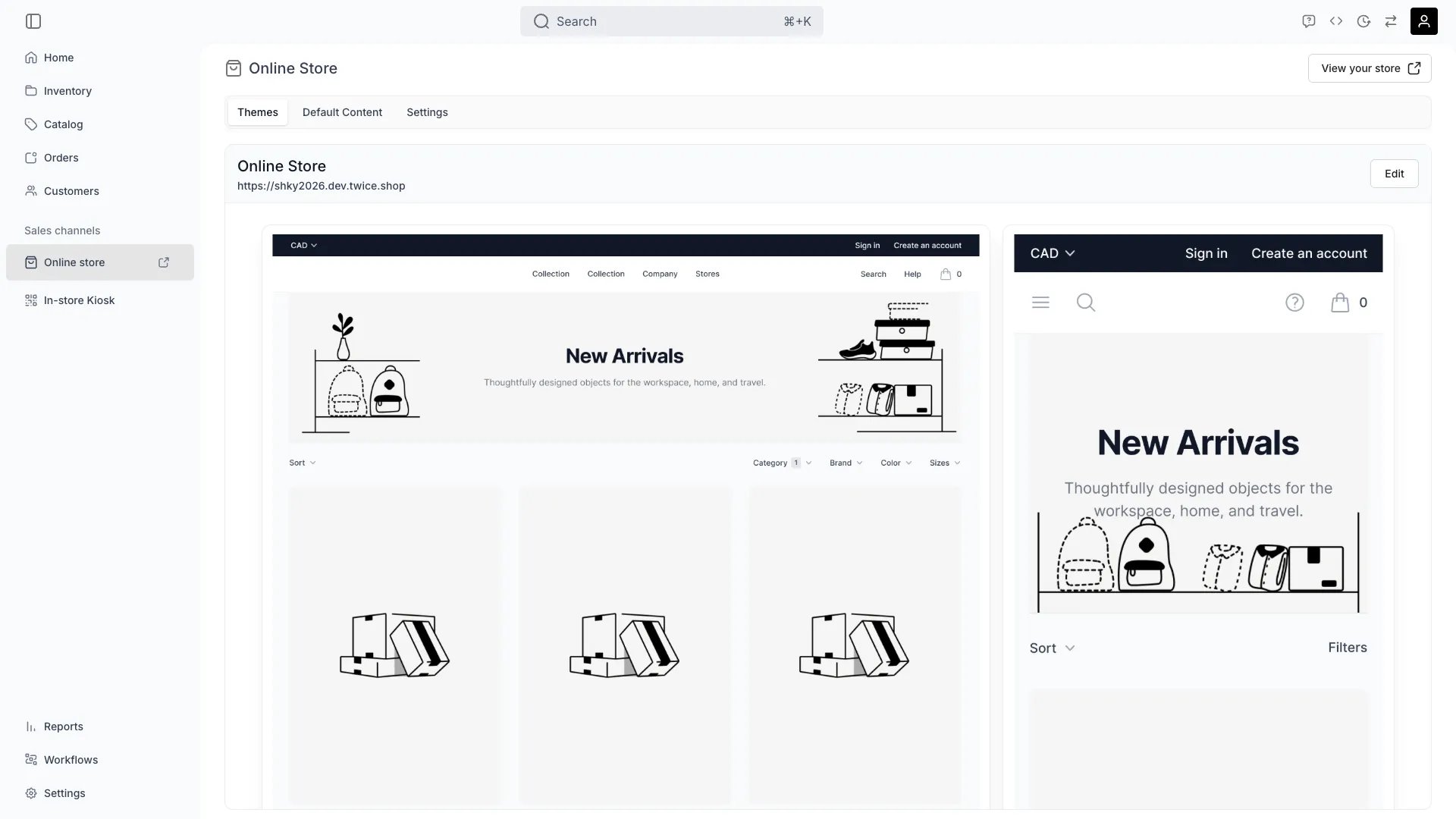 This view can look different dependent on your user role.
See [Visibility & Permissions](#visibility-and-permissions) for details.
## Primary Purpose
The Themes tab shows a single card for your online store: desktop and mobile preview images with your storefront URL. Click **Edit** to open the [storefront editor](/docs/sales-channels/online-store/theme-editor/overview).
There is no theme library — no list of themes to preview, duplicate, switch between, or publish, and no drafts. Each account has exactly one storefront configuration.
Your account has a single storefront configuration covering settings, content, theme, and translations. The editor edits it directly.
Click **Edit** to customise colours, typography, layout, and individual page templates in the visual editor. Saving writes changes directly to the live storefront.
## Visibility and Permissions
Access to this view is controlled by your user role.
| Feature | Admin | Manager | Member |
| ------------- | :---: | :-----: | :----: |
| View this tab | ✓ | ✓ | ✗ |
| Edit theme | ✓ | ✓ | ✗ |