> ## Documentation Index
> Fetch the complete documentation index at: https://www.twicecommerce.com/docs/llms.txt
> Use this file to discover all available pages before exploring further.
# Theme Editor - Variant pills
> Style the selectable variant pills (size, colour, and other options) on listing pages.
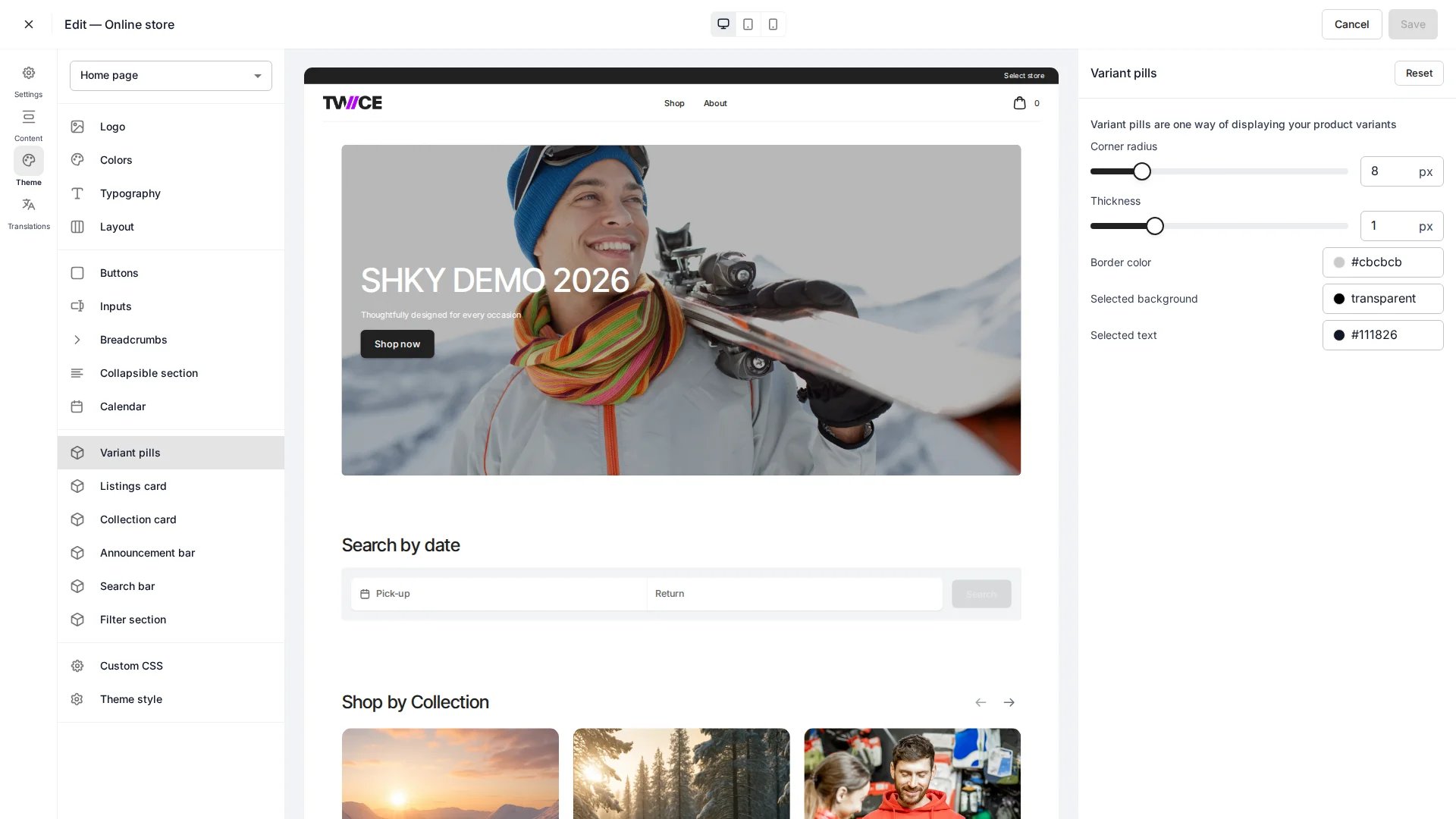 The Variant pills panel controls the pill buttons a customer taps to choose a [variant](/docs/concepts/catalog/variants) — such as size or colour — on a listing page. Found under **Cards** in the theme editor.
## Settings
| Setting | Type | Default | Description |
| ------------------- | ------ | ------------- | ------------------------------------- |
| Corner radius | Slider | 8 px | How rounded each pill is. |
| Border color | Color | `#cbcbcb` | Border colour of an unselected pill. |
| Border thickness | Slider | 1 px | Border width of each pill. |
| Selected background | Color | `transparent` | Background fill of the selected pill. |
| Selected text | Color | `#111826` | Text colour of the selected pill. |
## CSS variables
```css CSS variables theme={null}
:root {
--storefront-variant-pill-border-radius: 8px;
--storefront-variant-pill-border-color: #cbcbcb;
--storefront-variant-pill-border-width: 1px;
--storefront-variant-pill-selected-background-color: transparent;
--storefront-variant-pill-selected-text-color: #111826;
}
```
## Related
How variants group options under a listing.
Configure the product page where pills appear.
The Variant pills panel controls the pill buttons a customer taps to choose a [variant](/docs/concepts/catalog/variants) — such as size or colour — on a listing page. Found under **Cards** in the theme editor.
## Settings
| Setting | Type | Default | Description |
| ------------------- | ------ | ------------- | ------------------------------------- |
| Corner radius | Slider | 8 px | How rounded each pill is. |
| Border color | Color | `#cbcbcb` | Border colour of an unselected pill. |
| Border thickness | Slider | 1 px | Border width of each pill. |
| Selected background | Color | `transparent` | Background fill of the selected pill. |
| Selected text | Color | `#111826` | Text colour of the selected pill. |
## CSS variables
```css CSS variables theme={null}
:root {
--storefront-variant-pill-border-radius: 8px;
--storefront-variant-pill-border-color: #cbcbcb;
--storefront-variant-pill-border-width: 1px;
--storefront-variant-pill-selected-background-color: transparent;
--storefront-variant-pill-selected-text-color: #111826;
}
```
## Related
How variants group options under a listing.
Configure the product page where pills appear.