> ## Documentation Index
> Fetch the complete documentation index at: https://www.twicecommerce.com/docs/llms.txt
> Use this file to discover all available pages before exploring further.
# Theme Editor - Theme style
> View, copy, and bulk-edit all active theme settings as CSS variables. Reset the entire theme to defaults.
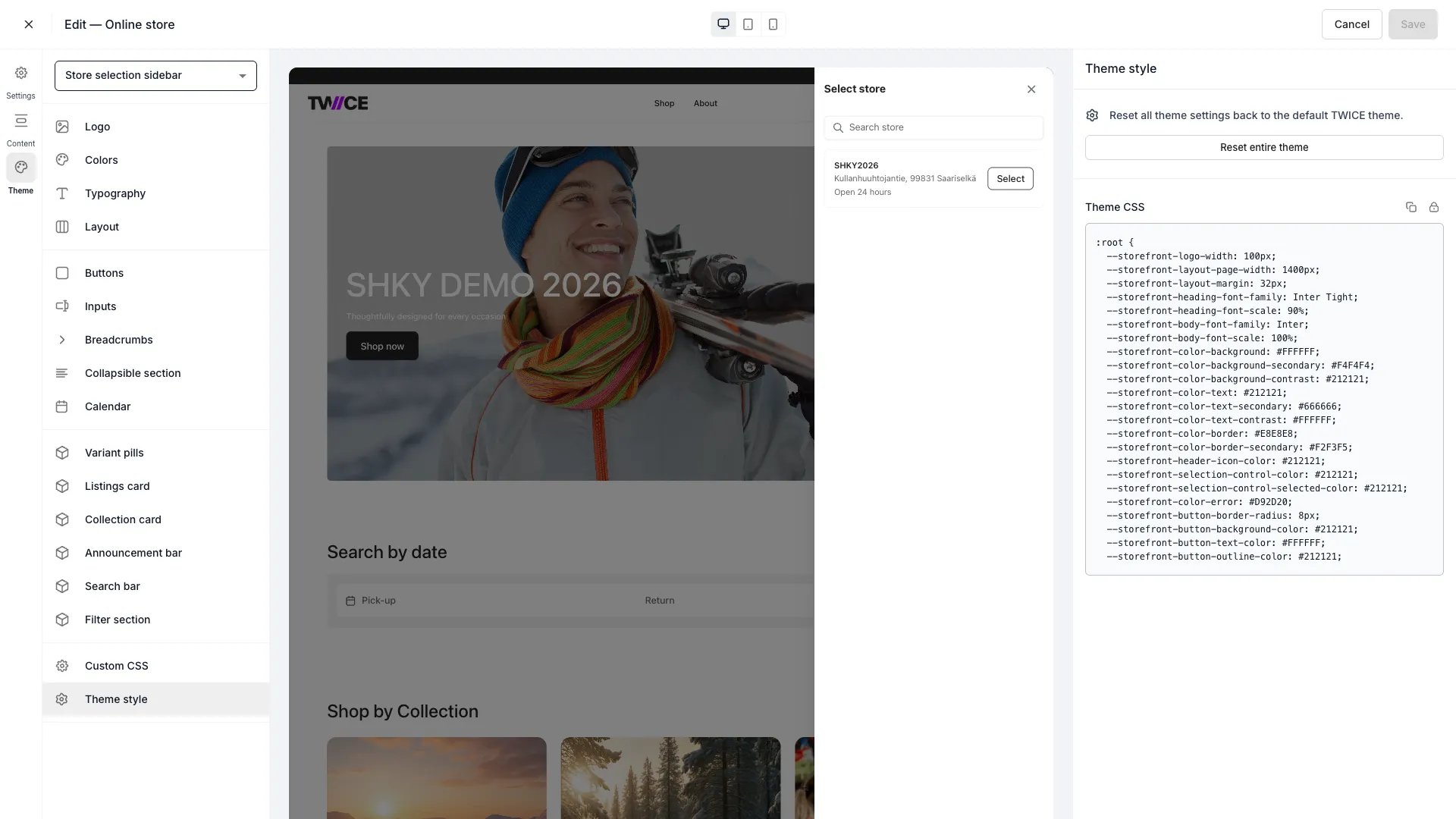 The Theme style panel displays every active theme setting as a CSS variable in a read-only code block. Use it to inspect current values, copy variables for use in [Custom CSS](/docs/sales-channels/online-store/theme-editor/settings/custom-css), or bulk-edit multiple settings at once.
## Reset entire theme
Click **Reset entire theme** to revert all settings across every panel back to the default TWICE Commerce theme. This is a single action that affects colours, typography, layout, buttons, inputs, calendar, listing cards, and all other theme settings.
Resetting the theme discards all customisations. The reset takes effect on the live storefront as soon as you save — there is no draft or publish step to fall back on, and a saved reset is not reversible. To back out of an unsaved reset, close the editor and choose **Discard** in the unsaved-changes dialog.
## Theme CSS
The CSS block shows a `:root` rule with every theme variable and its current value. You can:
* **Copy** — click the copy icon to copy all variables to your clipboard.
* **Unlock** — click the lock icon to switch to edit mode.
* **Edit** — modify variable values directly in the text field. Use standard CSS syntax.
* **Apply changes** — parse the edited CSS and update the corresponding theme settings.
```css Example output theme={null}
:root {
--storefront-logo-width: 120px;
--storefront-layout-page-width: 1400px;
--storefront-layout-margin: 32px;
--storefront-heading-font-family: Inter;
--storefront-heading-font-scale: 100%;
--storefront-body-font-family: Inter;
--storefront-body-font-scale: 100%;
--storefront-color-background: #FFFFFF;
--storefront-color-text: #111826;
--storefront-button-background-color: #212121;
--storefront-button-border-radius: 6px;
/* ... all other theme variables */
}
```
Editing a CSS variable in this panel updates the same setting as the corresponding visual panel. For example, changing `--storefront-button-border-radius` here has the same effect as moving the Corner radius slider in the Buttons panel.
## Related
Add custom CSS rules to your storefront.
Define the storefront colour palette.
The Theme style panel displays every active theme setting as a CSS variable in a read-only code block. Use it to inspect current values, copy variables for use in [Custom CSS](/docs/sales-channels/online-store/theme-editor/settings/custom-css), or bulk-edit multiple settings at once.
## Reset entire theme
Click **Reset entire theme** to revert all settings across every panel back to the default TWICE Commerce theme. This is a single action that affects colours, typography, layout, buttons, inputs, calendar, listing cards, and all other theme settings.
Resetting the theme discards all customisations. The reset takes effect on the live storefront as soon as you save — there is no draft or publish step to fall back on, and a saved reset is not reversible. To back out of an unsaved reset, close the editor and choose **Discard** in the unsaved-changes dialog.
## Theme CSS
The CSS block shows a `:root` rule with every theme variable and its current value. You can:
* **Copy** — click the copy icon to copy all variables to your clipboard.
* **Unlock** — click the lock icon to switch to edit mode.
* **Edit** — modify variable values directly in the text field. Use standard CSS syntax.
* **Apply changes** — parse the edited CSS and update the corresponding theme settings.
```css Example output theme={null}
:root {
--storefront-logo-width: 120px;
--storefront-layout-page-width: 1400px;
--storefront-layout-margin: 32px;
--storefront-heading-font-family: Inter;
--storefront-heading-font-scale: 100%;
--storefront-body-font-family: Inter;
--storefront-body-font-scale: 100%;
--storefront-color-background: #FFFFFF;
--storefront-color-text: #111826;
--storefront-button-background-color: #212121;
--storefront-button-border-radius: 6px;
/* ... all other theme variables */
}
```
Editing a CSS variable in this panel updates the same setting as the corresponding visual panel. For example, changing `--storefront-button-border-radius` here has the same effect as moving the Corner radius slider in the Buttons panel.
## Related
Add custom CSS rules to your storefront.
Define the storefront colour palette.