> ## Documentation Index
> Fetch the complete documentation index at: https://www.twicecommerce.com/docs/llms.txt
> Use this file to discover all available pages before exploring further.
# Theme Editor - Store selection sidebar
> Configure the sidebar customers use to browse and switch between stores in multi-store deployments.
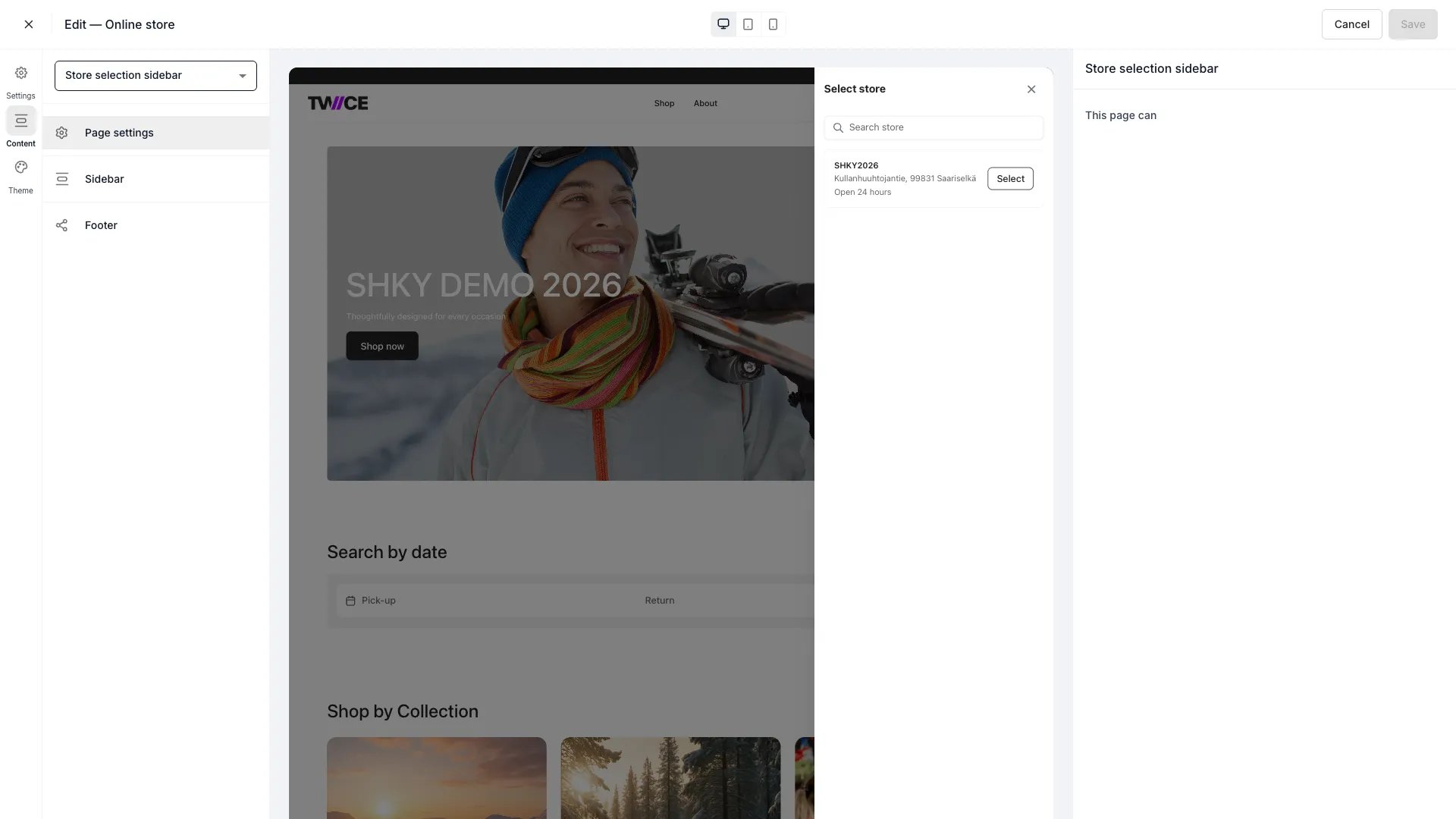 The Store selection sidebar panel configures the slide-out sidebar that appears on storefronts with multiple locations. Customers use this sidebar to browse stores, read descriptions, and select a pickup location.
The store selector only appears on storefronts connected to more than one active store location. Single-store setups auto-select the only location and skip the selector entirely.
## Settings
| Setting | Type | Default | Description |
| ---------------- | ------ | ------- | ---------------------------------------------------------------------- |
| Show title | Toggle | On | Display a heading at the top of the sidebar. |
| Title | Text | — | The heading text shown when the title is enabled. |
| Show description | Toggle | Off | Display a description below the title. |
| Description | Text | — | The description text shown when enabled. Supports multiple lines. |
| Show search | Toggle | On | Display a search field that filters the store list by name or address. |
## How store selection works
Store selection lets customers choose which Location they order from. It appears in two places: a button in the **top bar** and a dedicated selector on the **cart page**. Both open the same configurable sidebar.
### Top bar
The storefront top bar renders a store selector button on the right side. Clicking it opens the store selection sidebar where customers browse all active locations and pick one.
The top bar is visible on all storefront pages **except** checkout and link pages. Once a customer selects a store, the button displays the store name. The selection persists across page navigations and browser sessions.
### Cart page
The cart page shows a store selector with per-store availability feedback. Before checkout, the selector indicates how many stores can fulfill the current cart contents:
* **"Available in N stores"** — the cart's items are in stock at N locations for the selected dates.
* **"Not available in any store"** — no location can fulfill the entire cart.
When the customer opens the sidebar from the cart, each store entry shows **"Cart available"** or **"Cart unavailable"** based on whether that location has sufficient stock for every item in the cart. This check considers both [eligibility and real-time stock levels](/docs/concepts/catalog/availability#eligibility-vs-availability) — a store can be eligible for a listing but still show as unavailable if it lacks stock for the selected dates or quantities.
A store must be selected before the customer can proceed to checkout. The selected location determines which [checkout configuration](/docs/settings/checkouts#per-location-checkout-assignment) is used.
### What store selection controls
Selecting a store scopes the customer's experience:
| What changes | How |
| :---------------- | :-------------------------------------------------------------------------------------------------------------------------------------------------------------------------------------------- |
| **Availability** | Stock levels, calendar dates, and quantity limits reflect the selected Location's inventory. |
| **Pricing** | [Price Table](/docs/concepts/catalog/price-tables) activation windows and rates can vary by Location. |
| **Fulfillment** | In-store pickup eligibility depends on the Location's [fulfillment rules](/docs/concepts/admin/locations#fulfillment-rules) for each purchase type. |
| **Checkout** | The Location's assigned [checkout configuration](/docs/settings/checkouts#per-location-checkout-assignment) determines checkout fields, terms, and payment options. |
| **Opening hours** | The calendar and booking widget reflect the selected Location's opening hours, including any [fulfillment hours](/docs/concepts/admin/locations#fulfillment-hours) that differ from regular hours. |
### Sidebar content
When a customer opens the store selector, they see a list of all active locations. Each store entry shows the store's name, address, and today's opening hours — these fields are fixed and not configurable. The image, description, phone, email, and opening-hours toggles apply to the individual [Store page](/docs/sales-channels/online-store/theme-editor/pages/store), not to the sidebar.
The sidebar title and description let you add context above the store list, such as "Choose your nearest location" or instructions for selecting a pickup point. Both the title and description are translatable — manage translations under **Settings > Translations**.
## Related
Location settings including fulfillment rules and sales channel toggles.
How location selection narrows availability from eligibility to real stock.
The stores directory page listing all locations.
Per-location checkout assignment and configuration.
The Store selection sidebar panel configures the slide-out sidebar that appears on storefronts with multiple locations. Customers use this sidebar to browse stores, read descriptions, and select a pickup location.
The store selector only appears on storefronts connected to more than one active store location. Single-store setups auto-select the only location and skip the selector entirely.
## Settings
| Setting | Type | Default | Description |
| ---------------- | ------ | ------- | ---------------------------------------------------------------------- |
| Show title | Toggle | On | Display a heading at the top of the sidebar. |
| Title | Text | — | The heading text shown when the title is enabled. |
| Show description | Toggle | Off | Display a description below the title. |
| Description | Text | — | The description text shown when enabled. Supports multiple lines. |
| Show search | Toggle | On | Display a search field that filters the store list by name or address. |
## How store selection works
Store selection lets customers choose which Location they order from. It appears in two places: a button in the **top bar** and a dedicated selector on the **cart page**. Both open the same configurable sidebar.
### Top bar
The storefront top bar renders a store selector button on the right side. Clicking it opens the store selection sidebar where customers browse all active locations and pick one.
The top bar is visible on all storefront pages **except** checkout and link pages. Once a customer selects a store, the button displays the store name. The selection persists across page navigations and browser sessions.
### Cart page
The cart page shows a store selector with per-store availability feedback. Before checkout, the selector indicates how many stores can fulfill the current cart contents:
* **"Available in N stores"** — the cart's items are in stock at N locations for the selected dates.
* **"Not available in any store"** — no location can fulfill the entire cart.
When the customer opens the sidebar from the cart, each store entry shows **"Cart available"** or **"Cart unavailable"** based on whether that location has sufficient stock for every item in the cart. This check considers both [eligibility and real-time stock levels](/docs/concepts/catalog/availability#eligibility-vs-availability) — a store can be eligible for a listing but still show as unavailable if it lacks stock for the selected dates or quantities.
A store must be selected before the customer can proceed to checkout. The selected location determines which [checkout configuration](/docs/settings/checkouts#per-location-checkout-assignment) is used.
### What store selection controls
Selecting a store scopes the customer's experience:
| What changes | How |
| :---------------- | :-------------------------------------------------------------------------------------------------------------------------------------------------------------------------------------------- |
| **Availability** | Stock levels, calendar dates, and quantity limits reflect the selected Location's inventory. |
| **Pricing** | [Price Table](/docs/concepts/catalog/price-tables) activation windows and rates can vary by Location. |
| **Fulfillment** | In-store pickup eligibility depends on the Location's [fulfillment rules](/docs/concepts/admin/locations#fulfillment-rules) for each purchase type. |
| **Checkout** | The Location's assigned [checkout configuration](/docs/settings/checkouts#per-location-checkout-assignment) determines checkout fields, terms, and payment options. |
| **Opening hours** | The calendar and booking widget reflect the selected Location's opening hours, including any [fulfillment hours](/docs/concepts/admin/locations#fulfillment-hours) that differ from regular hours. |
### Sidebar content
When a customer opens the store selector, they see a list of all active locations. Each store entry shows the store's name, address, and today's opening hours — these fields are fixed and not configurable. The image, description, phone, email, and opening-hours toggles apply to the individual [Store page](/docs/sales-channels/online-store/theme-editor/pages/store), not to the sidebar.
The sidebar title and description let you add context above the store list, such as "Choose your nearest location" or instructions for selecting a pickup point. Both the title and description are translatable — manage translations under **Settings > Translations**.
## Related
Location settings including fulfillment rules and sales channel toggles.
How location selection narrows availability from eligibility to real stock.
The stores directory page listing all locations.
Per-location checkout assignment and configuration.