> ## Documentation Index
> Fetch the complete documentation index at: https://www.twicecommerce.com/docs/llms.txt
> Use this file to discover all available pages before exploring further.
# Theme Editor - Search bar
> Style the storefront search bar.
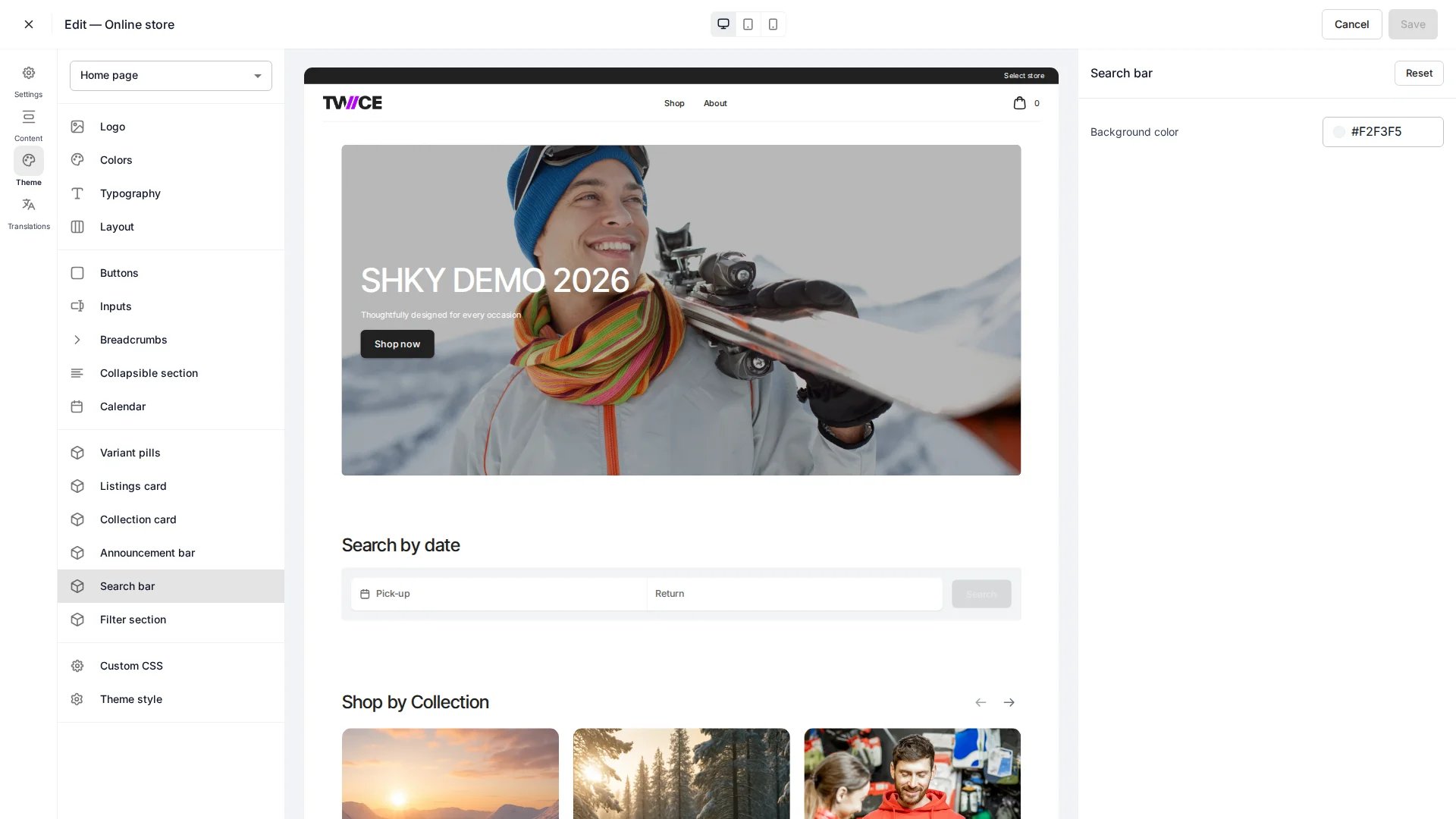 The Search bar panel controls the appearance of the storefront search input. Found under **Cards** in the theme editor. Where the search bar appears is set per page — see the [Home page](/docs/sales-channels/online-store/theme-editor/pages/home) and [Collection page](/docs/sales-channels/online-store/theme-editor/pages/collection).
## Colors
| Setting | Default | Description |
| ---------- | --------- | ------------------------------------ |
| Background | `#F2F3F5` | Background fill of the search input. |
## CSS variables
```css CSS variables theme={null}
:root {
--storefront-search-bar-background-color: #F2F3F5;
}
```
## Related
Style form inputs across the store.
Toggle search on collection pages.
The Search bar panel controls the appearance of the storefront search input. Found under **Cards** in the theme editor. Where the search bar appears is set per page — see the [Home page](/docs/sales-channels/online-store/theme-editor/pages/home) and [Collection page](/docs/sales-channels/online-store/theme-editor/pages/collection).
## Colors
| Setting | Default | Description |
| ---------- | --------- | ------------------------------------ |
| Background | `#F2F3F5` | Background fill of the search input. |
## CSS variables
```css CSS variables theme={null}
:root {
--storefront-search-bar-background-color: #F2F3F5;
}
```
## Related
Style form inputs across the store.
Toggle search on collection pages.