> ## Documentation Index
> Fetch the complete documentation index at: https://www.twicecommerce.com/docs/llms.txt
> Use this file to discover all available pages before exploring further.
# Theme Editor - Logo
> Configure your store logo width and upload a custom favicon.
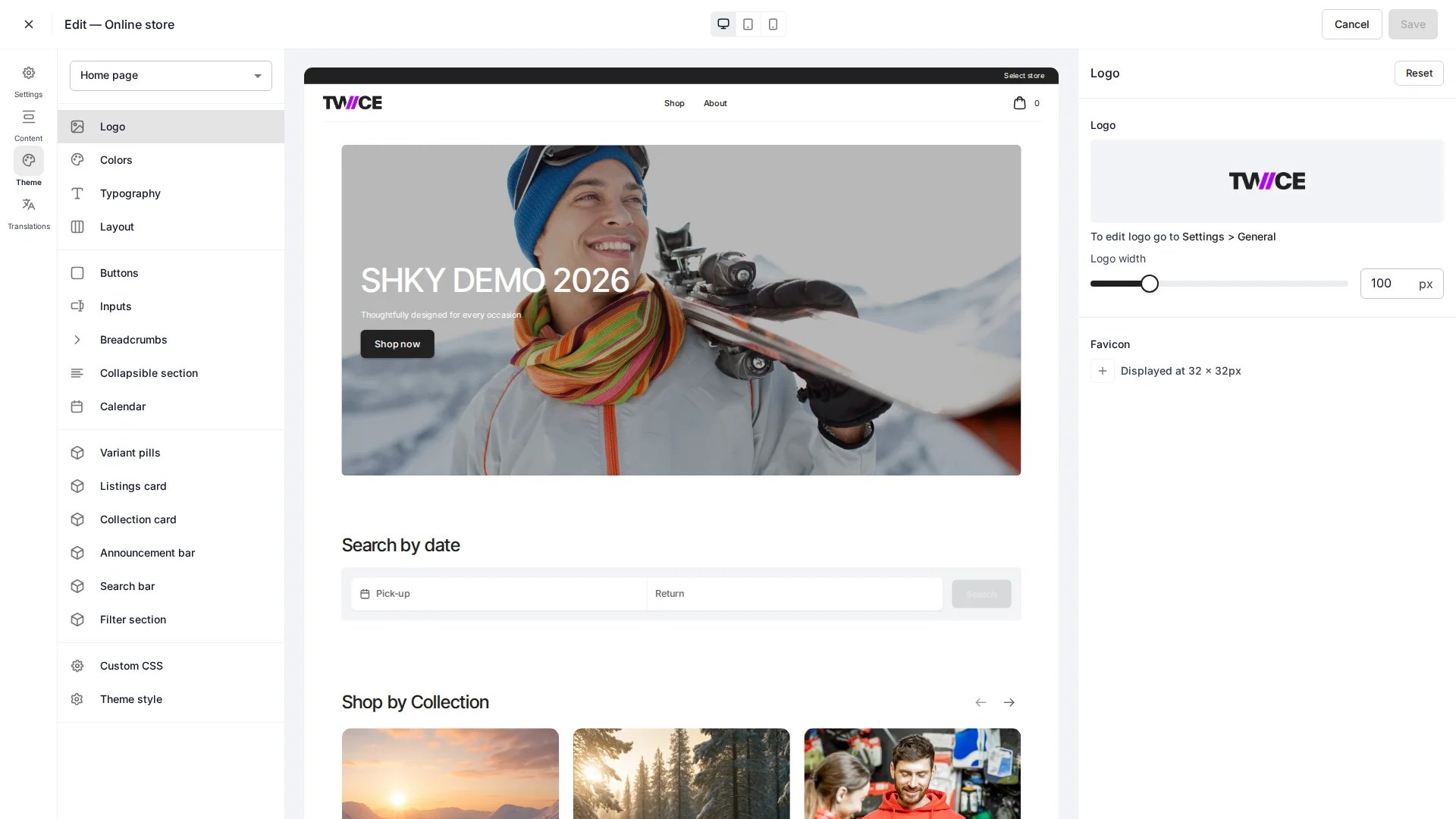
The Logo panel controls how your store logo is sized in the storefront header and lets you upload a custom favicon. Found under **Header** in the theme editor.
## Settings
### Logo width
| Setting | Type | Default | Description |
| ---------- | ------ | ------- | --------------------------------------------------------------------------- |
| Logo width | Slider | 120 px | Rendered width of the header logo, in pixels. Height scales proportionally. |
Upload the logo image itself under **Settings > General**. This panel controls the display width only.
### Favicon
Upload a custom favicon to replace the default browser tab icon for your online store. The favicon displays at 32 × 32 pixels.
To set a favicon, click the **+** button and select an image from the file manager. The uploaded image appears as a preview. To remove it, click the **×** button on the preview — the storefront reverts to the browser's default icon.
The favicon is injected as a `` tag on every storefront page.
## CSS variables
```css CSS variables theme={null}
:root {
--storefront-logo-width: 120px;
}
```
## Related
Control page width and margins.
Define the storefront colour palette.
 The Logo panel controls how your store logo is sized in the storefront header and lets you upload a custom favicon. Found under **Header** in the theme editor.
## Settings
### Logo width
| Setting | Type | Default | Description |
| ---------- | ------ | ------- | --------------------------------------------------------------------------- |
| Logo width | Slider | 120 px | Rendered width of the header logo, in pixels. Height scales proportionally. |
Upload the logo image itself under **Settings > General**. This panel controls the display width only.
### Favicon
Upload a custom favicon to replace the default browser tab icon for your online store. The favicon displays at 32 × 32 pixels.
To set a favicon, click the **+** button and select an image from the file manager. The uploaded image appears as a preview. To remove it, click the **×** button on the preview — the storefront reverts to the browser's default icon.
The favicon is injected as a `` tag on every storefront page.
## CSS variables
The Logo panel controls how your store logo is sized in the storefront header and lets you upload a custom favicon. Found under **Header** in the theme editor.
## Settings
### Logo width
| Setting | Type | Default | Description |
| ---------- | ------ | ------- | --------------------------------------------------------------------------- |
| Logo width | Slider | 120 px | Rendered width of the header logo, in pixels. Height scales proportionally. |
Upload the logo image itself under **Settings > General**. This panel controls the display width only.
### Favicon
Upload a custom favicon to replace the default browser tab icon for your online store. The favicon displays at 32 × 32 pixels.
To set a favicon, click the **+** button and select an image from the file manager. The uploaded image appears as a preview. To remove it, click the **×** button on the preview — the storefront reverts to the browser's default icon.
The favicon is injected as a `` tag on every storefront page.
## CSS variables