> ## Documentation Index
> Fetch the complete documentation index at: https://www.twicecommerce.com/docs/llms.txt
> Use this file to discover all available pages before exploring further.
# Theme Editor - Header bar
> Customize the background, text, icon, and border colours of the storefront header.
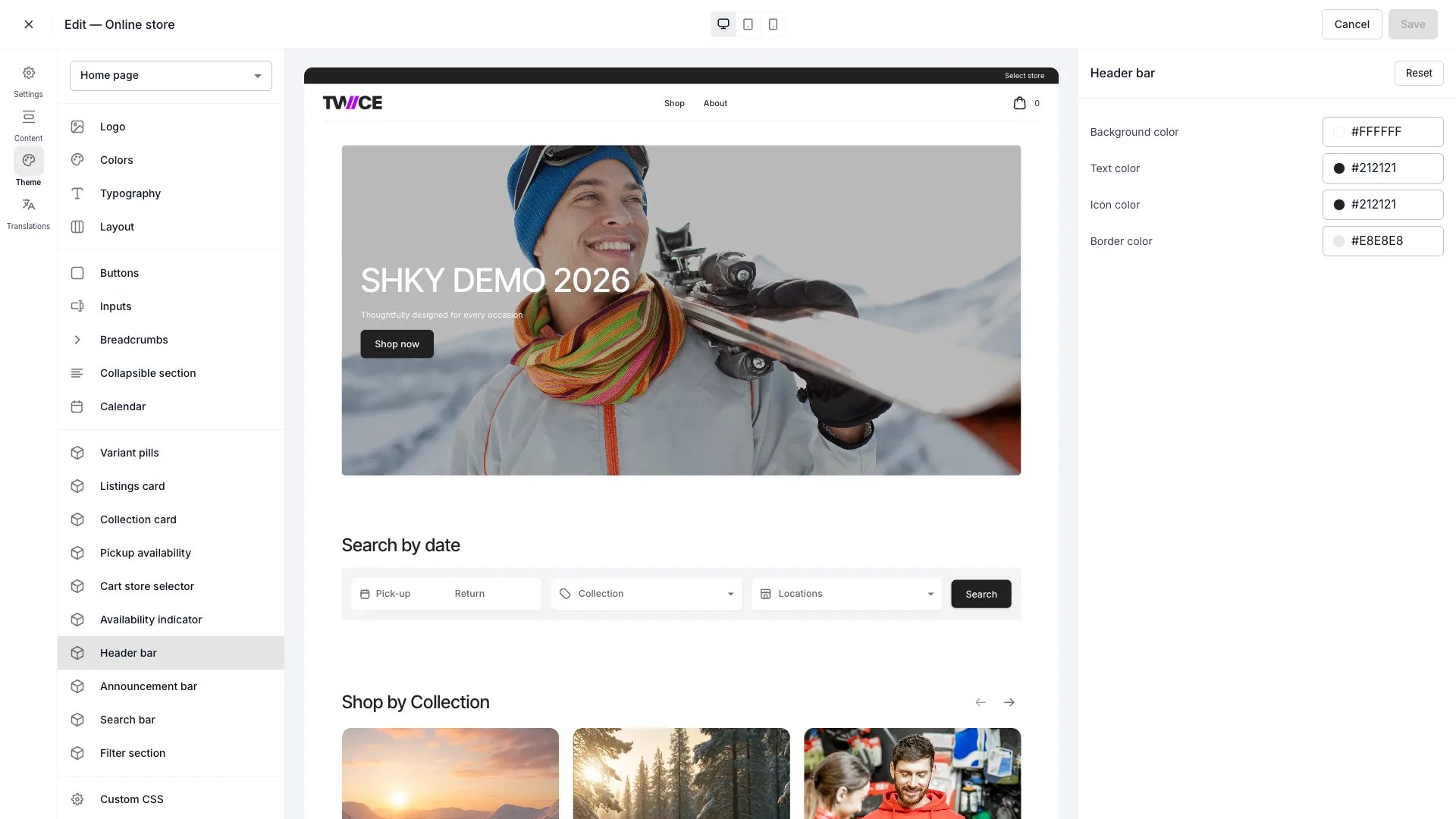 The Header bar panel controls the colours of the storefront header — the top navigation area containing the logo, menu, cart, and account icons.
## Colors
| Setting | Inherits from | Default | Description |
| ---------- | ----------------- | --------- | -------------------------------------------------------------------------- |
| Background | Global Background | `#FFFFFF` | Background fill of the header. |
| Text | Global Text | `#111826` | Text colour for navigation links and the store name. |
| Icon | — | `#111826` | Cart, account, and menu icons. Always an explicit value; does not inherit. |
| Border | Global Border | `#E4E6EB` | Bottom border separating the header from page content. |
### Inheritance
Background, Text, and Border inherit their value from the corresponding global colour on the [Colors](/docs/sales-channels/online-store/theme-editor/settings/colors) panel by default. Set a value to override the global colour for the header only.
Icon colour is independent — it always has an explicit value and does not fall back to a global colour.
### Reset
Click **Reset** on the Header bar panel to restore all four settings to their defaults. Background, Text, and Border return to inheriting the global colours. Icon resets to `#111826`.
## CSS variables
Every header bar colour maps to a CSS variable you can reference in [Custom CSS](/docs/sales-channels/online-store/theme-editor/settings/custom-css):
```css CSS variables theme={null}
:root {
--storefront-header-background-color: #FFFFFF;
--storefront-header-text-color: #111826;
--storefront-header-icon-color: #111826;
--storefront-header-border-color: #E4E6EB;
}
```
CSS variables always output the resolved value. If a setting inherits from the global colour, the variable reflects the current global value — not `null` or empty.
## Related
Define the global colour palette that header bar settings inherit from.
Override any style with custom CSS.
The Header bar panel controls the colours of the storefront header — the top navigation area containing the logo, menu, cart, and account icons.
## Colors
| Setting | Inherits from | Default | Description |
| ---------- | ----------------- | --------- | -------------------------------------------------------------------------- |
| Background | Global Background | `#FFFFFF` | Background fill of the header. |
| Text | Global Text | `#111826` | Text colour for navigation links and the store name. |
| Icon | — | `#111826` | Cart, account, and menu icons. Always an explicit value; does not inherit. |
| Border | Global Border | `#E4E6EB` | Bottom border separating the header from page content. |
### Inheritance
Background, Text, and Border inherit their value from the corresponding global colour on the [Colors](/docs/sales-channels/online-store/theme-editor/settings/colors) panel by default. Set a value to override the global colour for the header only.
Icon colour is independent — it always has an explicit value and does not fall back to a global colour.
### Reset
Click **Reset** on the Header bar panel to restore all four settings to their defaults. Background, Text, and Border return to inheriting the global colours. Icon resets to `#111826`.
## CSS variables
Every header bar colour maps to a CSS variable you can reference in [Custom CSS](/docs/sales-channels/online-store/theme-editor/settings/custom-css):
```css CSS variables theme={null}
:root {
--storefront-header-background-color: #FFFFFF;
--storefront-header-text-color: #111826;
--storefront-header-icon-color: #111826;
--storefront-header-border-color: #E4E6EB;
}
```
CSS variables always output the resolved value. If a setting inherits from the global colour, the variable reflects the current global value — not `null` or empty.
## Related
Define the global colour palette that header bar settings inherit from.
Override any style with custom CSS.