> ## Documentation Index
> Fetch the complete documentation index at: https://www.twicecommerce.com/docs/llms.txt
> Use this file to discover all available pages before exploring further.
# Theme Editor - Announcement bar
> Style the announcement bar shown at the top of every storefront page.
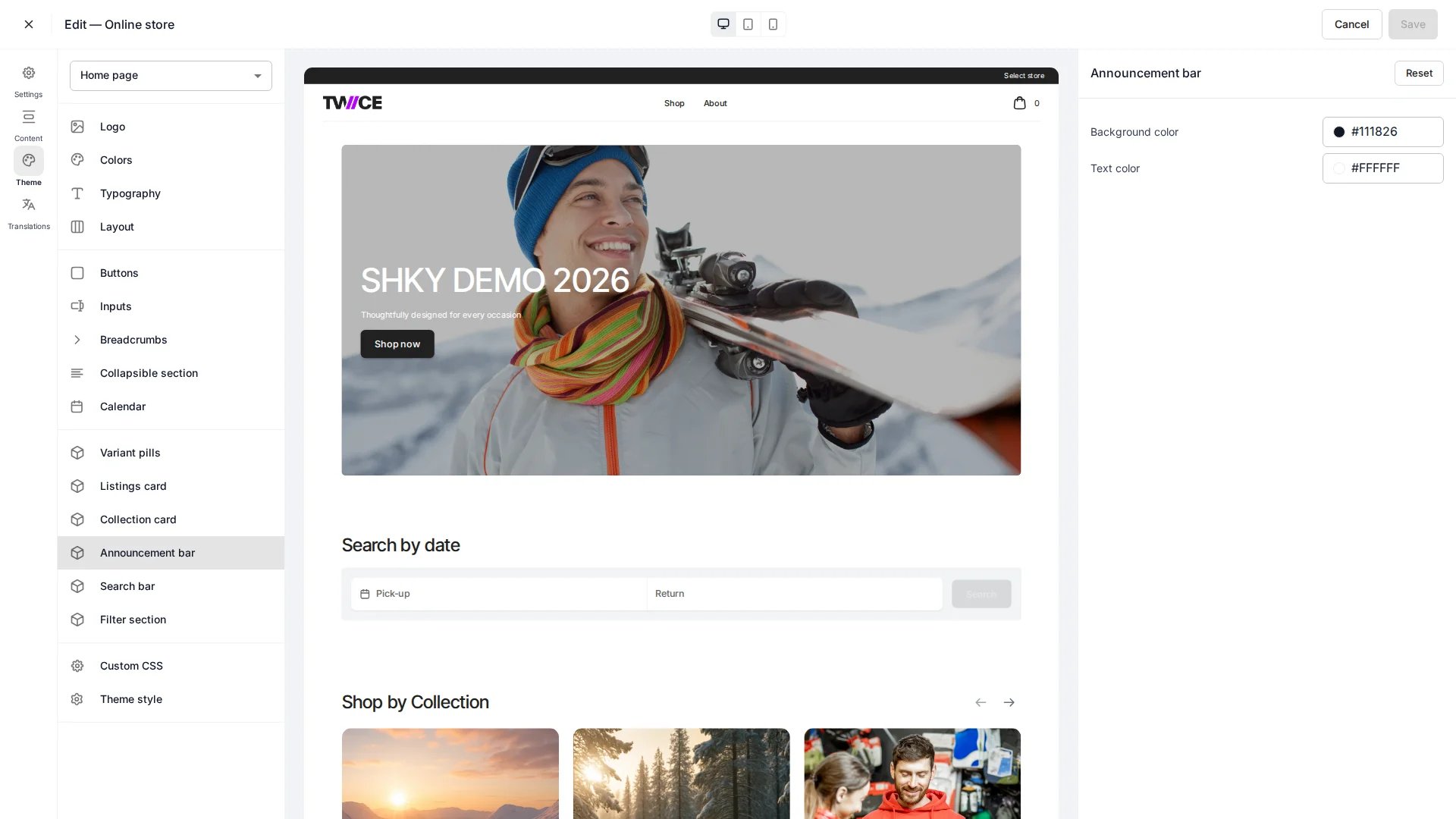 The Announcement bar panel controls the colours of the slim bar at the very top of the storefront — used for promotions, shipping notices, or short messages. This panel sets the styling only; the bar's text and visibility are set in the Announcement bar content block on the page. Found under **Cards** in the theme editor.
## Colors
| Setting | Default | Description |
| ---------- | --------- | ---------------------------------------- |
| Background | `#111826` | Background fill of the announcement bar. |
| Text | `#FFFFFF` | Text colour of the announcement message. |
## CSS variables
```css CSS variables theme={null}
:root {
--storefront-announcement-bar-background-color: #111826;
--storefront-announcement-bar-text-color: #FFFFFF;
}
```
## Related
Set the announcement bar text and visibility.
Define the storefront colour palette.
The Announcement bar panel controls the colours of the slim bar at the very top of the storefront — used for promotions, shipping notices, or short messages. This panel sets the styling only; the bar's text and visibility are set in the Announcement bar content block on the page. Found under **Cards** in the theme editor.
## Colors
| Setting | Default | Description |
| ---------- | --------- | ---------------------------------------- |
| Background | `#111826` | Background fill of the announcement bar. |
| Text | `#FFFFFF` | Text colour of the announcement message. |
## CSS variables
```css CSS variables theme={null}
:root {
--storefront-announcement-bar-background-color: #111826;
--storefront-announcement-bar-text-color: #FFFFFF;
}
```
## Related
Set the announcement bar text and visibility.
Define the storefront colour palette.