> ## Documentation Index
> Fetch the complete documentation index at: https://www.twicecommerce.com/docs/llms.txt
> Use this file to discover all available pages before exploring further.
# Theme Editor - Home page
> Arrange the storefront home page — banner, search, collections, and featured listings.
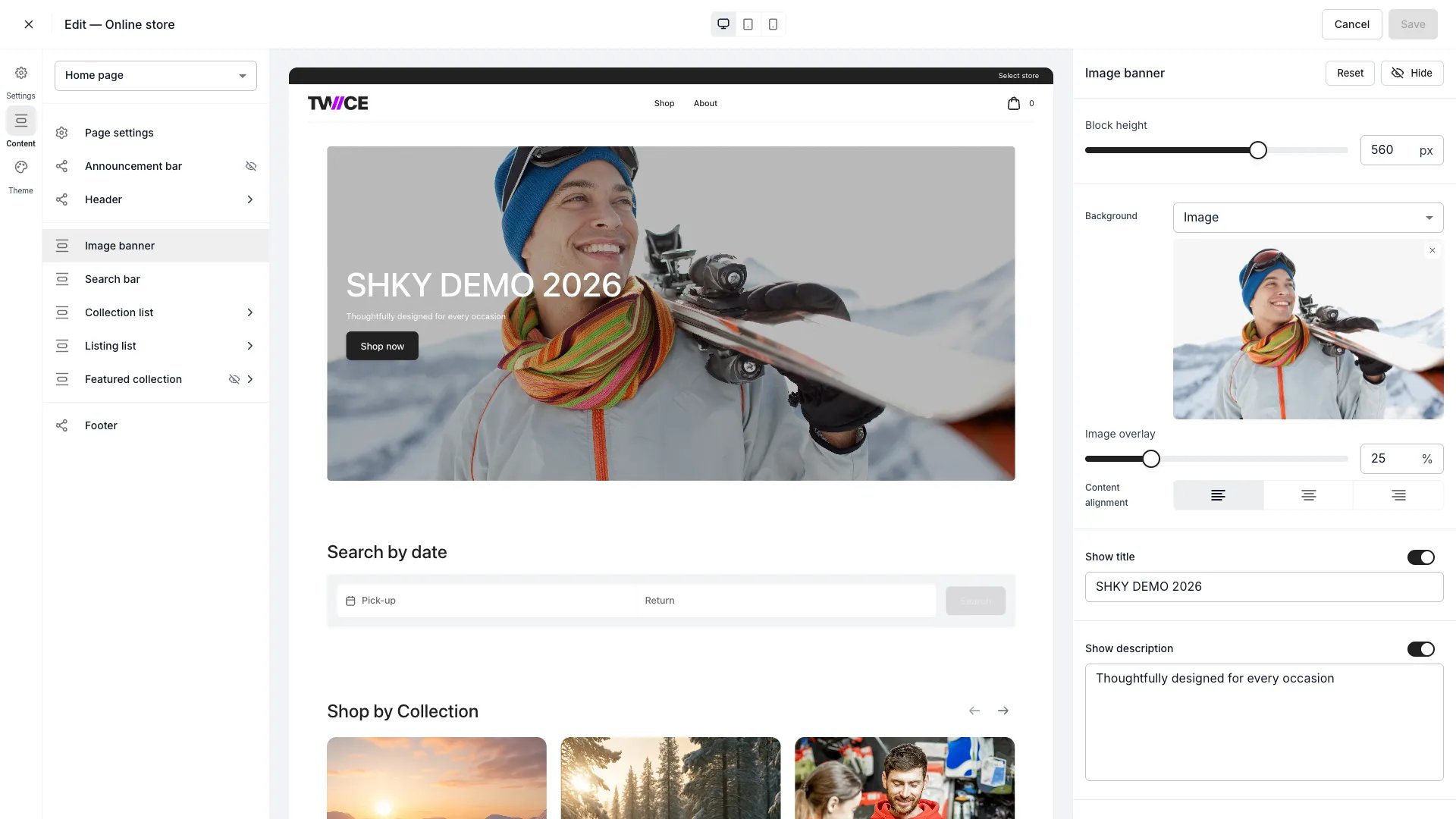 The Home page is your storefront's landing page. It is built from stacked sections you can show, hide, and reorder. Click any section to open its settings on the right.
## Sections
| Section | What it does |
| ----------------------- | -------------------------------------------------------------------------------------------------------------------------------------- |
| **Image banner** | A hero banner with a title, description, button, alignment, and an optional image overlay. |
| **Search bar** | A prominent search input. Styling comes from the [Search bar](/docs/sales-channels/online-store/theme-editor/settings/search-bar) settings. |
| **Collection list** | A row or grid of [collections](/docs/concepts/catalog/collections), with a title, column count, and per-collection images. |
| **Featured collection** | One highlighted collection with a selection of its listings. |
| **Listing list** | A hand-picked or trending set of [listings](/docs/concepts/catalog/listings) shown directly on the home page. |
Each section has its own visibility toggle, and you can drag sections to reorder them.
## Shared blocks
The announcement bar, header, footer, and page settings (visibility, SEO) apply across the store — see the [Theme Editor overview](/docs/sales-channels/online-store/theme-editor/overview#blocks-on-most-pages).
## Related
How collections group listings.
Style the collection cards shown here.
The Home page is your storefront's landing page. It is built from stacked sections you can show, hide, and reorder. Click any section to open its settings on the right.
## Sections
| Section | What it does |
| ----------------------- | -------------------------------------------------------------------------------------------------------------------------------------- |
| **Image banner** | A hero banner with a title, description, button, alignment, and an optional image overlay. |
| **Search bar** | A prominent search input. Styling comes from the [Search bar](/docs/sales-channels/online-store/theme-editor/settings/search-bar) settings. |
| **Collection list** | A row or grid of [collections](/docs/concepts/catalog/collections), with a title, column count, and per-collection images. |
| **Featured collection** | One highlighted collection with a selection of its listings. |
| **Listing list** | A hand-picked or trending set of [listings](/docs/concepts/catalog/listings) shown directly on the home page. |
Each section has its own visibility toggle, and you can drag sections to reorder them.
## Shared blocks
The announcement bar, header, footer, and page settings (visibility, SEO) apply across the store — see the [Theme Editor overview](/docs/sales-channels/online-store/theme-editor/overview#blocks-on-most-pages).
## Related
How collections group listings.
Style the collection cards shown here.