> ## Documentation Index
> Fetch the complete documentation index at: https://www.twicecommerce.com/docs/llms.txt
> Use this file to discover all available pages before exploring further.
# Theme Editor
> Customise every page of your storefront visually — colours, typography, layout, and individual page templates
export const userRoleDefinition = "What a user can see and do. Each user has one built-in system role — Owner, Admin, Manager, or Member — and can also be assigned any number of custom roles you create with specific permissions. Effective access is the combination of all their roles.";
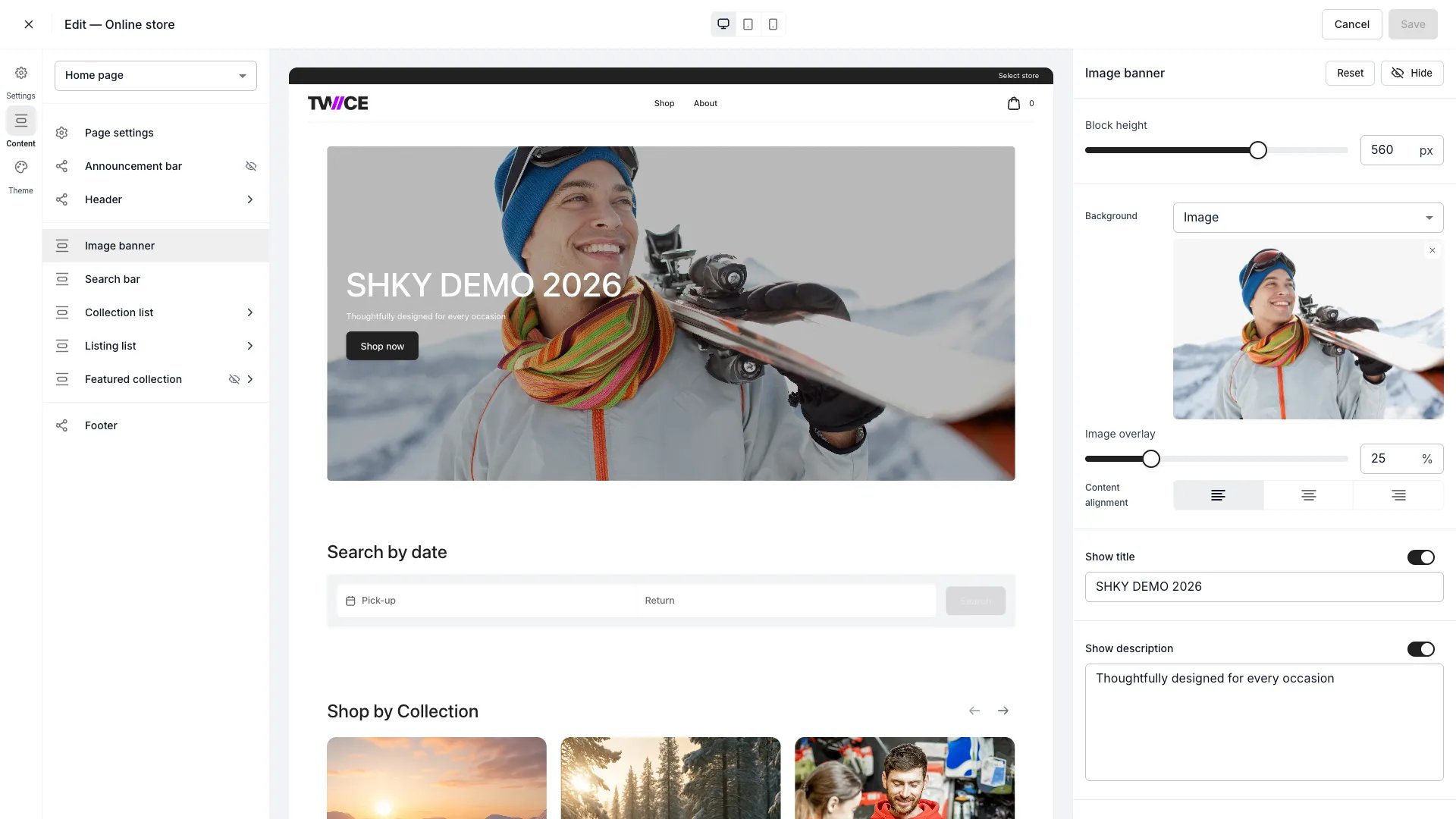 This view can look different dependent on your user role.
See [Visibility & Permissions](#visibility-and-permissions) for details.
## Primary Purpose
The Theme Editor is a visual customisation tool for your storefront. It has four modes, accessible from the left sidebar: **Settings**, **Content** (page templates and sections), **Theme** (global design tokens), and **Translations** (multi-language content and system string overrides). Changes preview in real time across desktop, tablet, and mobile viewports.
Switch between page templates with the page dropdown — Home, About, Collection, Listing, Stores, Bag, Checkout, and more. Each page has its own arrangement of sections.
See [Pages](/docs/sales-channels/online-store/theme-editor/pages/home).
Use the right-hand settings panel to change colours, typography, layout, buttons, inputs, calendars, and listing cards. Changes apply across the entire storefront.
See [Settings](/docs/sales-channels/online-store/theme-editor/settings/theme-panel).
For anything beyond what the visual editor exposes, drop in custom CSS. See [Custom CSS](/docs/sales-channels/online-store/theme-editor/settings/custom-css).
Switch to the **Translations** mode to manage multi-language text for your online store. The editor has three scopes, selectable from a sidebar:
* **Content** — translate merchant-authored text: hero titles, descriptions, button labels, about page content, meta titles and descriptions, announcement bar text, sidebar text, footer copyright, and other storefront copy. These fields map to your default-language content and are stored as separate translations per language.
* **System strings** — override the built-in UI text on your storefront (navigation labels, product page elements, cart and search text, filter labels) in any language, including your default language. Each string ships with a TWICE-maintained default; you only override what you want to customise.
* **Commerce** — override shared commerce strings (product cards, availability labels, pricing display) that appear across all your sales channels.
Select a target language from the dropdown at the top, then edit translations inline in the side-by-side table. Save and cancel from the top bar, the same as other editor modes.
See [Multi-Language Content](/docs/concepts/admin/translations) and [Localization](/docs/concepts/admin/localization) for background on how translations and system string overrides work.
Preview changes in any viewport before saving. **Save** writes your changes directly to the live storefront — there is no separate draft or publish step. If you close the editor with unsaved changes, a dialog asks whether to save or discard them.
## Blocks on most pages
Most page templates share the same set of storewide blocks. Configure them once and they apply everywhere they appear:
* **Announcement bar** — a slim message bar at the top (content and visibility here; colours in the [Announcement bar](/docs/sales-channels/online-store/theme-editor/settings/announcement-bar) settings).
* **Header** — logo, navigation items (links to internal pages or external URLs), logo and menu position, sticky behaviour, and the cart icon style.
* **Footer** — toggle the menu links, email signup, description, payment icons, policy links, and copyright text.
* **Page settings** — per page, set its visibility and SEO meta title and description. The URL handle is shown read-only — page paths are fixed; edit your domain under [Settings > Domains](/docs/settings/domains).
Not every template carries every block: the Checkout and Store selection sidebar templates expose only **Page settings** (no announcement bar or header blocks), the Custom scripts template has no header blocks at all, and the footer editor is unavailable on the Checkout and Custom scripts templates.
## Page Selector
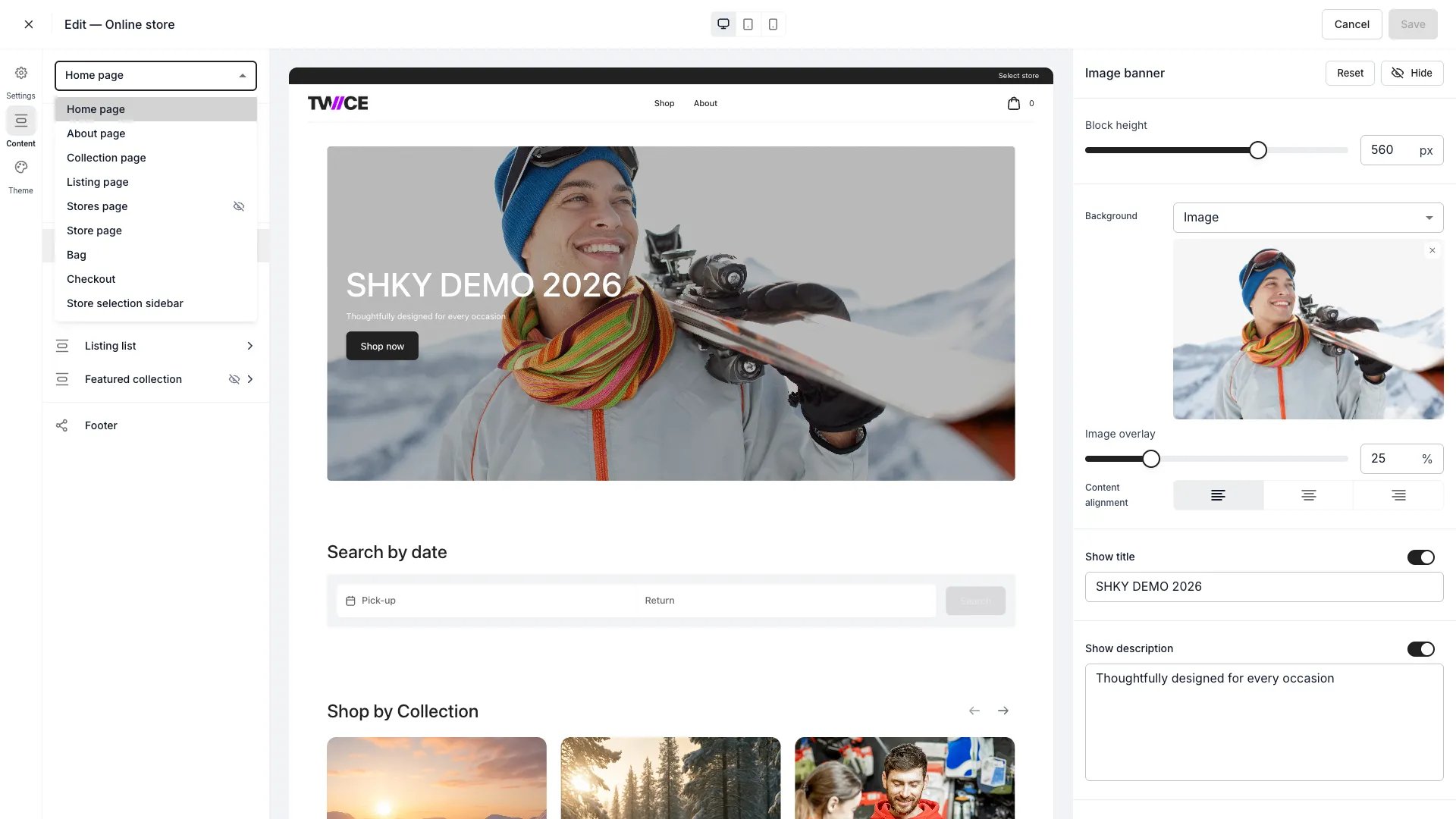 The page dropdown lets you switch between every storefront page template.
## Settings Panel
The page dropdown lets you switch between every storefront page template.
## Settings Panel
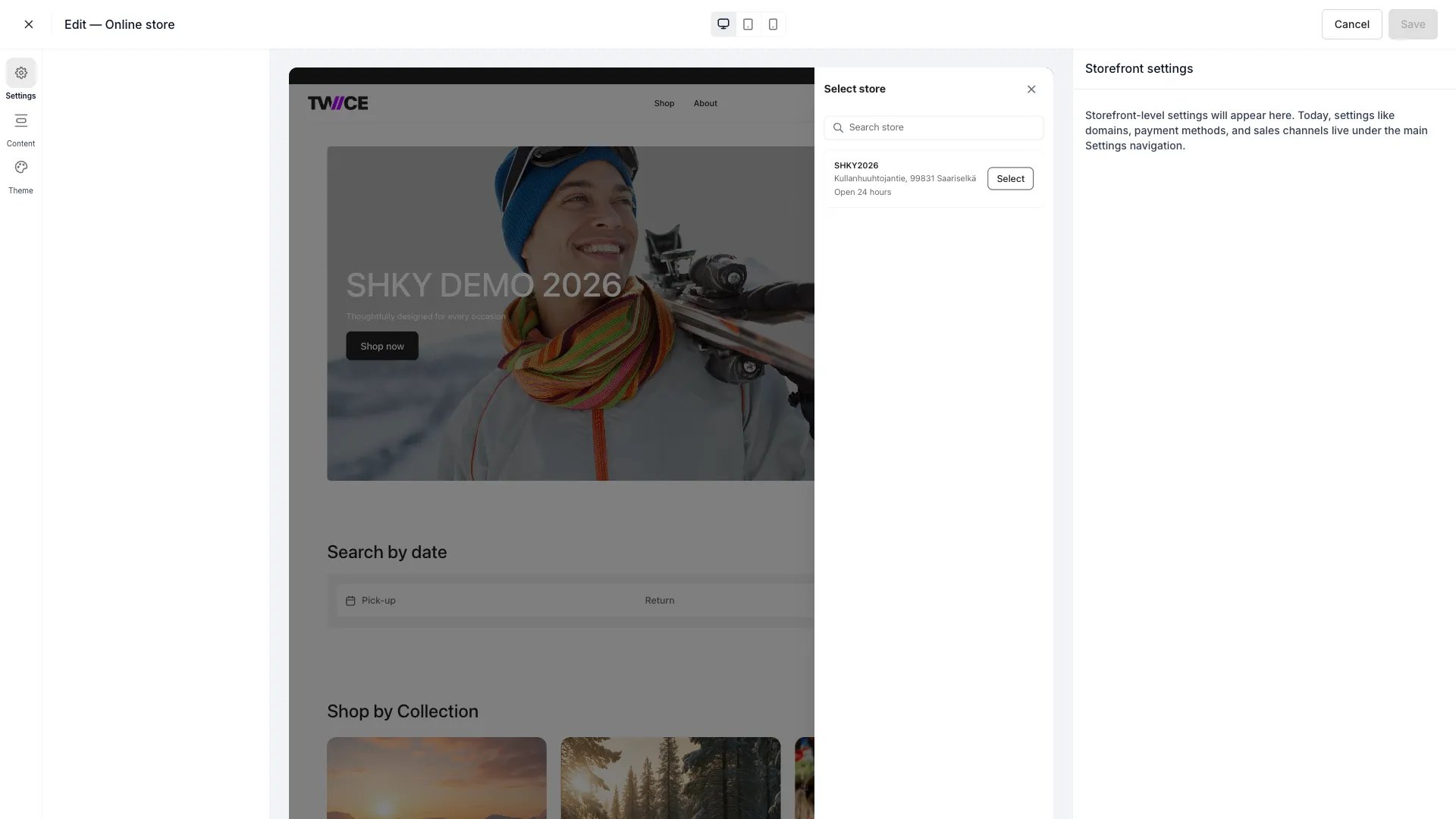 The settings panel on the right exposes per-section and per-element configuration for whatever you've selected.
## Visibility and Permissions
Access to this view is controlled by your user role.
| Feature | Admin | Manager | Member |
| ----------- | :---: | :-----: | :----: |
| View editor | ✓ | ✓ | ✗ |
| Edit theme | ✓ | ✓ | ✗ |
The settings panel on the right exposes per-section and per-element configuration for whatever you've selected.
## Visibility and Permissions
Access to this view is controlled by your user role.
| Feature | Admin | Manager | Member |
| ----------- | :---: | :-----: | :----: |
| View editor | ✓ | ✓ | ✗ |
| Edit theme | ✓ | ✓ | ✗ |