> ## Documentation Index
> Fetch the complete documentation index at: https://www.twicecommerce.com/docs/llms.txt
> Use this file to discover all available pages before exploring further.

# Custom Scripts

> Inject analytics and third-party scripts into your storefront's head, with built-in security controls.
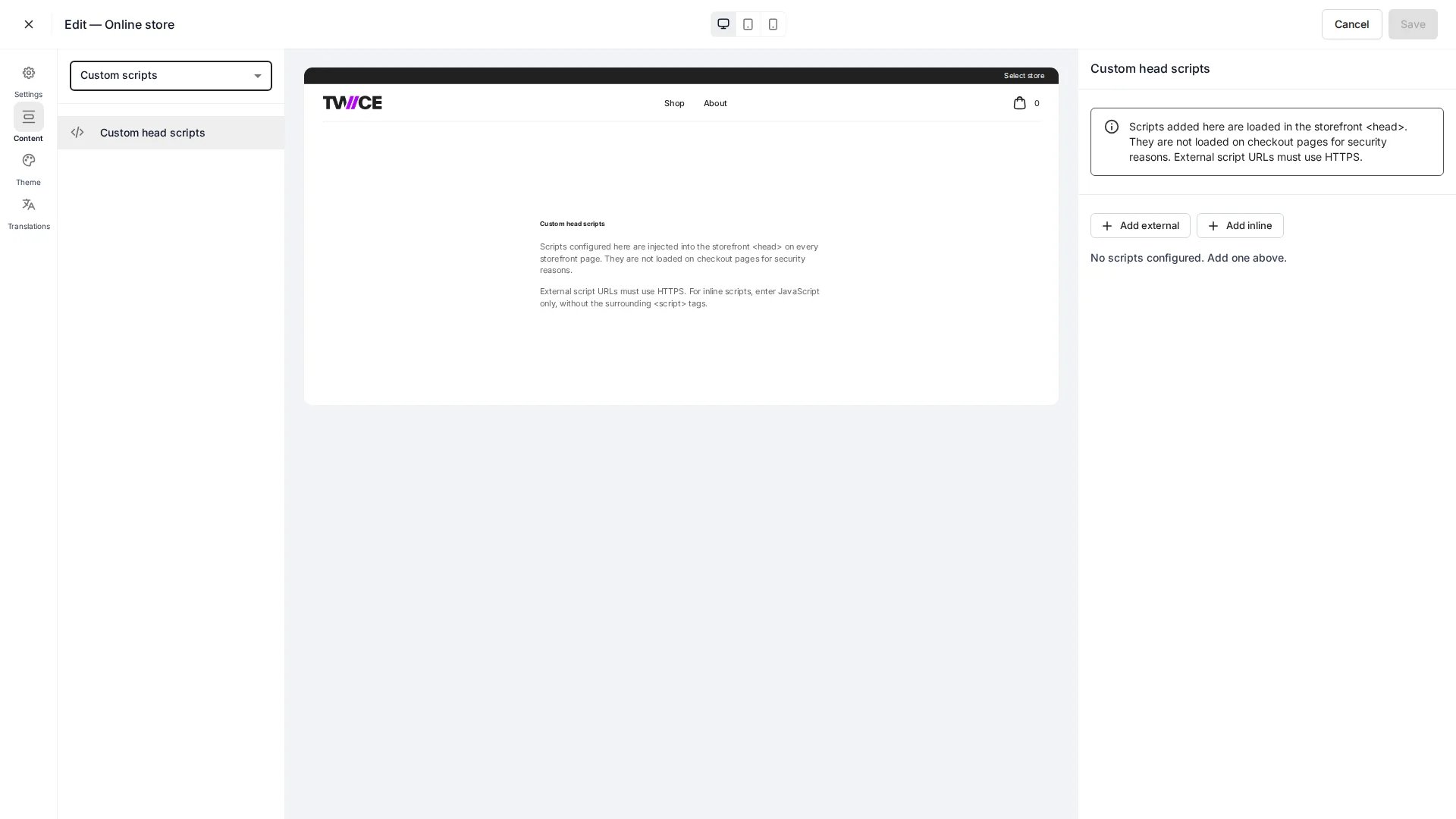
<Frame caption="Online Store > Custom scripts">
  <img src="https://mintcdn.com/twicecommerce/J8PvWLtfo8Bk95ka/images/online-store-custom-scripts.webp?fit=max&auto=format&n=J8PvWLtfo8Bk95ka&q=85&s=122b2fadd175b96b1b477f953b9ff9c3" alt="Custom scripts editor showing external and inline script entries" width="1920" height="1080" data-path="images/online-store-custom-scripts.webp" />
</Frame>

The Custom scripts page lets you add scripts to the `<head>` of your storefront — for analytics, tag managers, chat widgets, or other third-party tools. Each script is sanitised on the server before it is saved.

<Warning>
  Scripts run on your live storefront with access to the page. Only add code from sources you trust.
</Warning>

## Script types

You can add two kinds of script:

| Type         | What it is                             | Fields                                                            |
| ------------ | -------------------------------------- | ----------------------------------------------------------------- |
| **External** | Loads a script from a URL              | `src`, optional `async`, `defer`, and a set of allowed attributes |
| **Inline**   | Runs script content you paste directly | `content`                                                         |

### Examples

<CodeGroup>
  ```html External script (rendered in storefront head) theme={null}
  <script
    src="https://example.com/analytics.js"
    async
    data-website-id="abc123"
  ></script>
  ```

  ```javascript Inline script (paste the JavaScript only) theme={null}
  window.dataLayer = window.dataLayer || [];
  function gtag() { dataLayer.push(arguments); }
  gtag('js', new Date());
  gtag('config', 'G-XXXXXXX');
  ```
</CodeGroup>

External scripts render as a `<script>` tag with your URL and attributes. Inline scripts are wrapped in a `<script>` tag automatically — paste only the JavaScript, not the surrounding tags.

## Paste a script tag

Instead of filling in each field manually, you can paste a complete `<script>` tag. Open the **Paste a script tag** section on any external script entry, paste the full tag, and click **Parse tag**. The editor extracts the `src`, loading mode (`async`/`defer`), and any allowed attributes automatically.

If the pasted tag contains disallowed attributes (such as event handlers like `onload`) or a non-HTTPS `src`, the editor shows a validation error and rejects the paste.

## Security controls

These rules are enforced when you save — invalid scripts are rejected or cleaned automatically:

* **External `src` must be `https://`.** Absolute HTTPS URLs only. `http:`, `javascript:`, `data:`, `file:`, and protocol-relative (`//host`) URLs are rejected.
* **Inline content is fenced.** The `</script` end-tag token is stripped so inline code cannot break out of its `<script>` tag.
* **Attributes are allow-listed.** On external scripts, only these attributes are kept, alongside `src`, `async`, and `defer`:

  `id` · `crossorigin` · `integrity` · `nonce` · `referrerpolicy` · `fetchpriority` · `type` · `nomodule` — plus any `data-*` attribute.

  Event-handler attributes (`onload`, `onerror`, and other `on*`) are removed — they are an XSS vector.

<Note>
  Custom scripts are **never loaded on checkout pages**. The checkout layout ignores `headScripts` to keep the payment flow PCI-compliant. Put any tracking that must fire at purchase on the order confirmation step instead.
</Note>

## Usage

1. Open **Custom scripts** in the Online Store editor.
2. Add an **External** or **Inline** script.
3. For external scripts, enter the `https://` URL and choose the loading mode (`async`, `defer`, or blocking) — or use **Paste a script tag** to fill in the fields from a copied `<script>` tag.
4. Add any allowed attributes (e.g. `data-*`, `id`, `integrity`) if needed.
5. Save. The script is sanitised and stored, then injected into the storefront `<head>` on the next load.

## Targeting storefront DOM IDs

The storefront exposes two stable DOM IDs that your head scripts can target to inject custom content into the footer — for example, a cookie consent settings link.

| ID                   | Element                | When present                                  |
| -------------------- | ---------------------- | --------------------------------------------- |
| `twice-footer`       | The footer layout root | Always, when the footer renders               |
| `twice-footer-links` | The policy links row   | Only when at least one policy link is visible |

Anchors (`<a>`) appended as direct children of `#twice-footer-links` automatically inherit the policy links' styling (typography, color, no underline). Your script does not need to replicate theme styles.

<Warning>
  These IDs are stable — renaming them would break merchant scripts. Do not rely on any other DOM structure or class name in the storefront, as those may change without notice.
</Warning>

### Example: adding a cookie consent link

This inline script appends a "Cookie Settings" link to the footer policy links row. It waits for the DOM to load, then inserts the link so it matches the existing policy links visually.

<CodeGroup>
  ```javascript Inline script theme={null}
  (function () {
    function addCookieLink() {
      var row = document.getElementById('twice-footer-links');
      if (!row) return;
      var link = document.createElement('a');
      link.href = '#';
      link.textContent = 'Cookie Settings';
      link.addEventListener('click', function (e) {
        e.preventDefault();
        // Replace with your consent manager's open command, e.g.:
        // window.CookieScript && window.CookieScript.instance.show();
      });
      row.appendChild(link);
    }

    if (document.readyState === 'loading') {
      document.addEventListener('DOMContentLoaded', addCookieLink);
    } else {
      addCookieLink();
    }
  })();
  ```
</CodeGroup>

<Note>
  Custom scripts do not run on checkout pages (see [Security controls](#security-controls)). The footer does not render on checkout pages either, so DOM ID targeting is limited to storefront pages.
</Note>

## Related

<CardGroup cols={2}>
  <Card title="Custom CSS" icon="paintbrush" href="/docs/sales-channels/online-store/theme-editor/settings/custom-css">
    Add custom styles beyond the visual theme settings.
  </Card>

  <Card title="Online Store overview" icon="store" href="/docs/sales-channels/online-store/overview">
    Configure and publish your storefront.
  </Card>
</CardGroup>
