> ## Documentation Index
> Fetch the complete documentation index at: https://www.twicecommerce.com/docs/llms.txt
> Use this file to discover all available pages before exploring further.
# Order - Line Items
> View and manage individual line items within an order, including products, pricing, and fulfillment details
export const lineItemDefinition = "A line item represents a single product or service entry within an order, containing the specific stock item(s), quantity, pricing, and fulfillment details for that part of the transaction.";
export const viewAccessDefinition = "Read-only access without ability to make changes.";
export const editAccessDefinition = "Update and read data, but cannot create or delete.";
export const manageAccessDefinition = "Create, update, read, and delete data.";
export const permissionsDefinition = "The actions you are authorized to perform.";
export const visibilityDefinition = "Which features, sections, or data tables are visible to you.";
export const userRoleDefinition = "What a user can see and do. Each user has one built-in system role — Owner, Admin, Manager, or Member — and can also be assigned any number of custom roles you create with specific permissions. Effective access is the combination of all their roles.";
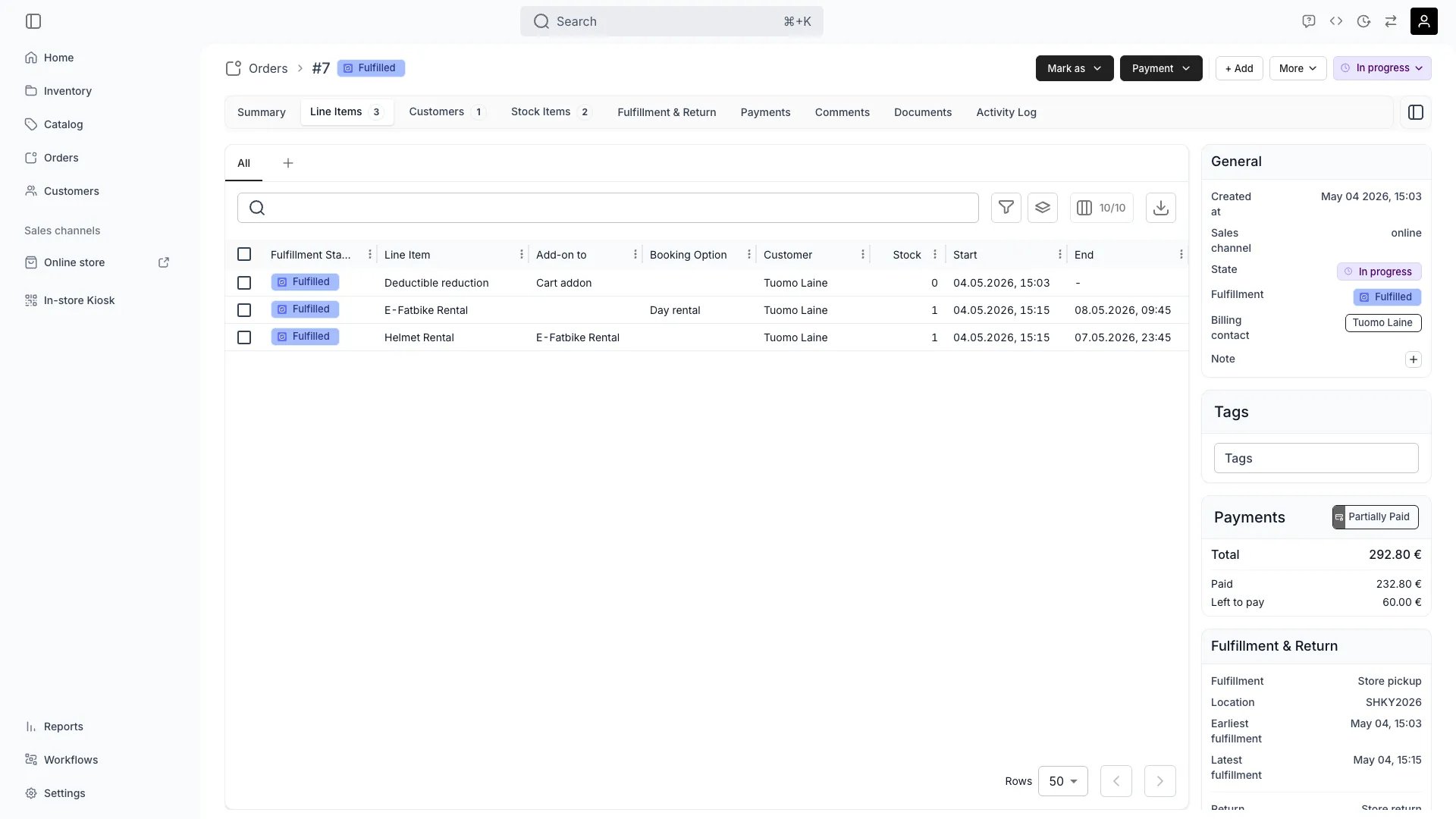 This view can look different dependent on your user role.
See [Visibility & Permissions](#visibility-and-permissions) for details.
## Primary Purpose
The Line Items tab displays each individual line item in the order with detailed pricing, quantities, assigned stock items, and fulfillment status.
See all line items in the order, each representing a specific product or service with its pricing, quantity, and configuration.
Check individual line item prices, any discounts applied, taxes, and subtotals to understand the complete order value.
See which specific stock items are assigned to each line item for fulfillment.
Track which line items have been fulfilled, which are pending, and any issues blocking fulfillment.
Add or remove line items, adjust quantities, apply discounts, or update pricing as needed.
### Backdate a line item
When editing an existing booking or rental line item in the admin, you can set its start and end dates to the past. This covers situations where a rental was not entered at the time it began — for example, a walk-in customer whose booking was recorded after the fact.
* The calendar navigates up to 24 months into the past.
* Past days and already-elapsed time slots are selectable.
* Auto-preselection still defaults to today, so backdating requires deliberate selection.
Backdating is only available in the admin. Storefront customers cannot select past dates.
### Availability when editing dates
Changing a line item's dates re-runs the availability check without the line item's own reservation, or those of its add-ons — buffer windows included. A line item never blocks its own edit, so you can extend or move it into time its own buffer occupies. See [Editing an existing line item](/docs/concepts/catalog/availability#editing-an-existing-line-item).
When adding or editing a booking line item, you can set any pickup and return time — including times outside the location's configured [fulfillment hours](/docs/concepts/admin/locations#fulfillment-hours). The time picker shows all available slots, not just those within the fulfillment schedule.
Inventory availability is still enforced. You cannot book a time slot if no stock is available.
The storefront checkout respects fulfillment hours — customers can only select pickup and return times within the configured schedule. The admin bypass applies only to order management in the admin dashboard.
When you change the start or end dates of a booking line item, the original unit price is kept. If the catalog's list price for the new dates differs from the current unit price, a confirmation dialog appears before saving.
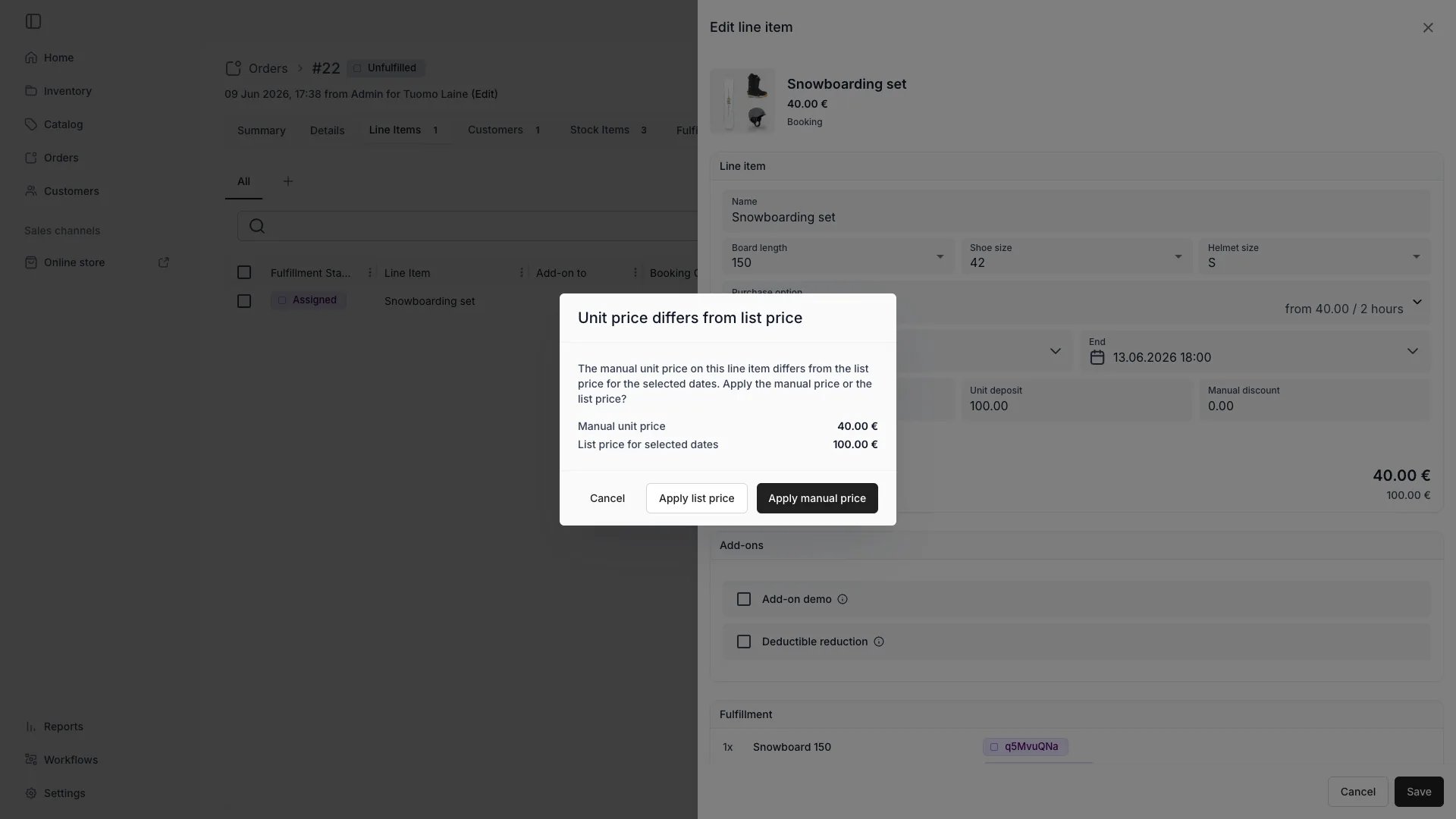 The dialog shows both prices — the manual unit price and the list price for the selected dates — and offers three options:
* **Apply manual price** — keep the current unit price unchanged.
* **Apply list price** — update the unit price to the catalog price for the new dates.
* **Cancel** — return to the line item editor without saving.
This dialog appears only for catalog line items in edit mode. Custom line items, add-ons, and subscriptions are not affected.
When prices match, the line item saves normally with no dialog.
Attach add-on products to an existing order without cancelling and rebuilding it. Click **+ Add** and choose **Add-on product** to open the add-on picker.
The picker has two tabs:
* **Recommended** — shows add-ons configured on the listings already in the order, plus any order-level add-ons (e.g. delivery, gift wrapping).
* **All Add-ons** — lists every add-on-only listing available at the order's location.
After selecting an add-on, choose what it attaches to:
* **A specific line item** — the add-on appears nested under its parent (e.g. a helmet under a bike rental).
* **The whole order** — for order-level add-ons that are not tied to a single item.
Add-on line items carry their own price, which can differ from the add-on's standalone catalog price.
## Related Concepts
Here are a few key concepts of TWICE Commerce that relate to line items.
A listing is the product as it appears in your catalog. A line item is a specific instance of that listing within a customer's order, including the quantity ordered, price agreed, and any customizations.
Read more: [Listings](/docs/concepts/catalog/listings)
Each line item can have specific stock items assigned for fulfillment. This ensures you know exactly which physical items will be used to fulfill each order entry.
Read more: [Stock Items](/docs/inventory/stock-item-vs-sku)
Line items can be fulfilled independently, allowing partial order fulfillment when some items are ready before others.
Read more: Order Fulfillment
Line items capture the agreed price at the time of order, preserving historical pricing even if catalog prices change later. [Discount codes](/docs/concepts/catalog/discount-codes) applied at checkout or by an operator are stored as per-item allocations on the order. Operators can add or remove discount codes from the **Discounts** drawer on the order detail page.
When an add-on is attached to a specific line item, a parent-child relationship is created. The add-on line item appears nested under its parent in the line items list.
* A top-level line item is a regular order entry with no parent.
* An add-on line item references its parent and is displayed indented beneath it.
* Add-ons cannot be nested under other add-ons — only one level of nesting is allowed.
* Editing a parent line item's dates automatically updates the booking period of its add-on children when the add-on shares the same purchase type (e.g. a booking add-on on a booking parent). Add-ons with a different purchase type are not affected.
Order-level add-ons (e.g. delivery fees) are not attached to a specific parent and appear as standalone line items marked as add-ons.
Read more: [Add-on Settings](/docs/catalog/listings/addons)
Add-on pricing on an order depends on how the add-on listing is configured in the catalog:
* **Standalone pricing** — the add-on has its own independent price. The operator confirms or adjusts the price when adding it to the order.
* **Percentage pricing** — the add-on price is calculated as a percentage (1–200%) of the parent line item's price. The calculated amount is set when the add-on is added.
In both cases, the final price is stored on the add-on line item itself. Changing the parent's price later does not automatically recalculate the add-on's price.
## Visibility and Permissions
Access to this view is controlled by your user role. Your user role determines both
visibility and
permissions for
manage,
edit, and
view access levels.
| Feature | Admin | Manager | Member |
| ----------------- | ----- | ------- | ------ |
| View Line Items | ✓ | ✓ | ✓ |
| View Pricing | ✓ | ✓ | ✓ |
| Modify Line Items | ✓ | ✓ | ✗ |
| Apply Discounts | ✓ | ✓ | ✗ |
| Resource | Admin | Manager | Member |
| ------------------ | ------ | ------- | ------ |
| Line Items | Manage | Edit | View |
| Pricing | Manage | Edit | View |
| Stock Assignment | Manage | Edit | View |
| Fulfillment Status | Manage | Edit | View |
The dialog shows both prices — the manual unit price and the list price for the selected dates — and offers three options:
* **Apply manual price** — keep the current unit price unchanged.
* **Apply list price** — update the unit price to the catalog price for the new dates.
* **Cancel** — return to the line item editor without saving.
This dialog appears only for catalog line items in edit mode. Custom line items, add-ons, and subscriptions are not affected.
When prices match, the line item saves normally with no dialog.
Attach add-on products to an existing order without cancelling and rebuilding it. Click **+ Add** and choose **Add-on product** to open the add-on picker.
The picker has two tabs:
* **Recommended** — shows add-ons configured on the listings already in the order, plus any order-level add-ons (e.g. delivery, gift wrapping).
* **All Add-ons** — lists every add-on-only listing available at the order's location.
After selecting an add-on, choose what it attaches to:
* **A specific line item** — the add-on appears nested under its parent (e.g. a helmet under a bike rental).
* **The whole order** — for order-level add-ons that are not tied to a single item.
Add-on line items carry their own price, which can differ from the add-on's standalone catalog price.
## Related Concepts
Here are a few key concepts of TWICE Commerce that relate to line items.
A listing is the product as it appears in your catalog. A line item is a specific instance of that listing within a customer's order, including the quantity ordered, price agreed, and any customizations.
Read more: [Listings](/docs/concepts/catalog/listings)
Each line item can have specific stock items assigned for fulfillment. This ensures you know exactly which physical items will be used to fulfill each order entry.
Read more: [Stock Items](/docs/inventory/stock-item-vs-sku)
Line items can be fulfilled independently, allowing partial order fulfillment when some items are ready before others.
Read more: Order Fulfillment
Line items capture the agreed price at the time of order, preserving historical pricing even if catalog prices change later. [Discount codes](/docs/concepts/catalog/discount-codes) applied at checkout or by an operator are stored as per-item allocations on the order. Operators can add or remove discount codes from the **Discounts** drawer on the order detail page.
When an add-on is attached to a specific line item, a parent-child relationship is created. The add-on line item appears nested under its parent in the line items list.
* A top-level line item is a regular order entry with no parent.
* An add-on line item references its parent and is displayed indented beneath it.
* Add-ons cannot be nested under other add-ons — only one level of nesting is allowed.
* Editing a parent line item's dates automatically updates the booking period of its add-on children when the add-on shares the same purchase type (e.g. a booking add-on on a booking parent). Add-ons with a different purchase type are not affected.
Order-level add-ons (e.g. delivery fees) are not attached to a specific parent and appear as standalone line items marked as add-ons.
Read more: [Add-on Settings](/docs/catalog/listings/addons)
Add-on pricing on an order depends on how the add-on listing is configured in the catalog:
* **Standalone pricing** — the add-on has its own independent price. The operator confirms or adjusts the price when adding it to the order.
* **Percentage pricing** — the add-on price is calculated as a percentage (1–200%) of the parent line item's price. The calculated amount is set when the add-on is added.
In both cases, the final price is stored on the add-on line item itself. Changing the parent's price later does not automatically recalculate the add-on's price.
## Visibility and Permissions
Access to this view is controlled by your user role. Your user role determines both
visibility and
permissions for
manage,
edit, and
view access levels.
| Feature | Admin | Manager | Member |
| ----------------- | ----- | ------- | ------ |
| View Line Items | ✓ | ✓ | ✓ |
| View Pricing | ✓ | ✓ | ✓ |
| Modify Line Items | ✓ | ✓ | ✗ |
| Apply Discounts | ✓ | ✓ | ✗ |
| Resource | Admin | Manager | Member |
| ------------------ | ------ | ------- | ------ |
| Line Items | Manage | Edit | View |
| Pricing | Manage | Edit | View |
| Stock Assignment | Manage | Edit | View |
| Fulfillment Status | Manage | Edit | View |