> ## Documentation Index
> Fetch the complete documentation index at: https://www.twicecommerce.com/docs/llms.txt
> Use this file to discover all available pages before exploring further.
# Order - Customers
> Manage the billing contact, order customers, and their line item assignments on an order
export const viewAccessDefinition = "Read-only access without ability to make changes.";
export const editAccessDefinition = "Update and read data, but cannot create or delete.";
export const manageAccessDefinition = "Create, update, read, and delete data.";
export const permissionsDefinition = "The actions you are authorized to perform.";
export const visibilityDefinition = "Which features, sections, or data tables are visible to you.";
export const userRoleDefinition = "What a user can see and do. Each user has one built-in system role — Owner, Admin, Manager, or Member — and can also be assigned any number of custom roles you create with specific permissions. Effective access is the combination of all their roles.";
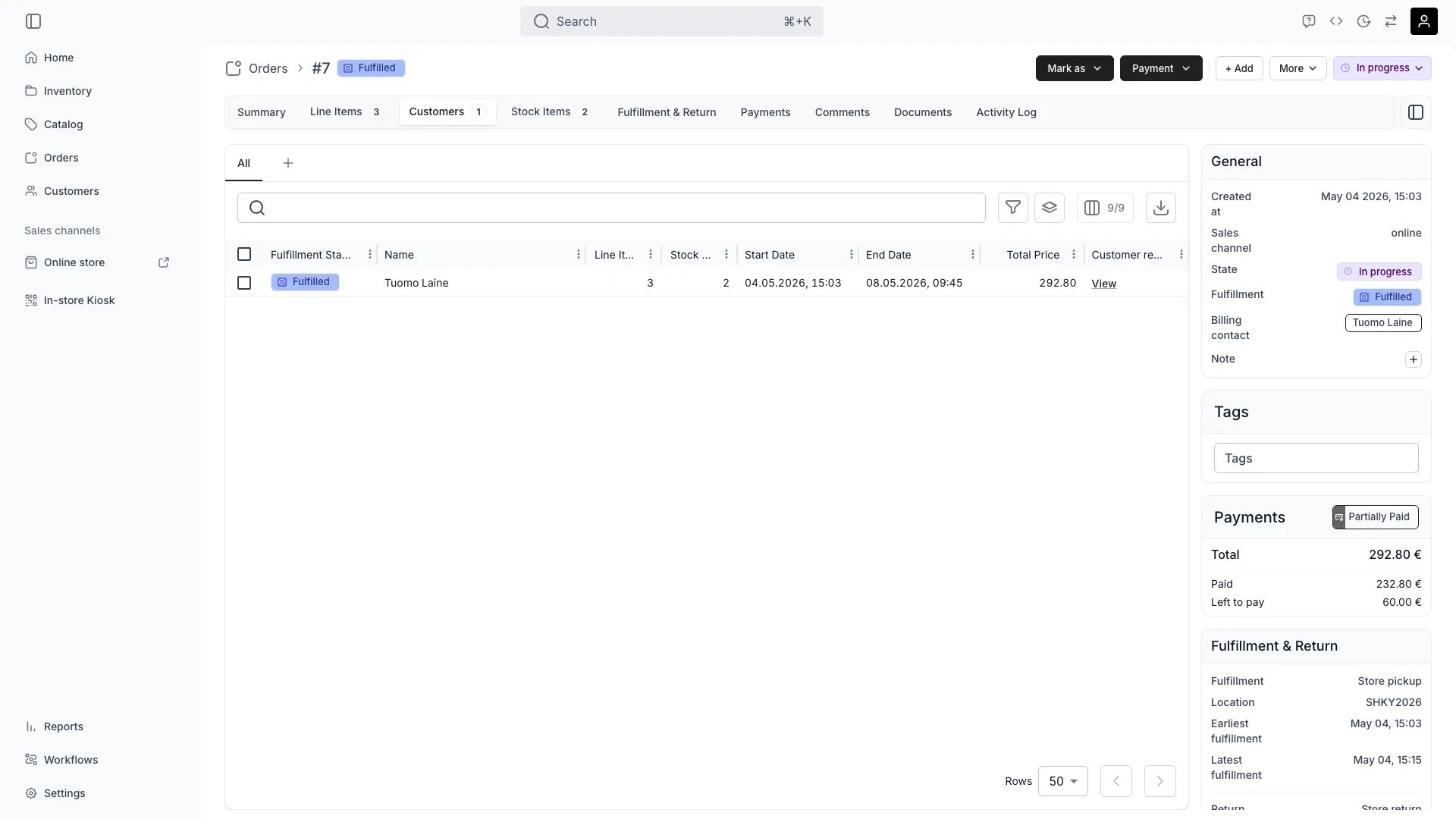 This view can look different dependent on your user role.
See [Visibility & Permissions](#visibility-and-permissions) for details.
orders/\[order-id]/customers
## Primary Purpose
Each order has one **billing contact** and one or more **order customers**. The billing contact receives receipts and notifications. Order customers own specific line items and can differ from the billing contact when multiple people share one order.
The billing contact appears on the Details tab and in the order header. Add a billing contact by clicking **Add billing contact** on the Details tab or from the order header subtitle. When you add the first customer to an order, that customer is automatically promoted to the billing contact.
The order header shows **"for {name} (edit)"** when a billing contact exists or **"No billing contact added. (add)"** when one is missing. These links are hidden on closed orders.
Open the **Add customer** drawer to search your existing customer database or create a new customer record. The drawer supports both single-select (for billing contacts and customer switches) and multi-select (for bulk-attaching order customers).
When adding a billing contact, the system automatically assigns any unassigned line items to that contact.
Click a customer name or the **Edit** button to open the customer drawer. The drawer opens in view-only mode with per-section edit toggles for details, billing address, shipping address, and custom attributes.
For customers linked to your CRM, the drawer includes additional tabs:
* **Documents** — files attached to the customer record
* **Orders** — the customer's order history (rows open in a new tab)
* **Listings** — listings associated with the customer
* **Stock Items** — stock items associated with the customer
Replace one order customer with another from your CRM. The switch reassigns all line items from the old customer to the new one. If the replaced customer was the billing contact, the new customer takes over as billing contact.
When you remove a customer who owns line items, a dialog asks how to handle those items:
* **Reassign** — move line items to another order customer
* **Unassign** — keep the line items on the order without a customer
* **Delete** — remove the line items from the order
When the removed customer is the billing contact, the billing contact is automatically cleared.
When an order has line items not assigned to any customer, they appear in an **Unassigned items** card. The card offers two actions:
* **+ Add customer** — opens the customer drawer in single-select mode. Select an existing CRM customer or one already on the order to assign all unassigned line items to them.
* **Delete items** — opens a confirmation dialog to bulk-delete the unassigned line items from the order.
Both actions are also available from the dots menu (⋯) on the card.
Customer cards show status badges next to the customer name:
* A **verified badge** indicates the customer is saved to your customer database (CRM)
* A **receipt badge** indicates the customer is the billing contact for this order
## Related Concepts
Here are a few key concepts of TWICE Commerce that relate to Order Customers.
The billing contact is the primary recipient of order communications, receipts, and invoices. Order customers are assigned to specific line items on the order. A single person can be both the billing contact and an order customer. Orders with multiple customers (e.g. a group rental) can have different people assigned to different line items.
Customers are either **individual** or **business** type. Business customers have additional fields for company name and tax ID. The customer type is set when creating or editing a customer and applies to both CRM records and order-level customer data.
Each customer record includes name, email, phone, date of birth, communication language, marketing consent, billing address, and shipping address. Business customers also store company name and tax ID. These are built-in profile fields. Merchant-defined [attributes](/docs/customers/customer-tabs/attributes) can extend customer data beyond the built-in fields.
## Visibility and Permissions
Access to this view is controlled by your user role.
| Feature | Admin | Manager | Member |
| ------------------------ | ----- | ------- | ------ |
| Customer Details | ✓ | ✓ | ✓ |
| Customer History | ✓ | ✓ | ✗ |
| Contact Editing | ✓ | ✓ | ✗ |
| Remove / Switch Customer | ✓ | ✓ | ✗ |
| Resource | Admin | Manager | Member |
| ---------------------- | ------ | ------- | ------ |
| View Customer Data | Manage | Manage | View |
| Edit Contact Info | Manage | Edit | View |
| Add / Remove Customers | Manage | Edit | View |
| Access History | Manage | Manage | View |