> ## Documentation Index
> Fetch the complete documentation index at: https://www.twicecommerce.com/docs/llms.txt
> Use this file to discover all available pages before exploring further.
# Stock Item - General
> View and manage core information about a stock item including name, code, SKU, category, and status
export const stockCodeDefinition = "A Stock Code (also called Item Code) is the unique system-generated identifier assigned to each stock item in TWICE. It ensures accurate tracking, data consistency, and auditability across all operations, reports, and integrations.";
export const reservationDefinition = "An internal reservation that allocates inventory for a specific time period, blocking availability. Reservations are manageable under the stock item's 'Timeline' and ensure items are ready for maintenance or internal use.";
export const stockItemStateDefinition = "Stock Item State tracks whether a stock item is currently In (at hand in your inventory) or Out (in a customer's possession). State changes automatically based on fulfillment and returns on orders.";
export const stockItemStatusDefinition = "The operational availability of a stock item. Active items are available for orders, rentals, and inventory operations. Inactive items are indefinitely excluded from assignments (e.g., retired, under repair, or quarantined). For temporary unavailability, use a reservation instead.";
export const locationDefinition = "A location is any physical or logical place that holds inventory and connects to fulfillment operations — whether it's a storefront, warehouse, service center, or fulfillment hub. Locations enable multi-site operations with unified inventory visibility.";
export const attributesDefinition = "An attribute is a custom data field that captures additional information about entities in TWICE Commerce - from technical specifications and operational data to business-specific metadata. Attributes give you full control over what data you want to record for any asset, allowing you to extend the platform to match your exact business needs.";
export const categoryTaxonomyDefinition = "A standardized hierarchical product classification system that organizes inventory into categories and subcategories. TWICE uses the Shopify Product Taxonomy standard to ensure consistent categorization across your catalog and integrations.";
export const pooledInventoryDefinition = "Pooled inventory (quantity > 1) groups identical items under a single stock code, aggregating all income, expenses, and timeline events. You can track total quantities but cannot attribute specific events to individual units within the pool.";
export const serializedInventoryDefinition = "Serialized inventory (quantity = 1) tracks each physical item individually with its own unique identifier, income, expenses, timeline events, and lifecycle. This enables precise tracking of what happened to each specific unit.";
export const viewAccessDefinition = "Read-only access without ability to make changes.";
export const editAccessDefinition = "Update and read data, but cannot create or delete.";
export const manageAccessDefinition = "Create, update, read, and delete data.";
export const permissionsDefinition = "The actions you are authorized to perform.";
export const visibilityDefinition = "Which features, sections, or data tables are visible to you.";
export const userRoleDefinition = "What a user can see and do. Each user has one built-in system role — Owner, Admin, Manager, or Member — and can also be assigned any number of custom roles you create with specific permissions. Effective access is the combination of all their roles.";
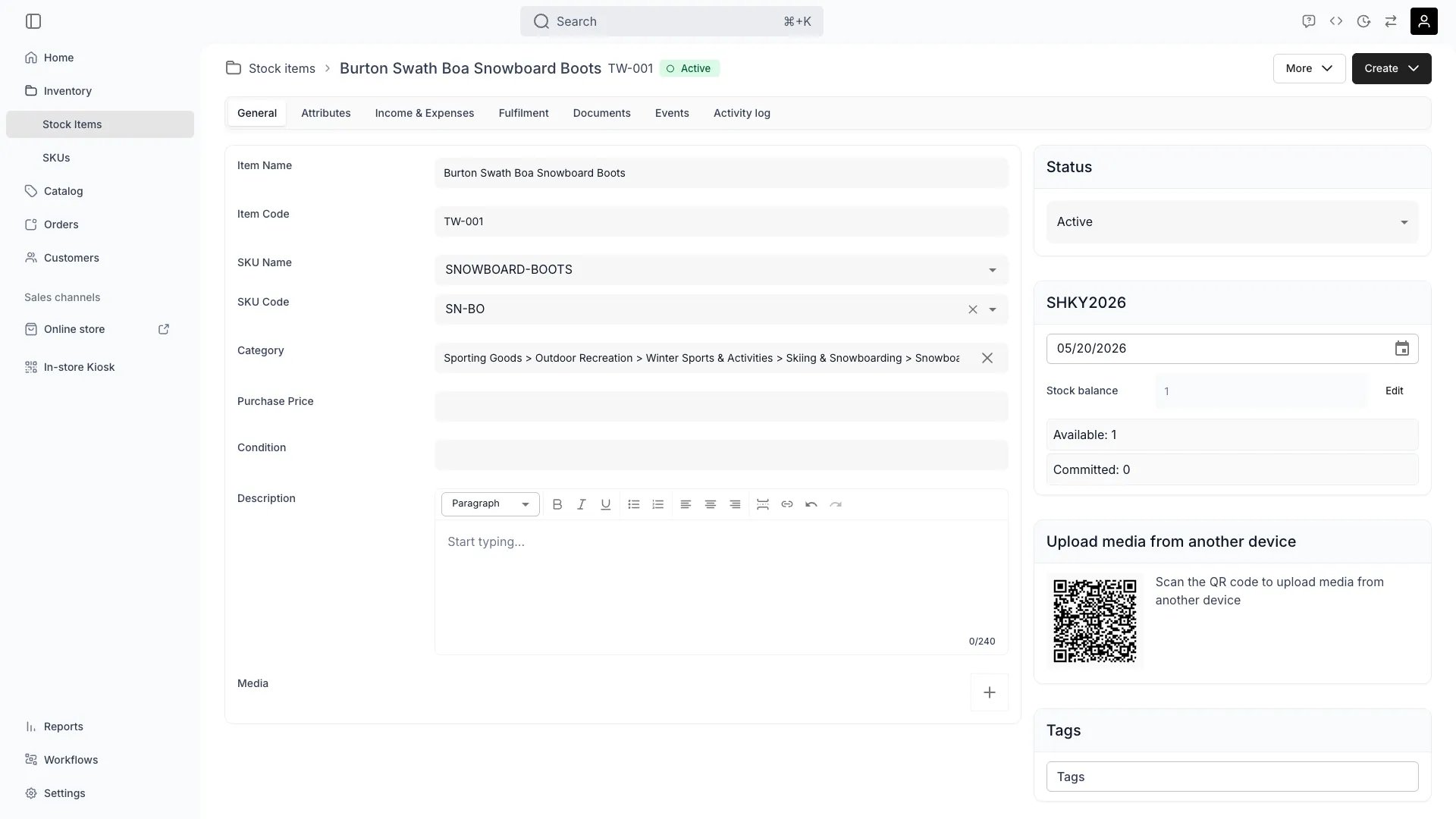 This view can look different dependent on your user role.
See [Visibility & Permissions](#visibility-and-permissions) for details.
**New to Stock Items?** Understand how Stock Items differ from SKUs - [Stock Item vs SKU](/docs/inventory/stock-item-vs-sku).
## Primary Purpose
The General tab contains the core information that defines a stock item — what it is, where it is, and how it's categorized.
When you view a stock item, you're seeing its **current state** — where it is right now, its current status, and its present attributes. Some of this data is temporal, meaning it changes over time as the item moves through different locations, statuses, and lifecycle stages. For historical and forecasted actions and states, see the [Events](/docs/inventory/stock-items/events) and [Activity Log](/docs/inventory/stock-items/activity-log) tabs.
Set the item name (often human-understandable descriptive name), assign unique item code(s), and optionally link it to a SKU to keep data unified across similar stock items.
Define whether this record represents a single unique item (quantity = 1) or a group of identical items tracked together (quantity > 1).
Read more: [Inventory Tracking](/docs/concepts/inventory/inventory-tracking)
Organize items using categories and enhance records with custom attributes for better organization and reporting.
Read more: [Category Taxonomy](/docs/concepts/admin/category-taxonomy) • [Attributes](/docs/concepts/admin/attributes)
-
Location: See the stock item's current and most recent warehouse or facility — this is where it is expected to be found now. This may update automatically as the item moves through your operations.
-
State (IN/OUT): Instantly view if the item is IN stock (physically present and available) or OUT (currently checked out with an open order, reservation, or transfer). This is useful for tracking utilization and ongoing operations.
-
Status: Set whether the item is active (available for operations) or inactive (indefinitely excluded from operations). For temporary unavailability, use a reservation instead.
Read more: [Locations](/docs/concepts/admin/locations) • [Stock Item Status](/docs/concepts/inventory/stock-item-status) • [Stock Item State](/docs/concepts/inventory/stock-item-state)
Upload photos or videos to visually document the stock item, or scan the QR code to upload from a mobile device.
## Related Concepts
Here are a few key concepts of TWICE Commerce that relate to the General tab.
The Item Code is unique to each stock item, while the SKU Code groups similar items together at the product level. SKUs act as templates—define attributes once, and all linked stock items inherit them automatically.
Read more: How to Use SKUs to Streamline Inventory Management • [SKU Concept](/docs/concepts/inventory/skus)
By default, each stock item is unique (serialized). For items that don't require individual tracking, you can use the quantity field to represent a group of items that pool data such as usage under a single stock code.
Read more: [Inventory Tracking](/docs/concepts/inventory/inventory-tracking) • [Stock Codes](/docs/concepts/inventory/stock-codes)
Your stock item can have attributes like brand, color, condition, or any data field relevant to your business. Attributes can be added individually or inherited automatically from the item's SKU.
Read more: [Attributes](/docs/concepts/admin/attributes) • How SKUs Apply Attributes
## Visibility and Permissions
Access to this view is controlled by your user role. Your user role determines both
visibility and
permissions for
manage,
edit, and
view access levels.
| Feature | Admin | Manager | Member |
| ------------------- | ----- | ------- | ------ |
| Item Name | ✓ | ✓ | ✓ |
| Item Code | ✓ | ✓ | ✓ |
| SKU Assignment | ✓ | ✓ | ✓ |
| Category Assignment | ✓ | ✓ | ✓ |
| Status Control | ✓ | ✓ | ✓ |
| Resource | Admin | Manager | Member |
| --------------------- | ------ | ------- | ------ |
| Item Details | Manage | Edit | View |
| SKU Linking | Manage | Edit | View |
| Category & Attributes | Manage | Edit | View |
| Location Tracking | Manage | Edit | View |
| Media Upload | Manage | Edit | View |