> ## Documentation Index
> Fetch the complete documentation index at: https://www.twicecommerce.com/docs/llms.txt
> Use this file to discover all available pages before exploring further.
# Stock Item - Fulfillment
> Configure item-specific rules for storage, preparation and substitution
export const binLocationDefinition = "The specific physical position within a warehouse or facility where a stock item is stored (e.g., 'Aisle 5, Shelf B2' or 'Bin A-127'). This precise locator streamlines picking, audits, and inventory management.";
export const viewAccessDefinition = "Read-only access without ability to make changes.";
export const editAccessDefinition = "Update and read data, but cannot create or delete.";
export const manageAccessDefinition = "Create, update, read, and delete data.";
export const permissionsDefinition = "The actions you are authorized to perform.";
export const visibilityDefinition = "Which features, sections, or data tables are visible to you.";
export const userRoleDefinition = "What a user can see and do. Each user has one built-in system role — Owner, Admin, Manager, or Member — and can also be assigned any number of custom roles you create with specific permissions. Effective access is the combination of all their roles.";
 This view can look different dependent on your user role.
See [Visibility & Permissions](#visibility-and-permissions) for details.
**New to Stock Items?** Understand how Stock Items differ from SKUs - [Stock Item vs SKU](/docs/inventory/stock-item-vs-sku).
## Primary Purpose
Fulfillment settings define item-specific rules that guide how each stock item is stored, prepared and substituted for delivery or rental.
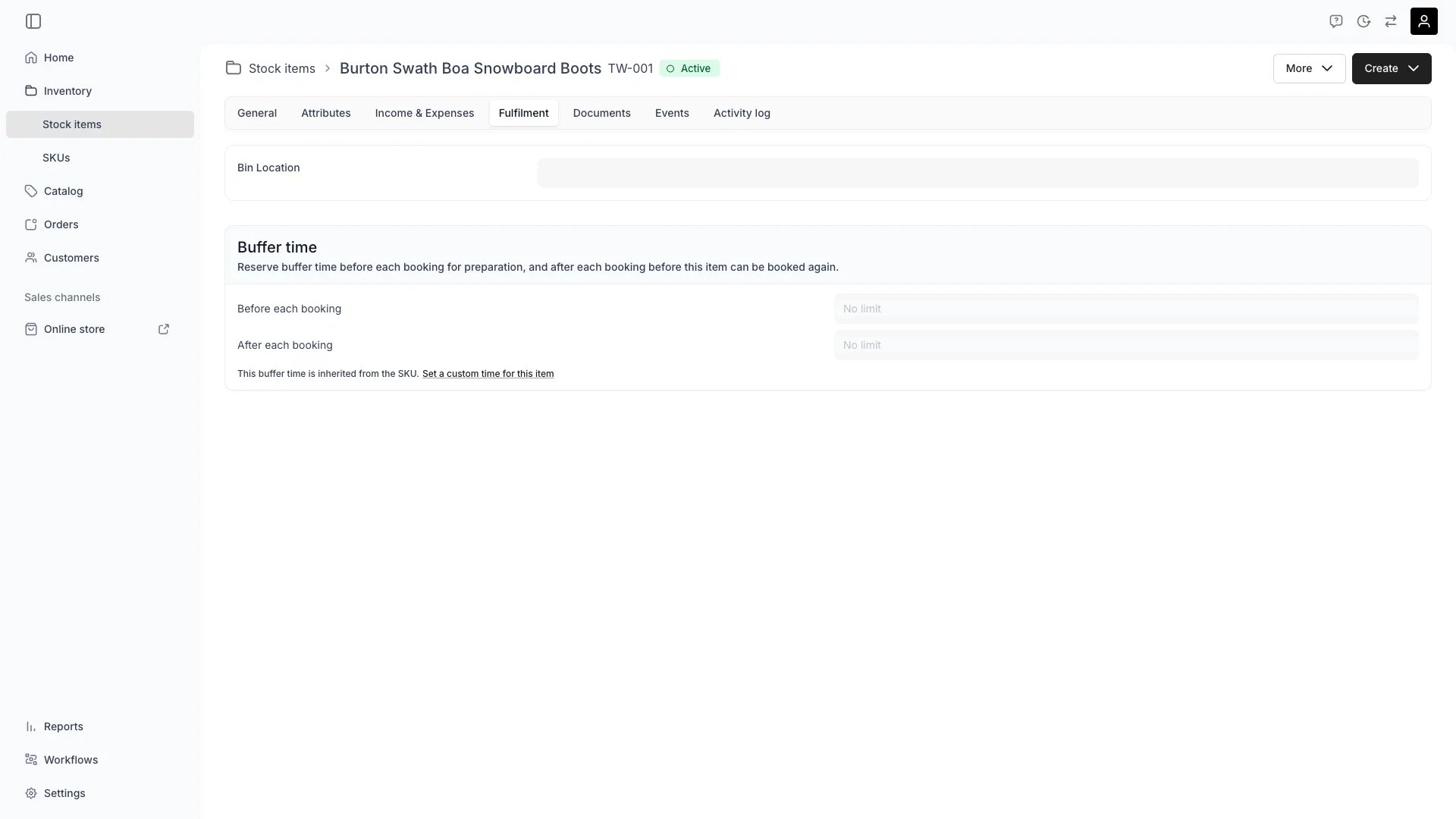
Specify where the item is physically stored within your warehouse or facility. Use the Bin Location field to add precise information about the storage spot—like "aisle 5, shelf B2", a bin number, or other specific locator. This field streamlines picking, audits, and reduces time spent searching for the item on site during order fulfillment (e.g., "Shelf 3B20" or "Ski Rack 2").
Define information that is visible or to be filled by staff during fulfillment. This can include setup instructions, configuration requirements, or customer-specific details needed for proper item preparation.
Read more: Using Fulfillment Settings
Configure suggested alternatives that can be shown to staff and customers when the original item is unavailable, using attribute-based criteria for smart substitution.
Buffer time blocks availability around each booking in two independent directions:
* **Before each booking** — a preparation window before the customer's booking starts. On the storefront, this also acts as a minimum lead time: a booking starting sooner than the buffer allows is rejected. Admin staff can bypass this and book within the buffer.
* **After each booking** — a servicing window after the booking ends. Use it for cleaning, inspection, maintenance, or transit between orders.
Each direction follows a three-state inheritance model independently:
* **Inherit from SKU** (default) — the stock item uses whatever buffer time is set on its parent [SKU](/docs/concepts/inventory/skus) for that direction. If the SKU has no buffer, the item has none.
* **No buffer** — explicitly disable buffer time for this item in that direction, even if the SKU defines one.
* **Custom override** — set a specific buffer duration (e.g. 30 minutes, 2 hours, 1 day) that applies only to this item.
Both buffers extend the item's unavailability on the calendar without changing the order's dates. A booking with a before-buffer of 1 hour and an after-buffer of 2 hours blocks the stock item from 1 hour before pickup through 2 hours after return. Customers see the buffered periods as unavailable when browsing.
Changing buffer time triggers a conflict check. If upcoming bookings overlap with the new buffer window, you can choose to skip conflicting bookings or cancel the change.
## Related Concepts
Here are a few key concepts of TWICE Commerce that relate to Fulfillment.
Fallback items are not automatically assigned but shown as suggestions based on attribute criteria you define (e.g., brand, size, performance capability).
These settings reduce manual coordination and back-and-forth communication, making fulfillment predictable and efficient across multiple locations.
Fulfillment calculations can use customer or listing level attributes to power formula-based values. For example, setting ski DIN bindings based on customer experience level, weight, and height automatically calculates the correct safety settings for each rental.
Read more: [Formulas](/docs/admin/formulas)
## Visibility and Permissions
Access to this view is controlled by your user role. Your user role determines both
visibility and
permissions for
manage,
edit, and
view access levels.
| Feature | Admin | Manager | Member |
| ----------------- | ----- | ------- | ------ |
| Storage Location | ✓ | ✓ | ✓ |
| Fallback Items | ✓ | ✓ | ✓ |
| Required Details | ✓ | ✓ | ✗ |
| Preparation Rules | ✓ | ✓ | ✗ |
| Buffer Time | ✓ | ✓ | ✓ |
| Resource | Admin | Manager | Member |
| ---------------------- | ------ | ------- | ------ |
| Storage Settings | Manage | Edit | View |
| Fallback Configuration | Manage | Edit | View |
| Detail Requirements | Manage | Edit | View |
| Buffer Time Settings | Manage | Edit | View |