> ## Documentation Index
> Fetch the complete documentation index at: https://www.twicecommerce.com/docs/llms.txt
> Use this file to discover all available pages before exploring further.
# Stock Item - Events
> View the complete history and lifecycle events of a stock item over time
export const viewAccessDefinition = "Read-only access without ability to make changes.";
export const editAccessDefinition = "Update and read data, but cannot create or delete.";
export const manageAccessDefinition = "Create, update, read, and delete data.";
export const permissionsDefinition = "The actions you are authorized to perform.";
export const visibilityDefinition = "Which features, sections, or data tables are visible to you.";
export const userRoleDefinition = "What a user can see and do. Each user has one built-in system role — Owner, Admin, Manager, or Member — and can also be assigned any number of custom roles you create with specific permissions. Effective access is the combination of all their roles.";
 This view can look different dependent on your user role.
See [Visibility & Permissions](#visibility-and-permissions) for details.
**New to Stock Items?** Understand how Stock Items differ from SKUs in our [Stock Item vs SKU](/docs/inventory/stock-item-vs-sku) guide.
## Primary Purpose
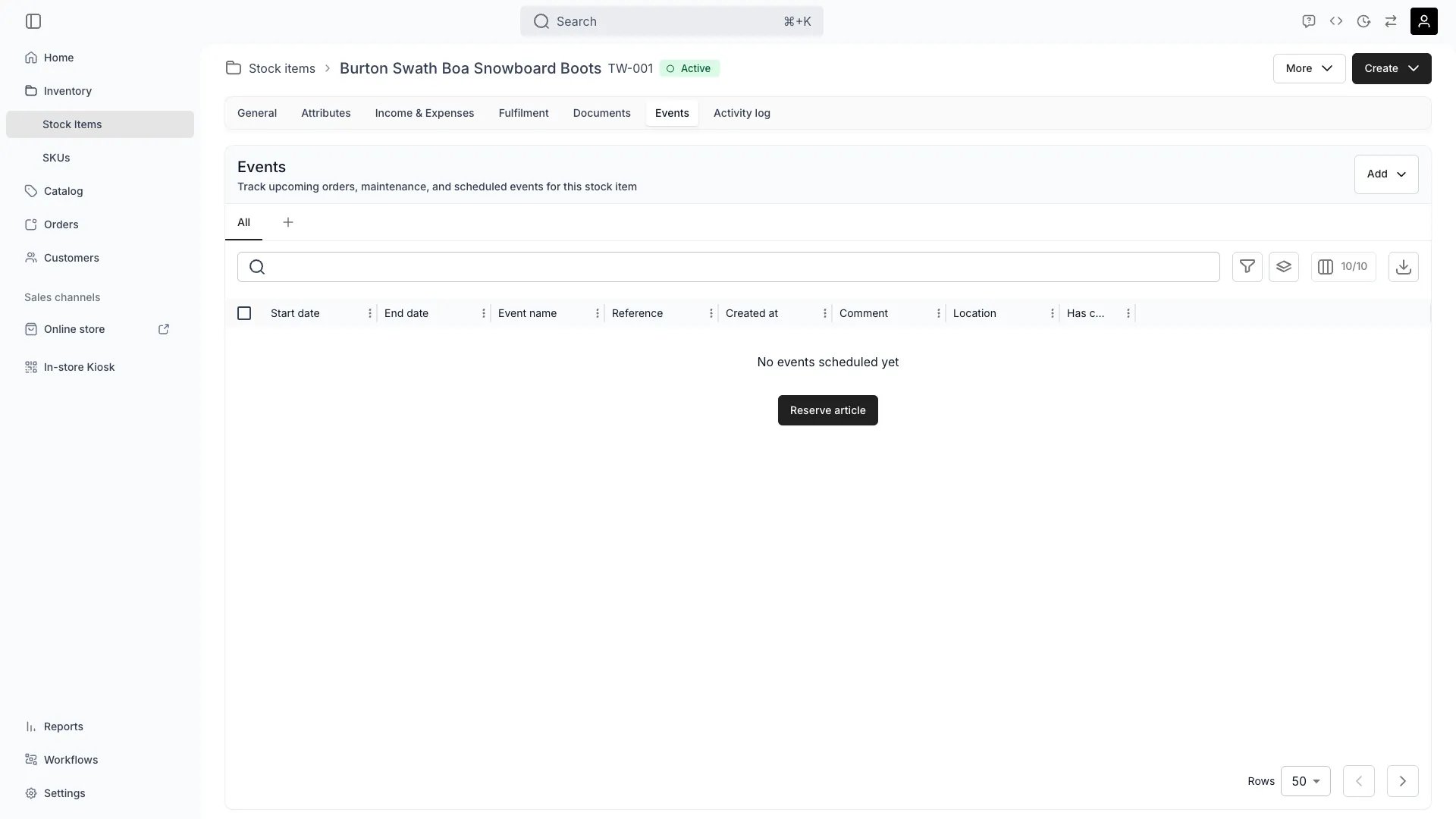
The Events tab provides a chronological view of all events in a stock item's lifecycle, from creation to current status.
Review specific events by filtering for Orders, Reservations, or Notes to focus on customer bookings, internal reservations, or documentation entries.
Quickly find events by searching for specific names, descriptions, or comments associated with each activity.
Focus on specific time periods by filtering events within custom date ranges to analyze seasonal patterns or specific timeframes.
## Related Concepts
Here are a few key concepts of TWICE Commerce that relate to Events.
Events use temporal tracking to provide historical context for all item activities.
Different event types are displayed: Orders block availability and are managed under 'Orders', Reservations block availability and are managed in the Events tab, and Notes don't block availability and are managed in the Events tab.
Event data feeds into utilization reports for business intelligence.
## Visibility and Permissions
Access to this view is controlled by your user role. Your user role determines both
visibility and
permissions for
manage,
edit, and
view access levels.
| Feature | Admin | Manager | Member |
| ----------------- | ----- | ------- | ------ |
| View Events | ✓ | ✓ | ✓ |
| Order History | ✓ | ✓ | ✓ |
| Financial Events | ✓ | ✓ | ✗ |
| Export Event Data | ✓ | ✓ | ✗ |
| Resource | Admin | Manager | Member |
| ----------------- | ------ | ------- | ------ |
| View All Events | Manage | Manage | View |
| Add Manual Events | Manage | Edit | View |
| Export Data | Manage | Edit | View |
## Related Guides
Learn about event types, attachments, and lifecycle