> ## Documentation Index
> Fetch the complete documentation index at: https://www.twicecommerce.com/docs/llms.txt
> Use this file to discover all available pages before exploring further.
# SKUs
> Browse and manage SKUs — the shared product definitions that group individual stock items
export const userRoleDefinition = "What a user can see and do. Each user has one built-in system role — Owner, Admin, Manager, or Member — and can also be assigned any number of custom roles you create with specific permissions. Effective access is the combination of all their roles.";
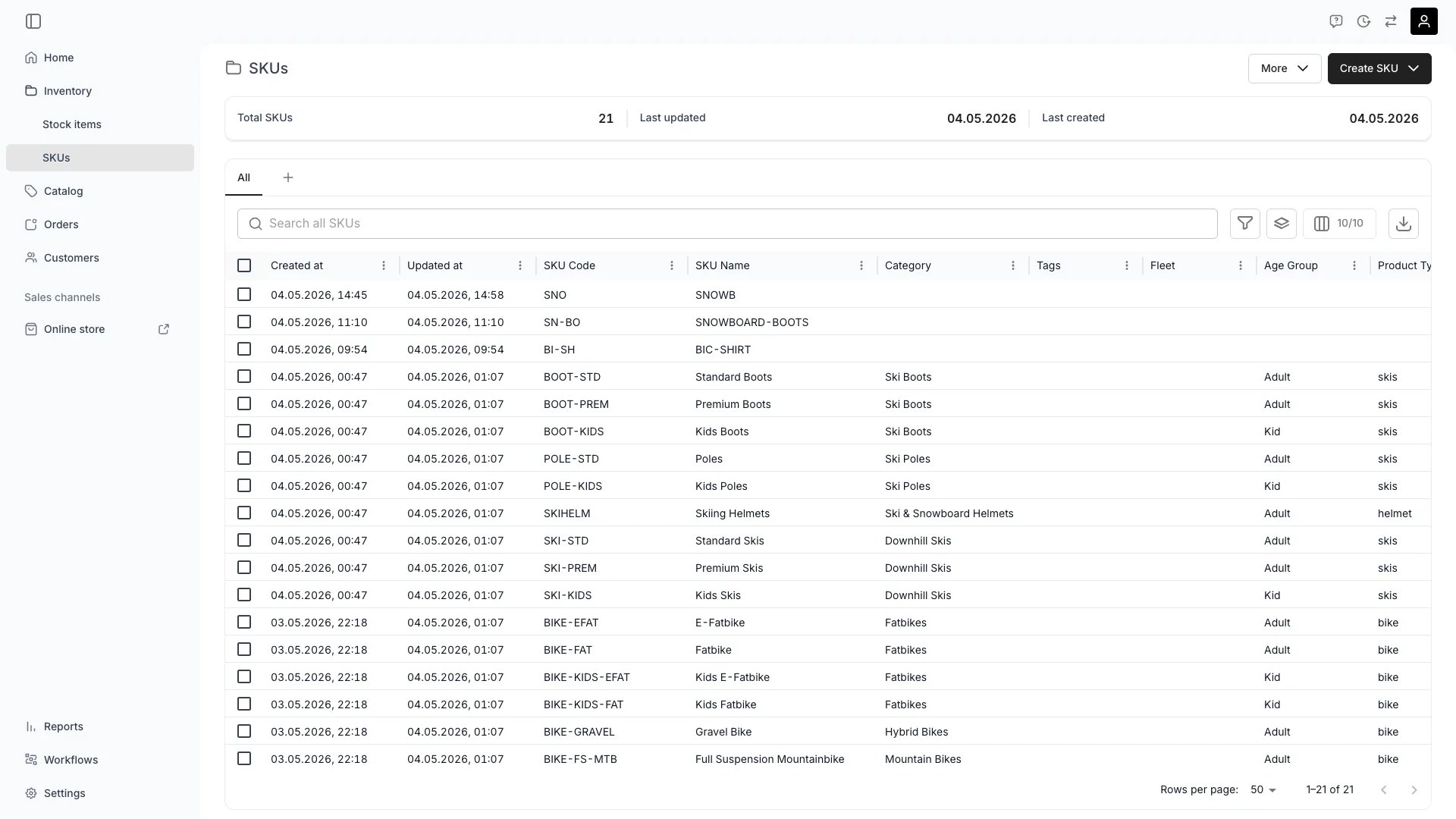 This view can look different dependent on your user role.
See [Visibility & Permissions](#visibility-and-permissions) for details.
inventory/skus
## Primary Purpose
The SKUs view lists every product definition in your inventory. SKUs group similar stock items under a shared template — attributes, descriptions, category, and default purchase price are defined once at the SKU level and inherited by each linked stock item.
Add a new SKU manually, import from a CSV, or pull from a connected supplier feed.
Select multiple SKUs to update attributes, change categories, or move them between archive states.
Search by SKU code, name, or any custom attribute. Filter by category, tags, or attribute values.
Custom [attributes](/docs/concepts/admin/attributes) defined at the SKU level appear as dynamic columns in the table. Each attribute column supports filtering and sorting based on its type — text, number, select, multi-select, or boolean. Use attribute columns to locate SKUs by specific properties like brand, material, or size.
## Related Concepts
A **SKU** is the product definition (template). A **[Stock Item](/docs/concepts/inventory/stock-items)** is an individual physical unit linked to a SKU. One SKU can have many stock items.
See [Stock Item vs SKU](/docs/inventory/stock-item-vs-sku).
SKUs are the internal product definition. [Listings](/docs/concepts/catalog/listings) are the customer-facing offerings that reference SKUs.
## Visibility and Permissions
Access to this view is controlled by your user role.
| Feature | Admin | Manager | Member |
| ------------ | :---: | :-----: | :----: |
| View SKUs | ✓ | ✓ | ✓ |
| Create SKUs | ✓ | ✓ | ✗ |
| Bulk actions | ✓ | ✓ | ✗ |
| Resource | Admin | Manager | Member |
| --------------- | ------ | ------- | ------ |
| SKUs management | Manage | Edit | View |