> ## Documentation Index
> Fetch the complete documentation index at: https://www.twicecommerce.com/docs/llms.txt
> Use this file to discover all available pages before exploring further.
# SKUs - Documents
> Manage documents that apply to all stock items grouped under a SKU
export const viewAccessDefinition = "Read-only access without ability to make changes.";
export const editAccessDefinition = "Update and read data, but cannot create or delete.";
export const manageAccessDefinition = "Create, update, read, and delete data.";
export const permissionsDefinition = "The actions you are authorized to perform.";
export const visibilityDefinition = "Which features, sections, or data tables are visible to you.";
export const userRoleDefinition = "What a user can see and do. Each user has one built-in system role — Owner, Admin, Manager, or Member — and can also be assigned any number of custom roles you create with specific permissions. Effective access is the combination of all their roles.";
 This view can look different dependent on your user role.
See [Visibility & Permissions](#visibility-and-permissions) for details.
**New to SKUs?** Understand how Stock Items differ from SKUs - [Stock Item vs SKU](/docs/inventory/stock-item-vs-sku).
## Primary Purpose
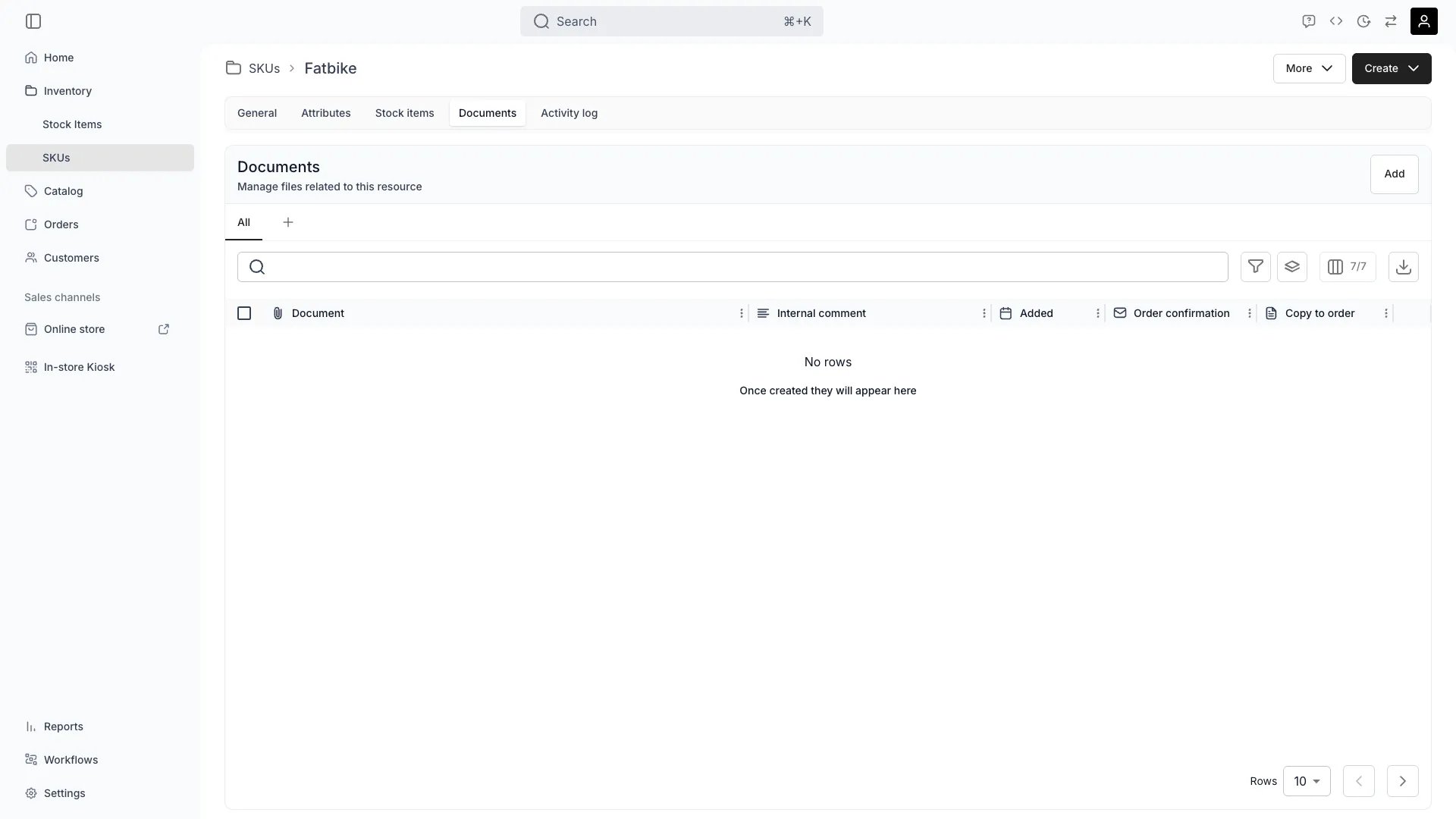
The Documents tab allows you to attach and manage files that apply to all stock items under this SKU.
Attach files such as product manuals, specifications, safety certificates, or maintenance guides that apply to all stock items of this SKU.
Upload new versions of documents when specifications change, while maintaining history of previous versions for audit and compliance purposes.
Rename any uploaded file from the row actions menu. The file's storage location stays the same — only the display name changes.
Optionally make specific documents (like user manuals or care instructions) available to customers at checkout or in order confirmations.
## Related Concepts
Here are a few key concepts of TWICE Commerce that relate to Documents at the SKU level.
Documents attached at the SKU level apply to all stock items under that SKU. For item-specific documents (e.g., individual inspection reports), attach them directly to the stock item.
Read more: [Stock Item Documents](/docs/inventory/stock-items/documents)
Stock items automatically have access to SKU-level documents, eliminating the need to upload the same file multiple times for identical products.
Certain documents can be configured to automatically display or be emailed to customers when they rent or purchase items of this SKU.
Use SKU-level documents to maintain product certifications, safety data sheets, and compliance documentation that applies to all units of this product type.
## Visibility and Permissions
Access to this view is controlled by your user role. Your user role determines both
visibility and
permissions for
manage,
edit, and
view access levels.
| Feature | Admin | Manager | Member |
| ---------------- | ----- | ------- | ------ |
| View Documents | ✓ | ✓ | ✓ |
| Upload Documents | ✓ | ✓ | ✗ |
| Rename Files | ✓ | ✓ | ✗ |
| Delete Documents | ✓ | ✓ | ✗ |
| Share Settings | ✓ | ✓ | ✗ |
| Resource | Admin | Manager | Member |
| ------------------- | ------ | ------- | ------ |
| Document Management | Manage | Edit | View |
| Customer Sharing | Manage | Edit | View |
## Related Guides
Manage documents for individual stock items