> ## Documentation Index
> Fetch the complete documentation index at: https://www.twicecommerce.com/docs/llms.txt
> Use this file to discover all available pages before exploring further.
# Home
> Your dashboard for key metrics and quick access to important functions
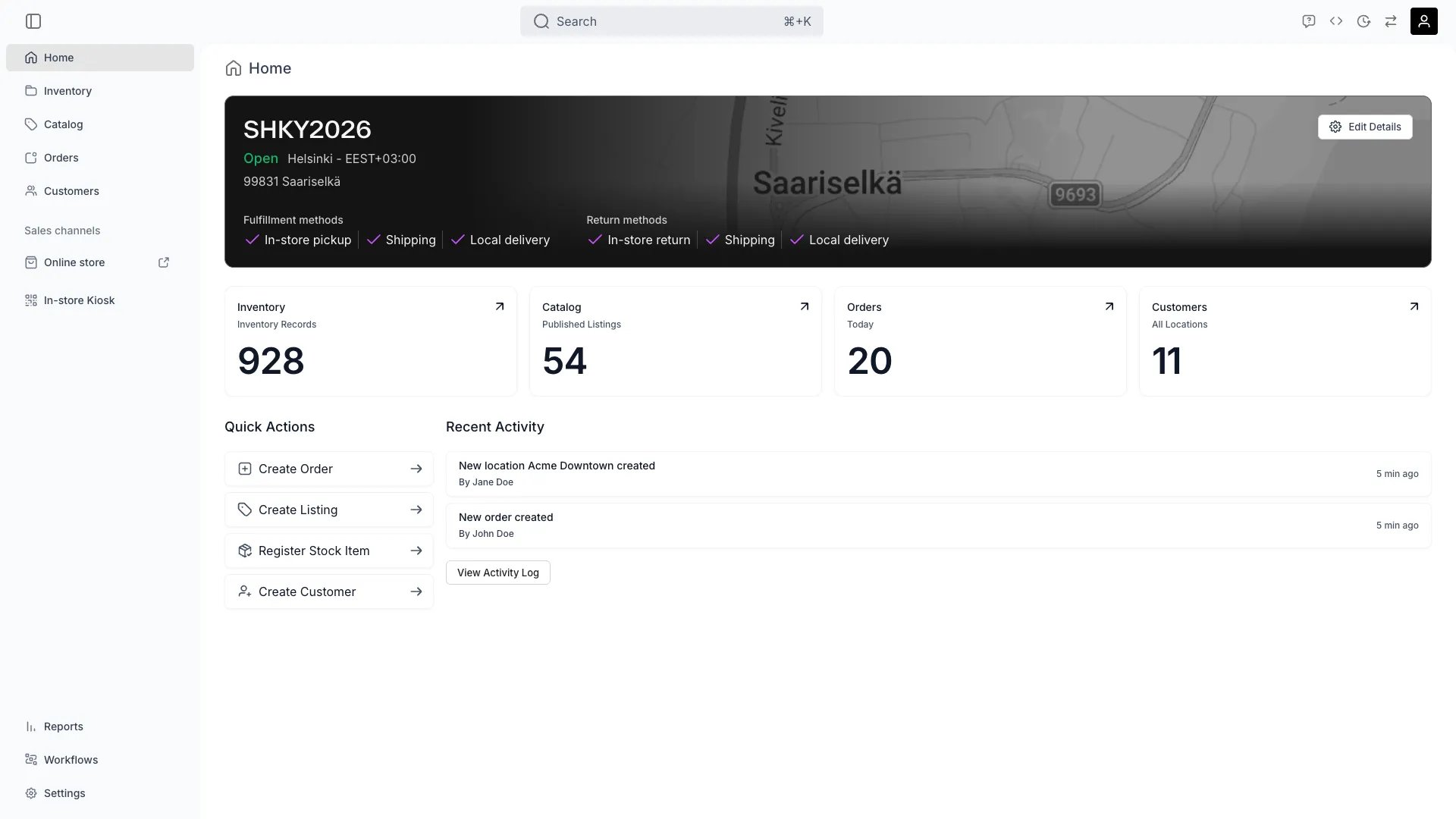 This view can look different dependent on your user role.
See [Visibility & Permissions](#visibility-and-permissions) for details.
## Primary Purpose
The Home page gives you an overview of your account and shortcuts to the most common actions.
A banner shows your [locations](/docs/settings/locations) at a glance — live and draft counts across all locations, or the selected location's details — with a shortcut to Locations settings.
Four cards summarise your account: **Inventory** (inventory records), **Catalog** (published listings), **Orders** (today), and **Customers** (all locations). Each card links to its section.
One-click shortcuts to frequent tasks: **Create Order**, **Create Listing**, **Register Stock Item**, and **Create Customer**.
## Related Concepts
Here are a few key concepts of TWICE Commerce that relate to the Home page.
Stat cards reflect the current state of your inventory, catalog, orders, and customers each time the page loads.
## Visibility and Permissions
Access to this view is controlled by your user role. Permissions use four operations —
view,
create,
manage, and
delete — per resource.
The Home page itself is visible to every role. Stat cards and quick actions follow your data permissions: a card only shows counts for data you can view, and a quick action such as **Create Order** requires the matching create permission.
| Feature | Admin | Manager | Member |
| ----------------- | :---: | :-----: | :----: |
| Location overview | ✓ | ✓ | ✓ |
| Stat cards | ✓ | ✓ | ✓ |
| Quick Actions | ✓ | ✓ | ✓ |