> ## Documentation Index
> Fetch the complete documentation index at: https://www.twicecommerce.com/docs/llms.txt
> Use this file to discover all available pages before exploring further.
# How to build the storefront's pages and navigation
> Compose each storefront page from its blocks and wire the header and footer so customers can reach them — including which pages cannot be hidden and why URLs are fixed.
 online-store/themes
A storefront is a set of page templates plus the navigation that connects them. You are not building pages one at a time for each listing — you are composing **templates** that every listing, collection and store then renders through.
Getting that distinction right is most of the job. The rest is making sure a customer can actually reach what you built.
## Prerequisites
**Required permissions:** `online_store:editor`, in view to open the editor and manage to change anything. **All four system roles hold it.** See [Users & Roles](/docs/settings/users-roles).
**Before you start:**
* **Do the global design first.** Theme tokens re-render every page, so composing pages before setting colours and typography means doing the work twice. See [Design the storefront](/docs/guides/sales-channels/design-the-storefront).
* **Remember saving is publishing.** There is no draft, so a half-composed page is live the moment you save it.
* **Have your collections in place.** Most home page blocks point at a collection, so an empty catalog makes this step guesswork.
## The Walkthrough
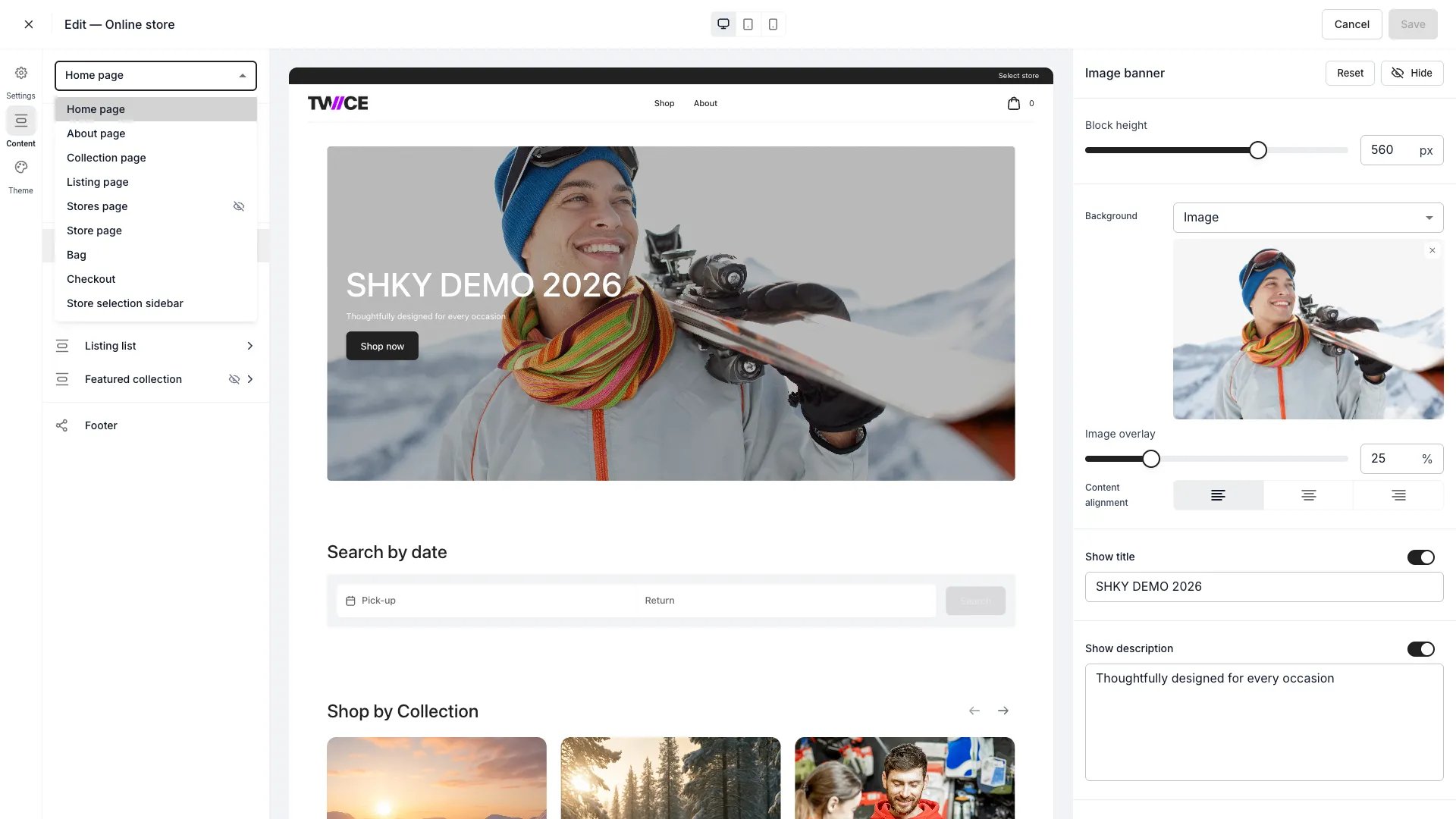
Everything in the editor's **Content** mode is one of two things, and they behave differently:
| | What it is | Where a change lands |
| ------------------- | -------------------------------------------------------------- | -------------------------- |
| **Page template** | Home, Collection, Listing, Store, Stores, About, Bag, Checkout | That page only |
| **Storewide block** | Announcement bar, Header, Footer | Every page that carries it |
So the header is not edited "on the home page" even though that is where you happen to be standing when you edit it. Change it once and it changes everywhere.
**Not every template carries every block.** Checkout and the Store selection sidebar expose only **Page settings**; the Custom scripts template has no header blocks at all; and the footer editor is unavailable on Checkout and Custom scripts.
The home page is the one you build from scratch rather than tune, and it is a stack of blocks — image banners, featured collections, listing grids, collection lists, rich text.
Two things worth deciding before you start dragging blocks in:
* **What the first screen has to do.** Usually: say what you sell and get the customer into a collection.
* **Which collections deserve a block.** A featured collection block is a merchandising decision, not a design one — see [Build a collection](/docs/guides/catalog/build-a-collection).
Every block's own settings are documented on the [Home](/docs/sales-channels/online-store/theme-editor/pages/home) page.
These three do the commercial work, and each is a template rather than a page:
* **[Collection](/docs/sales-channels/online-store/theme-editor/pages/collection)** — how a collection lists its listings, including listings per page and the filter section.
* **[Listing](/docs/sales-channels/online-store/theme-editor/pages/listing)** — the page a customer decides on. The booking options, availability and listing information blocks live here.
* **[Store](/docs/sales-channels/online-store/theme-editor/pages/store)** and **[Stores](/docs/sales-channels/online-store/theme-editor/pages/stores)** — one location, and the list of them.
Changing the Listing template changes every listing at once. That is the point, and it is also why a change here deserves a check against an unusual listing — one with variants, one with add-ons, one with a long description — rather than only your neatest example.
The **Header** block carries the logo, the navigation items, the logo and menu position, sticky behaviour, and the cart icon style.
Navigation items are the part that needs thought. You can **Add page link** to point at a storefront page, or **Add external link** for anything else — a booking policy on your marketing site, a parent brand, a help centre.
Keep it short. A storefront menu is not a sitemap, and the search bar covers what the menu cannot.
The **Footer** block toggles menu links, email signup, a description, payment icons, policy links and copyright text.
The policy links are not decoration — they are where your terms, privacy and cancellation policies actually reach a customer. Set them up under [Terms & policies](/docs/settings/terms-policies) and switch them on here.
Every template has a **Page settings** block carrying its visibility and its SEO meta title and description.
* **Show page** controls whether the page exists for customers. **Some pages cannot be hidden** — the editor says so rather than failing silently, because a storefront without them would not function.
* **The URL handle is read-only.** Page paths are fixed; you cannot rename `/collections` to `/shop`. What you *can* change is the domain in front of them — see [Set up the online store](/docs/guides/sales-channels/set-up-the-online-store).
Write the meta title and description for the pages that get found in search — home, collections, and the About page. They are the ones a search result shows.
The **Checkout** template carries **Location overrides** — **Add location override** attaches a specific checkout to a specific location, so a site with different payment arrangements per store is handled here rather than by duplicating the storefront.
Each override reports the location's state, including **Draft** and **Unavailable**, so an override pointing at a checkout that is not ready is visible rather than silently inert.
## How do I know it worked?
* **A customer can reach every page you built** from the header, the footer, or a link on the home page. A page with no route to it is not published, whatever its visibility says.
* **The Listing template holds up on an awkward listing**, not just a tidy one.
* **Policy links resolve** to the documents you actually intend.
* **Search results show the meta titles you wrote**, rather than a default.
* **The header and footer look right on every page**, because you edited them once.
## Troubleshooting / Common Pitfalls
**Working as designed.** The header, footer and announcement bar are storewide blocks — the page you were on when you edited is irrelevant.
**What to do:** nothing, if that is what you wanted. If you need a genuinely different header on one page, the storefront does not offer that.
**The URL handle is read-only and page paths are fixed.**
**What to do:** change the domain rather than the path — see [Set up the online store](/docs/guides/sales-channels/set-up-the-online-store). If a path matters for SEO reasons, put the effort into the meta title and description instead, which you do control.
**Expected — some pages cannot be hidden**, because a storefront without them does not function. The editor tells you rather than failing quietly.
**What to do:** if you do not want customers landing there, remove it from the header and footer navigation instead of hiding the page.
**Visibility and reachability are different things.** A visible page with no link to it is only reachable by typing the URL.
**What to do:** add it to the header navigation, the footer menu, or a block on the home page.
**Cause:** you tuned the template against a listing that does not exercise it — no variants, no add-ons, a short description.
**What to do:** re-check the template against your most awkward listing. The template renders them all, so the worst case is the one that matters.
**Cause:** a location override on the Checkout template, or the absence of one.
**What to do:** open the Checkout template's **Location overrides** and read each location's state — an override can point at a checkout that is **Draft** or **Unavailable**.
## Next Steps
The global design work that should come before this.
Why a template renders but the catalog is empty.
Every block on every template, in full.
The collections your home page blocks point at.
online-store/themes
A storefront is a set of page templates plus the navigation that connects them. You are not building pages one at a time for each listing — you are composing **templates** that every listing, collection and store then renders through.
Getting that distinction right is most of the job. The rest is making sure a customer can actually reach what you built.
## Prerequisites
**Required permissions:** `online_store:editor`, in view to open the editor and manage to change anything. **All four system roles hold it.** See [Users & Roles](/docs/settings/users-roles).
**Before you start:**
* **Do the global design first.** Theme tokens re-render every page, so composing pages before setting colours and typography means doing the work twice. See [Design the storefront](/docs/guides/sales-channels/design-the-storefront).
* **Remember saving is publishing.** There is no draft, so a half-composed page is live the moment you save it.
* **Have your collections in place.** Most home page blocks point at a collection, so an empty catalog makes this step guesswork.
## The Walkthrough
Everything in the editor's **Content** mode is one of two things, and they behave differently:
| | What it is | Where a change lands |
| ------------------- | -------------------------------------------------------------- | -------------------------- |
| **Page template** | Home, Collection, Listing, Store, Stores, About, Bag, Checkout | That page only |
| **Storewide block** | Announcement bar, Header, Footer | Every page that carries it |
So the header is not edited "on the home page" even though that is where you happen to be standing when you edit it. Change it once and it changes everywhere.
**Not every template carries every block.** Checkout and the Store selection sidebar expose only **Page settings**; the Custom scripts template has no header blocks at all; and the footer editor is unavailable on Checkout and Custom scripts.
The home page is the one you build from scratch rather than tune, and it is a stack of blocks — image banners, featured collections, listing grids, collection lists, rich text.
Two things worth deciding before you start dragging blocks in:
* **What the first screen has to do.** Usually: say what you sell and get the customer into a collection.
* **Which collections deserve a block.** A featured collection block is a merchandising decision, not a design one — see [Build a collection](/docs/guides/catalog/build-a-collection).
Every block's own settings are documented on the [Home](/docs/sales-channels/online-store/theme-editor/pages/home) page.
These three do the commercial work, and each is a template rather than a page:
* **[Collection](/docs/sales-channels/online-store/theme-editor/pages/collection)** — how a collection lists its listings, including listings per page and the filter section.
* **[Listing](/docs/sales-channels/online-store/theme-editor/pages/listing)** — the page a customer decides on. The booking options, availability and listing information blocks live here.
* **[Store](/docs/sales-channels/online-store/theme-editor/pages/store)** and **[Stores](/docs/sales-channels/online-store/theme-editor/pages/stores)** — one location, and the list of them.
Changing the Listing template changes every listing at once. That is the point, and it is also why a change here deserves a check against an unusual listing — one with variants, one with add-ons, one with a long description — rather than only your neatest example.
The **Header** block carries the logo, the navigation items, the logo and menu position, sticky behaviour, and the cart icon style.
Navigation items are the part that needs thought. You can **Add page link** to point at a storefront page, or **Add external link** for anything else — a booking policy on your marketing site, a parent brand, a help centre.
Keep it short. A storefront menu is not a sitemap, and the search bar covers what the menu cannot.
The **Footer** block toggles menu links, email signup, a description, payment icons, policy links and copyright text.
The policy links are not decoration — they are where your terms, privacy and cancellation policies actually reach a customer. Set them up under [Terms & policies](/docs/settings/terms-policies) and switch them on here.
Every template has a **Page settings** block carrying its visibility and its SEO meta title and description.
* **Show page** controls whether the page exists for customers. **Some pages cannot be hidden** — the editor says so rather than failing silently, because a storefront without them would not function.
* **The URL handle is read-only.** Page paths are fixed; you cannot rename `/collections` to `/shop`. What you *can* change is the domain in front of them — see [Set up the online store](/docs/guides/sales-channels/set-up-the-online-store).
Write the meta title and description for the pages that get found in search — home, collections, and the About page. They are the ones a search result shows.
The **Checkout** template carries **Location overrides** — **Add location override** attaches a specific checkout to a specific location, so a site with different payment arrangements per store is handled here rather than by duplicating the storefront.
Each override reports the location's state, including **Draft** and **Unavailable**, so an override pointing at a checkout that is not ready is visible rather than silently inert.
## How do I know it worked?
* **A customer can reach every page you built** from the header, the footer, or a link on the home page. A page with no route to it is not published, whatever its visibility says.
* **The Listing template holds up on an awkward listing**, not just a tidy one.
* **Policy links resolve** to the documents you actually intend.
* **Search results show the meta titles you wrote**, rather than a default.
* **The header and footer look right on every page**, because you edited them once.
## Troubleshooting / Common Pitfalls
**Working as designed.** The header, footer and announcement bar are storewide blocks — the page you were on when you edited is irrelevant.
**What to do:** nothing, if that is what you wanted. If you need a genuinely different header on one page, the storefront does not offer that.
**The URL handle is read-only and page paths are fixed.**
**What to do:** change the domain rather than the path — see [Set up the online store](/docs/guides/sales-channels/set-up-the-online-store). If a path matters for SEO reasons, put the effort into the meta title and description instead, which you do control.
**Expected — some pages cannot be hidden**, because a storefront without them does not function. The editor tells you rather than failing quietly.
**What to do:** if you do not want customers landing there, remove it from the header and footer navigation instead of hiding the page.
**Visibility and reachability are different things.** A visible page with no link to it is only reachable by typing the URL.
**What to do:** add it to the header navigation, the footer menu, or a block on the home page.
**Cause:** you tuned the template against a listing that does not exercise it — no variants, no add-ons, a short description.
**What to do:** re-check the template against your most awkward listing. The template renders them all, so the worst case is the one that matters.
**Cause:** a location override on the Checkout template, or the absence of one.
**What to do:** open the Checkout template's **Location overrides** and read each location's state — an override can point at a checkout that is **Draft** or **Unavailable**.
## Next Steps
The global design work that should come before this.
Why a template renders but the catalog is empty.
Every block on every template, in full.
The collections your home page blocks point at.